> ## Documentation Index
> Fetch the complete documentation index at: https://docs.zionapp.co/llms.txt
> Use this file to discover all available pages before exploring further.
# Marking attendance
> Mark daily student attendance with a three-tap workflow, clear a status, or correct a prior day as an administrator
Administrators, supervisors, and monitors mark daily attendance for the students in their learning centre. Marking is restricted to your organization's current local calendar date. Only an administrator can change a date after it has passed, using an audited correction workflow.
## Accessing attendance marking
Open Attendance from the dashboard navigation.
Administrators can choose any active learning centre or view all centres. Supervisors and monitors only see the centres they are assigned to.
The date defaults to today, in your organization's local timezone. This is the only date you can mark through the normal workflow.
Tapping a status again for the same student on the same day updates their existing record instead of creating a duplicate entry.
## The three-tap workflow
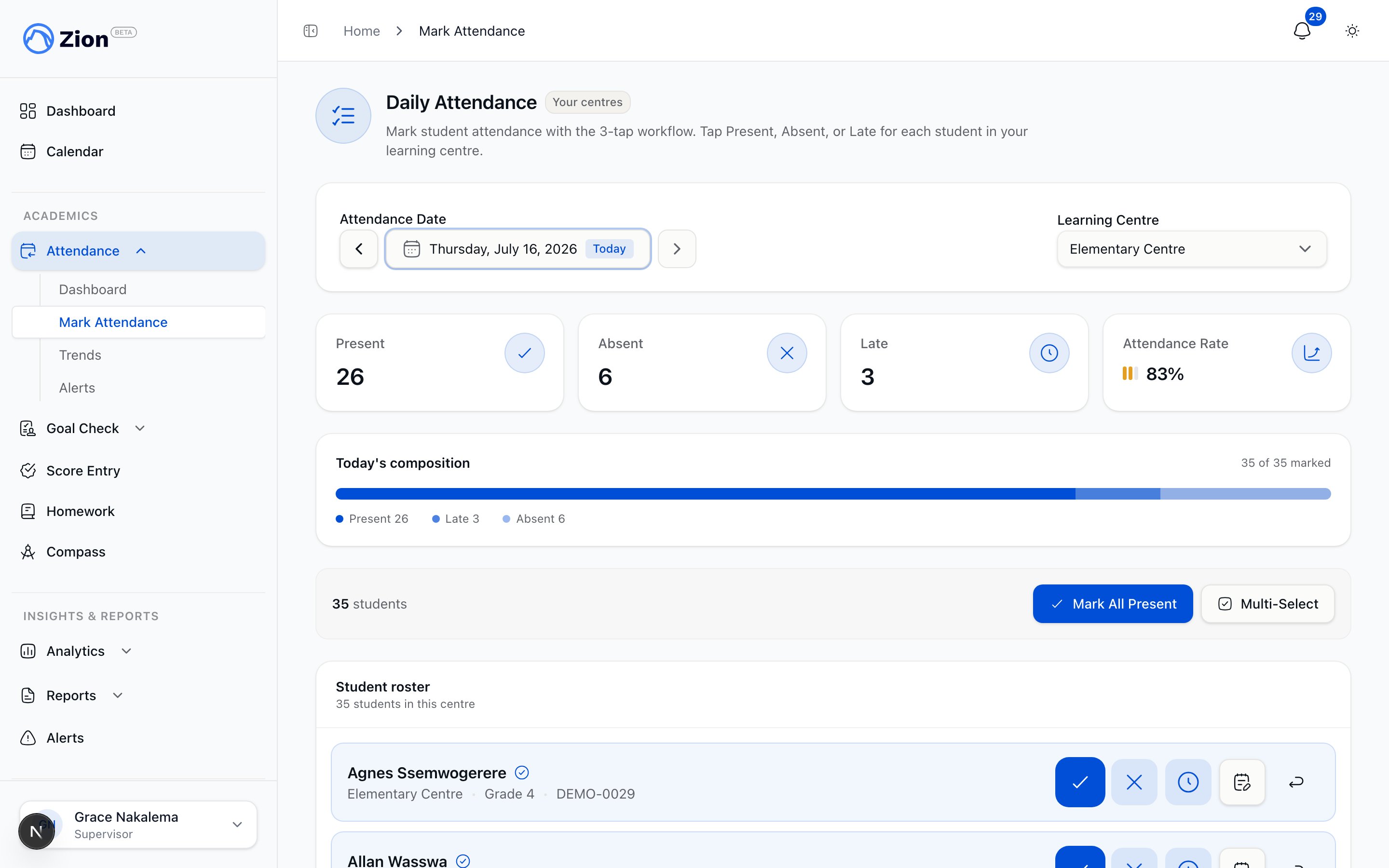 Each student row supports three taps: open the row, choose a status, and (for Late) confirm a detail. There is no separate submit button, each tap saves immediately.
The row expands to show the status buttons.
Choose Present, Absent, or Late.
Optionally set the arrival time and a note. The status saves as soon as you tap it, the arrival time and note can be added right after.
| Status | When to use |
| ------- | -------------------------------------------------------------------------- |
| Present | Student is in class. |
| Absent | Student is not present for the day. |
| Late | Student arrived after the start time. Arrival time and notes are optional. |
Students appear unmarked first, then alphabetically, so you can see at the top of the list who still needs a status. A summary bar tracks total, marked, unmarked, present, absent, and late counts as you go.
A "Mark All Present" action opens a dialog with every student pre-selected present. Flip the few who are absent or late, add a late arrival time or a short note where it helps, then apply once to save the whole roster in one step. Separately, a Multi-Select mode lets you tick specific students and mark that group present, absent, or late together.
You can add a note to any student, whether they already have a status or not. If the student is still unmarked, the note is saved the next time you tap a status for them; once they have a status, the note saves as soon as you finish typing it. Notes are visible to administrators reviewing that day's attendance.
## Clearing a student's attendance
If a status was set in error, you can return the student to unmarked instead of switching to a different status.
Tap the student who already has a status.
This removes the current status and returns the student to the unmarked bucket for the day.
Clearing is available for the current day through the same interface as marking. It is logged to the attendance audit trail like any other change.
## Administrator prior-day correction
The normal marking screen only writes to today's date. Once your organization's local calendar day has passed, that date is locked for supervisors and monitors.
Administrators can still fix a past date through correction mode.
Open Attendance and choose the date you need to correct.
A correction banner appears because the selected date is in the past. Enabling it switches the screen into an edit path built for corrections rather than first-time marking.
Change the status as needed. The edit is recorded as an audited before-and-after entry rather than a plain mark.
Correction mode is administrator-only. Supervisors and monitors cannot mark or edit any date other than the current org-local day.
Every correction is captured in the attendance audit trail with the prior status, the new status, who made the change, and when. See [Corrections and notifications](/features/audit/corrections-and-notifications) for how audited changes are recorded and surfaced.
## Related pages
How marking, alerts, and reporting fit together.
Dashboard, trends, and reports for administrators.
How consecutive-absence and absence-rate alerts are generated and reviewed.
How audited corrections are logged across Zion.
Each student row supports three taps: open the row, choose a status, and (for Late) confirm a detail. There is no separate submit button, each tap saves immediately.
The row expands to show the status buttons.
Choose Present, Absent, or Late.
Optionally set the arrival time and a note. The status saves as soon as you tap it, the arrival time and note can be added right after.
| Status | When to use |
| ------- | -------------------------------------------------------------------------- |
| Present | Student is in class. |
| Absent | Student is not present for the day. |
| Late | Student arrived after the start time. Arrival time and notes are optional. |
Students appear unmarked first, then alphabetically, so you can see at the top of the list who still needs a status. A summary bar tracks total, marked, unmarked, present, absent, and late counts as you go.
A "Mark All Present" action opens a dialog with every student pre-selected present. Flip the few who are absent or late, add a late arrival time or a short note where it helps, then apply once to save the whole roster in one step. Separately, a Multi-Select mode lets you tick specific students and mark that group present, absent, or late together.
You can add a note to any student, whether they already have a status or not. If the student is still unmarked, the note is saved the next time you tap a status for them; once they have a status, the note saves as soon as you finish typing it. Notes are visible to administrators reviewing that day's attendance.
## Clearing a student's attendance
If a status was set in error, you can return the student to unmarked instead of switching to a different status.
Tap the student who already has a status.
This removes the current status and returns the student to the unmarked bucket for the day.
Clearing is available for the current day through the same interface as marking. It is logged to the attendance audit trail like any other change.
## Administrator prior-day correction
The normal marking screen only writes to today's date. Once your organization's local calendar day has passed, that date is locked for supervisors and monitors.
Administrators can still fix a past date through correction mode.
Open Attendance and choose the date you need to correct.
A correction banner appears because the selected date is in the past. Enabling it switches the screen into an edit path built for corrections rather than first-time marking.
Change the status as needed. The edit is recorded as an audited before-and-after entry rather than a plain mark.
Correction mode is administrator-only. Supervisors and monitors cannot mark or edit any date other than the current org-local day.
Every correction is captured in the attendance audit trail with the prior status, the new status, who made the change, and when. See [Corrections and notifications](/features/audit/corrections-and-notifications) for how audited changes are recorded and surfaced.
## Related pages
How marking, alerts, and reporting fit together.
Dashboard, trends, and reports for administrators.
How consecutive-absence and absence-rate alerts are generated and reviewed.
How audited corrections are logged across Zion.