> ## Documentation Index
> Fetch the complete documentation index at: https://docs.zionapp.co/llms.txt
> Use this file to discover all available pages before exploring further.
# Attendance overview
> Daily Present, Absent, or Late marking with chronic-absence alerts, dashboards, trends, and reports
Zion's Attendance module records daily student status, watches for chronic absence, and gives centre staff a dashboard, trend view, and exportable reports. Administrators, supervisors, and monitors mark and review attendance. Parents and students see a read-only summary of their own child or themselves.
 ## Who does what
| Role | Mark attendance | Correct a past day | Dashboard, trends, alerts | Reports |
| ------------- | ---------------- | ------------------------ | ------------------------------------- | ------------------------------- |
| Administrator | All centres | Yes (audited correction) | Org-wide | Yes |
| Supervisor | Assigned centres | No | Assigned centres | Not available in the current UI |
| Monitor | Assigned centres | No | Not available | Not available |
| Parent | No | No | Read-only summary for their own child | No |
| Student | No | No | Read-only summary for themselves | No |
Supervisors and monitors only see the learning centres they are assigned to. Administrators see every centre. A custom role grant can also give someone marking or viewing access beyond these base roles.
## Marking the day
Attendance staff select a date and a learning centre, then tap Present, Absent, or Late for each student. A Late status can carry an arrival time and notes. Only the current day, based on the organization's local calendar date, is open for normal marking. Once that day passes, the entry locks.
A "Mark All Present" action opens a dialog with everyone pre-selected present, so staff only flip the few students who are absent or late, then apply once. Multiple students can also be selected and marked together. A student can be cleared back to unmarked if a status was entered by mistake.
On a locked past date, an administrator can turn on correction mode and edit an individual student's status. Every correction is written to an audit trail with the before and after value.
The full marking workflow, bulk actions, and correction mode
## Chronic absence alerts
Zion generates alerts automatically every morning, before the school day starts, and an administrator can also trigger generation manually at any time. An alert is created, escalated, or resolved based on these thresholds, which an organization can adjust from its default values:
| Level | Default trigger |
| -------- | ------------------------------------------------ |
| Warning | 3 or more consecutive school-day absences |
| Critical | 5 or more consecutive school-day absences |
| Critical | Absence rate above 20% over the trailing 30 days |
Consecutive absences are counted backward through school days, skipping weekends and holidays, and stop counting at the first present, late, or unrecorded day. An alert moves from warning to critical automatically if the student's absences continue, and resolves on its own once the student no longer meets either threshold.
An open alert is acknowledged with required intervention notes, or dismissed with a required reason. Both actions are centre-scoped, so a supervisor or monitor can only act on alerts for their assigned centres, and both are recorded in the audit trail. Org admins, plus any supervisor or monitor assigned to the affected student's centre, also receive a notification. Once staff act on an alert, Zion holds off on raising a new one for the same student for about a week, unless their absences get bad enough to reach the next severity level sooner.
Thresholds, the acknowledge and dismiss workflow, and notification delivery
## Dashboard
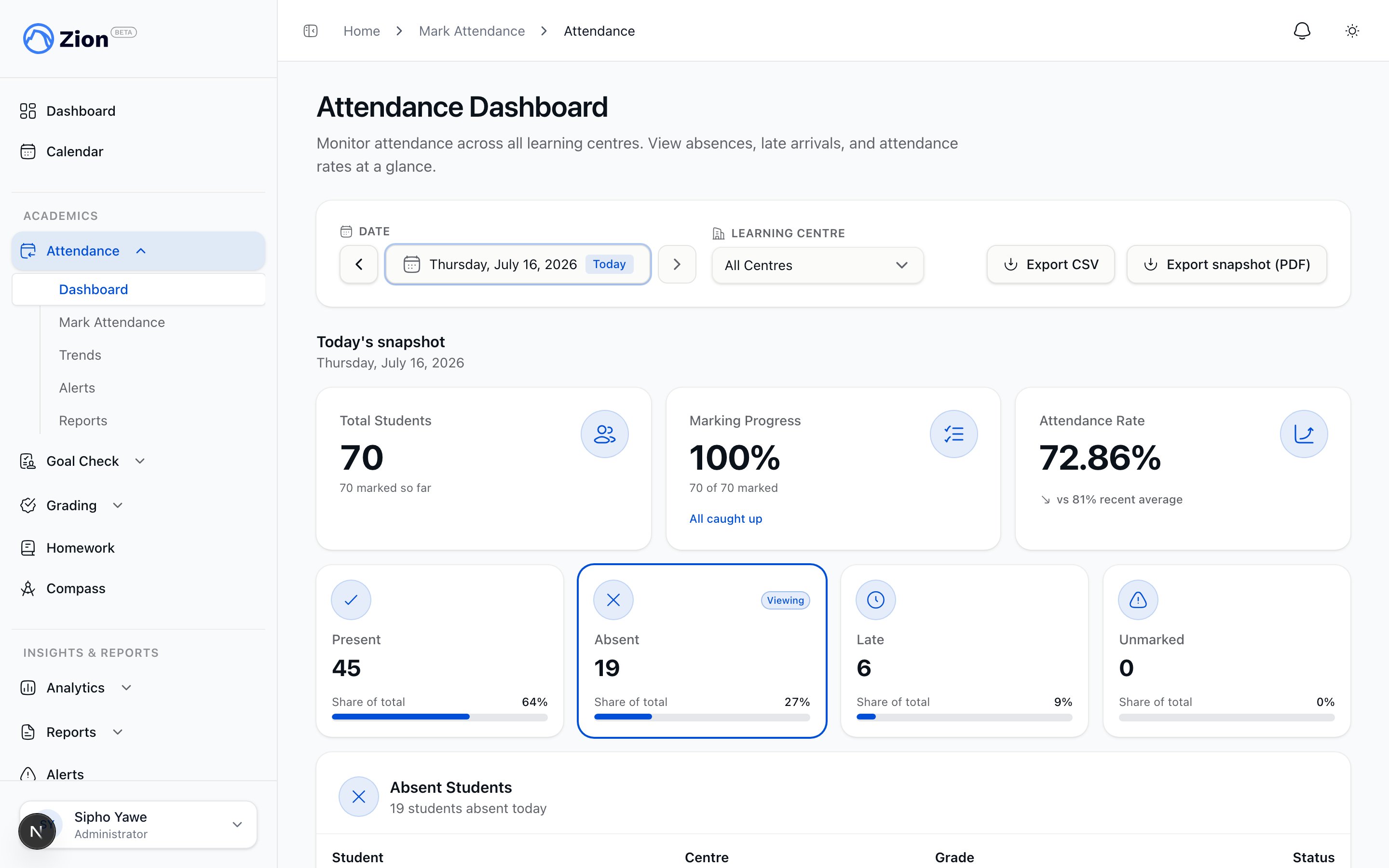
The attendance dashboard shows the day's present, absent, and late counts, the attendance rate, and a centre-by-centre breakdown. An administrator sees every centre; a supervisor sees only the centres they are assigned to.
## Trends
The trends view opens with a summary: students tracked, the average attendance rate, the trend direction (improving, stable, or declining), and the best and worst day, over 7 days, 30 days, the current term, or a custom range. Administrators also get a day-of-week breakdown, a highlight of any centre whose rate stands out from the organization average, a handful of auto-generated highlights, a per-student lookup, and a centre-by-centre comparison, all exportable as a PDF. Supervisors see the same breakdown and highlights for their own centre, without the cross-centre comparison.
Reading the trend chart and the summary figures
## Reports
An administrator can generate a daily, weekly, monthly, term, or custom-range report with total, present, absent, and late counts, an overall rate, a centre breakdown, chronic-absence and late-arrival student lists, and day-of-week statistics. A report can optionally include Goal Check correlation data. The PDF carries your school's own branding and draws a present/absent/late breakdown and a per-centre comparison as charts in the document. Reports export as PDF or CSV, are kept in a history list, and can be shared by email. A weekly attendance report is also generated and emailed automatically.
Report types, contents, and export and sharing options
## Parent and student visibility
Parents see an attendance summary for each of their accepted children on the parent dashboard: percent present over the last 30 school days, absent and late counts, and a list of recent absence and late events. Students see the same figures for themselves on the student dashboard. Neither view includes marking, correction, or alert actions.
Daily marking, bulk actions, and administrator corrections
Thresholds, escalation, and the acknowledge or dismiss workflow
Trend charts and direction summaries
Generating, exporting, and sharing reports
The full workflow for administrators
The daily workflow for supervisors
## Who does what
| Role | Mark attendance | Correct a past day | Dashboard, trends, alerts | Reports |
| ------------- | ---------------- | ------------------------ | ------------------------------------- | ------------------------------- |
| Administrator | All centres | Yes (audited correction) | Org-wide | Yes |
| Supervisor | Assigned centres | No | Assigned centres | Not available in the current UI |
| Monitor | Assigned centres | No | Not available | Not available |
| Parent | No | No | Read-only summary for their own child | No |
| Student | No | No | Read-only summary for themselves | No |
Supervisors and monitors only see the learning centres they are assigned to. Administrators see every centre. A custom role grant can also give someone marking or viewing access beyond these base roles.
## Marking the day
Attendance staff select a date and a learning centre, then tap Present, Absent, or Late for each student. A Late status can carry an arrival time and notes. Only the current day, based on the organization's local calendar date, is open for normal marking. Once that day passes, the entry locks.
A "Mark All Present" action opens a dialog with everyone pre-selected present, so staff only flip the few students who are absent or late, then apply once. Multiple students can also be selected and marked together. A student can be cleared back to unmarked if a status was entered by mistake.
On a locked past date, an administrator can turn on correction mode and edit an individual student's status. Every correction is written to an audit trail with the before and after value.
The full marking workflow, bulk actions, and correction mode
## Chronic absence alerts
Zion generates alerts automatically every morning, before the school day starts, and an administrator can also trigger generation manually at any time. An alert is created, escalated, or resolved based on these thresholds, which an organization can adjust from its default values:
| Level | Default trigger |
| -------- | ------------------------------------------------ |
| Warning | 3 or more consecutive school-day absences |
| Critical | 5 or more consecutive school-day absences |
| Critical | Absence rate above 20% over the trailing 30 days |
Consecutive absences are counted backward through school days, skipping weekends and holidays, and stop counting at the first present, late, or unrecorded day. An alert moves from warning to critical automatically if the student's absences continue, and resolves on its own once the student no longer meets either threshold.
An open alert is acknowledged with required intervention notes, or dismissed with a required reason. Both actions are centre-scoped, so a supervisor or monitor can only act on alerts for their assigned centres, and both are recorded in the audit trail. Org admins, plus any supervisor or monitor assigned to the affected student's centre, also receive a notification. Once staff act on an alert, Zion holds off on raising a new one for the same student for about a week, unless their absences get bad enough to reach the next severity level sooner.
Thresholds, the acknowledge and dismiss workflow, and notification delivery
## Dashboard
The attendance dashboard shows the day's present, absent, and late counts, the attendance rate, and a centre-by-centre breakdown. An administrator sees every centre; a supervisor sees only the centres they are assigned to.
## Trends
The trends view opens with a summary: students tracked, the average attendance rate, the trend direction (improving, stable, or declining), and the best and worst day, over 7 days, 30 days, the current term, or a custom range. Administrators also get a day-of-week breakdown, a highlight of any centre whose rate stands out from the organization average, a handful of auto-generated highlights, a per-student lookup, and a centre-by-centre comparison, all exportable as a PDF. Supervisors see the same breakdown and highlights for their own centre, without the cross-centre comparison.
Reading the trend chart and the summary figures
## Reports
An administrator can generate a daily, weekly, monthly, term, or custom-range report with total, present, absent, and late counts, an overall rate, a centre breakdown, chronic-absence and late-arrival student lists, and day-of-week statistics. A report can optionally include Goal Check correlation data. The PDF carries your school's own branding and draws a present/absent/late breakdown and a per-centre comparison as charts in the document. Reports export as PDF or CSV, are kept in a history list, and can be shared by email. A weekly attendance report is also generated and emailed automatically.
Report types, contents, and export and sharing options
## Parent and student visibility
Parents see an attendance summary for each of their accepted children on the parent dashboard: percent present over the last 30 school days, absent and late counts, and a list of recent absence and late events. Students see the same figures for themselves on the student dashboard. Neither view includes marking, correction, or alert actions.
Daily marking, bulk actions, and administrator corrections
Thresholds, escalation, and the acknowledge or dismiss workflow
Trend charts and direction summaries
Generating, exporting, and sharing reports
The full workflow for administrators
The daily workflow for supervisors