> ## Documentation Index
> Fetch the complete documentation index at: https://docs.zionapp.co/llms.txt
> Use this file to discover all available pages before exploring further.
# Exporting Goal Check data
> Download a branded PDF snapshot of a single day, or pull raw Goal Check data from the unified Data Export center
Zion gives you two different ways to get Goal Check data out of the app: a one-day branded PDF snapshot from the dashboard, and a raw data export you can filter and download as a spreadsheet.
## Export the dashboard as a PDF
This is a quick, one-day snapshot for administrators. For a formatted, whole-week report with charts and trends, see [Goal Check reports](/features/goal-check/reports) instead.
On the Goal Check Intelligence dashboard, administrators can click Export PDF to download a branded document for whichever day is selected. It includes:
* The day's headline numbers: total students, students with goals set, and the overall completion rate, drawn as a fill gauge
* A bar chart comparing every learning centre's completion rate for that day, plus the underlying table
* The students flagged at risk that day, with the reason and severity
* The status of any reports generated for that day
## Export raw Goal Check data
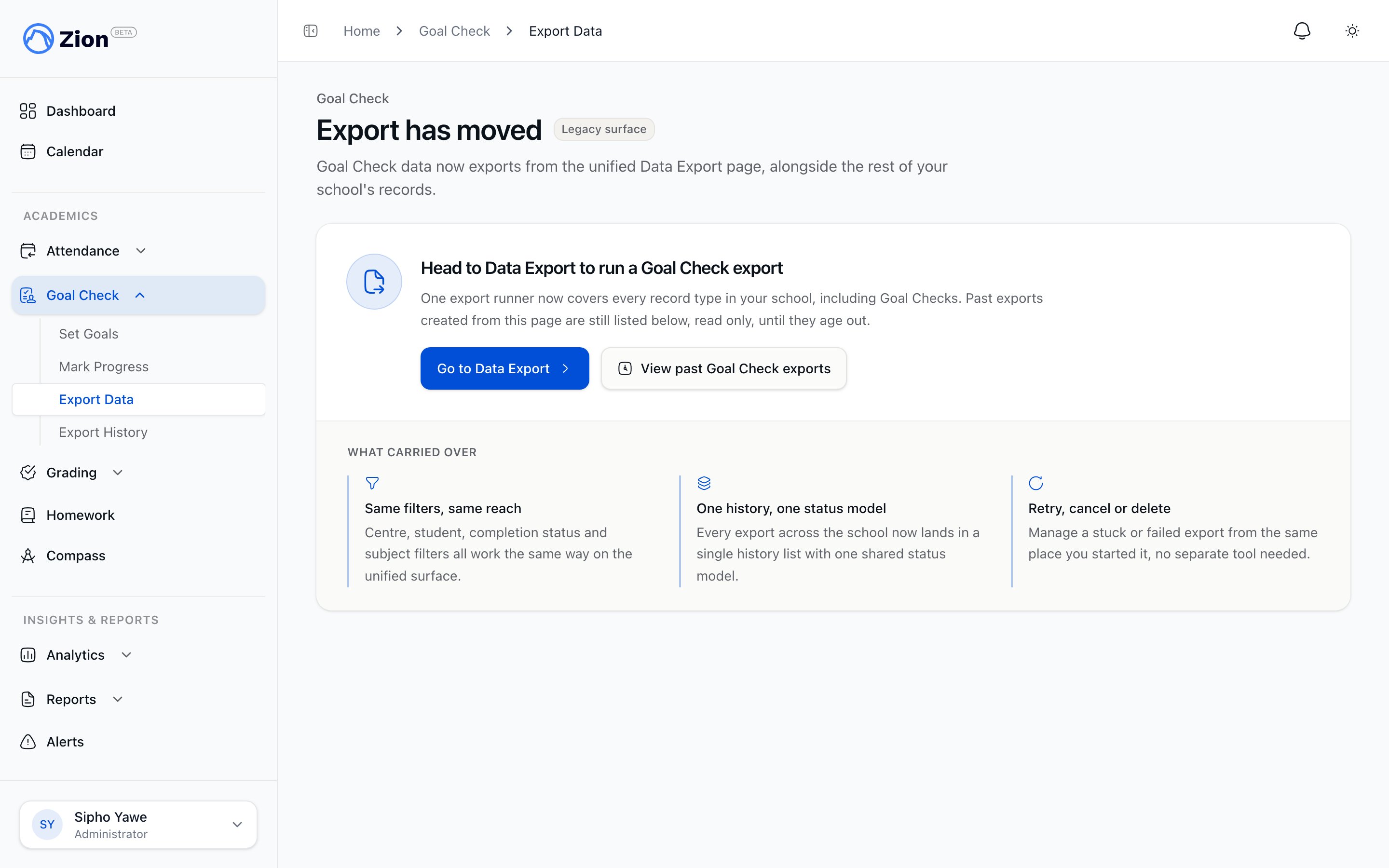
**The old dedicated Goal Check export page is deprecated.** It no longer generates new exports. Opening it shows a notice pointing you to the unified Data Export center, plus read-only access to exports you generated there before.
Goal Check data export now lives inside the unified Data Export center, alongside every other record type in your school. From there, administrators and supervisors request an export covering multiple entities, including Goal Checks, in one job instead of a separate Goal-Check-only export.
Any Goal Check export you generate now, whether from the one-click "Export everything" button or a filtered request, follows the unified 7-day download window. Exports generated by the old page are still listed read-only in its export history, but their download links expire after 24 hours instead.
 Open Settings, then select the Data Export tab.
Pick a date range, or check "All time" to skip date picking and export full history.
Choose Goal Checks along with any other entities you need, such as students, attendance, or grades. Selecting Goal Checks reveals optional filters for completion status and PACE subject.
Administrators can scope to specific centres or a single student. Supervisors are automatically scoped to their assigned centre(s) and cannot change this.
The job queues, runs, and becomes ready. Download from the Export History table or from the emailed link, which stays valid for 7 days.
Full walkthrough of the unified Data Export center: entities, scoping, job states, and history.
What Goal Check data covers and who enters it.
Generate formatted, whole-week reports instead of a raw data export.
Reference for CSV structure across Zion's import and export features.
Open Settings, then select the Data Export tab.
Pick a date range, or check "All time" to skip date picking and export full history.
Choose Goal Checks along with any other entities you need, such as students, attendance, or grades. Selecting Goal Checks reveals optional filters for completion status and PACE subject.
Administrators can scope to specific centres or a single student. Supervisors are automatically scoped to their assigned centre(s) and cannot change this.
The job queues, runs, and becomes ready. Download from the Export History table or from the emailed link, which stays valid for 7 days.
Full walkthrough of the unified Data Export center: entities, scoping, job states, and history.
What Goal Check data covers and who enters it.
Generate formatted, whole-week reports instead of a raw data export.
Reference for CSV structure across Zion's import and export features.