> ## Documentation Index
> Fetch the complete documentation index at: https://docs.zionapp.co/llms.txt
> Use this file to discover all available pages before exploring further.
# Marking Progress
> Record actual pages completed against each morning goal and see variance calculated automatically
Mark Progress is the standalone end-of-day screen for Goal Check. For every PACE that had a goal set that morning, you record the pages a student actually completed, and Zion works out whether the goal was completed, exceeded, or missed. Supervisors and monitors mark progress for the learning centres they are assigned to. Administrators can mark progress for any centre.
Zion also ships a guided, one-student-at-a-time daily routine (Morning Routine and End of Day) that covers the same morning-goal and end-of-day steps in a single full-screen session. This page covers the standalone Mark Progress screen. See [Goal Check Overview](/features/goal-check/overview) for how the two relate.
## Opening Mark Progress
Expand Goal Check, then select Mark Progress.
Use the student selector to pick who you are marking. The list shows each student's learning centre and a marking indicator (a percentage for students with unmarked goals, a checkmark once every goal for the week is marked).
Use the on-screen Previous/Next buttons, or the left and right arrow keys, to move to the next student without returning to the dropdown.
Turn on "Show only students with unmarked goals" to filter the selector down to students who still need marking, or use "Jump to Next Unmarked" to skip straight to the next one.
## The goal card
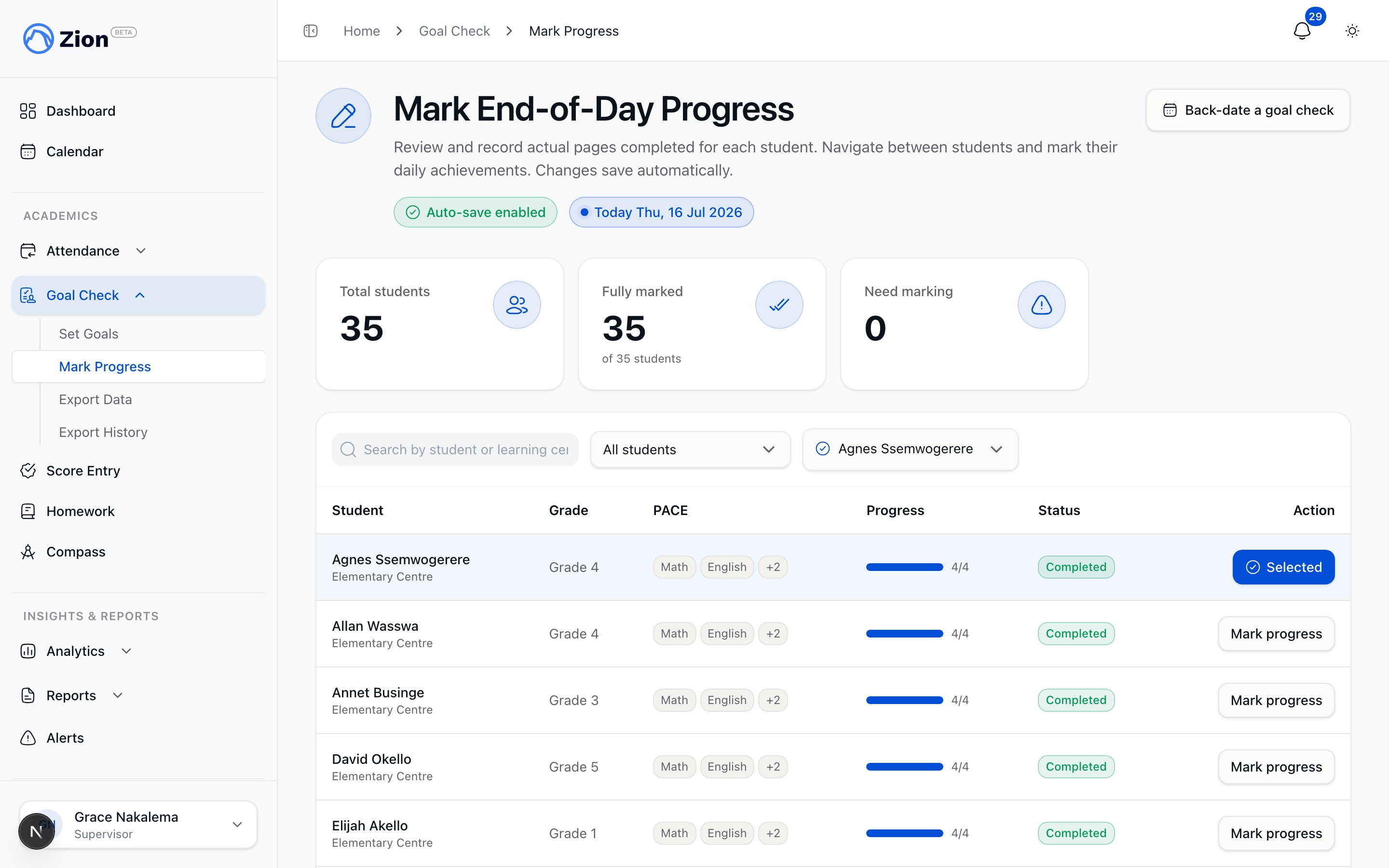 Progress is marked on a weekly grid, one row per school day (Monday to Friday) and one column per PACE subject the student is assigned. Use the week navigation arrows above the grid to move to a different week, including a past week you have not yet marked.
Each cell shows the goal already set for that day and PACE. Click a cell to mark it. A marking cell first asks for a status:
| Status | What it records |
| ------------------- | ------------------------------------------------------------------------------------ |
| Mark complete | Actual start and end page for the day |
| Absent | No pages worked, with an optional reason |
| Excused | No pages worked, with an optional reason |
| Doing non-PACE work | The student was present but working on something other than their PACE goal that day |
Choosing "Doing non-PACE work" also asks for an activity type, so the record shows what the student actually did: Review, Essay / Writing, Science Project, Activity Manual, Special Activity, or Other. Absent, Excused, and Doing non-PACE work all take an optional note instead of pages.
Absent, Excused, and Doing non-PACE work are honest records of a day that could not be measured against a page goal. None of the three ever count as a missed goal, and Zion leaves them out of completion rates and out of the automatically discovered patterns on the Insights page, so an absence never drags down a student's numbers.
For "Mark complete," enter the actual start page and actual end page the student worked to that day, then save. The end page cannot exceed the PACE's total page count. Zion then compares the actual pages to the goal and shows one of three outcomes on the cell:
| Outcome | Meaning |
| --------- | ----------------------------------- |
| Completed | Actual pages met the goal |
| Exceeded | Actual pages went beyond the goal |
| Missed | Actual pages fell short of the goal |
A cell with a goal that has not been marked yet shows as Goal Set (no outcome). A cell with no goal at all shows as Not Set and cannot be marked.
## Understanding variance
Variance is the actual pages completed minus the goal pages for that PACE and day. Positive variance means the student went past the goal; negative variance means they fell short. The weekly totals row at the bottom of the grid rolls this up across the whole week for each subject and for the student overall, so you can see whether a student is tracking ahead of, on, or behind their weekly goals.
## Correcting a marked entry
Once a goal is marked, you can reopen it to correct the actual pages, notes, or a structured reason for a miss (absent, behind pace, found it difficult, support needed, or other) through the Correct and Result actions on the cell. These corrections are audited. A marked goal can also be deleted through an audited path if it needs to be removed entirely.
Monitors mark progress but do not see the Correct, Result, or audited-delete controls on an already-marked cell. If an entry needs to change after marking, ask a supervisor or administrator.
A goal that has not been marked yet (still "not started") can be deleted directly by anyone who can mark progress, since nothing has been recorded against it. This is a plain delete, not an audited correction.
## Homework verification
Below the goal card, the Mark Progress page also shows a homework panel so staff can verify completed PACE pages against assigned homework for the same student at the point of marking. See [Homework Overview](/features/homework/overview) for details on that feature.
## Related pages
How the morning goal for each PACE gets set before progress can be marked.
How Mark Progress fits into the full Goal Check workflow.
The guided Morning Routine and End of Day session that walks a whole centre through the same data.
Weekly reports built from marked goals and variance.
Progress is marked on a weekly grid, one row per school day (Monday to Friday) and one column per PACE subject the student is assigned. Use the week navigation arrows above the grid to move to a different week, including a past week you have not yet marked.
Each cell shows the goal already set for that day and PACE. Click a cell to mark it. A marking cell first asks for a status:
| Status | What it records |
| ------------------- | ------------------------------------------------------------------------------------ |
| Mark complete | Actual start and end page for the day |
| Absent | No pages worked, with an optional reason |
| Excused | No pages worked, with an optional reason |
| Doing non-PACE work | The student was present but working on something other than their PACE goal that day |
Choosing "Doing non-PACE work" also asks for an activity type, so the record shows what the student actually did: Review, Essay / Writing, Science Project, Activity Manual, Special Activity, or Other. Absent, Excused, and Doing non-PACE work all take an optional note instead of pages.
Absent, Excused, and Doing non-PACE work are honest records of a day that could not be measured against a page goal. None of the three ever count as a missed goal, and Zion leaves them out of completion rates and out of the automatically discovered patterns on the Insights page, so an absence never drags down a student's numbers.
For "Mark complete," enter the actual start page and actual end page the student worked to that day, then save. The end page cannot exceed the PACE's total page count. Zion then compares the actual pages to the goal and shows one of three outcomes on the cell:
| Outcome | Meaning |
| --------- | ----------------------------------- |
| Completed | Actual pages met the goal |
| Exceeded | Actual pages went beyond the goal |
| Missed | Actual pages fell short of the goal |
A cell with a goal that has not been marked yet shows as Goal Set (no outcome). A cell with no goal at all shows as Not Set and cannot be marked.
## Understanding variance
Variance is the actual pages completed minus the goal pages for that PACE and day. Positive variance means the student went past the goal; negative variance means they fell short. The weekly totals row at the bottom of the grid rolls this up across the whole week for each subject and for the student overall, so you can see whether a student is tracking ahead of, on, or behind their weekly goals.
## Correcting a marked entry
Once a goal is marked, you can reopen it to correct the actual pages, notes, or a structured reason for a miss (absent, behind pace, found it difficult, support needed, or other) through the Correct and Result actions on the cell. These corrections are audited. A marked goal can also be deleted through an audited path if it needs to be removed entirely.
Monitors mark progress but do not see the Correct, Result, or audited-delete controls on an already-marked cell. If an entry needs to change after marking, ask a supervisor or administrator.
A goal that has not been marked yet (still "not started") can be deleted directly by anyone who can mark progress, since nothing has been recorded against it. This is a plain delete, not an audited correction.
## Homework verification
Below the goal card, the Mark Progress page also shows a homework panel so staff can verify completed PACE pages against assigned homework for the same student at the point of marking. See [Homework Overview](/features/homework/overview) for details on that feature.
## Related pages
How the morning goal for each PACE gets set before progress can be marked.
How Mark Progress fits into the full Goal Check workflow.
The guided Morning Routine and End of Day session that walks a whole centre through the same data.
Weekly reports built from marked goals and variance.