> ## Documentation Index
> Fetch the complete documentation index at: https://docs.zionapp.co/llms.txt
> Use this file to discover all available pages before exploring further.
# Setting daily goals
> Set weekly PACE page goals for a student, or a whole learning centre, using the Goal Check entry screen
Goal Check entry is where an administrator, supervisor, or monitor sets the page range a student should complete in each assigned PACE. Goals are set on a weekly grid, one row per weekday and one column group per subject, and the same grid is used later to mark actual progress.
 ## Who can set goals
Administrators, supervisors, and monitors can set goals. Supervisors and monitors only see students in the learning centres they are assigned to. Administrators see every centre.
## Opening the entry screen
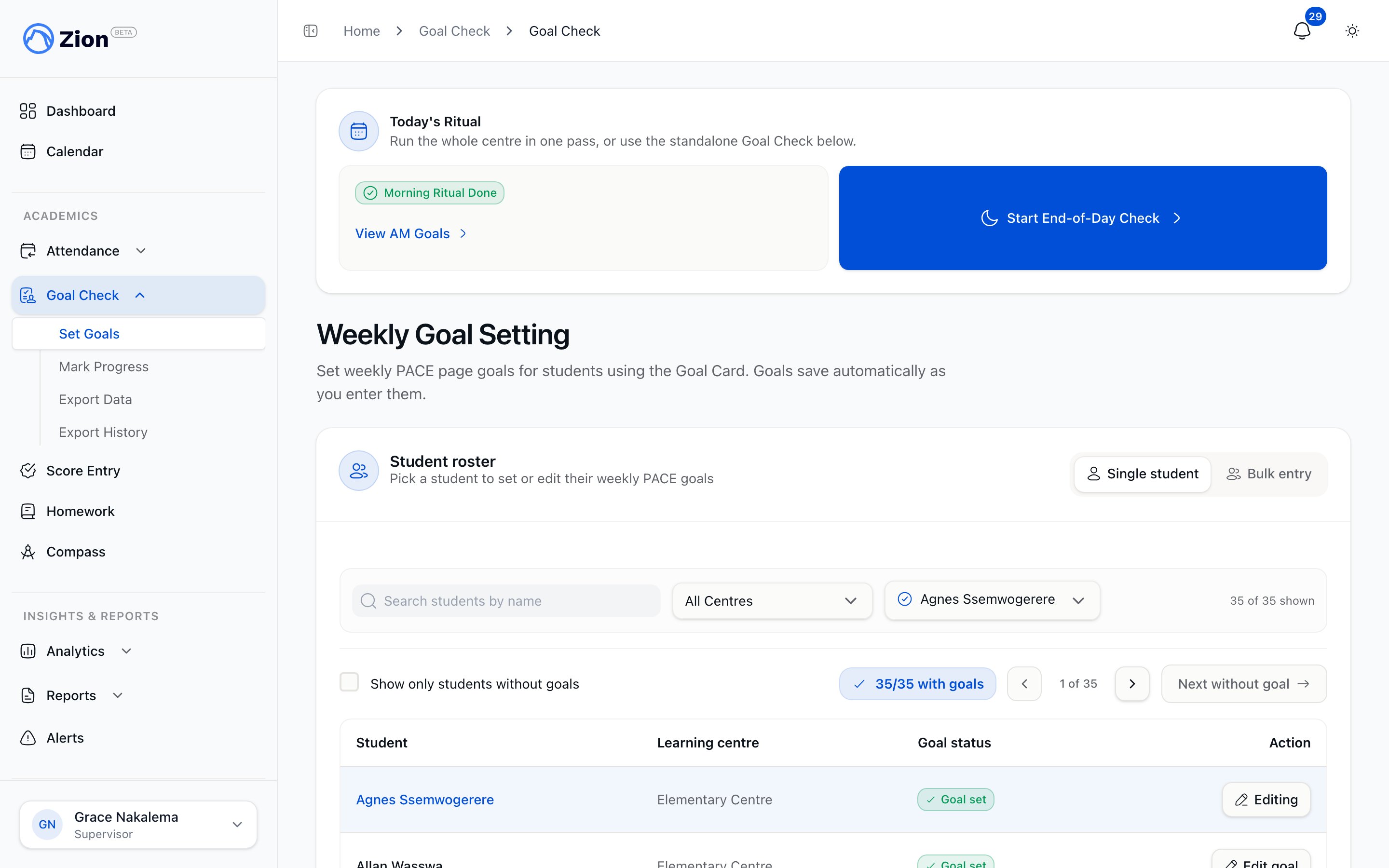
In the sidebar, open Goal Check, then click Set Goals. This opens the Weekly Goal Setting screen.
Use the Learning Centre filter to scope the student list, or leave it on All Centres.
Use the Student selector, or the previous and next student buttons, or the left and right arrow keys, to move between students. A dot next to a name marks a student who has no goal set for the displayed week; a checkmark marks one who does.
Turn on "Show only students without goals" to filter the student list down to coverage gaps, or click "Next without goal" to jump straight to the next student missing a goal for the week.
## Entering a goal
Each student's grid shows one column per assigned PACE and one row per weekday (Monday through Friday). Click an empty cell to enter a goal.
**Fields:**
| Field | Behavior |
| ----------- | -------------------------------------------------------------------------------------------------------------------------- |
| Start page | Page number the student begins from that day. Type a value; there is no default. |
| End page | Page number the student should reach that day. Bounded by the PACE's total page count; the field rejects a value above it. |
| Total pages | End minus start plus one. Calculated and shown after the goal is set; not directly editable. |
Click Save to write the goal, or Cancel to discard the cell.
A PACE with no total page count recorded cannot be goaled. Its end-page limit resolves to zero, so no valid range can be entered. Ask an administrator to set the PACE's page count before setting a goal against it.
### Quick-template chips
While a cell is open, three chips (5, 8, 10) fill in a page range starting from wherever the student's PACE currently stands, clamped to the PACE's total page count. Confirm or adjust the prefilled values, then click Save. If the PACE is already complete, the chips have nothing to fill and a message says so.
### Deleting a goal
A goal that has not yet been marked can be deleted directly from its cell (no reason required, since nothing was recorded against it). A goal that has already been marked can only be removed through the audited correction path, available to administrators and supervisors.
## Bulk entry
Switch from the Single student tab to Bulk entry to set goals for several students in one pass instead of opening each student's grid individually.
Check the students in the centre roster you want to set goals for, or check the header box to select everyone.
Choose 5, 8, or 10 pages. Each selected student's goal continues from their current progress in every assigned PACE, clamped to that PACE's total pages.
Click "Apply \[N]-page goals to selected" to create the goals, or "Copy yesterday's goals" to copy the previous day's ranges onto the selected students instead.
The roster table shows each selected student's PACE count and whether they already have goals set, so gaps are visible before you apply anything.
The full-screen Morning Routine and End of Day session is a separate, guided way to run Goal Check for an entire centre in one pass. See [The daily routine](/features/goal-check/rituals) for how its goal-setting step differs, including its automatically derived start page.
## Related pages
Record actual pages completed at the end of the day.
Run Goal Check for a whole centre in one guided session.
Assign PACEs to a student before setting goals.
Review goal achievement across a centre or the whole school.
## Who can set goals
Administrators, supervisors, and monitors can set goals. Supervisors and monitors only see students in the learning centres they are assigned to. Administrators see every centre.
## Opening the entry screen
In the sidebar, open Goal Check, then click Set Goals. This opens the Weekly Goal Setting screen.
Use the Learning Centre filter to scope the student list, or leave it on All Centres.
Use the Student selector, or the previous and next student buttons, or the left and right arrow keys, to move between students. A dot next to a name marks a student who has no goal set for the displayed week; a checkmark marks one who does.
Turn on "Show only students without goals" to filter the student list down to coverage gaps, or click "Next without goal" to jump straight to the next student missing a goal for the week.
## Entering a goal
Each student's grid shows one column per assigned PACE and one row per weekday (Monday through Friday). Click an empty cell to enter a goal.
**Fields:**
| Field | Behavior |
| ----------- | -------------------------------------------------------------------------------------------------------------------------- |
| Start page | Page number the student begins from that day. Type a value; there is no default. |
| End page | Page number the student should reach that day. Bounded by the PACE's total page count; the field rejects a value above it. |
| Total pages | End minus start plus one. Calculated and shown after the goal is set; not directly editable. |
Click Save to write the goal, or Cancel to discard the cell.
A PACE with no total page count recorded cannot be goaled. Its end-page limit resolves to zero, so no valid range can be entered. Ask an administrator to set the PACE's page count before setting a goal against it.
### Quick-template chips
While a cell is open, three chips (5, 8, 10) fill in a page range starting from wherever the student's PACE currently stands, clamped to the PACE's total page count. Confirm or adjust the prefilled values, then click Save. If the PACE is already complete, the chips have nothing to fill and a message says so.
### Deleting a goal
A goal that has not yet been marked can be deleted directly from its cell (no reason required, since nothing was recorded against it). A goal that has already been marked can only be removed through the audited correction path, available to administrators and supervisors.
## Bulk entry
Switch from the Single student tab to Bulk entry to set goals for several students in one pass instead of opening each student's grid individually.
Check the students in the centre roster you want to set goals for, or check the header box to select everyone.
Choose 5, 8, or 10 pages. Each selected student's goal continues from their current progress in every assigned PACE, clamped to that PACE's total pages.
Click "Apply \[N]-page goals to selected" to create the goals, or "Copy yesterday's goals" to copy the previous day's ranges onto the selected students instead.
The roster table shows each selected student's PACE count and whether they already have goals set, so gaps are visible before you apply anything.
The full-screen Morning Routine and End of Day session is a separate, guided way to run Goal Check for an entire centre in one pass. See [The daily routine](/features/goal-check/rituals) for how its goal-setting step differs, including its automatically derived start page.
## Related pages
Record actual pages completed at the end of the day.
Run Goal Check for a whole centre in one guided session.
Assign PACEs to a student before setting goals.
Review goal achievement across a centre or the whole school.