> ## Documentation Index
> Fetch the complete documentation index at: https://docs.zionapp.co/llms.txt
> Use this file to discover all available pages before exploring further.
# Moderation
> How internal moderation finalizes a score, how optional external moderation works, and how moderator roles are delegated
Graded test scores (PACE Tests and Final Tests) for students at or above the school's moderation grade, Grade 8 by default, are moderated before they count toward averages, progress, and report cards. Self Tests are readiness checks and never enter moderation; they finalize the moment a score is entered.
Administrators moderate by default. A school can delegate who may internally moderate to supervisors or monitors instead. This page covers how moderation works, the moderation queue, SLA tracking and alerts, and how the moderator role is configured.
## How it works
Staff enter a score at Grading, then Score Entry. If the student is at or above the moderation grade and the test type is graded (PACE Test or Final Test), the score is held pending internal moderation.
A moderator reviews the score at Grading, then Moderation Queue, and enters their own mark for it. As soon as they submit it, the score is final and counts toward averages, progress, and report cards right away. Instead of entering a mark, the moderator can reject the score back to whoever entered it, with a mandatory reason, so it can be corrected and resubmitted.
An external moderator can add their own mark on top of an already-finalized score, at Grading, then External Moderation, for the compliance record. This does not change the final grade, which stays the internal moderator's mark. A school runs this step when it wants a second, external check; it is not required for a score to count.
The same person can never both enter a score and moderate it. Whoever internally moderates a score must be someone other than who entered it, and an external moderator must be someone other than whoever moderated it internally. The one exception is the "enter already-moderated marks" fast path on the score entry screen, where a school transcribes marks that were already decided on paper; there, one person may enter all three marks. See [Score entry](/features/grading/score-entry).
## Internal moderation queue
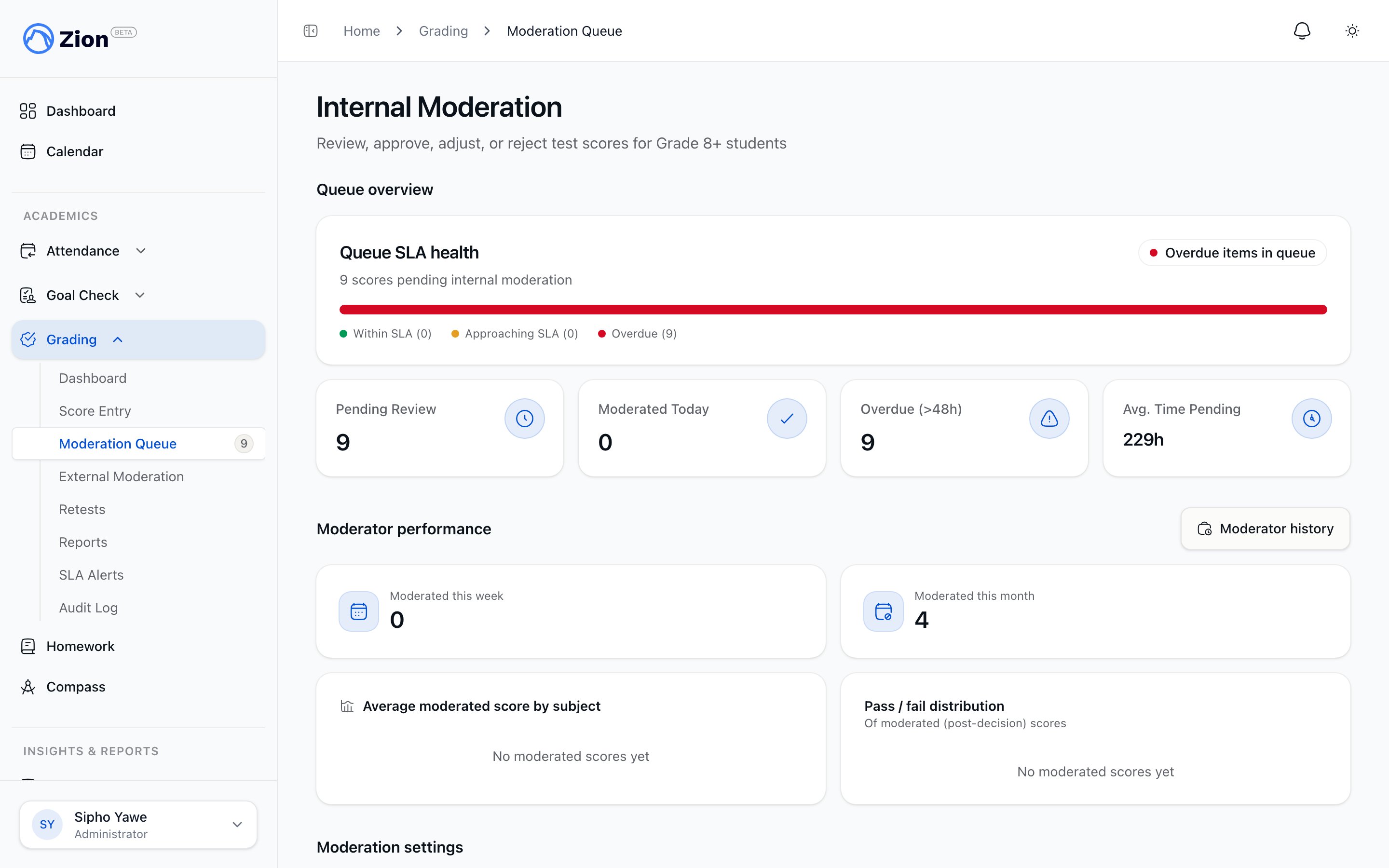 Navigate to Grading, then Moderation Queue. The queue lists every score awaiting internal moderation, filterable by learning centre, subject, grade level, and SLA status. Each row shows the student, PACE, the entered score, pass or fail, who entered it, entry time, and hours pending.
For each pending score, a moderator has two actions:
### Record the internal moderator mark
The moderator enters their own mark for the test, which may match the mark already on record or differ from it. Submitting it finalizes the score immediately. An optional note can be attached.
### Reject
Rejecting sends the score back to the original grader instead. This requires a reason of at least 10 characters. The original grader (or another staff member at that centre) can resubmit a corrected score from the Rejected Scores section of Score Entry, which restarts the moderation clock.
A rejection reason under 10 characters is rejected by the form. This is enforced for audit compliance, not a soft suggestion.
## External moderation, optional
Navigate to Grading, then External Moderation to see scores that have already been finalized by internal moderation and have not yet received an external mark. This is where a school adds a second, external check for compliance purposes.
Recording an external mark does not change the score. The internal moderator's mark stays the final grade; the external mark is stored alongside it for the compliance record. Because this step is optional, a school can run every score through it, only some, or none at all, and a score still counts toward grades, progress, and reports as soon as internal moderation finalizes it.
A finalized score that already carries an external mark cannot be externally moderated again. To fix a mistake in an already-finalized score, an administrator or supervisor uses the score correction path described in [Audit Trail](/features/grading/audit-trail).
## Delegating who can internally moderate
By default, only the administrator role can internally moderate. A school can delegate this to supervisors or monitors instead, from the Moderation Role Settings card on the Moderation Queue page, administrator-only. It cannot be delegated to student or parent roles.
A delegated moderator's authority is scoped to the learning centres they are assigned to. They cannot moderate scores at a centre they are not assigned to, and if an administrator removes the delegation, it takes effect immediately.
A staff member can also gain centre-scoped moderation authority through an individual permission grant, independent of the delegated role setting. See [Roles and Permissions](/features/organization/roles-and-permissions).
## Moderation queue management
### Reassigning a stuck moderation
An administrator can reassign a pending score to a different active staff member (administrator, supervisor, or monitor) from the queue. Reassignment updates the assigned moderator and notifies them.
### Moderator metrics and history
The moderation queue page shows per-moderator performance metrics and a moderation history. Any moderator can view their own history; administrators can view any moderator's history.
### Filtering and prioritizing
Filter the queue by learning centre, subject, grade level, or SLA status to divide work across multiple moderators, or to focus on the oldest items first.
## SLA tracking and moderation alerts
Internal and external moderation each have their own clock, and the two windows are different lengths.
**Internal moderation**, clock starts at score entry:
| Status | Time pending |
| ------------- | ---------------- |
| Within target | Under 36 hours |
| Approaching | 36 to 48 hours |
| Overdue | 48 to 72 hours |
| Escalated | 72 hours or more |
**External moderation**, clock starts when the score is internally finalized:
| Status | Time pending |
| ------------- | ----------------- |
| Within target | Under 120 hours |
| Approaching | 120 to 168 hours |
| Overdue | 168 to 192 hours |
| Escalated | 192 hours or more |
These windows are fixed and not configurable per school.
### Moderation Alerts page
Navigate to Grading, then Alerts to see active alerts grouped by escalated, overdue, and warning severity, each showing the student, score, and hours pending. An Acknowledged tab holds the alert history.
Review the student, score, and how long it has been pending.
Click Acknowledge if you have seen the item but cannot process it immediately. The alert moves to the acknowledged list but the underlying score still needs to be moderated.
Go to the moderation queue to record a mark or reject the score.
## Related pages
How scores, thresholds, and moderation fit together
How staff enter single, batch, and prior PACE scores
Scheduling retests and administrator overrides for failed tests
What gets logged and how to export compliance and accreditation reports
Navigate to Grading, then Moderation Queue. The queue lists every score awaiting internal moderation, filterable by learning centre, subject, grade level, and SLA status. Each row shows the student, PACE, the entered score, pass or fail, who entered it, entry time, and hours pending.
For each pending score, a moderator has two actions:
### Record the internal moderator mark
The moderator enters their own mark for the test, which may match the mark already on record or differ from it. Submitting it finalizes the score immediately. An optional note can be attached.
### Reject
Rejecting sends the score back to the original grader instead. This requires a reason of at least 10 characters. The original grader (or another staff member at that centre) can resubmit a corrected score from the Rejected Scores section of Score Entry, which restarts the moderation clock.
A rejection reason under 10 characters is rejected by the form. This is enforced for audit compliance, not a soft suggestion.
## External moderation, optional
Navigate to Grading, then External Moderation to see scores that have already been finalized by internal moderation and have not yet received an external mark. This is where a school adds a second, external check for compliance purposes.
Recording an external mark does not change the score. The internal moderator's mark stays the final grade; the external mark is stored alongside it for the compliance record. Because this step is optional, a school can run every score through it, only some, or none at all, and a score still counts toward grades, progress, and reports as soon as internal moderation finalizes it.
A finalized score that already carries an external mark cannot be externally moderated again. To fix a mistake in an already-finalized score, an administrator or supervisor uses the score correction path described in [Audit Trail](/features/grading/audit-trail).
## Delegating who can internally moderate
By default, only the administrator role can internally moderate. A school can delegate this to supervisors or monitors instead, from the Moderation Role Settings card on the Moderation Queue page, administrator-only. It cannot be delegated to student or parent roles.
A delegated moderator's authority is scoped to the learning centres they are assigned to. They cannot moderate scores at a centre they are not assigned to, and if an administrator removes the delegation, it takes effect immediately.
A staff member can also gain centre-scoped moderation authority through an individual permission grant, independent of the delegated role setting. See [Roles and Permissions](/features/organization/roles-and-permissions).
## Moderation queue management
### Reassigning a stuck moderation
An administrator can reassign a pending score to a different active staff member (administrator, supervisor, or monitor) from the queue. Reassignment updates the assigned moderator and notifies them.
### Moderator metrics and history
The moderation queue page shows per-moderator performance metrics and a moderation history. Any moderator can view their own history; administrators can view any moderator's history.
### Filtering and prioritizing
Filter the queue by learning centre, subject, grade level, or SLA status to divide work across multiple moderators, or to focus on the oldest items first.
## SLA tracking and moderation alerts
Internal and external moderation each have their own clock, and the two windows are different lengths.
**Internal moderation**, clock starts at score entry:
| Status | Time pending |
| ------------- | ---------------- |
| Within target | Under 36 hours |
| Approaching | 36 to 48 hours |
| Overdue | 48 to 72 hours |
| Escalated | 72 hours or more |
**External moderation**, clock starts when the score is internally finalized:
| Status | Time pending |
| ------------- | ----------------- |
| Within target | Under 120 hours |
| Approaching | 120 to 168 hours |
| Overdue | 168 to 192 hours |
| Escalated | 192 hours or more |
These windows are fixed and not configurable per school.
### Moderation Alerts page
Navigate to Grading, then Alerts to see active alerts grouped by escalated, overdue, and warning severity, each showing the student, score, and hours pending. An Acknowledged tab holds the alert history.
Review the student, score, and how long it has been pending.
Click Acknowledge if you have seen the item but cannot process it immediately. The alert moves to the acknowledged list but the underlying score still needs to be moderated.
Go to the moderation queue to record a mark or reject the score.
## Related pages
How scores, thresholds, and moderation fit together
How staff enter single, batch, and prior PACE scores
Scheduling retests and administrator overrides for failed tests
What gets logged and how to export compliance and accreditation reports