> ## Documentation Index
> Fetch the complete documentation index at: https://docs.zionapp.co/llms.txt
> Use this file to discover all available pages before exploring further.
# Retests and overrides
> Managing retest attempts for failed PACE tests, the retest cap, and the administrator override
A retest is required whenever a graded test (a PACE Test or Final Test) is scored below the pass threshold. Self Tests are ungraded readiness checks and never trigger a retest. Administrators, supervisors, and monitors schedule retests, enter retest scores, and cancel scheduled retests. Administrators grant the override when a student exhausts the retest cap.
## When a retest is required
A failing graded score notifies the student's centre supervisors, monitors, and administrators that a retest is needed. The pass threshold that determines pass or fail is set per grade band:
| Grade band | Pass threshold |
| -------------- | -------------- |
| Grades 1 to 4 | 90% |
| Grades 5 to 12 | 80% |
The grade cutoff between these two bands can be moved by an administrator from the Moderation Queue page. Self Tests are excluded from this workflow entirely: they are never moderated and never retested.
## Scheduling a retest
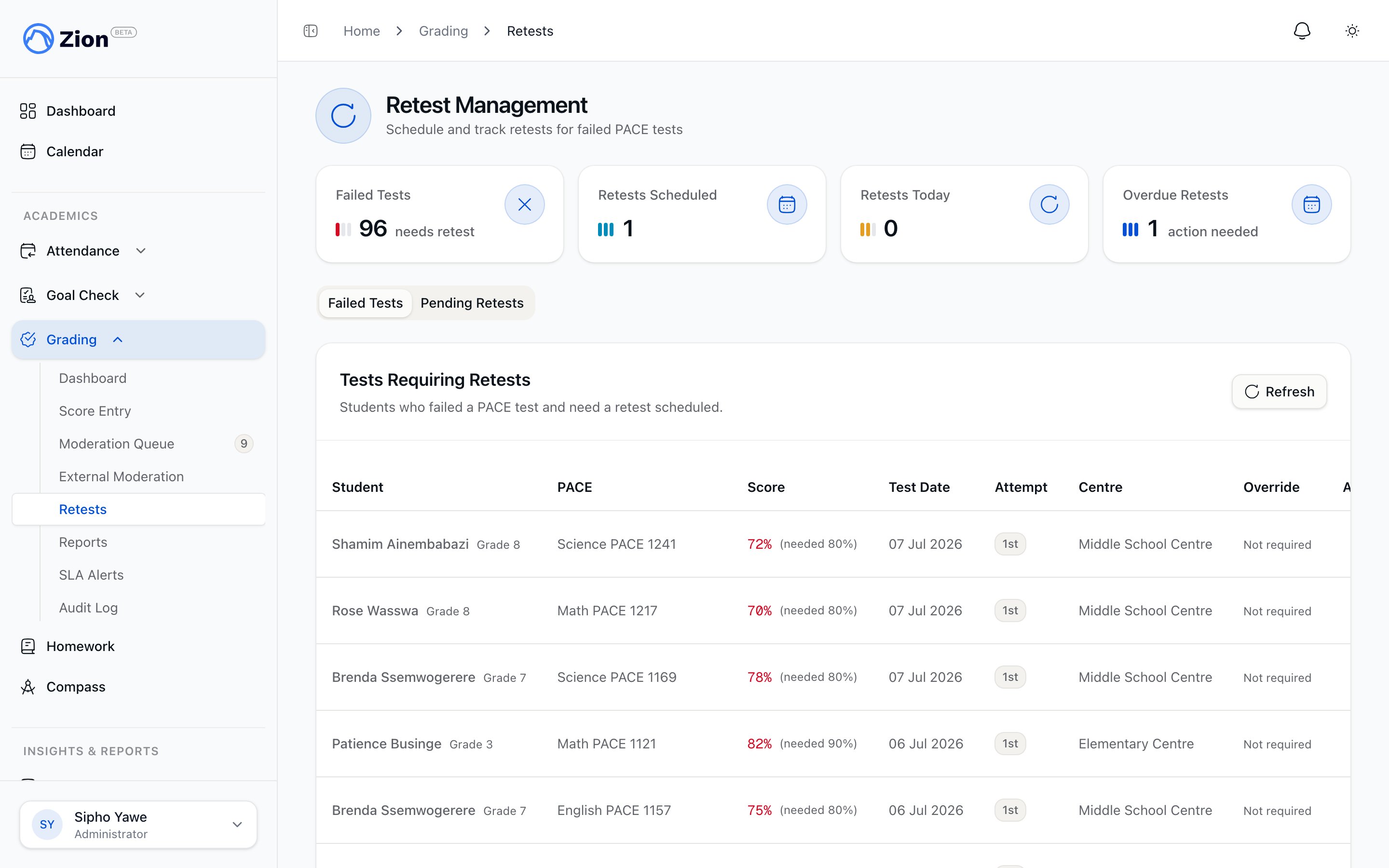 Navigate to Grading, then Retests, and open the Failed Tests tab.
Locate the student's failed test. Supervisors and monitors see only tests at their assigned learning centres.
Set a retest date. The date must be today or later; past dates are rejected.
The test moves to the Pending Retests tab with its scheduled date.
A test can only be scheduled for retest if it is currently failed and does not already have a retest scheduled.
## Entering a retest score
Navigate to Grading, then Retests, then the Pending Retests tab.
Locate the student's scheduled retest.
Enter the new score, which can include one decimal place. Zion links the new score to the original attempt, increments the attempt number, and clears the scheduled date.
The retest inherits the original test's pass threshold and test type, and is routed through moderation the same way the original attempt was (Grade 8 and above by default, unless your school changed the moderation grade).
If the retest score passes, the chain is complete and no further retest is needed. If it fails and attempts remain under the cap, the student can be scheduled for another retest.
## The retest cap
Each retest chain is capped at 3 attempts, including the original test. Once a chain reaches the cap and the latest attempt still failed, entry of a further retest is blocked until an administrator grants an override.
## Administrator override for an exhausted cap
When a retest chain hits its cap and the student is still failing, an administrator can grant an override from the Failed Tests table.
From Grading, then Retests, then Failed Tests, find the test flagged as having reached its retest cap and open Grant Override.
Choose one of two decisions:
* **Authorize another attempt**: allows one more retest to be scheduled for this chain.
* **Approve progression**: records an intervention plan and lets the PACE count as satisfied without a further passing score.
Enter a reason of at least 10 characters. This is required to grant the override.
Zion records the override in the audit log.
## Cancelling a scheduled retest
Locate it in the Pending Retests tab.
Cancel the scheduled retest. This clears the scheduled date so the test returns to Failed Tests, where it can be rescheduled or handled with an override if the cap has been reached.
## Correcting a finalized score
Once a score has been finalized (by internal or external moderation, or because it was below the moderation grade to begin with), it can only be changed through a documented correction, not by re-entering it. An administrator or supervisor can correct a finalized score, with a mandatory reason of at least 10 characters. The correction is written to the audit trail with the original value, the new value, and the reason.
For a student at the moderation grade or above, a correction sends the score back into the moderation queue to be re-finalized by an internal moderator. For a younger student, the correction finalizes immediately. If the correction drops a passing PACE below the pass mark, Zion reverses that PACE's completion; if it raises a score to passing, Zion completes the PACE.
| Control | Who | When it applies |
| ------------------------- | ---------------------------------- | ----------------------------------------------------------------------------- |
| Correct a finalized score | Administrator, supervisor | Fixing a score that was recorded wrong after it already counted toward grades |
| Cancel retest | Administrator, supervisor, monitor | Cancelling a scheduled retest date before it is taken |
Every correction and cancellation writes a row to the grade audit log, so the history of a score, including who changed it and why, is always available. See [Audit trail](/features/grading/audit-trail) for how to review that history.
## Related pages
How score entry, moderation, and retests fit together.
Entering PACE test scores and correcting rejected entries.
How internal moderation finalizes a score and optional external moderation works.
Reviewing and exporting every grading action for accreditation.
Navigate to Grading, then Retests, and open the Failed Tests tab.
Locate the student's failed test. Supervisors and monitors see only tests at their assigned learning centres.
Set a retest date. The date must be today or later; past dates are rejected.
The test moves to the Pending Retests tab with its scheduled date.
A test can only be scheduled for retest if it is currently failed and does not already have a retest scheduled.
## Entering a retest score
Navigate to Grading, then Retests, then the Pending Retests tab.
Locate the student's scheduled retest.
Enter the new score, which can include one decimal place. Zion links the new score to the original attempt, increments the attempt number, and clears the scheduled date.
The retest inherits the original test's pass threshold and test type, and is routed through moderation the same way the original attempt was (Grade 8 and above by default, unless your school changed the moderation grade).
If the retest score passes, the chain is complete and no further retest is needed. If it fails and attempts remain under the cap, the student can be scheduled for another retest.
## The retest cap
Each retest chain is capped at 3 attempts, including the original test. Once a chain reaches the cap and the latest attempt still failed, entry of a further retest is blocked until an administrator grants an override.
## Administrator override for an exhausted cap
When a retest chain hits its cap and the student is still failing, an administrator can grant an override from the Failed Tests table.
From Grading, then Retests, then Failed Tests, find the test flagged as having reached its retest cap and open Grant Override.
Choose one of two decisions:
* **Authorize another attempt**: allows one more retest to be scheduled for this chain.
* **Approve progression**: records an intervention plan and lets the PACE count as satisfied without a further passing score.
Enter a reason of at least 10 characters. This is required to grant the override.
Zion records the override in the audit log.
## Cancelling a scheduled retest
Locate it in the Pending Retests tab.
Cancel the scheduled retest. This clears the scheduled date so the test returns to Failed Tests, where it can be rescheduled or handled with an override if the cap has been reached.
## Correcting a finalized score
Once a score has been finalized (by internal or external moderation, or because it was below the moderation grade to begin with), it can only be changed through a documented correction, not by re-entering it. An administrator or supervisor can correct a finalized score, with a mandatory reason of at least 10 characters. The correction is written to the audit trail with the original value, the new value, and the reason.
For a student at the moderation grade or above, a correction sends the score back into the moderation queue to be re-finalized by an internal moderator. For a younger student, the correction finalizes immediately. If the correction drops a passing PACE below the pass mark, Zion reverses that PACE's completion; if it raises a score to passing, Zion completes the PACE.
| Control | Who | When it applies |
| ------------------------- | ---------------------------------- | ----------------------------------------------------------------------------- |
| Correct a finalized score | Administrator, supervisor | Fixing a score that was recorded wrong after it already counted toward grades |
| Cancel retest | Administrator, supervisor, monitor | Cancelling a scheduled retest date before it is taken |
Every correction and cancellation writes a row to the grade audit log, so the history of a score, including who changed it and why, is always available. See [Audit trail](/features/grading/audit-trail) for how to review that history.
## Related pages
How score entry, moderation, and retests fit together.
Entering PACE test scores and correcting rejected entries.
How internal moderation finalizes a score and optional external moderation works.
Reviewing and exporting every grading action for accreditation.