> ## Documentation Index
> Fetch the complete documentation index at: https://docs.zionapp.co/llms.txt
> Use this file to discover all available pages before exploring further.
# Entering test scores
> How staff record PACE test scores, read pass/fail feedback, and see where a score goes next
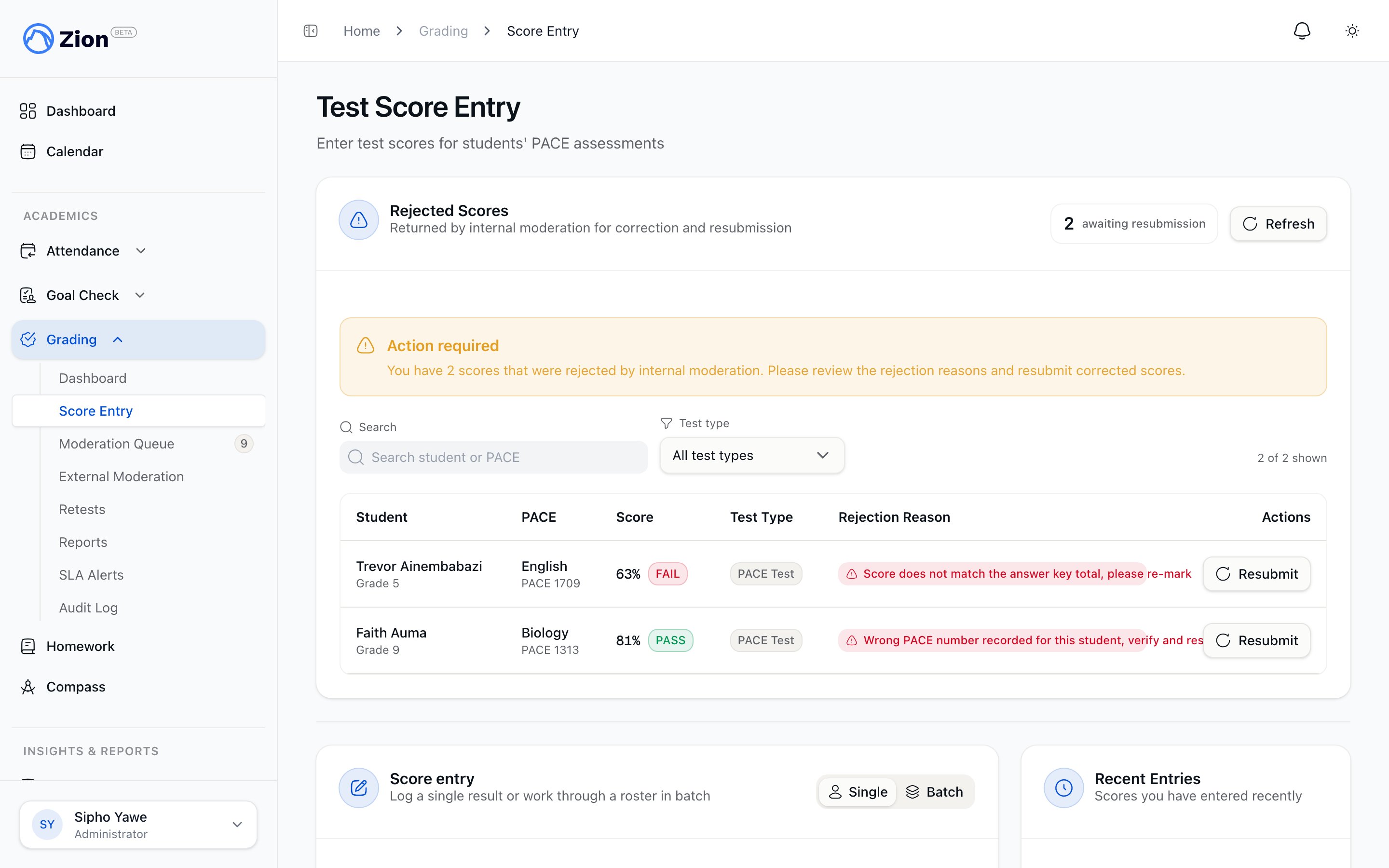
Monitors, supervisors, and administrators enter PACE test scores from Grading, then Score Entry. The page has a Single tab for one score at a time, a Batch tab for entering several scores in one pass, and a Prior PACE tab for recording PACEs a student finished before joining Zion.
## Single entry
 Search by name or student number. Results filter as you type. Selecting a student shows their full name, student number, grade level, and learning centre.
The dropdown lists only PACEs assigned to that student, shown as subject and number (for example, Math 1042). If a PACE you expect is missing, check the student's PACE assignments in Student Management.
Pick PACE Test, Self Test, or Final Test. This affects both grading (PACE Test and Final Test count toward averages and progress; Self Test does not) and where the score goes next.
A score can include one decimal place, for example 87.5, and must fall between 0 and 100. The test date must be today or an earlier date, never in the future.
The form shows the computed pass/fail status before you submit. Confirm the details and submit the entry.
### Entering already-moderated marks
If the student is at a grade the school moderates (Grade 8 and up by default), a checkbox appears: "Enter already-moderated marks." Turning it on replaces the single score field with three: the first mark, the internal mark, and an optional external mark, so a school that already marked the test on paper can key in all three straight from the paper record. The score finalizes right away using the internal mark, and skips the moderation queue entirely. Because the marks were already decided on paper, one person can enter all three; this is the one place score entry does not require a different person to moderate.
## Batch entry
The batch tab lets you enter multiple scores in one session instead of repeating the single-entry flow for each student. Each row still runs through the same checks: score range, test date, PACE assignment, and duplicate checks apply per row.
## Prior PACE entry
Use the Prior PACE tab to record PACEs a student completed before joining Zion, for mid-year onboarding.
* **One PACE**: record a single PACE for one student, with the date they actually completed it.
* **Multiple PACEs**: onboard a student's entire backlog of finished PACEs at once.
* **Activity PACEs**: mark score-less activity PACEs (mostly at the earliest readiness levels) done in bulk, with a completion date and no score.
A prior PACE entry finalizes immediately, since it documents work already completed outside Zion. It still respects a closed academic term: you cannot backdate an entry into a term your school has locked. If the student already had this PACE assigned, entering a passing prior score keeps the date they were originally assigned it.
## Pass/fail feedback
As soon as a score is entered, Zion calculates a pass threshold from the student's grade level and shows pass or fail immediately.
| Grade band | Pass threshold |
| -------------- | -------------- |
| Grades 1 to 4 | 90% |
| Grades 5 to 12 | 80% |
An administrator can move the grade cutoff between these two bands from the Moderation Queue page. A failing PACE Test or Final Test score notifies the student's centre supervisors, monitors, and administrators that a retest is needed. A failing Self Test does not trigger this notification, since a Self Test is an ungraded readiness check.
## Duplicate detection
Zion blocks a duplicate entry for the same student, PACE, test type, and attempt number. The check runs before submission and is also enforced underneath, so a duplicate cannot slip through even from two people entering the same score at once.
An entry is not blocked when it is a different test type for the same PACE, a retest (attempt number 2 or higher), or a different term. If you hit a duplicate error, check whether the score was already entered before retrying. To correct an existing score, contact your administrator.
## Possible duplicate students
When you pick a student, Zion is only matching what you selected. Duplicate detection for the roster itself (the same child added twice under a different school ID) happens when a student is created or imported, not here. See [Student roster overview](/features/students/overview).
## Rejected scores
If an internal moderator rejects a score instead of entering their own mark, it comes back to the original grader with a rejection reason, shown in the Rejected Scores section of this page. Re-entering the corrected score resubmits it for moderation, and the prior rejection no longer shows once the resubmission is logged. A score that has already been finalized can only be corrected by an administrator or supervisor as a documented exception, not by re-entering it here.
A wrong student or wrong score noticed after submission cannot be self-corrected from the entry form. Contact your administrator, who can adjust the entry and record the correction in the audit trail.
## Related pages
Test types, pass thresholds, and how moderation works
How internal and optional external moderation review scores from Grade 8 up
Scheduling and entering retest scores after a failed test
How every grading change is logged and reported for accreditation
Search by name or student number. Results filter as you type. Selecting a student shows their full name, student number, grade level, and learning centre.
The dropdown lists only PACEs assigned to that student, shown as subject and number (for example, Math 1042). If a PACE you expect is missing, check the student's PACE assignments in Student Management.
Pick PACE Test, Self Test, or Final Test. This affects both grading (PACE Test and Final Test count toward averages and progress; Self Test does not) and where the score goes next.
A score can include one decimal place, for example 87.5, and must fall between 0 and 100. The test date must be today or an earlier date, never in the future.
The form shows the computed pass/fail status before you submit. Confirm the details and submit the entry.
### Entering already-moderated marks
If the student is at a grade the school moderates (Grade 8 and up by default), a checkbox appears: "Enter already-moderated marks." Turning it on replaces the single score field with three: the first mark, the internal mark, and an optional external mark, so a school that already marked the test on paper can key in all three straight from the paper record. The score finalizes right away using the internal mark, and skips the moderation queue entirely. Because the marks were already decided on paper, one person can enter all three; this is the one place score entry does not require a different person to moderate.
## Batch entry
The batch tab lets you enter multiple scores in one session instead of repeating the single-entry flow for each student. Each row still runs through the same checks: score range, test date, PACE assignment, and duplicate checks apply per row.
## Prior PACE entry
Use the Prior PACE tab to record PACEs a student completed before joining Zion, for mid-year onboarding.
* **One PACE**: record a single PACE for one student, with the date they actually completed it.
* **Multiple PACEs**: onboard a student's entire backlog of finished PACEs at once.
* **Activity PACEs**: mark score-less activity PACEs (mostly at the earliest readiness levels) done in bulk, with a completion date and no score.
A prior PACE entry finalizes immediately, since it documents work already completed outside Zion. It still respects a closed academic term: you cannot backdate an entry into a term your school has locked. If the student already had this PACE assigned, entering a passing prior score keeps the date they were originally assigned it.
## Pass/fail feedback
As soon as a score is entered, Zion calculates a pass threshold from the student's grade level and shows pass or fail immediately.
| Grade band | Pass threshold |
| -------------- | -------------- |
| Grades 1 to 4 | 90% |
| Grades 5 to 12 | 80% |
An administrator can move the grade cutoff between these two bands from the Moderation Queue page. A failing PACE Test or Final Test score notifies the student's centre supervisors, monitors, and administrators that a retest is needed. A failing Self Test does not trigger this notification, since a Self Test is an ungraded readiness check.
## Duplicate detection
Zion blocks a duplicate entry for the same student, PACE, test type, and attempt number. The check runs before submission and is also enforced underneath, so a duplicate cannot slip through even from two people entering the same score at once.
An entry is not blocked when it is a different test type for the same PACE, a retest (attempt number 2 or higher), or a different term. If you hit a duplicate error, check whether the score was already entered before retrying. To correct an existing score, contact your administrator.
## Possible duplicate students
When you pick a student, Zion is only matching what you selected. Duplicate detection for the roster itself (the same child added twice under a different school ID) happens when a student is created or imported, not here. See [Student roster overview](/features/students/overview).
## Rejected scores
If an internal moderator rejects a score instead of entering their own mark, it comes back to the original grader with a rejection reason, shown in the Rejected Scores section of this page. Re-entering the corrected score resubmits it for moderation, and the prior rejection no longer shows once the resubmission is logged. A score that has already been finalized can only be corrected by an administrator or supervisor as a documented exception, not by re-entering it here.
A wrong student or wrong score noticed after submission cannot be self-corrected from the entry form. Contact your administrator, who can adjust the entry and record the correction in the audit trail.
## Related pages
Test types, pass thresholds, and how moderation works
How internal and optional external moderation review scores from Grade 8 up
Scheduling and entering retest scores after a failed test
How every grading change is logged and reported for accreditation