> ## Documentation Index
> Fetch the complete documentation index at: https://docs.zionapp.co/llms.txt
> Use this file to discover all available pages before exploring further.
# Progress Cards overview
> A printable, year-long summary of a student's PACE journey, colour-coded by term, downloadable as a PDF or emailed to a parent
The Supervisor's Progress Card is a one-page, per-subject summary of everything a student has worked on this school year: the PACE number, the finalized score, and whether it is complete, for every subject they are assigned. Completed PACEs are shaded by the term they finished in, so a quick glance shows how a student is moving through the year, not just where they stand today.
 ## Who can see it
| Role | Access |
| ------------- | --------------------------------------------------------------------------------------- |
| Administrator | Views, downloads, and emails the Progress Card for any student in the school |
| Supervisor | Views, downloads, and emails the Progress Card for students in their assigned centre(s) |
| Monitor | Views and downloads the Progress Card for students in their assigned centre(s) |
Progress Cards are a staff tool. Parents and students cannot open them, though a parent can be sent one by email.
## Finding a student's card
Progress Cards has its own entry in the sidebar, under Academics, so you no longer need to open a student's record first to reach it.
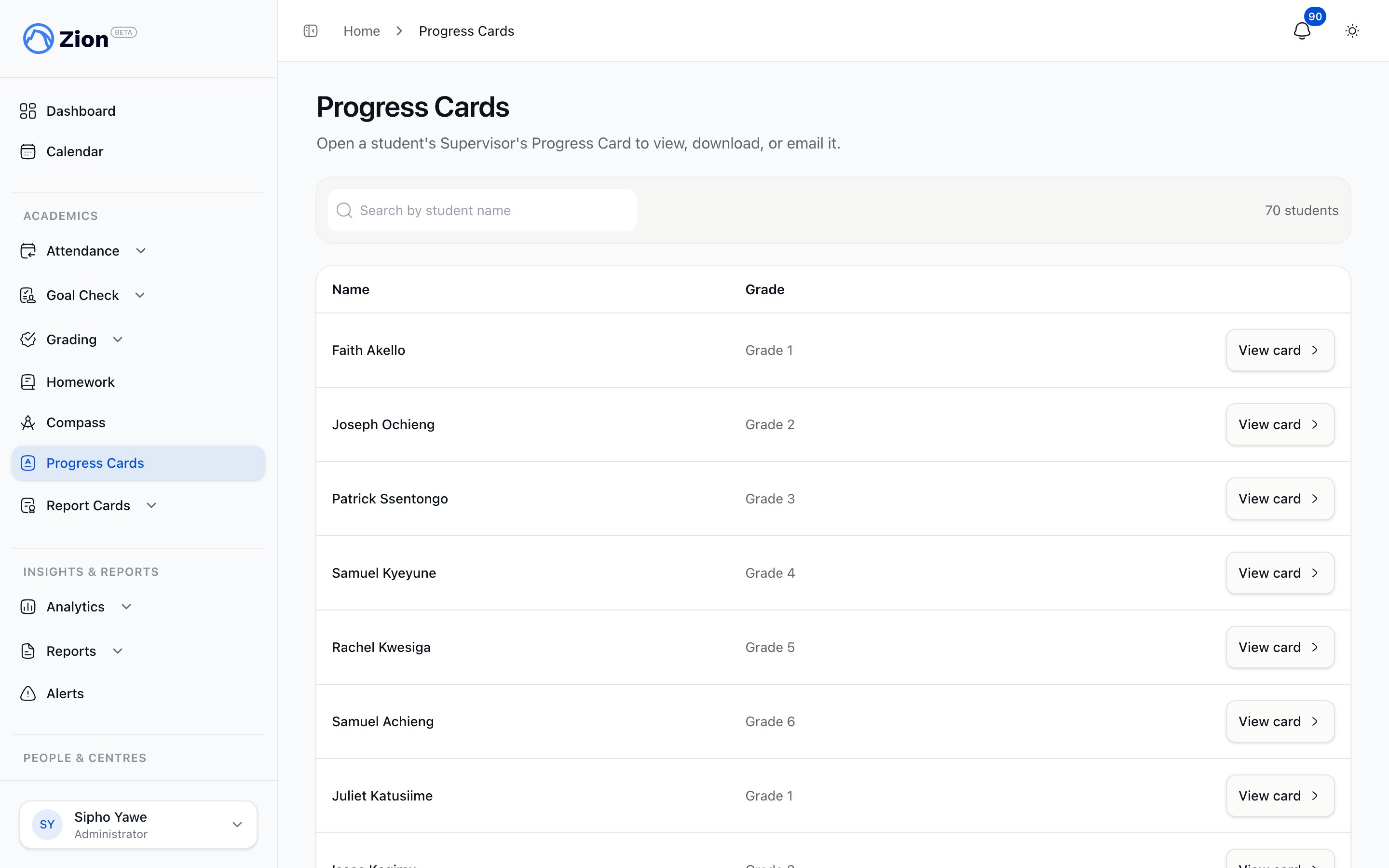
In the sidebar, under Academics, select Progress Cards. This lists every active student you have access to.
Search by name, or page through the list, to find the student you want.
Select View card to open that student's Progress Card.
You can also reach the same card from a student's own record.
## What the card shows
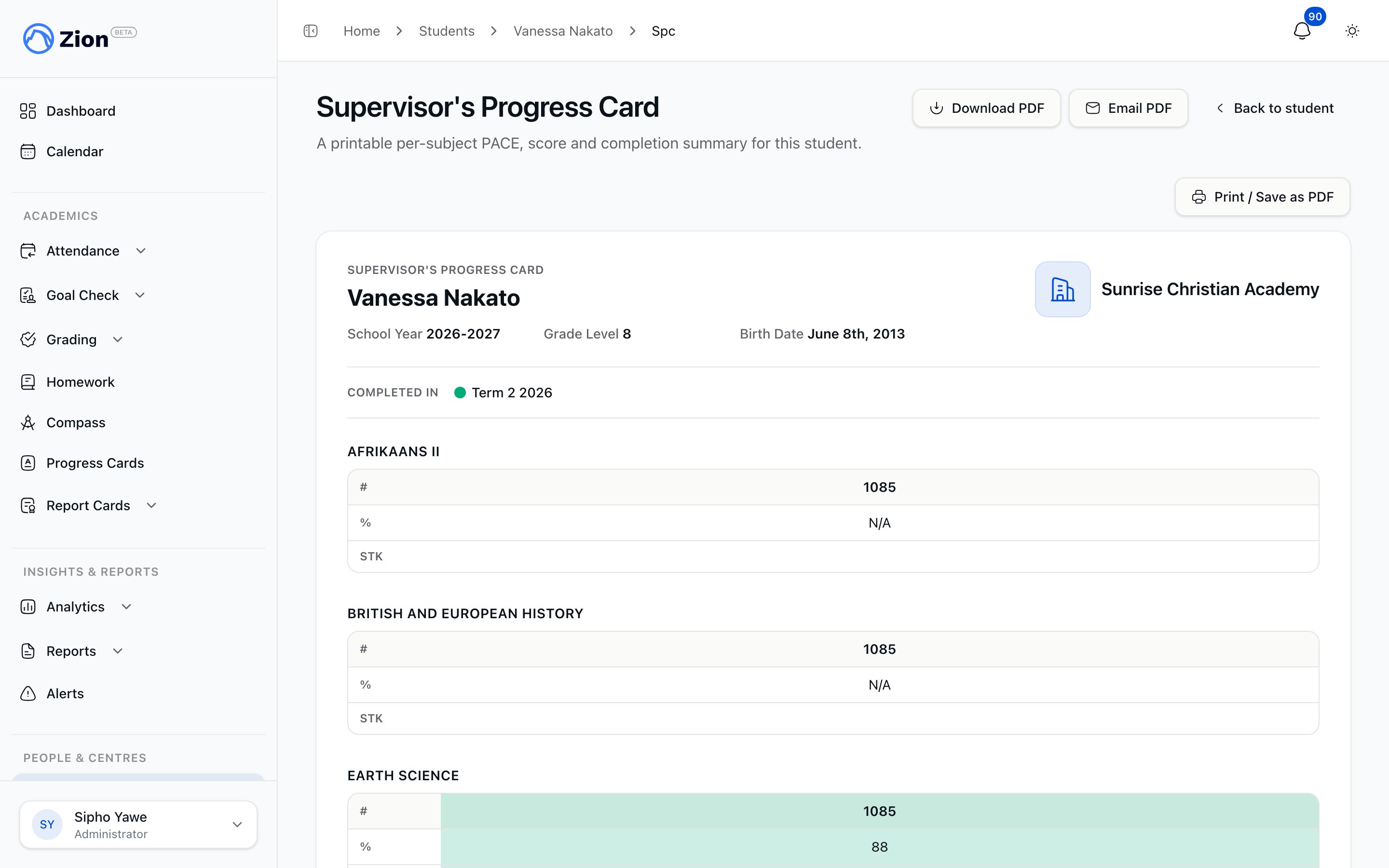
The card groups a student's assigned PACEs by subject. Each subject shows three rows:
| Row | What it shows |
| --- | --------------------------------------------------------------------------------------------------------------------------------- |
| # | The PACE number, or a course code for an elective or Lifepac course |
| % | The finalized score for that PACE. Shows nothing if the PACE has not passed moderation yet, or has only failed attempts on record |
| STK | A checkmark if the PACE is complete |
Every PACE the student has been assigned appears, whether it is finished or still in progress. Only completed PACEs carry a score and a term colour.
## Colour-coding by term
A completed PACE's three rows are shaded with the colour of the term it was finished in. A legend across the top of the card, labelled "Completed In," shows which colour maps to which term. This makes it easy to see at a glance how a student's workload was spread across the school year, not only how much they have finished in total.
A PACE still in progress is never shaded, since it has not finished in any term yet.
## Who can see it
| Role | Access |
| ------------- | --------------------------------------------------------------------------------------- |
| Administrator | Views, downloads, and emails the Progress Card for any student in the school |
| Supervisor | Views, downloads, and emails the Progress Card for students in their assigned centre(s) |
| Monitor | Views and downloads the Progress Card for students in their assigned centre(s) |
Progress Cards are a staff tool. Parents and students cannot open them, though a parent can be sent one by email.
## Finding a student's card
Progress Cards has its own entry in the sidebar, under Academics, so you no longer need to open a student's record first to reach it.
In the sidebar, under Academics, select Progress Cards. This lists every active student you have access to.
Search by name, or page through the list, to find the student you want.
Select View card to open that student's Progress Card.
You can also reach the same card from a student's own record.
## What the card shows
The card groups a student's assigned PACEs by subject. Each subject shows three rows:
| Row | What it shows |
| --- | --------------------------------------------------------------------------------------------------------------------------------- |
| # | The PACE number, or a course code for an elective or Lifepac course |
| % | The finalized score for that PACE. Shows nothing if the PACE has not passed moderation yet, or has only failed attempts on record |
| STK | A checkmark if the PACE is complete |
Every PACE the student has been assigned appears, whether it is finished or still in progress. Only completed PACEs carry a score and a term colour.
## Colour-coding by term
A completed PACE's three rows are shaded with the colour of the term it was finished in. A legend across the top of the card, labelled "Completed In," shows which colour maps to which term. This makes it easy to see at a glance how a student's workload was spread across the school year, not only how much they have finished in total.
A PACE still in progress is never shaded, since it has not finished in any term yet.
 ## Downloading and emailing the card
From the student's Progress Card, select Download PDF to save a branded copy of the card as it appears on screen.
Administrators and supervisors also see an Email PDF option. Enter up to 10 recipient email addresses and send. The card is attached to the email directly, with no separate publishing step to approve first.
A monitor can view and download a Progress Card, but only an administrator or supervisor can email one to a parent.
## How this differs from report cards
A Progress Card is a running, year-long snapshot you can open at any time. A report card is a formal, per-term document that also includes attendance and character notes, and goes through its own generation and distribution step. See [Report cards overview](/features/report-cards/overview) for that separate feature.
The formal, per-term document with grades, attendance, and character notes.
Manage the student roster a Progress Card is generated from.
How PACEs are assigned to a student in the first place.
How a score is finalized before it appears on the card.
## Downloading and emailing the card
From the student's Progress Card, select Download PDF to save a branded copy of the card as it appears on screen.
Administrators and supervisors also see an Email PDF option. Enter up to 10 recipient email addresses and send. The card is attached to the email directly, with no separate publishing step to approve first.
A monitor can view and download a Progress Card, but only an administrator or supervisor can email one to a parent.
## How this differs from report cards
A Progress Card is a running, year-long snapshot you can open at any time. A report card is a formal, per-term document that also includes attendance and character notes, and goes through its own generation and distribution step. See [Report cards overview](/features/report-cards/overview) for that separate feature.
The formal, per-term document with grades, attendance, and character notes.
Manage the student roster a Progress Card is generated from.
How PACEs are assigned to a student in the first place.
How a score is finalized before it appears on the card.