> ## Documentation Index
> Fetch the complete documentation index at: https://docs.zionapp.co/llms.txt
> Use this file to discover all available pages before exploring further.
# Bulk importing students
> Import a student roster from a spreadsheet, with the required columns, validation rules, and the confirm step.
Bulk import adds many students to the roster in one upload instead of adding them one at a time on the Add Student form. Administrator, supervisor, and monitor can all run an import.
Import writes new student rows only. PACE assignments, goals, and attendance are not part of the file. Assign PACEs afterward from each student's detail page or with a bulk PACE assignment. See [PACE Assignments](/features/students/pace-assignments).
## The template
 Go to the Students page.
Click Import CSV.
Click Download Template. It downloads a spreadsheet with the header row and one example student already filled in.
The full column reference, including accepted alternate column names, lives in [CSV Templates](/reference/csv-templates).
## Required and optional columns
| Column | Required | Notes |
| --------------- | -------- | -------------------------------------------------------------------------------------------------------------------------------- |
| Name | Yes | At least 2 characters. |
| Date of Birth | Yes | A recognizable date, in the past. Accepted as day/month/year or year/month/day. |
| Grade Level | Yes | Whole number from 1 to 12. |
| Learning Centre | Yes | Must match the name of an existing learning centre in your school. |
| Student ID | No | Your school's own identifier. If set, it must be unique, both against existing students and against other rows in the same file. |
| Parent Email | No | Must be a valid email address if present. |
| Parent Phone | No | Must match the accepted phone format if present. |
The template also accepts a Learning Centre column labeled "centre" and a Date of Birth column labeled "dob," along with a few other common spreadsheet header spellings, so a roster export from another system can often be uploaded directly without renaming columns.
Learning Centre is matched against your school's existing learning centre names. Create the centre first if it does not already exist. See [Learning Centres](/guides/administrator/learning-centres).
## Upload and validate
Select a spreadsheet file (.csv) up to 5MB. Anything larger or not saved as a CSV file is rejected before upload.
Zion reads every row and checks it against the column rules above, without writing anything yet.
Each row shows a Valid or Invalid badge. Invalid rows list every reason: a bad date, a grade outside 1 to 12, a learning centre name that does not match, or a Student ID that is already used elsewhere in the file or on the roster.
If a row looks like it might be the same child as someone already on the roster (matching name and date of birth), Zion shows a warning next to that row. This never blocks the import; it is a heads-up so you can check before importing what might be a duplicate.
If some target learning centres would be at or over their configured capacity once the valid rows are added, a warning lists those centres with their projected count against capacity. This is informational only. It does not block the import.
## Confirm the import
Click Import valid rows, showing the count of rows that passed validation. Only those rows are written. Invalid rows are never imported.
Zion checks every row again at the moment of import, so a learning centre or Student ID that changed between validation and import is still caught row by row, rather than failing the whole batch.
After the import finishes:
* The summary shows how many students were imported and how many were skipped.
* If any imported rows had a Parent Email, a parent invitation is queued for each one. The dialog notes how many invitations are being sent in the background. This does not block the import.
* If any rows were skipped, click Download error report to get a spreadsheet of just the skipped rows with their reasons, so you can fix and re-upload only those.
Uploading the same file twice does not create duplicates for rows that carry a Student ID already on the roster. Those rows are flagged invalid at validation time.
## Migrating a full legacy roster
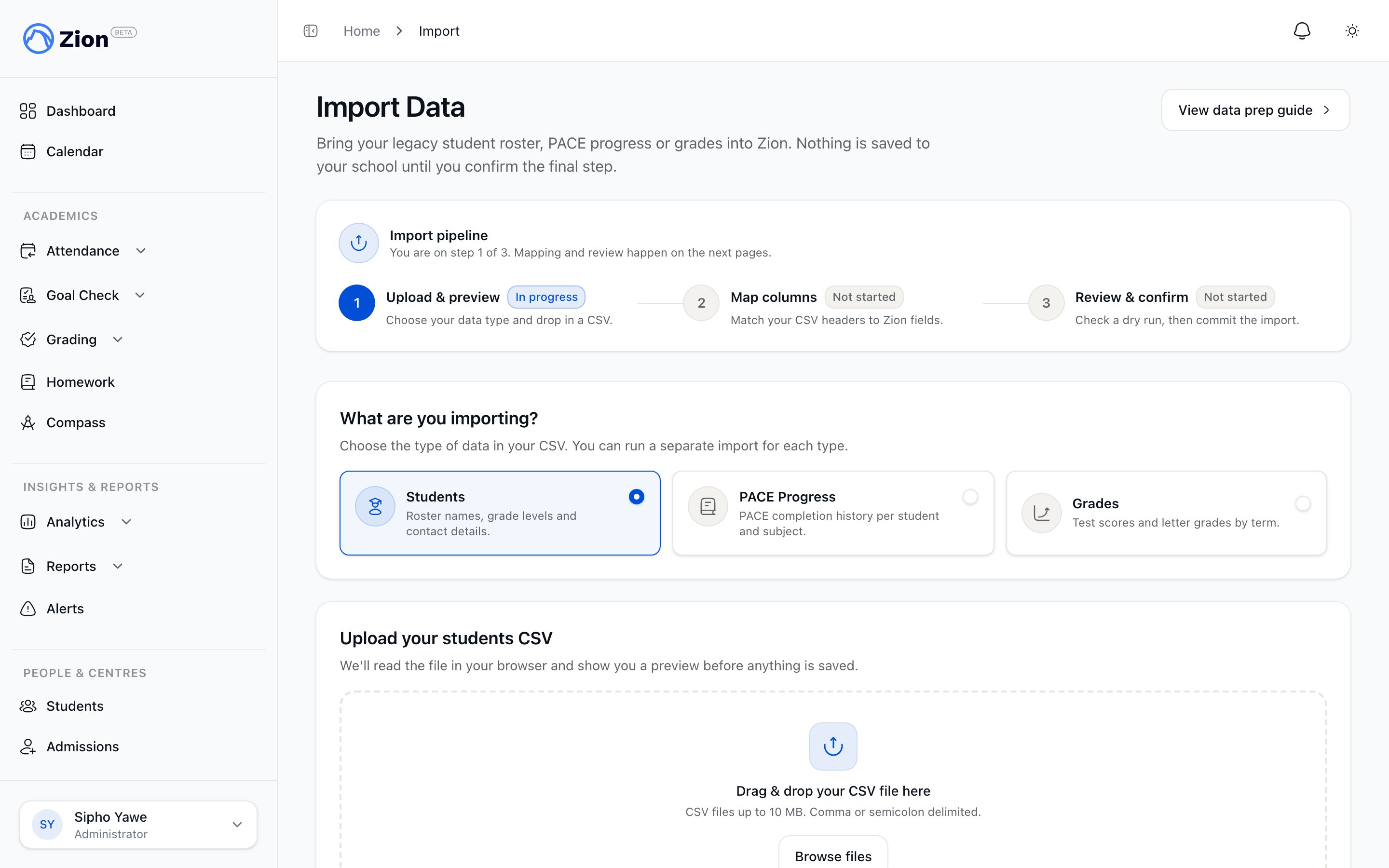
The Import CSV button on the Students page is built for adding students quickly. If you are moving a school over to Zion for the first time and want to bring across PACE progress and grades along with the roster, use Import Data under Administration instead.
That wizard walks through three steps: upload and preview your file, map your spreadsheet's columns to Zion's fields (not sure what your columns should be called? Download a template listing every field for the data type you are importing), then review a trial run before anything is saved. Nothing touches your school's data until you confirm the final step.
## Related pages
Full column reference and accepted header aliases for every import template.
Roster fields, active vs inactive students, and centre-scoped visibility.
Assign PACEs to students after importing them.
Create the centres your import file will reference.
Go to the Students page.
Click Import CSV.
Click Download Template. It downloads a spreadsheet with the header row and one example student already filled in.
The full column reference, including accepted alternate column names, lives in [CSV Templates](/reference/csv-templates).
## Required and optional columns
| Column | Required | Notes |
| --------------- | -------- | -------------------------------------------------------------------------------------------------------------------------------- |
| Name | Yes | At least 2 characters. |
| Date of Birth | Yes | A recognizable date, in the past. Accepted as day/month/year or year/month/day. |
| Grade Level | Yes | Whole number from 1 to 12. |
| Learning Centre | Yes | Must match the name of an existing learning centre in your school. |
| Student ID | No | Your school's own identifier. If set, it must be unique, both against existing students and against other rows in the same file. |
| Parent Email | No | Must be a valid email address if present. |
| Parent Phone | No | Must match the accepted phone format if present. |
The template also accepts a Learning Centre column labeled "centre" and a Date of Birth column labeled "dob," along with a few other common spreadsheet header spellings, so a roster export from another system can often be uploaded directly without renaming columns.
Learning Centre is matched against your school's existing learning centre names. Create the centre first if it does not already exist. See [Learning Centres](/guides/administrator/learning-centres).
## Upload and validate
Select a spreadsheet file (.csv) up to 5MB. Anything larger or not saved as a CSV file is rejected before upload.
Zion reads every row and checks it against the column rules above, without writing anything yet.
Each row shows a Valid or Invalid badge. Invalid rows list every reason: a bad date, a grade outside 1 to 12, a learning centre name that does not match, or a Student ID that is already used elsewhere in the file or on the roster.
If a row looks like it might be the same child as someone already on the roster (matching name and date of birth), Zion shows a warning next to that row. This never blocks the import; it is a heads-up so you can check before importing what might be a duplicate.
If some target learning centres would be at or over their configured capacity once the valid rows are added, a warning lists those centres with their projected count against capacity. This is informational only. It does not block the import.
## Confirm the import
Click Import valid rows, showing the count of rows that passed validation. Only those rows are written. Invalid rows are never imported.
Zion checks every row again at the moment of import, so a learning centre or Student ID that changed between validation and import is still caught row by row, rather than failing the whole batch.
After the import finishes:
* The summary shows how many students were imported and how many were skipped.
* If any imported rows had a Parent Email, a parent invitation is queued for each one. The dialog notes how many invitations are being sent in the background. This does not block the import.
* If any rows were skipped, click Download error report to get a spreadsheet of just the skipped rows with their reasons, so you can fix and re-upload only those.
Uploading the same file twice does not create duplicates for rows that carry a Student ID already on the roster. Those rows are flagged invalid at validation time.
## Migrating a full legacy roster
The Import CSV button on the Students page is built for adding students quickly. If you are moving a school over to Zion for the first time and want to bring across PACE progress and grades along with the roster, use Import Data under Administration instead.
That wizard walks through three steps: upload and preview your file, map your spreadsheet's columns to Zion's fields (not sure what your columns should be called? Download a template listing every field for the data type you are importing), then review a trial run before anything is saved. Nothing touches your school's data until you confirm the final step.
## Related pages
Full column reference and accepted header aliases for every import template.
Roster fields, active vs inactive students, and centre-scoped visibility.
Assign PACEs to students after importing them.
Create the centres your import file will reference.