> ## Documentation Index
> Fetch the complete documentation index at: https://docs.zionapp.co/llms.txt
> Use this file to discover all available pages before exploring further.
# Assigning PACEs and progression
> How PACEs move from assigned to completed, the auto-advance option, and the subject-sequencing rule that blocks out-of-order assignment
A PACE assignment links one student to one PACE from the catalog and tracks it through in progress, completed, reopened, or unassigned. A student needs at least one assigned PACE before daily goals can be set in Goal Check. Administrators, supervisors, and monitors can assign, complete, reopen, and unassign PACEs, scoped to the learning centres they have access to.
## The assignment lifecycle
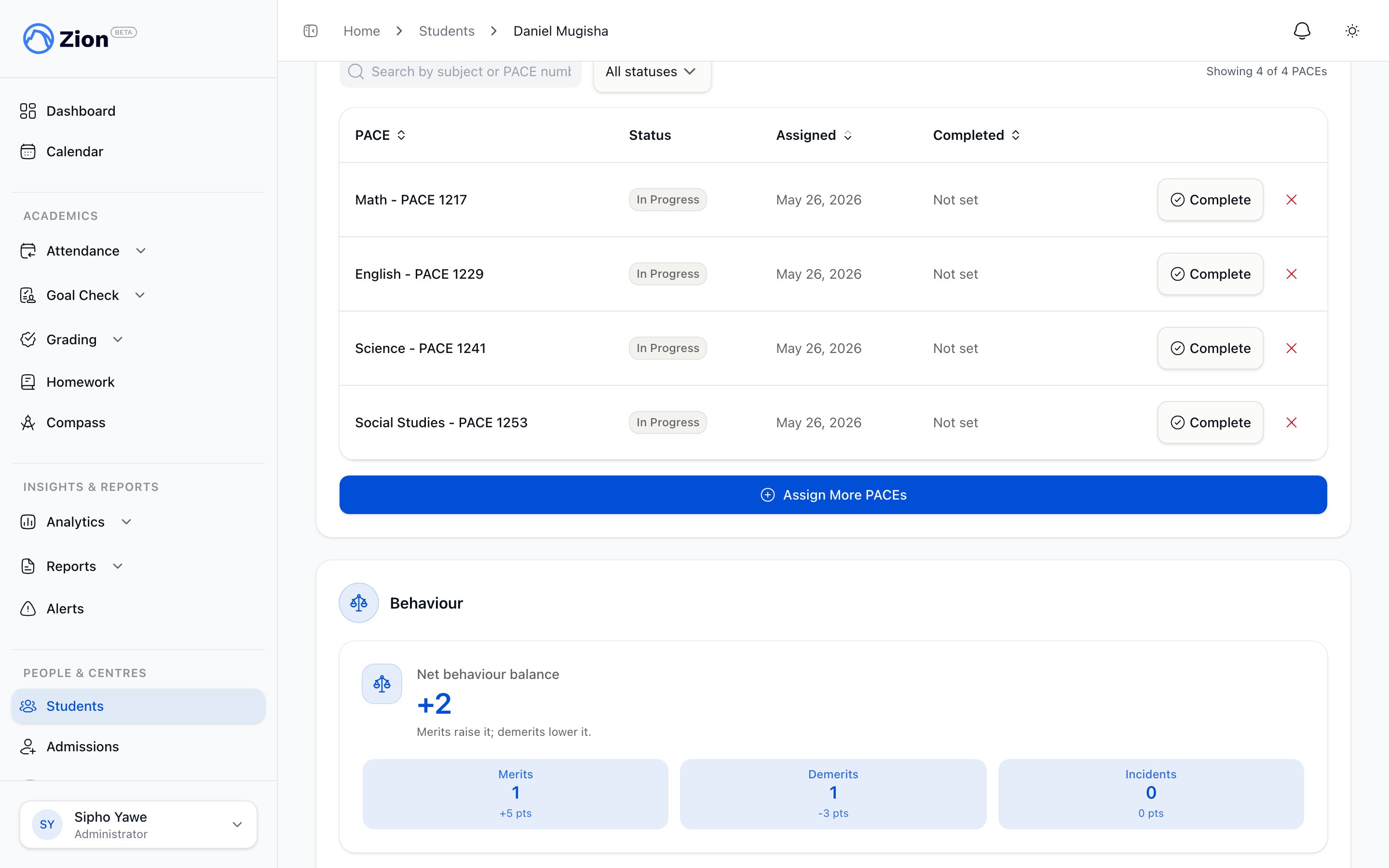 One or more PACEs are added to an active student. Up to 12 PACE IDs can be submitted in a single assignment call (the same limit applies to bulk-assigning PACEs to multiple students at once).
The PACE shows on the student's record and can be used in Goal Check.
Marking a PACE completed sets its completion date. A completed PACE can be reopened later if it was marked complete in error, which clears the completion date and returns it to in progress.
Removing an assignment deletes the student-PACE record entirely.
## What blocks an assignment
An assignment is rejected, not silently allowed, in these cases:
| Condition | Result |
| ------------------------------------------------------- | ------------------------------------------------------------------------------------------------------------------------------------------------------------ |
| Student is inactive | Assignment blocked |
| PACE is already assigned to the student | Assignment blocked (no duplicates) |
| An earlier PACE in the same subject has not been passed | Assignment blocked by the subject-sequencing rule |
| PACE is not in your school's catalog | Assignment blocked. Only PACEs from the shared ACE catalog or your school's own custom subjects can be assigned. See [PACE catalog](/features/paces/catalog) |
### The subject-sequencing rule
A student cannot be assigned PACE N in a subject until every earlier PACE (lower-numbered) in that same subject has been passed. A PACE counts as passed when one of the following is true:
* A finalized passing score exists on a PACE Test or Final Test for that PACE.
* The student's PACE record is already marked completed.
* An administrator has granted a progression override for that student, with an intervention plan recorded.
A Self Test score does not satisfy this rule. This is a hard rule, not a guideline: assignment is blocked no matter what a supervisor or monitor tries on screen.
Overriding the sequencing rule requires an administrator and a recorded intervention plan. Supervisors and monitors cannot self-approve a skip-ahead assignment.
### Inventory on assignment
Assigning a PACE decrements that PACE's tracked inventory automatically. This never blocks the assignment. If stock is low or goes negative, the assignment still succeeds and a warning surfaces so staff can reorder.
## Auto-advance on completion
Each school has an auto-advance setting for PACEs, off by default.
* **Auto-advance on:** completing a PACE automatically assigns the next sequential, currently unassigned PACE in the same subject. This runs through the same guarded assignment path, so the sequencing rule, centre scoping, and role permissions still apply. Auto-advance is best-effort: if the next PACE cannot be assigned (for example, it is already assigned or a rule blocks it), completion still succeeds without it.
* **Auto-advance off:** completing a PACE does not assign anything automatically. The next PACE in sequence is shown in the interface as a suggestion for a one-click assignment.
## Reopening and unassigning
Reopening a completed PACE clears its completion date and returns it to in progress. This is safe to do even if two people try to reopen the same PACE at once; the operation does not create a duplicate or conflicting state.
Unassigning removes the student-PACE record entirely. It is a permanent removal of that assignment, not a status change.
## Bulk assignment
PACEs can be assigned to multiple students in one action from the roster (up to 200 students per bulk action, up to 12 PACEs per target). Each student is evaluated independently against the same rules above: a student blocked by the sequencing rule or an inactive status is skipped with a reason, while the rest of the batch still completes. One audit log entry is written per bulk action.
## Where this happens
PACE assignment lives on a student's detail page. The PACE catalog itself, including which students are currently in progress on a given PACE, is a separate reference page. See [PACE catalog](/features/paces/catalog) for how the catalog is organized and how a school can add its own subjects.
Roster, centre scoping, and student status before assigning PACEs
Browse and search the seeded ACE PACE catalog
How assigned PACEs are used to set daily goals
The term that goals and reporting are anchored to
One or more PACEs are added to an active student. Up to 12 PACE IDs can be submitted in a single assignment call (the same limit applies to bulk-assigning PACEs to multiple students at once).
The PACE shows on the student's record and can be used in Goal Check.
Marking a PACE completed sets its completion date. A completed PACE can be reopened later if it was marked complete in error, which clears the completion date and returns it to in progress.
Removing an assignment deletes the student-PACE record entirely.
## What blocks an assignment
An assignment is rejected, not silently allowed, in these cases:
| Condition | Result |
| ------------------------------------------------------- | ------------------------------------------------------------------------------------------------------------------------------------------------------------ |
| Student is inactive | Assignment blocked |
| PACE is already assigned to the student | Assignment blocked (no duplicates) |
| An earlier PACE in the same subject has not been passed | Assignment blocked by the subject-sequencing rule |
| PACE is not in your school's catalog | Assignment blocked. Only PACEs from the shared ACE catalog or your school's own custom subjects can be assigned. See [PACE catalog](/features/paces/catalog) |
### The subject-sequencing rule
A student cannot be assigned PACE N in a subject until every earlier PACE (lower-numbered) in that same subject has been passed. A PACE counts as passed when one of the following is true:
* A finalized passing score exists on a PACE Test or Final Test for that PACE.
* The student's PACE record is already marked completed.
* An administrator has granted a progression override for that student, with an intervention plan recorded.
A Self Test score does not satisfy this rule. This is a hard rule, not a guideline: assignment is blocked no matter what a supervisor or monitor tries on screen.
Overriding the sequencing rule requires an administrator and a recorded intervention plan. Supervisors and monitors cannot self-approve a skip-ahead assignment.
### Inventory on assignment
Assigning a PACE decrements that PACE's tracked inventory automatically. This never blocks the assignment. If stock is low or goes negative, the assignment still succeeds and a warning surfaces so staff can reorder.
## Auto-advance on completion
Each school has an auto-advance setting for PACEs, off by default.
* **Auto-advance on:** completing a PACE automatically assigns the next sequential, currently unassigned PACE in the same subject. This runs through the same guarded assignment path, so the sequencing rule, centre scoping, and role permissions still apply. Auto-advance is best-effort: if the next PACE cannot be assigned (for example, it is already assigned or a rule blocks it), completion still succeeds without it.
* **Auto-advance off:** completing a PACE does not assign anything automatically. The next PACE in sequence is shown in the interface as a suggestion for a one-click assignment.
## Reopening and unassigning
Reopening a completed PACE clears its completion date and returns it to in progress. This is safe to do even if two people try to reopen the same PACE at once; the operation does not create a duplicate or conflicting state.
Unassigning removes the student-PACE record entirely. It is a permanent removal of that assignment, not a status change.
## Bulk assignment
PACEs can be assigned to multiple students in one action from the roster (up to 200 students per bulk action, up to 12 PACEs per target). Each student is evaluated independently against the same rules above: a student blocked by the sequencing rule or an inactive status is skipped with a reason, while the rest of the batch still completes. One audit log entry is written per bulk action.
## Where this happens
PACE assignment lives on a student's detail page. The PACE catalog itself, including which students are currently in progress on a given PACE, is a separate reference page. See [PACE catalog](/features/paces/catalog) for how the catalog is organized and how a school can add its own subjects.
Roster, centre scoping, and student status before assigning PACEs
Browse and search the seeded ACE PACE catalog
How assigned PACEs are used to set daily goals
The term that goals and reporting are anchored to