> ## Documentation Index
> Fetch the complete documentation index at: https://docs.zionapp.co/llms.txt
> Use this file to discover all available pages before exploring further.
# Administrator guide: attendance
> How administrators oversee school-wide attendance, manage chronic absence alerts, and generate reports in Zion
As an administrator, you oversee attendance for the whole school rather than marking it every day. Supervisors and monitors mark attendance for the centres they are assigned to. Your work is monitoring the dashboard, reviewing alerts, generating reports, and reading trends across centres.
Administrators are the only role with access to the Reports page and to corrections on locked past dates. Supervisors and monitors can mark attendance and, for supervisors, view a dashboard, alerts, and trends scoped to their own centres.
## Your attendance responsibilities
### Daily
* Review the school-wide attendance dashboard
* Check for new critical or warning alerts
* Confirm every centre has marked attendance for the day
* Follow up on anything urgent
### Weekly
* Review attendance trends and centre comparisons
* Work through the alert queue and acknowledge or dismiss open items
* Generate a weekly report if your school requires one
### Monthly or termly
* Generate a monthly or term report for leadership
* Review chronic absence patterns and how interventions are tracking
* Check whether alert thresholds still fit your school
***
## Administrator dashboard
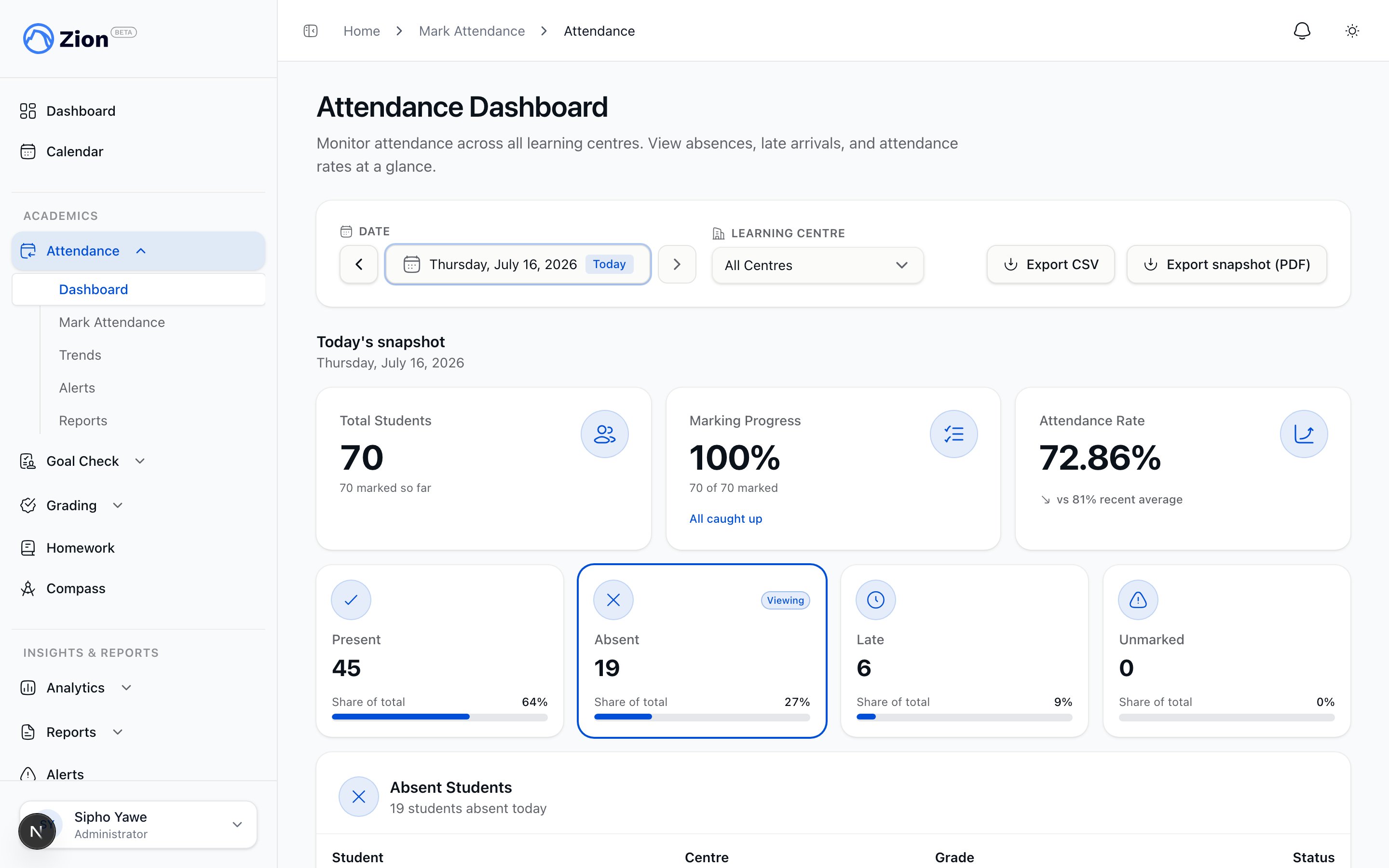 1. Navigate to **Attendance > Dashboard**.
2. Review school-wide attendance metrics for the selected day.
### Today's snapshot
| Card | Description |
| --------------- | -------------------------- |
| Total Students | All active students |
| Attendance Rate | Today's overall percentage |
| Present | Students marked present |
| Absent | Students marked absent |
| Late | Students marked late |
| Unmarked | Students not yet marked |
### Absent students and late arrivals
The dashboard lists absent students (name, grade, learning centre, and how many times they have been absent this week) and late arrivals (name, arrival time, and any notes entered when they were marked late).
### Centre breakdown
A chart compares attendance rate and student count across every learning centre. Click a centre to drill into its own dashboard view.
***
## Attendance alerts
Zion checks every student's attendance pattern automatically, every day, and raises new alerts on its own. As an administrator, you can also trigger a check yourself at any time.
1. Navigate to **Attendance > Alerts**.
2. Review the open queue, filterable by centre and alert type.
### Alert thresholds
| Level | Trigger |
| -------- | ------------------------------------------------------------------------------------------------------------------------------------------------------ |
| Warning | Consecutive school-day absences reach the warning threshold (default 3) |
| Critical | Consecutive school-day absences reach the critical threshold (default 5), or the 30-day absence rate exceeds the critical rate threshold (default 20%) |
Consecutive-absence counting walks backward through school days, skipping weekends and holidays, and stops at the first present, late, or unrecorded day. A student's alert escalates from warning to critical in place if the pattern worsens, and resolves automatically once the student no longer meets either threshold on a later run.
Each alert shows the student's name and centre, alert type, consecutive absence count, 30-day absence rate, and the list of absence dates.
### Acknowledging and dismissing alerts
Check the consecutive absence count, the 30-day rate, and the absence dates. Look for a pattern, such as the same day of the week or the same centre.
Contact the parent or guardian, schedule a meeting, or make a referral as needed.
Click **Acknowledge** and enter intervention notes describing what you did. Notes are required. If the alert is a false alarm, click **Dismiss** instead and enter a reason.
Intervention notes and dismissal reasons are written to the audit trail. Keep them specific: they are your record for parent meetings, escalations, and compliance reviews.
Once you acknowledge or dismiss an alert, Zion will not raise that same alert again for about a week, even if the student's pattern continues. This keeps a case you are already handling from cluttering the queue again right away.
### Alert thresholds and settings
Administrators can adjust the warning threshold, critical threshold, and 30-day critical rate for the organization from the school settings alerts page. See [Alerts and reports settings](/features/school-settings/alerts-and-reports) for how to change these values and how email notifications for new alerts are configured.
***
## Attendance reports
Report generation is administrator-only.
1. Navigate to **Attendance > Reports**.
2. Choose a report type: daily, weekly, monthly, term, or custom range.
3. Select the date range and the centres to include (all or specific).
4. Optionally include Goal Check correlation data.
5. Click **Generate**.
### What a report contains
* Overview: date range, centres included, total students, overall attendance rate
* Present, absent, and late counts, with a day-of-week breakdown
* Centre comparison
* Chronic absence list and late arrival patterns
* Optional Goal Check correlation, showing students with both attendance and goal completion issues
Reports can be exported as PDF or CSV, saved to a report history you can revisit later, and shared by email. Zion also creates a weekly attendance report and emails it to you automatically.
Use reports for board meetings, for parent conferences (student-specific records), and for keeping compliance copies of chronic absence interventions.
***
## Attendance trends
1. Navigate to **Attendance > Dashboard**.
2. Review school-wide attendance metrics for the selected day.
### Today's snapshot
| Card | Description |
| --------------- | -------------------------- |
| Total Students | All active students |
| Attendance Rate | Today's overall percentage |
| Present | Students marked present |
| Absent | Students marked absent |
| Late | Students marked late |
| Unmarked | Students not yet marked |
### Absent students and late arrivals
The dashboard lists absent students (name, grade, learning centre, and how many times they have been absent this week) and late arrivals (name, arrival time, and any notes entered when they were marked late).
### Centre breakdown
A chart compares attendance rate and student count across every learning centre. Click a centre to drill into its own dashboard view.
***
## Attendance alerts
Zion checks every student's attendance pattern automatically, every day, and raises new alerts on its own. As an administrator, you can also trigger a check yourself at any time.
1. Navigate to **Attendance > Alerts**.
2. Review the open queue, filterable by centre and alert type.
### Alert thresholds
| Level | Trigger |
| -------- | ------------------------------------------------------------------------------------------------------------------------------------------------------ |
| Warning | Consecutive school-day absences reach the warning threshold (default 3) |
| Critical | Consecutive school-day absences reach the critical threshold (default 5), or the 30-day absence rate exceeds the critical rate threshold (default 20%) |
Consecutive-absence counting walks backward through school days, skipping weekends and holidays, and stops at the first present, late, or unrecorded day. A student's alert escalates from warning to critical in place if the pattern worsens, and resolves automatically once the student no longer meets either threshold on a later run.
Each alert shows the student's name and centre, alert type, consecutive absence count, 30-day absence rate, and the list of absence dates.
### Acknowledging and dismissing alerts
Check the consecutive absence count, the 30-day rate, and the absence dates. Look for a pattern, such as the same day of the week or the same centre.
Contact the parent or guardian, schedule a meeting, or make a referral as needed.
Click **Acknowledge** and enter intervention notes describing what you did. Notes are required. If the alert is a false alarm, click **Dismiss** instead and enter a reason.
Intervention notes and dismissal reasons are written to the audit trail. Keep them specific: they are your record for parent meetings, escalations, and compliance reviews.
Once you acknowledge or dismiss an alert, Zion will not raise that same alert again for about a week, even if the student's pattern continues. This keeps a case you are already handling from cluttering the queue again right away.
### Alert thresholds and settings
Administrators can adjust the warning threshold, critical threshold, and 30-day critical rate for the organization from the school settings alerts page. See [Alerts and reports settings](/features/school-settings/alerts-and-reports) for how to change these values and how email notifications for new alerts are configured.
***
## Attendance reports
Report generation is administrator-only.
1. Navigate to **Attendance > Reports**.
2. Choose a report type: daily, weekly, monthly, term, or custom range.
3. Select the date range and the centres to include (all or specific).
4. Optionally include Goal Check correlation data.
5. Click **Generate**.
### What a report contains
* Overview: date range, centres included, total students, overall attendance rate
* Present, absent, and late counts, with a day-of-week breakdown
* Centre comparison
* Chronic absence list and late arrival patterns
* Optional Goal Check correlation, showing students with both attendance and goal completion issues
Reports can be exported as PDF or CSV, saved to a report history you can revisit later, and shared by email. Zion also creates a weekly attendance report and emails it to you automatically.
Use reports for board meetings, for parent conferences (student-specific records), and for keeping compliance copies of chronic absence interventions.
***
## Attendance trends
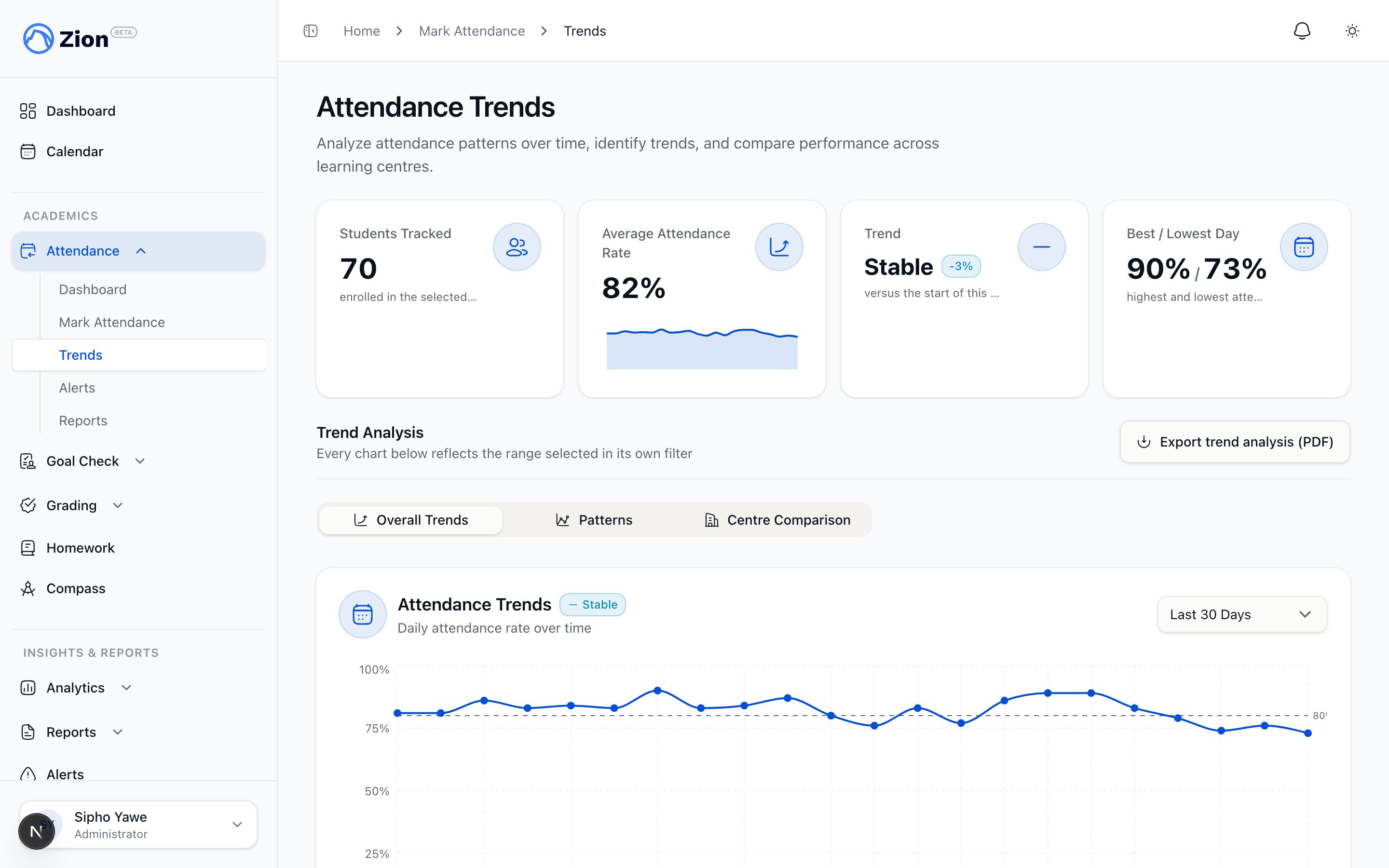 1. Navigate to **Attendance > Trends**.
2. Pick a range: 7 days, 30 days, current term, or a custom range. Optionally filter by centre or grade level.
The trend chart shows daily present, absent, and late counts and the attendance rate, along with a summary: average rate, best and worst day, and whether the trend is improving, stable, or declining.
Use the centre comparison view to spot outliers. If a centre performs well, look at what its supervisor is doing differently and consider sharing that practice. If a centre is struggling, investigate what is different there before assuming the cause.
***
## Marking attendance and correcting past records
As administrator you can mark attendance directly for any learning centre, for the current school day, the same way a supervisor or monitor would: select a date and centre, then mark each student present, absent, or late, or use bulk actions.
Attendance for any day other than today is locked to normal marking. If you need to change a past record, administrators can turn on correction mode from the banner shown on a locked date and edit individual student statuses. Corrections are written to the audit trail with a before and after value, separate from the normal daily mark.
Use direct marking to cover for an absent supervisor or in an emergency. Use correction mode to fix a data entry error after the fact.
***
## Escalation for chronic absence
For a critical alert, contact them the same day.
Record what was discussed in the alert's intervention notes.
Set a meeting if the pattern continues.
Make sure the supervisor is aware and watching the student's attendance.
Move to a formal parent meeting, an attendance improvement plan, or an external referral if interventions do not change the pattern.
***
## Troubleshooting
### A centre is not marking attendance
Check whether the supervisor or monitor is logged in and has access to that centre. Mark the day yourself if it is urgent, then follow up with the centre staff.
### Absence rate jumps suddenly
Check for a school event, weather, or transport disruption before assuming a data entry error. Confirm the numbers with the centre before communicating them further.
### An alert did not generate for a student who should qualify
Confirm the student is active (not deactivated) and that today's alert check has already run. You can trigger it yourself as an administrator.
***
## Related pages
Full attendance feature reference
Alert thresholds and lifecycle in detail
Report types, exports, and sharing
What supervisors see and do for their centres
1. Navigate to **Attendance > Trends**.
2. Pick a range: 7 days, 30 days, current term, or a custom range. Optionally filter by centre or grade level.
The trend chart shows daily present, absent, and late counts and the attendance rate, along with a summary: average rate, best and worst day, and whether the trend is improving, stable, or declining.
Use the centre comparison view to spot outliers. If a centre performs well, look at what its supervisor is doing differently and consider sharing that practice. If a centre is struggling, investigate what is different there before assuming the cause.
***
## Marking attendance and correcting past records
As administrator you can mark attendance directly for any learning centre, for the current school day, the same way a supervisor or monitor would: select a date and centre, then mark each student present, absent, or late, or use bulk actions.
Attendance for any day other than today is locked to normal marking. If you need to change a past record, administrators can turn on correction mode from the banner shown on a locked date and edit individual student statuses. Corrections are written to the audit trail with a before and after value, separate from the normal daily mark.
Use direct marking to cover for an absent supervisor or in an emergency. Use correction mode to fix a data entry error after the fact.
***
## Escalation for chronic absence
For a critical alert, contact them the same day.
Record what was discussed in the alert's intervention notes.
Set a meeting if the pattern continues.
Make sure the supervisor is aware and watching the student's attendance.
Move to a formal parent meeting, an attendance improvement plan, or an external referral if interventions do not change the pattern.
***
## Troubleshooting
### A centre is not marking attendance
Check whether the supervisor or monitor is logged in and has access to that centre. Mark the day yourself if it is urgent, then follow up with the centre staff.
### Absence rate jumps suddenly
Check for a school event, weather, or transport disruption before assuming a data entry error. Confirm the numbers with the centre before communicating them further.
### An alert did not generate for a student who should qualify
Confirm the student is active (not deactivated) and that today's alert check has already run. You can trigger it yourself as an administrator.
***
## Related pages
Full attendance feature reference
Alert thresholds and lifecycle in detail
Report types, exports, and sharing
What supervisors see and do for their centres