> ## Documentation Index
> Fetch the complete documentation index at: https://docs.zionapp.co/llms.txt
> Use this file to discover all available pages before exploring further.
# Administrator guide: Goal Check
> Oversee the Goal Check daily routine across every learning centre and manage optional goal approval
Goal Check is Zion's system for tracking student progress through ACE PACEs: a daily goal is set each morning and actual completion is marked each evening. The daily routine is the full-screen, one-student-at-a-time way to run that same Goal Check data for an entire learning centre in a single guided session. Administrators, supervisors, and monitors can all run it. This guide covers what is specific to the administrator role: seeing every centre, starting the routine from your dashboard, and turning on optional goal approval.
Administrators are not limited to an assigned learning centre the way supervisors and monitors are. Every active centre in your school shows up in your routine centre selector, so you can start or resume the routine for any of them.
## Morning Routine and End of Day across centres
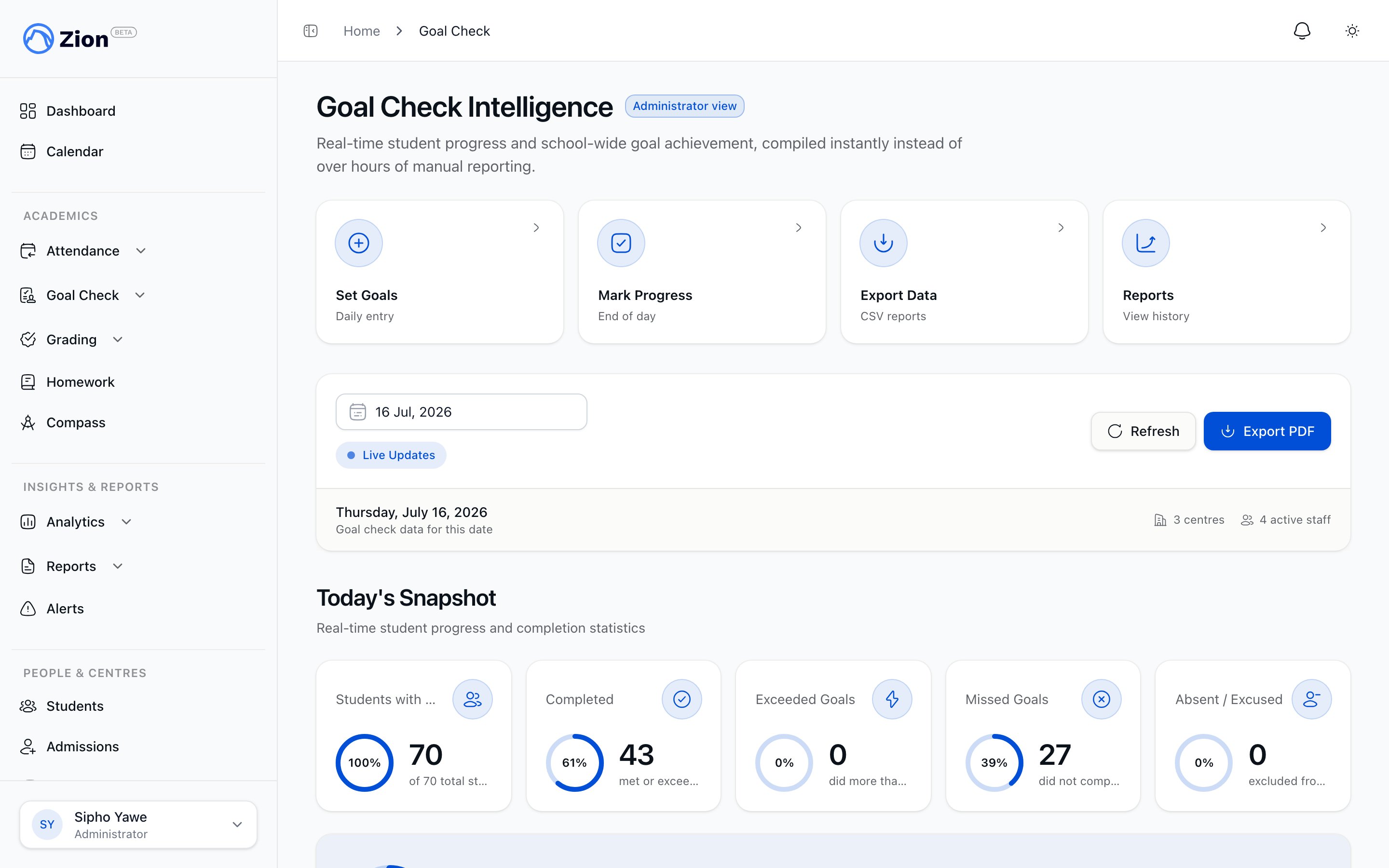 The daily routine has two passes over the same roster, run at different times of day:
* **Morning Routine:** for each student, enter an end page for every active PACE. The start page is set for you automatically, based on the last page recorded.
* **End of Day:** for each student, review the PACEs goaled that morning and record Hit, Missed, or Partial along with the actual pages completed.
Within either pass you can use Back to revise the previous student, Skip to move on and return later, the Roster sheet to jump straight to a specific student, and Skip remaining to close out the session early. Before a session finishes, it offers one more pass at any skipped students. Sessions save as you go, so closing the tab and coming back later resumes where you left off rather than starting over.
Because administrators are not tied to one centre, use the centre selector on the routine card to check in on any centre, not only ones you supervise directly. Full step-by-step instructions for running the Morning Routine and End of Day passes live in the daily routine page linked below.
## The Today's Routine card on your dashboard
Your administrator dashboard includes a **Today's Routine** card. If your school has more than one active learning centre, a **Learning centre** selector appears above the two buttons so you can check any centre, not just ones assigned to you.
Each mode shows one of three states:
| State | What you see | What happens if you tap it |
| ----------------- | ---------------------------------------------------------------------------------------- | ------------------------------------------------------------------------------------------------------------------------------ |
| Not started today | **Start Morning Routine** / **Start End-of-Day Check** | Creates a new session for the selected centre and opens the full-screen routine |
| In progress | **Resume Morning Routine** / **Resume End-of-Day Check**, with an "X of Y handled" count | Reopens the existing session where it left off, no new session is created |
| Completed today | **Morning Routine Done** / **End-of-Day Check Done** badge | Non-interactive; a secondary link takes you to the standalone Goal Check view (goal entry or progress marking) for that centre |
The card sits alongside, and never replaces, the standalone per-student Goal Check entry and progress-marking screens. Use whichever fits the moment: the routine to move an entire centre through goal setting or end-of-day marking in one pass, or the standalone screens to adjust a single student.
On the standalone progress-marking screen, staff can also record a day that was not a normal PACE attempt: mark a student Absent or Excused, or note that a present student spent the day on non-PACE work, such as review, an essay, a science project, or a special activity, and add an optional reason. These entries do not count as a completion attempt, so they are left out of insights and trend reports rather than counted against the student.
## Optional goal approval
Zion supports a school-wide setting that requires a sign-off on morning goals before they count as final. It is off by default, so goals entered in the routine are live immediately unless you turn it on.
On the School tab in Settings, enable **Require goal approval in the Routine**. When on, goals entered during Morning Routine start as pending until a supervisor or administrator signs them off.
Any completed morning session for a centre now carries goals in a pending state until approved.
On the completion summary of a finished morning session, an approval panel shows a badge such as "3 goals pending approval." Tap **Approve all from this session** to sign off every pending goal from that session in one action. Once every goal is approved, the badge changes to "All goals approved."
Only an administrator or supervisor can approve goals. A monitor can enter goals during the routine but cannot sign them off, so the person entering a goal and the person approving it are never the same when a monitor is involved.
Once a goal is both approved and marked complete in End of Day, it is locked against casual re-marking in the routine. Changing it after that point goes through the audited correction path instead.
What Goal Check tracks and how the daily cycle works
Full walkthrough of running Morning Routine and End of Day
Standalone per-student goal entry
Standalone per-student progress marking
Weekly reports across centres
Where the goal approval toggle and other school-wide settings live
The daily routine has two passes over the same roster, run at different times of day:
* **Morning Routine:** for each student, enter an end page for every active PACE. The start page is set for you automatically, based on the last page recorded.
* **End of Day:** for each student, review the PACEs goaled that morning and record Hit, Missed, or Partial along with the actual pages completed.
Within either pass you can use Back to revise the previous student, Skip to move on and return later, the Roster sheet to jump straight to a specific student, and Skip remaining to close out the session early. Before a session finishes, it offers one more pass at any skipped students. Sessions save as you go, so closing the tab and coming back later resumes where you left off rather than starting over.
Because administrators are not tied to one centre, use the centre selector on the routine card to check in on any centre, not only ones you supervise directly. Full step-by-step instructions for running the Morning Routine and End of Day passes live in the daily routine page linked below.
## The Today's Routine card on your dashboard
Your administrator dashboard includes a **Today's Routine** card. If your school has more than one active learning centre, a **Learning centre** selector appears above the two buttons so you can check any centre, not just ones assigned to you.
Each mode shows one of three states:
| State | What you see | What happens if you tap it |
| ----------------- | ---------------------------------------------------------------------------------------- | ------------------------------------------------------------------------------------------------------------------------------ |
| Not started today | **Start Morning Routine** / **Start End-of-Day Check** | Creates a new session for the selected centre and opens the full-screen routine |
| In progress | **Resume Morning Routine** / **Resume End-of-Day Check**, with an "X of Y handled" count | Reopens the existing session where it left off, no new session is created |
| Completed today | **Morning Routine Done** / **End-of-Day Check Done** badge | Non-interactive; a secondary link takes you to the standalone Goal Check view (goal entry or progress marking) for that centre |
The card sits alongside, and never replaces, the standalone per-student Goal Check entry and progress-marking screens. Use whichever fits the moment: the routine to move an entire centre through goal setting or end-of-day marking in one pass, or the standalone screens to adjust a single student.
On the standalone progress-marking screen, staff can also record a day that was not a normal PACE attempt: mark a student Absent or Excused, or note that a present student spent the day on non-PACE work, such as review, an essay, a science project, or a special activity, and add an optional reason. These entries do not count as a completion attempt, so they are left out of insights and trend reports rather than counted against the student.
## Optional goal approval
Zion supports a school-wide setting that requires a sign-off on morning goals before they count as final. It is off by default, so goals entered in the routine are live immediately unless you turn it on.
On the School tab in Settings, enable **Require goal approval in the Routine**. When on, goals entered during Morning Routine start as pending until a supervisor or administrator signs them off.
Any completed morning session for a centre now carries goals in a pending state until approved.
On the completion summary of a finished morning session, an approval panel shows a badge such as "3 goals pending approval." Tap **Approve all from this session** to sign off every pending goal from that session in one action. Once every goal is approved, the badge changes to "All goals approved."
Only an administrator or supervisor can approve goals. A monitor can enter goals during the routine but cannot sign them off, so the person entering a goal and the person approving it are never the same when a monitor is involved.
Once a goal is both approved and marked complete in End of Day, it is locked against casual re-marking in the routine. Changing it after that point goes through the audited correction path instead.
What Goal Check tracks and how the daily cycle works
Full walkthrough of running Morning Routine and End of Day
Standalone per-student goal entry
Standalone per-student progress marking
Weekly reports across centres
Where the goal approval toggle and other school-wide settings live