> ## Documentation Index
> Fetch the complete documentation index at: https://docs.zionapp.co/llms.txt
> Use this file to discover all available pages before exploring further.
# Administrator guide: learning centres
> Create learning centres, set capacity, and assign supervisors and monitors to them
A learning centre is the classroom unit in Zion. Students and teaching staff are scoped to one or more centres, so getting centres and staff assignments right early keeps rosters, reporting, and access control accurate. Administrators create and archive centres. Administrators, supervisors, and monitors can all view the centres they have access to.
ACE schools commonly call this unit a classroom or a learning centre. Zion uses "learning centre" throughout the app.
## Who sees what
* **Administrators** see every centre in the school and can create, edit, and archive them.
* **Supervisors** and **monitors** only see centres they are assigned to. Opening a centre they are not assigned to returns a not-found page.
## The learning centres list
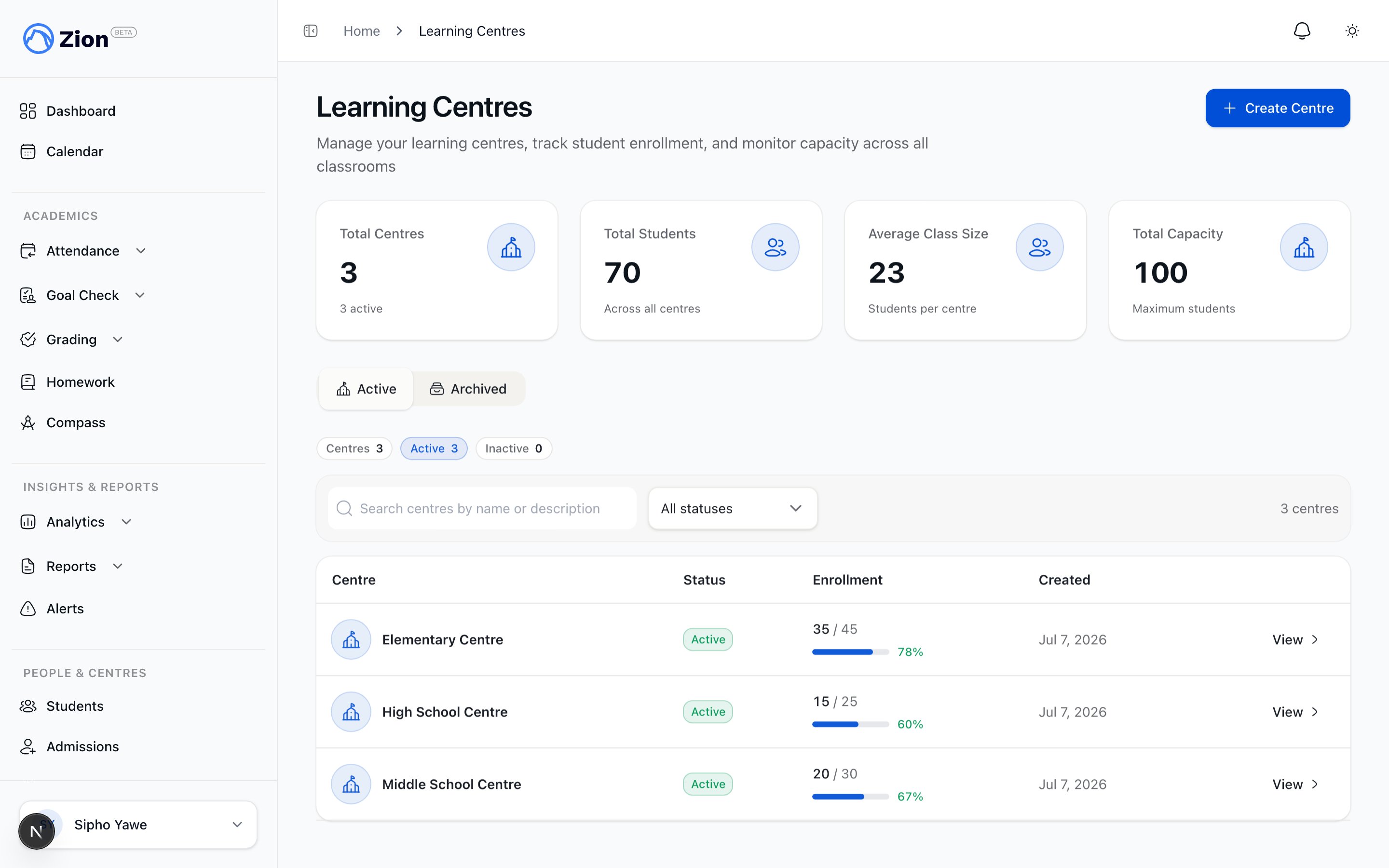 Go to **People & Centres > Learning Centres** in the sidebar. The page shows four stat tiles: Total Centres (with a count of active centres), Total Students, Average Class Size, and Total Capacity.
Below the tiles, centres list as a searchable, sortable table: centre name and description, an Active or Inactive badge with an over-capacity badge if it applies, enrollment against capacity with a small progress bar, and the date created. Click a row, or its **View** link, to open that centre.
Administrators also see an Active/Archived tab switcher above the table, and **Bulk import** and **Create Centre** buttons. Supervisors and monitors see only the active table for their assigned centres, with no import or create action.
## Creating a centre
Go to **People & Centres > Learning Centres**.
This button only appears for administrators.
Fill in the name, and optionally a description, a capacity, and a timezone.
The centre appears in the active list immediately.
If the school has no centres yet, the list shows an empty state with a **Create Your First Centre** button instead of the table.
### Centre fields
| Field | Required | Notes |
| ----------- | -------- | ------------------------------------------------------------------------------------------------------------------------------------------------------------------------------------------------------------------------------------------------------------------------ |
| Name | Yes | Short, distinct names read better in reports and tables than long descriptive ones. |
| Description | No | Free text. Useful for noting age range, focus, or purpose. |
| Capacity | No | A number used only to power the capacity indicator below. Leave it empty if you do not need capacity tracking. |
| Timezone | No | Overrides your school's default timezone for this centre's attendance and Goal Check day boundaries, meaning when "today" starts and ends for that centre. Leave it as "Inherit organisation timezone" if the centre is in the same timezone as the rest of your school. |
## Bulk import from a spreadsheet
If you have several centres to set up at once, for example when loading a whole school's classrooms on day one, import them from a CSV file instead of creating each one by hand.
From Learning Centres, click "Bulk import," next to Create Centre.
Download the CSV template. Its columns are Name, Description, Capacity, and Timezone. Only Name is required.
Fill in one row per centre and upload the file back. Zion previews each row as valid or invalid before you confirm.
Confirm to create every valid row at once. A name that matches a centre you already have is skipped automatically rather than creating a duplicate.
## Reading the capacity indicator
Capacity is a guide, not a hard limit. Zion never blocks assigning a student past capacity.
| Enrollment vs. capacity | Indicator |
| ----------------------- | ---------------------------------------------- |
| No capacity set | No indicator shown |
| Below 80% | Normal (success tone) |
| 80% to 99% | Warning tone, no badge |
| 100% or more | Destructive tone with an "Over capacity" badge |
Use the indicator to spot centres that need rebalancing rather than as an enrollment cap.
## Assigning supervisors and monitors to a centre
Staff access to a centre's data comes from this assignment, not from their role alone. A supervisor or monitor with no centre assignment cannot open that centre.
Go to **People & Centres > Learning Centres** and click into a centre.
It lists two groups: Supervisors and Monitors.
This opens a dialog listing the school's staff.
Select one or more members and save. A staff member can be assigned to more than one centre, and a centre can have more than one supervisor or monitor.
To invite a brand-new staff member and assign their first centre in one step, use **Invite Teaching Staff** instead. Monitors require at least one centre at invite time; centre assignment for supervisors is optional there. See [Staff management](/guides/administrator/staff-management).
## Archiving and restoring a centre
Archiving removes a centre from the active list and from assignment dropdowns while keeping its historical data intact.
On **People & Centres > Learning Centres**, switch from Active to Archived.
Archived centres show their archived date and last capacity.
Click **Restore** and confirm. The centre returns to the active list. If another active centre already uses the same name, rename one of them.
Reassign students to another centre before archiving one, so no roster is left pointing at a centre that no longer appears in active lists.
## Related resources
The feature reference for centre structure, capacity, and access rules.
Invite teaching staff and assign their roles and centres.
How built-in roles and custom roles govern what staff can do.
Add students and assign them to a centre.
Go to **People & Centres > Learning Centres** in the sidebar. The page shows four stat tiles: Total Centres (with a count of active centres), Total Students, Average Class Size, and Total Capacity.
Below the tiles, centres list as a searchable, sortable table: centre name and description, an Active or Inactive badge with an over-capacity badge if it applies, enrollment against capacity with a small progress bar, and the date created. Click a row, or its **View** link, to open that centre.
Administrators also see an Active/Archived tab switcher above the table, and **Bulk import** and **Create Centre** buttons. Supervisors and monitors see only the active table for their assigned centres, with no import or create action.
## Creating a centre
Go to **People & Centres > Learning Centres**.
This button only appears for administrators.
Fill in the name, and optionally a description, a capacity, and a timezone.
The centre appears in the active list immediately.
If the school has no centres yet, the list shows an empty state with a **Create Your First Centre** button instead of the table.
### Centre fields
| Field | Required | Notes |
| ----------- | -------- | ------------------------------------------------------------------------------------------------------------------------------------------------------------------------------------------------------------------------------------------------------------------------ |
| Name | Yes | Short, distinct names read better in reports and tables than long descriptive ones. |
| Description | No | Free text. Useful for noting age range, focus, or purpose. |
| Capacity | No | A number used only to power the capacity indicator below. Leave it empty if you do not need capacity tracking. |
| Timezone | No | Overrides your school's default timezone for this centre's attendance and Goal Check day boundaries, meaning when "today" starts and ends for that centre. Leave it as "Inherit organisation timezone" if the centre is in the same timezone as the rest of your school. |
## Bulk import from a spreadsheet
If you have several centres to set up at once, for example when loading a whole school's classrooms on day one, import them from a CSV file instead of creating each one by hand.
From Learning Centres, click "Bulk import," next to Create Centre.
Download the CSV template. Its columns are Name, Description, Capacity, and Timezone. Only Name is required.
Fill in one row per centre and upload the file back. Zion previews each row as valid or invalid before you confirm.
Confirm to create every valid row at once. A name that matches a centre you already have is skipped automatically rather than creating a duplicate.
## Reading the capacity indicator
Capacity is a guide, not a hard limit. Zion never blocks assigning a student past capacity.
| Enrollment vs. capacity | Indicator |
| ----------------------- | ---------------------------------------------- |
| No capacity set | No indicator shown |
| Below 80% | Normal (success tone) |
| 80% to 99% | Warning tone, no badge |
| 100% or more | Destructive tone with an "Over capacity" badge |
Use the indicator to spot centres that need rebalancing rather than as an enrollment cap.
## Assigning supervisors and monitors to a centre
Staff access to a centre's data comes from this assignment, not from their role alone. A supervisor or monitor with no centre assignment cannot open that centre.
Go to **People & Centres > Learning Centres** and click into a centre.
It lists two groups: Supervisors and Monitors.
This opens a dialog listing the school's staff.
Select one or more members and save. A staff member can be assigned to more than one centre, and a centre can have more than one supervisor or monitor.
To invite a brand-new staff member and assign their first centre in one step, use **Invite Teaching Staff** instead. Monitors require at least one centre at invite time; centre assignment for supervisors is optional there. See [Staff management](/guides/administrator/staff-management).
## Archiving and restoring a centre
Archiving removes a centre from the active list and from assignment dropdowns while keeping its historical data intact.
On **People & Centres > Learning Centres**, switch from Active to Archived.
Archived centres show their archived date and last capacity.
Click **Restore** and confirm. The centre returns to the active list. If another active centre already uses the same name, rename one of them.
Reassign students to another centre before archiving one, so no roster is left pointing at a centre that no longer appears in active lists.
## Related resources
The feature reference for centre structure, capacity, and access rules.
Invite teaching staff and assign their roles and centres.
How built-in roles and custom roles govern what staff can do.
Add students and assign them to a centre.