> ## Documentation Index
> Fetch the complete documentation index at: https://docs.zionapp.co/llms.txt
> Use this file to discover all available pages before exploring further.
# Administrator Guide: School Management
> Configure your school profile and logo, academic terms and term locking, PACE and daily routine toggles, alert thresholds, and weekly report settings
School management covers the settings that shape how Zion behaves for your whole school: the school profile and logo, academic terms and term locking, two operational toggles, and the alert and weekly report configuration. All of these settings are administrator-only. Supervisors and monitors do not see these pages, and non-administrators are redirected to their dashboard if they try to reach them directly.
## School Profile
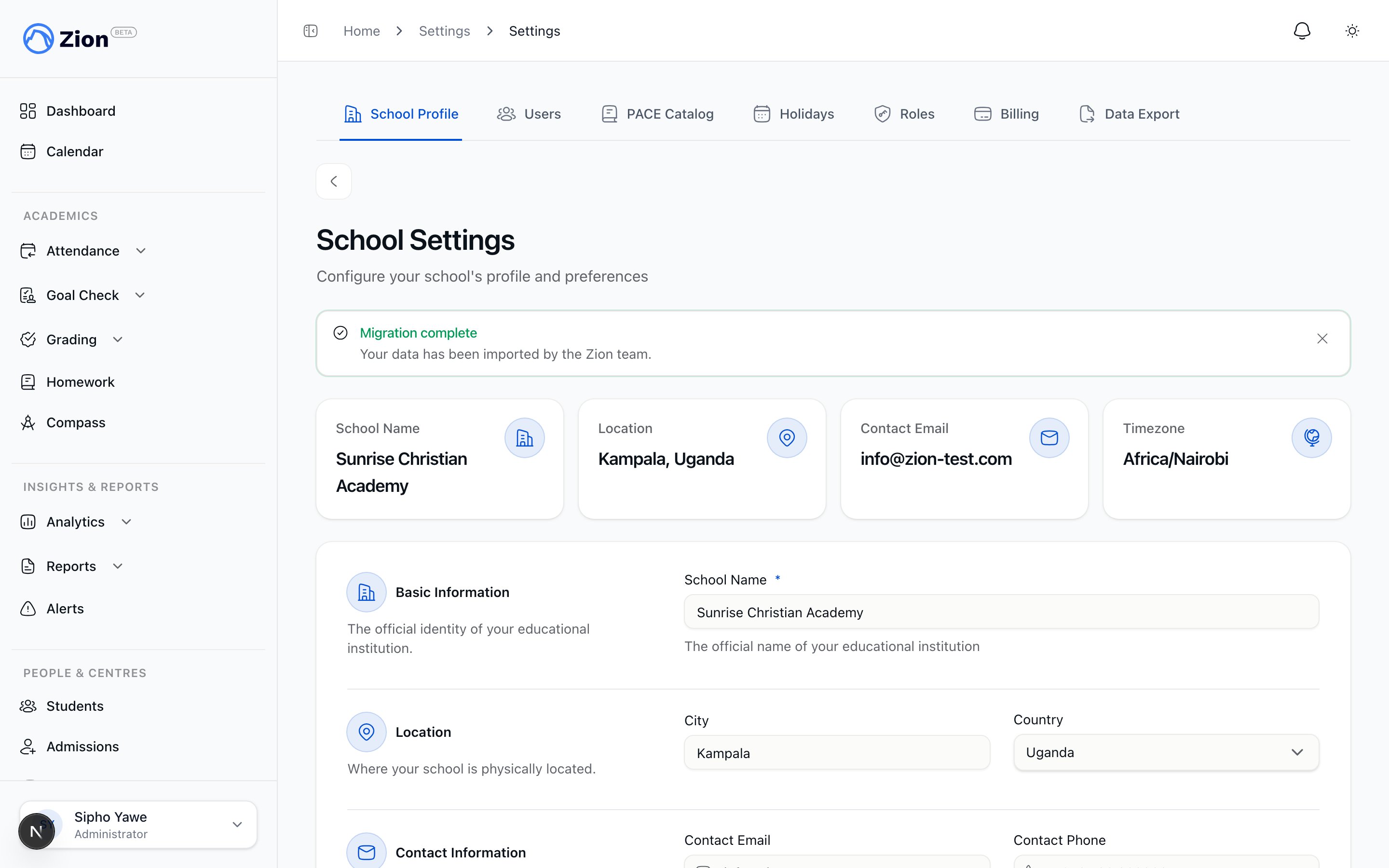 The school profile page (Settings > School Profile) holds your school's identifying information and two behavior toggles.
| Field | Notes |
| ------------- | --------------------------------------------------------------------- |
| School name | Required, 2 to 100 characters |
| City | Optional |
| Country | Optional, chosen from a dropdown of roughly 14 countries plus "Other" |
| Contact email | Optional, validated email format |
| Contact phone | Optional |
| Timezone | Defaults to UTC, chosen from about 10 preset zones |
| Language | Defaults to English, currently the only option offered |
Saving the school profile needs the permission to edit school settings, which the administrator role holds by default. See [Roles & Permissions](/features/organization/roles-and-permissions) if you use custom roles.
Go to Settings > School Profile.
Change name, city, country, contact details, timezone, or language.
Decide whether PACEs auto-advance and whether routine goals need approval, described below.
Saving also marks the "school profile" step complete on the getting-started checklist if it was still open.
Timezone changes only apply going forward. Changing timezone does not retroactively adjust dates already recorded in Goal Check.
## School Logo
The School Profile page also has a School Logo section. Upload your own logo and it replaces the Zion logo across your dashboard.
Go to Settings > School Profile.
In the School Logo section, click "Upload logo" and choose a PNG or JPEG image up to 2MB.
Click "Replace logo" to swap it for a different image, or "Remove logo" to go back to the Zion logo. Removing asks you to confirm, since you would need to upload the original file again to undo it.
## The Two Toggles
The School Profile page includes two switches that change how Goal Check behaves across your school.
### Auto-advance PACEs on completion
Off by default. When a student completes a PACE, this controls what happens next.
* **Off:** the student sees a one-click suggestion for the next PACE in that subject. A supervisor or the student still confirms it.
* **On:** Zion automatically assigns the next PACE in the subject as soon as the current one is marked complete.
### Require goal approval in the routine
Off by default. This affects goals entered during Morning Routine.
* **Off:** goals set in the routine go live immediately.
* **On:** goals set in the routine start in a pending state and need sign-off from a supervisor or administrator before they count. Use this if you want a second set of eyes on routine goals before students act on them.
See [The daily routine](/features/goal-check/rituals) for how goal entry in the routine works day to day.
## Academic Terms
The school profile page (Settings > School Profile) holds your school's identifying information and two behavior toggles.
| Field | Notes |
| ------------- | --------------------------------------------------------------------- |
| School name | Required, 2 to 100 characters |
| City | Optional |
| Country | Optional, chosen from a dropdown of roughly 14 countries plus "Other" |
| Contact email | Optional, validated email format |
| Contact phone | Optional |
| Timezone | Defaults to UTC, chosen from about 10 preset zones |
| Language | Defaults to English, currently the only option offered |
Saving the school profile needs the permission to edit school settings, which the administrator role holds by default. See [Roles & Permissions](/features/organization/roles-and-permissions) if you use custom roles.
Go to Settings > School Profile.
Change name, city, country, contact details, timezone, or language.
Decide whether PACEs auto-advance and whether routine goals need approval, described below.
Saving also marks the "school profile" step complete on the getting-started checklist if it was still open.
Timezone changes only apply going forward. Changing timezone does not retroactively adjust dates already recorded in Goal Check.
## School Logo
The School Profile page also has a School Logo section. Upload your own logo and it replaces the Zion logo across your dashboard.
Go to Settings > School Profile.
In the School Logo section, click "Upload logo" and choose a PNG or JPEG image up to 2MB.
Click "Replace logo" to swap it for a different image, or "Remove logo" to go back to the Zion logo. Removing asks you to confirm, since you would need to upload the original file again to undo it.
## The Two Toggles
The School Profile page includes two switches that change how Goal Check behaves across your school.
### Auto-advance PACEs on completion
Off by default. When a student completes a PACE, this controls what happens next.
* **Off:** the student sees a one-click suggestion for the next PACE in that subject. A supervisor or the student still confirms it.
* **On:** Zion automatically assigns the next PACE in the subject as soon as the current one is marked complete.
### Require goal approval in the routine
Off by default. This affects goals entered during Morning Routine.
* **Off:** goals set in the routine go live immediately.
* **On:** goals set in the routine start in a pending state and need sign-off from a supervisor or administrator before they count. Use this if you want a second set of eyes on routine goals before students act on them.
See [The daily routine](/features/goal-check/rituals) for how goal entry in the routine works day to day.
## Academic Terms
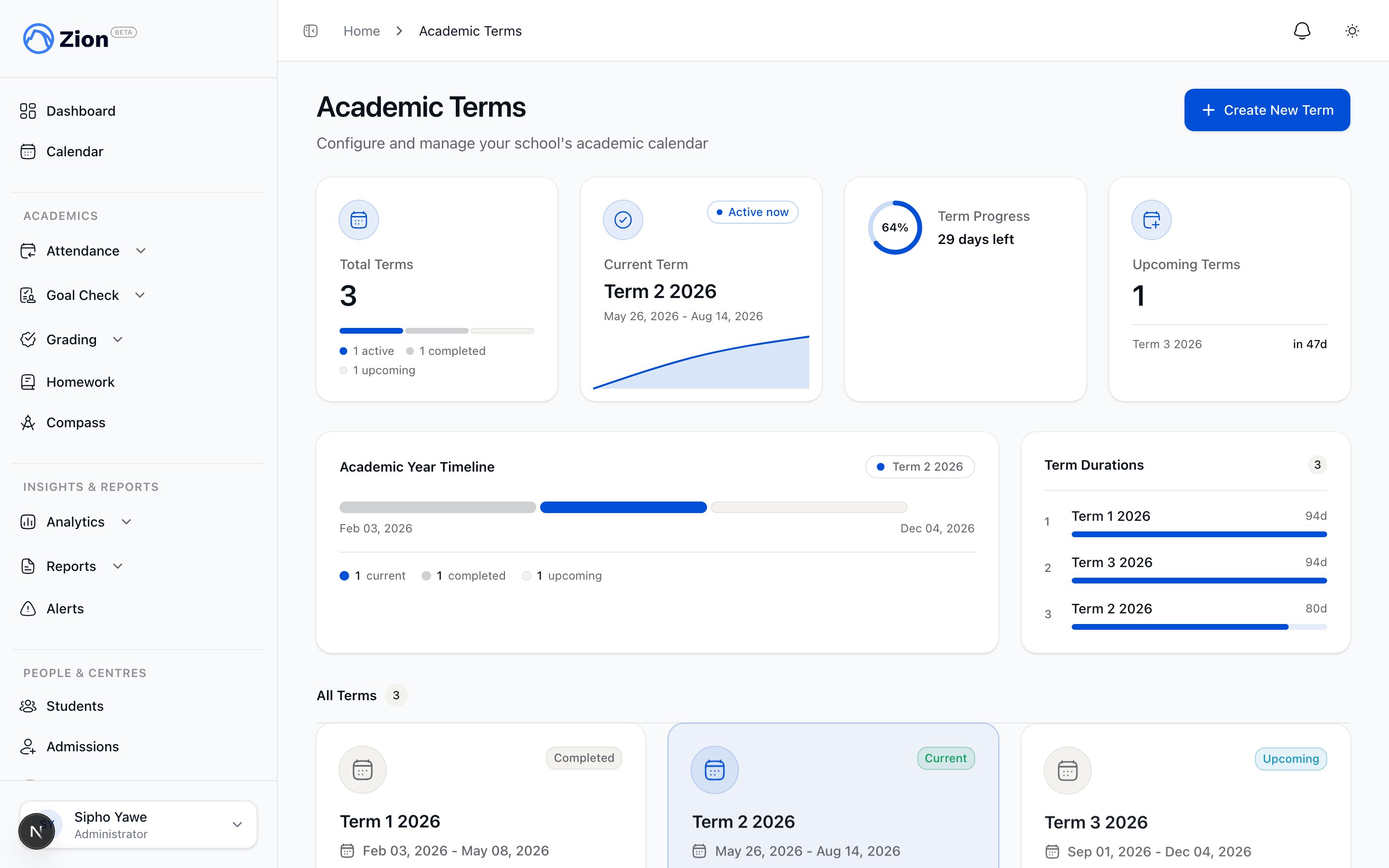 Goal Check data is scoped to a term, so every school needs at least one before Goal Check data can be recorded. Terms are created during initial onboarding, and can also be managed from Academic Terms afterward.
* Each term has a name, a start date, and an end date.
* Only one term is active at a time. All new Goal Check entries go to the active term.
* Switching the active term does not delete data from the previous term. Historical terms remain available for reports and exports.
* Because switching terms changes where new data lands, do this on the actual first day of the new term, after final reports for the previous term are generated.
Create your terms for the whole academic year up front. You can add future terms without activating them, then activate each one when it starts.
### Locking a term
Once a term is finished and its records are settled, lock it to stop further changes landing in it by mistake. Click "Lock" on a term's card to lock it, and "Unlock" to open it back up. Any administrator can lock or unlock any term.
A locked term refuses new or backdated entries into its date range, such as a new score, a retest, or a goal-check correction, with a message asking to have an administrator unlock it first. Locking a term does not by itself stop you from generating report cards for it. Unlock a term temporarily if you need to make a correction, then lock it again once you are done.
For the full walkthrough of creating your first terms during setup, see [Onboarding](/guides/administrator/onboarding).
## Alert Settings
Alert Settings (Settings > Alerts) controls how Zion flags at-risk students and lets you trigger alerts and digests on demand.
* **Generate Alerts Now:** runs alert analysis across all active students immediately, instead of waiting for the automatic daily run.
* **Send Digest Now:** emails unacknowledged alerts from the last 24 hours to all administrators, instead of waiting for the automatic daily send.
| Threshold | Default |
| ------------------------------ | ---------------------------------- |
| Consecutive missed goals | 3 days |
| Declining trend | 20% drop over 2 weeks |
| Subject struggle | 60% miss rate, minimum 5 goals |
| Sudden drop | From 80% down to 50% within a week |
| Termly goal-at-risk projection | 80% |
| Centre low performance | 60% |
| Alert auto-expiry | 7 days |
Raise a threshold to make it less sensitive (fewer alerts, only clearer cases), or lower it to catch issues sooner. See [Alerts](/features/alerts/overview) for what each alert type means for the student it fires on.
## Weekly Report Settings
Weekly Report Settings (Settings > Weekly Reports) controls the automated weekly Goal Check report.
* Enable or disable the automated report.
* Choose the day and time it generates. Generation runs in your school's configured timezone, so set the timezone in School Profile first if it is wrong.
* Manage the recipient list. Recipients are persisted and can include people outside the administrator role.
For details on both settings surfaces, see [Alerts & Reports](/features/school-settings/alerts-and-reports).
## Related Resources
The full feature reference for school profile and settings.
Full detail on alert thresholds and weekly report configuration.
The initial setup wizard, including creating your first academic terms.
Create and manage the learning centres your school profile settings apply across.
Who can edit school settings if you use custom roles.
What each alert type detects and what triggers it.
Goal Check data is scoped to a term, so every school needs at least one before Goal Check data can be recorded. Terms are created during initial onboarding, and can also be managed from Academic Terms afterward.
* Each term has a name, a start date, and an end date.
* Only one term is active at a time. All new Goal Check entries go to the active term.
* Switching the active term does not delete data from the previous term. Historical terms remain available for reports and exports.
* Because switching terms changes where new data lands, do this on the actual first day of the new term, after final reports for the previous term are generated.
Create your terms for the whole academic year up front. You can add future terms without activating them, then activate each one when it starts.
### Locking a term
Once a term is finished and its records are settled, lock it to stop further changes landing in it by mistake. Click "Lock" on a term's card to lock it, and "Unlock" to open it back up. Any administrator can lock or unlock any term.
A locked term refuses new or backdated entries into its date range, such as a new score, a retest, or a goal-check correction, with a message asking to have an administrator unlock it first. Locking a term does not by itself stop you from generating report cards for it. Unlock a term temporarily if you need to make a correction, then lock it again once you are done.
For the full walkthrough of creating your first terms during setup, see [Onboarding](/guides/administrator/onboarding).
## Alert Settings
Alert Settings (Settings > Alerts) controls how Zion flags at-risk students and lets you trigger alerts and digests on demand.
* **Generate Alerts Now:** runs alert analysis across all active students immediately, instead of waiting for the automatic daily run.
* **Send Digest Now:** emails unacknowledged alerts from the last 24 hours to all administrators, instead of waiting for the automatic daily send.
| Threshold | Default |
| ------------------------------ | ---------------------------------- |
| Consecutive missed goals | 3 days |
| Declining trend | 20% drop over 2 weeks |
| Subject struggle | 60% miss rate, minimum 5 goals |
| Sudden drop | From 80% down to 50% within a week |
| Termly goal-at-risk projection | 80% |
| Centre low performance | 60% |
| Alert auto-expiry | 7 days |
Raise a threshold to make it less sensitive (fewer alerts, only clearer cases), or lower it to catch issues sooner. See [Alerts](/features/alerts/overview) for what each alert type means for the student it fires on.
## Weekly Report Settings
Weekly Report Settings (Settings > Weekly Reports) controls the automated weekly Goal Check report.
* Enable or disable the automated report.
* Choose the day and time it generates. Generation runs in your school's configured timezone, so set the timezone in School Profile first if it is wrong.
* Manage the recipient list. Recipients are persisted and can include people outside the administrator role.
For details on both settings surfaces, see [Alerts & Reports](/features/school-settings/alerts-and-reports).
## Related Resources
The full feature reference for school profile and settings.
Full detail on alert thresholds and weekly report configuration.
The initial setup wizard, including creating your first academic terms.
Create and manage the learning centres your school profile settings apply across.
Who can edit school settings if you use custom roles.
What each alert type detects and what triggers it.