> ## Documentation Index
> Fetch the complete documentation index at: https://docs.zionapp.co/llms.txt
> Use this file to discover all available pages before exploring further.
# Monitor guide: daily workflow
> How a monitor runs the daily routine, marks attendance, and handles homework for assigned learning centres
As a monitor, you run the day-to-day data entry for the learning centres your administrator assigned to you. Your dashboard centres on three tasks: the Goal Check daily routine, attendance, and homework. You do not reach org-wide dashboards, analytics, or reports. Those views belong to supervisors and administrators.
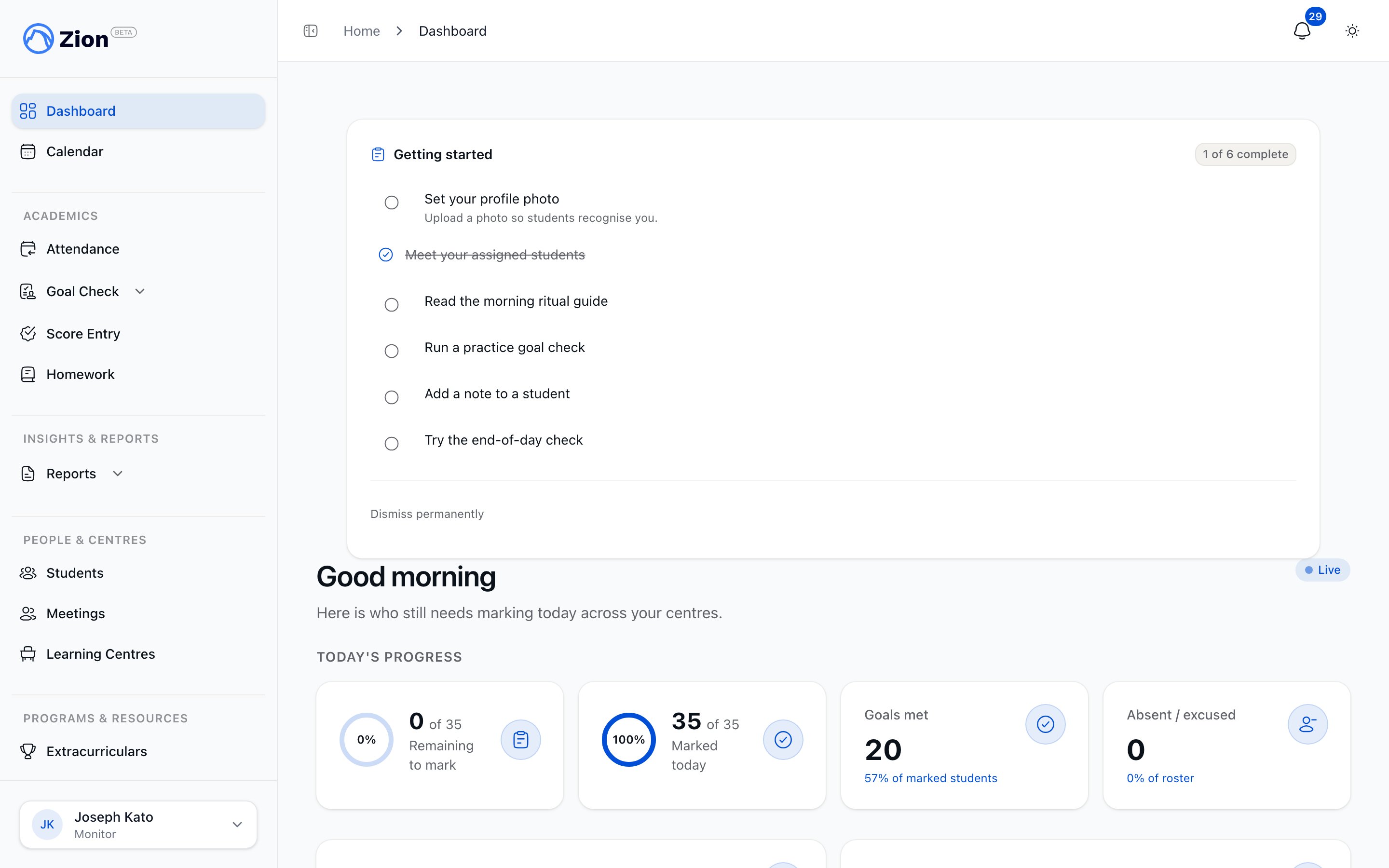 Everything below is scoped to the learning centres you are assigned to. If you are assigned to more than one centre, a centre selector appears above the relevant task so you can switch between them.
## What you can and cannot do
* Start and resume Morning Routine and End of Day for your centres
* Mark attendance (Present, Absent, Late) for students in your centres
* Assign homework to students in your centres and verify it at goal check
* Add notes on student progress, attendance, and homework
* Approve or sign off on morning goals, even if your organization requires approval (that is an administrator or supervisor action, kept separate from data entry on purpose)
* View the attendance dashboard, alerts, or trend analysis
* Generate or export attendance reports
* View org-wide Goal Check or homework reports across every centre
If your organization turns on goal approval, your morning goals still enter as pending. An administrator or supervisor approves them from the routine completion summary, not you. This keeps data entry and sign-off separate.
***
## Morning: run Morning Routine
On your dashboard, find the Today's Routine card.
If you are assigned to more than one learning centre, choose which one you are running Morning Routine for.
Tap Start Morning Routine. If a session is already in progress for today, the button reads Resume Morning Routine instead, so you never accidentally start a duplicate.
Morning Routine walks you through your centre one student at a time, full screen. For each active PACE, the start page is filled in for you (it continues from where the student last finished). Enter the end page for today and tap Advance.
Tap Skip to move past a student without a goal, tap Back to revisit the previous student, or open the Roster to jump straight to a specific student. Skip remaining flips every student still pending to skipped and closes out the session early.
At the end you see how many goals were set, how many students were skipped, and how long the session took.
If you close the tab or lose connection mid-entry, your in-progress goal is saved locally and restored when you come back. The session itself stays open until you complete it, so reopening Morning Routine resumes where you left off rather than starting over.
If you prefer entering goals one student at a time outside the guided routine, use the standalone Set Goals screen instead. Both write to the same data, so pick whichever fits your day.
## End of day: run the check
From the Today's Routine card, tap Start End-of-Day Check (or Resume if one is already open).
For each student, End of Day recaps the morning goal for every PACE. Check the physical PACE and record Hit, Missed, or Partial, along with the actual start and end page.
If a student had no goal set (for example, they were absent that morning), you can still advance past them. Nothing is recorded for that PACE since there was no goal to check against.
A short note on why a student missed or exceeded a goal helps your supervisor plan support. Keep it brief and specific, for example the page range where a student struggled.
Use Back, Skip, Roster, or Skip remaining the same way you did in the morning. Review the completion summary before you log out.
If a student was not doing normal PACE work that day, use the standalone progress-marking screen instead of the guided routine to record it. There you can mark them Absent or Excused, or note that they spent the day on non-PACE work, such as review, an essay, a science project, or a special activity, with an optional reason. These entries do not count as a completion attempt, so they are left out of insights and reports.
***
## Marking attendance
Attendance is a separate task from Goal Check. It also lists only the centres you are assigned to.
Select the date (today by default) and your learning centre.
Tap Present, Absent, or Late for every student in the roster. Unmarked students sort to the top so you can see who is left.
When you mark a student Late, you can add an arrival time and a note.
Mark All Present lets you set the whole roster to present in one action, with exceptions for the students who are absent or late. You can also multi-select a subset of students and bulk-mark them together.
If you marked the wrong status, use Clear to return a student to unmarked and re-enter it.
Attendance is only editable for the current day. Once the day passes, the record locks. If you find an error in a past date, ask your administrator, since only administrators can correct a locked attendance record and that correction is logged.
You do not have access to the attendance dashboard, chronic-absence alerts, trend analysis, or attendance reports. Those views belong to supervisors (for their centres) and administrators (org-wide).
***
## Homework basics
Homework assigns a PACE page range to an individual student for home study. It is separate from the daily PACE goal you set in Morning Routine.
On the Assign tab, pick a student in your centre, one of their active PACEs, and the page range (for example, pp 12-17). The due date defaults to the next school day, skipping weekends and holidays, and you can change it as long as it is not before today.
An optional note travels with the assignment to whoever marks it done at home.
On the Pending Verifications tab, confirm items the family already marked done, or mark an item done yourself if the student clearly completed it but the family never tapped the button.
On the Missed tab, verify a late completion, reopen an item back to pending, or cancel or excuse an assignment that no longer applies. Cancel and excuse are neutral outcomes, not a mark against the student, and they are available any time before you verify the item.
The Homework Completion Report shows assigned, verified, and missed counts per student, scoped to your assigned centres. It flags a student as chronic once their missed rate reaches 30 percent over the reporting window. You can view this scoped rollup, but you do not see homework data for centres outside your assignment.
***
## Getting help
If something looks wrong in your interface, check the following before contacting support:
* No students showing: confirm with your administrator that you are assigned to a learning centre and that students in it have PACE assignments.
* Data not saving: check for an offline banner and your internet connection, then look for a checkmark next to the field once it saves.
* Unsure what goal or page range to set: ask your supervisor rather than guessing.
## Next steps
How Morning Routine and End of Day work, including approval and correction rules.
Standalone goal entry outside the guided routine.
Standalone progress marking outside the guided routine.
Full reference for the attendance marking workflow.
Full reference for homework assignment and verification.
What each role can see and do across Zion.
Everything below is scoped to the learning centres you are assigned to. If you are assigned to more than one centre, a centre selector appears above the relevant task so you can switch between them.
## What you can and cannot do
* Start and resume Morning Routine and End of Day for your centres
* Mark attendance (Present, Absent, Late) for students in your centres
* Assign homework to students in your centres and verify it at goal check
* Add notes on student progress, attendance, and homework
* Approve or sign off on morning goals, even if your organization requires approval (that is an administrator or supervisor action, kept separate from data entry on purpose)
* View the attendance dashboard, alerts, or trend analysis
* Generate or export attendance reports
* View org-wide Goal Check or homework reports across every centre
If your organization turns on goal approval, your morning goals still enter as pending. An administrator or supervisor approves them from the routine completion summary, not you. This keeps data entry and sign-off separate.
***
## Morning: run Morning Routine
On your dashboard, find the Today's Routine card.
If you are assigned to more than one learning centre, choose which one you are running Morning Routine for.
Tap Start Morning Routine. If a session is already in progress for today, the button reads Resume Morning Routine instead, so you never accidentally start a duplicate.
Morning Routine walks you through your centre one student at a time, full screen. For each active PACE, the start page is filled in for you (it continues from where the student last finished). Enter the end page for today and tap Advance.
Tap Skip to move past a student without a goal, tap Back to revisit the previous student, or open the Roster to jump straight to a specific student. Skip remaining flips every student still pending to skipped and closes out the session early.
At the end you see how many goals were set, how many students were skipped, and how long the session took.
If you close the tab or lose connection mid-entry, your in-progress goal is saved locally and restored when you come back. The session itself stays open until you complete it, so reopening Morning Routine resumes where you left off rather than starting over.
If you prefer entering goals one student at a time outside the guided routine, use the standalone Set Goals screen instead. Both write to the same data, so pick whichever fits your day.
## End of day: run the check
From the Today's Routine card, tap Start End-of-Day Check (or Resume if one is already open).
For each student, End of Day recaps the morning goal for every PACE. Check the physical PACE and record Hit, Missed, or Partial, along with the actual start and end page.
If a student had no goal set (for example, they were absent that morning), you can still advance past them. Nothing is recorded for that PACE since there was no goal to check against.
A short note on why a student missed or exceeded a goal helps your supervisor plan support. Keep it brief and specific, for example the page range where a student struggled.
Use Back, Skip, Roster, or Skip remaining the same way you did in the morning. Review the completion summary before you log out.
If a student was not doing normal PACE work that day, use the standalone progress-marking screen instead of the guided routine to record it. There you can mark them Absent or Excused, or note that they spent the day on non-PACE work, such as review, an essay, a science project, or a special activity, with an optional reason. These entries do not count as a completion attempt, so they are left out of insights and reports.
***
## Marking attendance
Attendance is a separate task from Goal Check. It also lists only the centres you are assigned to.
Select the date (today by default) and your learning centre.
Tap Present, Absent, or Late for every student in the roster. Unmarked students sort to the top so you can see who is left.
When you mark a student Late, you can add an arrival time and a note.
Mark All Present lets you set the whole roster to present in one action, with exceptions for the students who are absent or late. You can also multi-select a subset of students and bulk-mark them together.
If you marked the wrong status, use Clear to return a student to unmarked and re-enter it.
Attendance is only editable for the current day. Once the day passes, the record locks. If you find an error in a past date, ask your administrator, since only administrators can correct a locked attendance record and that correction is logged.
You do not have access to the attendance dashboard, chronic-absence alerts, trend analysis, or attendance reports. Those views belong to supervisors (for their centres) and administrators (org-wide).
***
## Homework basics
Homework assigns a PACE page range to an individual student for home study. It is separate from the daily PACE goal you set in Morning Routine.
On the Assign tab, pick a student in your centre, one of their active PACEs, and the page range (for example, pp 12-17). The due date defaults to the next school day, skipping weekends and holidays, and you can change it as long as it is not before today.
An optional note travels with the assignment to whoever marks it done at home.
On the Pending Verifications tab, confirm items the family already marked done, or mark an item done yourself if the student clearly completed it but the family never tapped the button.
On the Missed tab, verify a late completion, reopen an item back to pending, or cancel or excuse an assignment that no longer applies. Cancel and excuse are neutral outcomes, not a mark against the student, and they are available any time before you verify the item.
The Homework Completion Report shows assigned, verified, and missed counts per student, scoped to your assigned centres. It flags a student as chronic once their missed rate reaches 30 percent over the reporting window. You can view this scoped rollup, but you do not see homework data for centres outside your assignment.
***
## Getting help
If something looks wrong in your interface, check the following before contacting support:
* No students showing: confirm with your administrator that you are assigned to a learning centre and that students in it have PACE assignments.
* Data not saving: check for an offline banner and your internet connection, then look for a checkmark next to the field once it saves.
* Unsure what goal or page range to set: ask your supervisor rather than guessing.
## Next steps
How Morning Routine and End of Day work, including approval and correction rules.
Standalone goal entry outside the guided routine.
Standalone progress marking outside the guided routine.
Full reference for the attendance marking workflow.
Full reference for homework assignment and verification.
What each role can see and do across Zion.