> ## Documentation Index
> Fetch the complete documentation index at: https://docs.zionapp.co/llms.txt
> Use this file to discover all available pages before exploring further.
# Supervisor guide: the daily routine
> How supervisors run Morning Routine and End of Day for their learning centres
The daily routine is a full-screen, one-student-at-a-time way to run Goal Check for an entire learning centre in a single guided session. It writes to the same Goal Check data as the standalone entry screens, so there is no separate data store to reconcile. As a supervisor, you run Morning Routine to set each student's page goal, then run End of Day to record what they actually completed.
Administrators and monitors can also run the routine for centres they have access to. Only administrators and supervisors can approve goals when sign-off is turned on for your organization.
## Where to start it
Both modes start from the **Today's Routine** card on your dashboard. If you supervise more than one learning centre, a centre selector appears above the Start buttons so you can switch between them. Each centre tracks its own Morning Routine and End of Day status independently, so completing one centre does not affect the others.
The card shows one of three states for each mode:
* **Not started:** shows a Start button
* **In progress:** shows a Resume button
* **Completed today:** shows a Done state
If you close the tab or switch devices mid-session, opening the routine again resumes the same session where you left off. A session started the previous day is treated as stale and does not block you from starting a fresh one today.
## Running Morning Routine
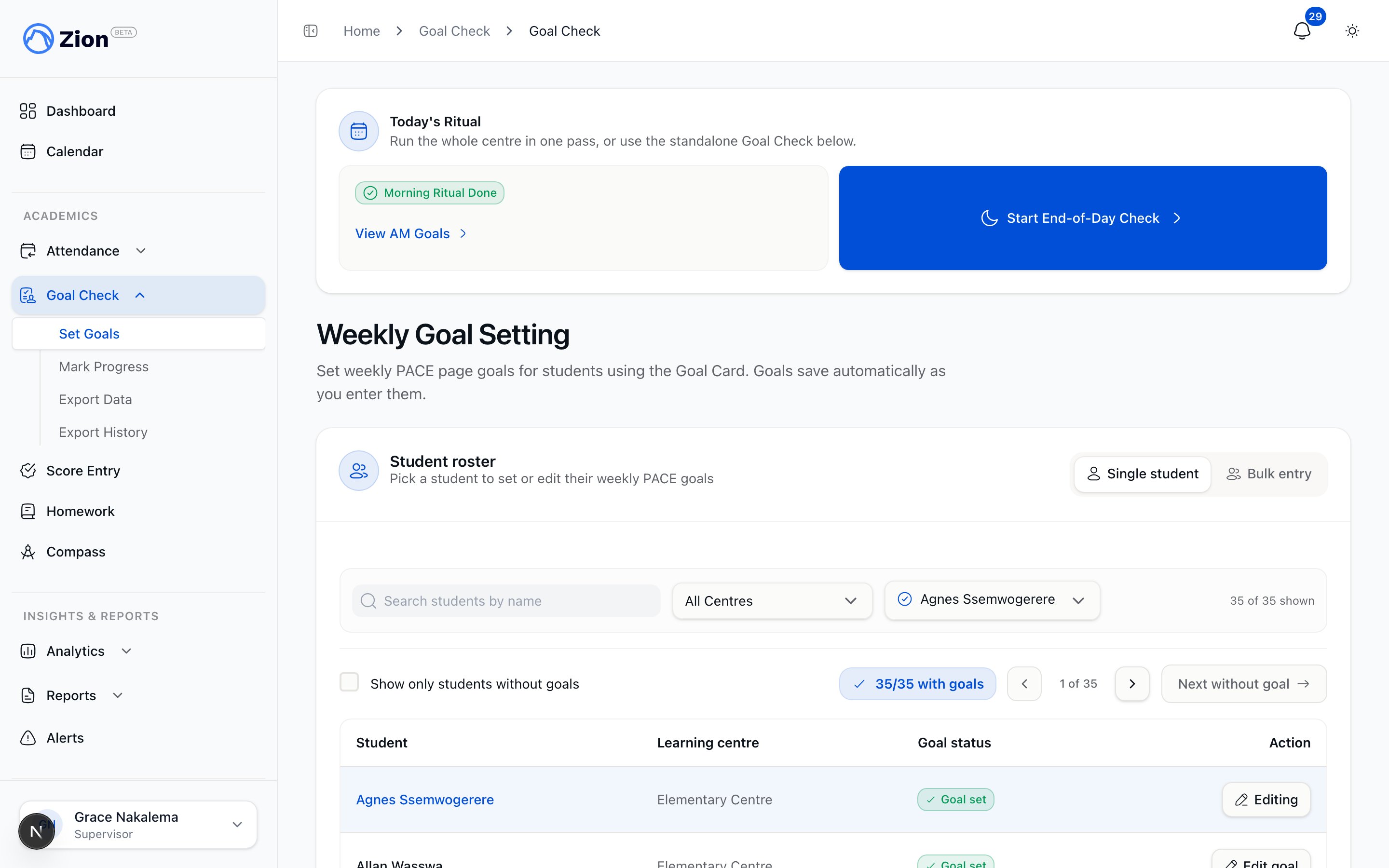 From the Today's Routine card, select your centre if you have more than one, then tap Start Morning Routine, or Resume if a session is already in progress today.
Each student appears one at a time, full-screen, with their active PACEs listed. For each PACE, the start page is filled in for you (it continues from the last page the student completed, or page 1 for a new PACE) and cannot be edited. Enter the goal end page using the number pad. It cannot exceed the PACE's total page count.
Tap Advance once every active PACE has a goal. If you advance with a PACE left blank, Zion asks you to confirm before moving on. A student with no goalable PACEs can still be advanced.
Back returns to the previous student so you can review or change what you entered. Skip marks the current student skipped and moves to the next one. Roster opens a list of every student in the session so you can jump to any of them directly.
Before the session closes, Zion offers one more pass through any skipped students. Skip Remaining marks everyone still pending as skipped and ends the session in one step. Finish Anyway lets you close the session with students still marked skipped.
The completion screen shows how many goals were set, how many students were skipped, and how long the session took.
## Throughout the day
Between Morning Routine and End of Day, use your dashboard to check on progress and support students who are struggling. See [Supervisor dashboard](/guides/supervisor/dashboard) for what the dashboard shows for your centres.
## Running End of Day
From the Today's Routine card, select your centre if you have more than one, then tap Start Morning Routine, or Resume if a session is already in progress today.
Each student appears one at a time, full-screen, with their active PACEs listed. For each PACE, the start page is filled in for you (it continues from the last page the student completed, or page 1 for a new PACE) and cannot be edited. Enter the goal end page using the number pad. It cannot exceed the PACE's total page count.
Tap Advance once every active PACE has a goal. If you advance with a PACE left blank, Zion asks you to confirm before moving on. A student with no goalable PACEs can still be advanced.
Back returns to the previous student so you can review or change what you entered. Skip marks the current student skipped and moves to the next one. Roster opens a list of every student in the session so you can jump to any of them directly.
Before the session closes, Zion offers one more pass through any skipped students. Skip Remaining marks everyone still pending as skipped and ends the session in one step. Finish Anyway lets you close the session with students still marked skipped.
The completion screen shows how many goals were set, how many students were skipped, and how long the session took.
## Throughout the day
Between Morning Routine and End of Day, use your dashboard to check on progress and support students who are struggling. See [Supervisor dashboard](/guides/supervisor/dashboard) for what the dashboard shows for your centres.
## Running End of Day
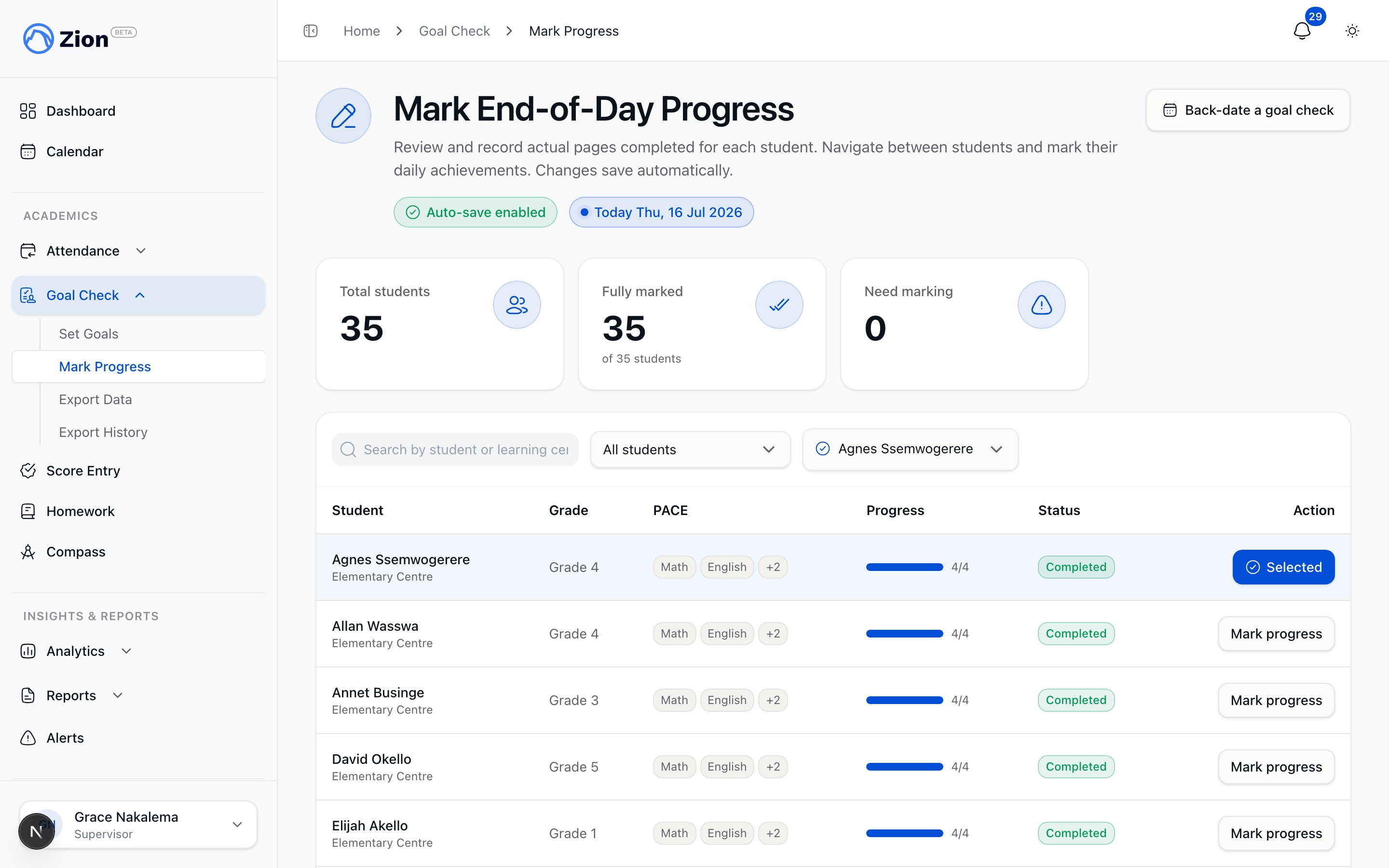 From the Today's Routine card, tap Start End-of-Day Check, or Resume if a session is already in progress.
Each student appears with a recap of every PACE that had a morning goal.
For each PACE, record Hit, Missed, or Partial, and enter the actual start and end pages completed. A student with no morning goal can still be advanced with a note; nothing is recorded for that PACE.
These work the same way as in Morning Routine.
Skip Remaining, Finish Anyway, and the completion summary work the same way as Morning Routine, showing results recorded, students skipped, and elapsed time.
If a student was not doing normal PACE work that day, use the standalone progress-marking screen instead of the guided routine to record it. There you can mark them Absent or Excused, or note that they spent the day on non-PACE work, such as review, an essay, a science project, or a special activity, with an optional reason. These entries do not count as a completion attempt, so they are left out of insights and trend reports.
## Approving goals (if enabled)
Some organizations require sign-off on morning goals before they count as final. Whether this applies to you depends on a setting your administrator controls at the organization level.
Morning goals are final as soon as you enter them. There is no separate approval step.
Goals you set in Morning Routine start in a pending state. From the completion summary of that session, an administrator or supervisor can approve all of the session's pending goals in one action. A goal that is both approved and later marked complete in End of Day is locked against casual re-marking; changing it after that point goes through the audited correction process instead of the routine.
Monitors can enter and record goals through the routine but cannot approve them. Approval is limited to administrators and supervisors.
## Troubleshooting
Reopen Morning Routine or End of Day for that centre. Zion resumes the same in-progress session rather than starting over.
A session left in progress from a previous day is treated as stale. Starting the routine today opens a new session for that centre; it does not block you.
A PACE with no page count, or a student with no active PACE, cannot be goaled. Advance past that student; nothing is recorded for them.
Use Back to return to a student you just passed, or open Roster to jump directly to any student in the session and correct their entry before you finish.
## Next steps
Full reference for how the daily routine works, including resumability and session states
What your dashboard shows for the centres you supervise
Turn a day's or week's Goal Check data into a report
How Goal Check tracks PACE progress across your organization
From the Today's Routine card, tap Start End-of-Day Check, or Resume if a session is already in progress.
Each student appears with a recap of every PACE that had a morning goal.
For each PACE, record Hit, Missed, or Partial, and enter the actual start and end pages completed. A student with no morning goal can still be advanced with a note; nothing is recorded for that PACE.
These work the same way as in Morning Routine.
Skip Remaining, Finish Anyway, and the completion summary work the same way as Morning Routine, showing results recorded, students skipped, and elapsed time.
If a student was not doing normal PACE work that day, use the standalone progress-marking screen instead of the guided routine to record it. There you can mark them Absent or Excused, or note that they spent the day on non-PACE work, such as review, an essay, a science project, or a special activity, with an optional reason. These entries do not count as a completion attempt, so they are left out of insights and trend reports.
## Approving goals (if enabled)
Some organizations require sign-off on morning goals before they count as final. Whether this applies to you depends on a setting your administrator controls at the organization level.
Morning goals are final as soon as you enter them. There is no separate approval step.
Goals you set in Morning Routine start in a pending state. From the completion summary of that session, an administrator or supervisor can approve all of the session's pending goals in one action. A goal that is both approved and later marked complete in End of Day is locked against casual re-marking; changing it after that point goes through the audited correction process instead of the routine.
Monitors can enter and record goals through the routine but cannot approve them. Approval is limited to administrators and supervisors.
## Troubleshooting
Reopen Morning Routine or End of Day for that centre. Zion resumes the same in-progress session rather than starting over.
A session left in progress from a previous day is treated as stale. Starting the routine today opens a new session for that centre; it does not block you.
A PACE with no page count, or a student with no active PACE, cannot be goaled. Advance past that student; nothing is recorded for them.
Use Back to return to a student you just passed, or open Roster to jump directly to any student in the session and correct their entry before you finish.
## Next steps
Full reference for how the daily routine works, including resumability and session states
What your dashboard shows for the centres you supervise
Turn a day's or week's Goal Check data into a report
How Goal Check tracks PACE progress across your organization