> ## Documentation Index
> Fetch the complete documentation index at: https://docs.zionapp.co/llms.txt
> Use this file to discover all available pages before exploring further.
# Chronic absence alerts
> How Zion turns consecutive absences and 30-day absence rates into alerts, and how staff acknowledge or dismiss them
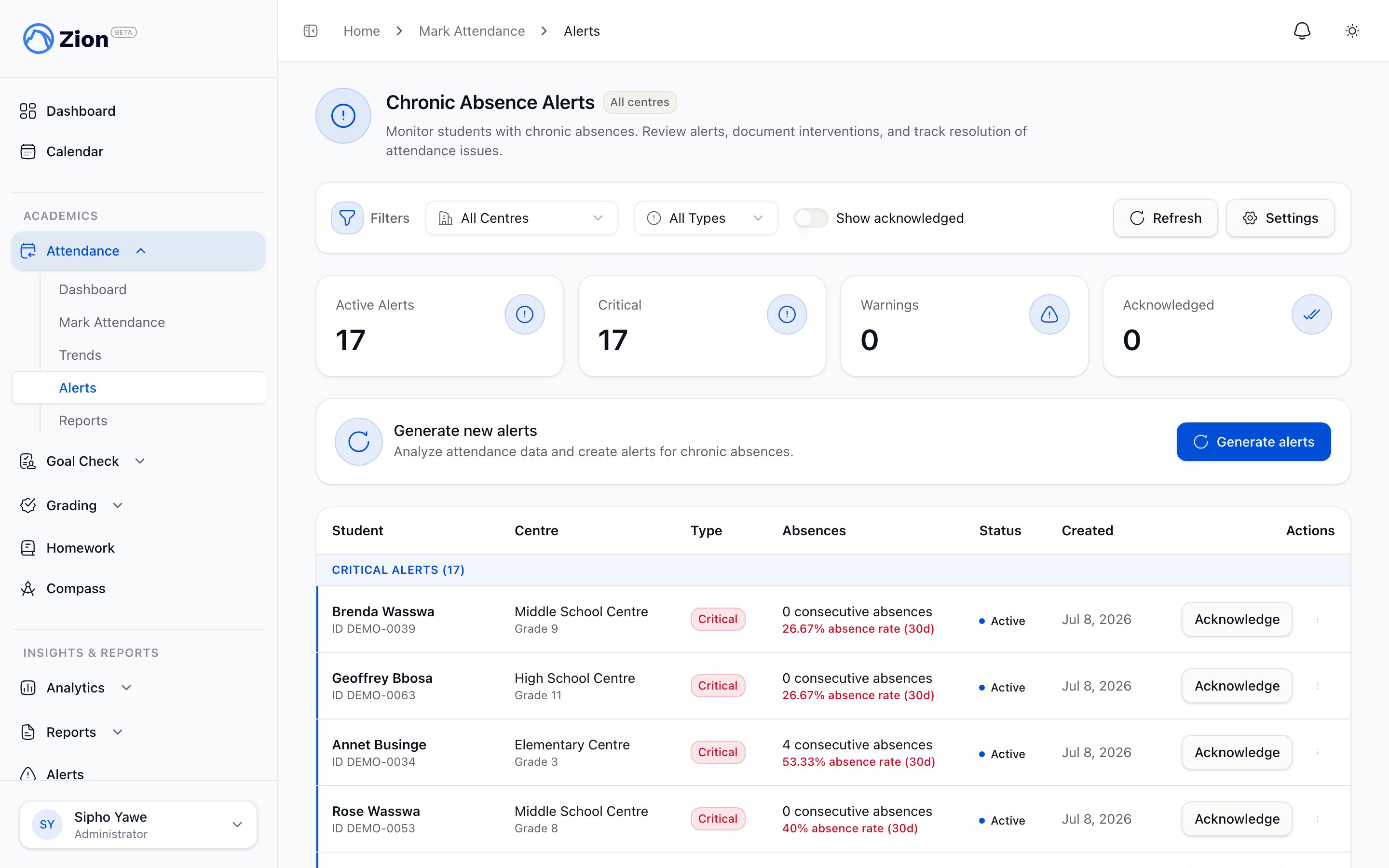
Zion watches each student's attendance record and raises an alert when a consecutive-absence streak or a 30-day absence rate crosses a threshold. Administrators see alerts across every learning centre. Supervisors see alerts only for their assigned centres.
 ## How an alert is triggered
Every morning, before the school day starts, Zion reviews attendance for every active student and compares two measures against configured thresholds:
* **Consecutive absences.** Absent school days in a row, counting backward from the most recent day and skipping weekends and holidays. The streak breaks on the first present, late, or unrecorded day.
* **30-day absence rate.** The percentage of school days marked absent in the trailing 30 days.
| Severity | Default trigger |
| -------- | ------------------------------------------------------------------ |
| Warning | 3 or more consecutive absences |
| Critical | 5 or more consecutive absences, or a 30-day absence rate above 20% |
These numbers are the defaults. An administrator can change the consecutive-absence and rate thresholds for the organization; see Alerts and reports settings.
An alert stays open and up to date as long as the student keeps meeting the criteria. If a warning-level student later crosses the critical thresholds, the same alert escalates to critical rather than creating a duplicate. If the student's attendance improves enough to fall below both thresholds, the alert resolves automatically the next time Zion checks.
An administrator can also trigger a fresh check from the alerts page at any time, for example right after importing attendance data or correcting a past record.
## The cool-down after you act on an alert
Once a staff member acknowledges or dismisses an alert for a student, Zion will not raise a new alert for that same student for about a week, even if the student is still absent and technically still meets the threshold. This stops a family you already followed up with from generating a fresh alert, and a fresh notification email, the very next morning.
The cool-down has one exception: if the student's absences get significantly worse during that week and cross into a higher severity than the one you acted on (for example, a warning you acknowledged escalates to critical), Zion still raises a new alert right away. And the cool-down only applies after a human acknowledges or dismisses an alert. An alert that resolved on its own because the student's attendance improved is treated as a closed case, so if the same student later starts missing school again, Zion alerts on it immediately, with no waiting period.
## Alert lifecycle
Each alert moves through one status at a time:
| Status | Meaning |
| ------------ | ------------------------------------------------------------------------------------- |
| Open | Newly created or still active; needs review |
| Acknowledged | Staff reviewed the alert and recorded what they did about it |
| Dismissed | Staff reviewed the alert and closed it without an intervention, with a reason on file |
| Resolved | The student no longer meets either threshold; closed automatically |
### Acknowledging an alert
Acknowledging records that you took action. Zion requires intervention notes before it will accept the acknowledgment, so an alert cannot be closed silently.
From the alerts list, select Acknowledge next to the alert, or open the alert to see its full detail first and select Acknowledge there.
Describe what you did: who you contacted, what was discussed, and any follow-up commitment. The field cannot be left empty.
Zion records who acted, when, and your notes, then moves the alert to acknowledged.
A good intervention note names who you contacted, what was discussed, and any follow-up commitment. For example: called the student's mother, discussed the absences, learned the family is relocating, and agreed the student would return after the break with a follow-up scheduled for a specific date.
### Dismissing an alert
Dismissing closes an alert as a false alarm or a case that does not need an intervention. Zion requires a reason of 1 to 500 characters before it will accept the dismissal.
From the alerts list, use the row's menu to select Dismiss, or open the alert's detail view and select Dismiss there.
State why the alert does not need action, for example a data-entry correction already made.
Zion records the reason and moves the alert to dismissed.
Both acknowledging and dismissing are written to the audit trail with who acted, when, and the note or reason entered. See Corrections and notifications audit.
### Who can act on an alert
Administrators can acknowledge or dismiss any alert in the organization. Supervisors can act only on alerts for students in their assigned learning centres.
## Alert digest
When an alert fires, Zion dispatches an attendance notification, both in-app and by email, to organization administrators and to any supervisor or monitor whose assigned centre includes the affected student. An administrator can also turn on a daily email digest, delivered each morning, that summarizes new alerts in one message. It is off by default and can be turned on from Alert Settings.
How daily attendance marking and the rest of the attendance module fit together
Generate and export attendance reports, including chronic-absence lists
Review attendance rate trends by centre and grade level
Change the consecutive-absence and rate thresholds for your organization
## How an alert is triggered
Every morning, before the school day starts, Zion reviews attendance for every active student and compares two measures against configured thresholds:
* **Consecutive absences.** Absent school days in a row, counting backward from the most recent day and skipping weekends and holidays. The streak breaks on the first present, late, or unrecorded day.
* **30-day absence rate.** The percentage of school days marked absent in the trailing 30 days.
| Severity | Default trigger |
| -------- | ------------------------------------------------------------------ |
| Warning | 3 or more consecutive absences |
| Critical | 5 or more consecutive absences, or a 30-day absence rate above 20% |
These numbers are the defaults. An administrator can change the consecutive-absence and rate thresholds for the organization; see Alerts and reports settings.
An alert stays open and up to date as long as the student keeps meeting the criteria. If a warning-level student later crosses the critical thresholds, the same alert escalates to critical rather than creating a duplicate. If the student's attendance improves enough to fall below both thresholds, the alert resolves automatically the next time Zion checks.
An administrator can also trigger a fresh check from the alerts page at any time, for example right after importing attendance data or correcting a past record.
## The cool-down after you act on an alert
Once a staff member acknowledges or dismisses an alert for a student, Zion will not raise a new alert for that same student for about a week, even if the student is still absent and technically still meets the threshold. This stops a family you already followed up with from generating a fresh alert, and a fresh notification email, the very next morning.
The cool-down has one exception: if the student's absences get significantly worse during that week and cross into a higher severity than the one you acted on (for example, a warning you acknowledged escalates to critical), Zion still raises a new alert right away. And the cool-down only applies after a human acknowledges or dismisses an alert. An alert that resolved on its own because the student's attendance improved is treated as a closed case, so if the same student later starts missing school again, Zion alerts on it immediately, with no waiting period.
## Alert lifecycle
Each alert moves through one status at a time:
| Status | Meaning |
| ------------ | ------------------------------------------------------------------------------------- |
| Open | Newly created or still active; needs review |
| Acknowledged | Staff reviewed the alert and recorded what they did about it |
| Dismissed | Staff reviewed the alert and closed it without an intervention, with a reason on file |
| Resolved | The student no longer meets either threshold; closed automatically |
### Acknowledging an alert
Acknowledging records that you took action. Zion requires intervention notes before it will accept the acknowledgment, so an alert cannot be closed silently.
From the alerts list, select Acknowledge next to the alert, or open the alert to see its full detail first and select Acknowledge there.
Describe what you did: who you contacted, what was discussed, and any follow-up commitment. The field cannot be left empty.
Zion records who acted, when, and your notes, then moves the alert to acknowledged.
A good intervention note names who you contacted, what was discussed, and any follow-up commitment. For example: called the student's mother, discussed the absences, learned the family is relocating, and agreed the student would return after the break with a follow-up scheduled for a specific date.
### Dismissing an alert
Dismissing closes an alert as a false alarm or a case that does not need an intervention. Zion requires a reason of 1 to 500 characters before it will accept the dismissal.
From the alerts list, use the row's menu to select Dismiss, or open the alert's detail view and select Dismiss there.
State why the alert does not need action, for example a data-entry correction already made.
Zion records the reason and moves the alert to dismissed.
Both acknowledging and dismissing are written to the audit trail with who acted, when, and the note or reason entered. See Corrections and notifications audit.
### Who can act on an alert
Administrators can acknowledge or dismiss any alert in the organization. Supervisors can act only on alerts for students in their assigned learning centres.
## Alert digest
When an alert fires, Zion dispatches an attendance notification, both in-app and by email, to organization administrators and to any supervisor or monitor whose assigned centre includes the affected student. An administrator can also turn on a daily email digest, delivered each morning, that summarizes new alerts in one message. It is off by default and can be turned on from Alert Settings.
How daily attendance marking and the rest of the attendance module fit together
Generate and export attendance reports, including chronic-absence lists
Review attendance rate trends by centre and grade level
Change the consecutive-absence and rate thresholds for your organization