

These settings control when alerts fire and when reports go out. To read and act on alerts once they exist, see Attendance alerts and the Alerts overview. To read the weekly report content itself, see Goal Check reports.
Alert threshold settings
Go to Settings, then the Alerts tab, to review and adjust the thresholds that drive Zion’s alert generation. Alerts are normally generated automatically once a day, and the alert email digest is normally sent daily at 8 AM to all administrators. From this page you can also trigger both on demand: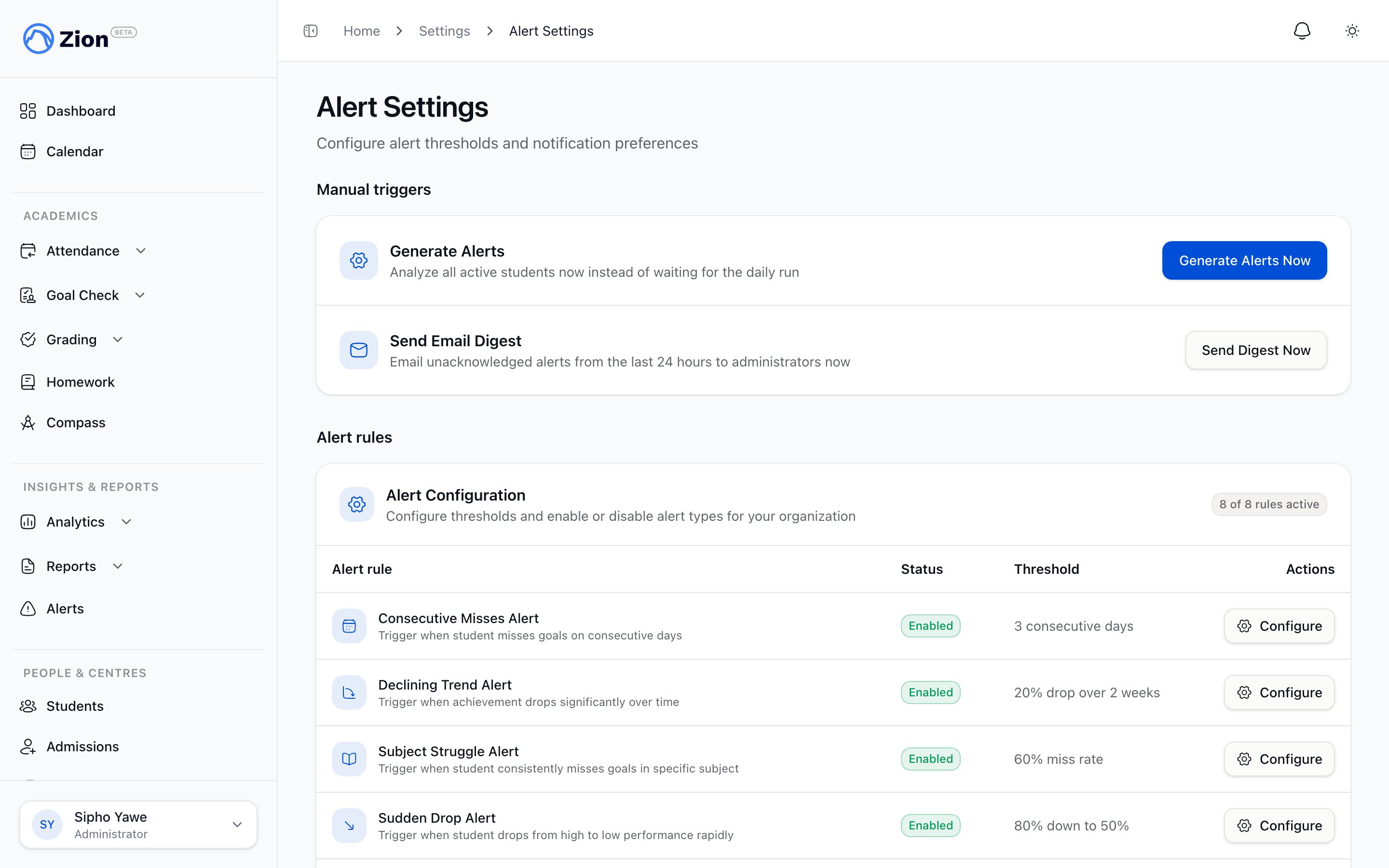
The alert threshold settings page with default values for each alert type.
1
Generate alerts now
Click ‘Generate Alerts Now’ to run alert analysis immediately across all active students, instead of waiting for the daily automatic run. This requires an active subscription.
2
Send digest now
Click ‘Send Digest Now’ to email unacknowledged alerts from the last 24 hours to all administrators immediately, instead of waiting for the 8 AM send.
3
Adjust thresholds
Edit any of the threshold values below, then save. Changes apply to the next alert-generation run.
Threshold reference
Weekly report settings
Go to Settings, then the Weekly Reports tab, to configure the automated weekly Goal Check report.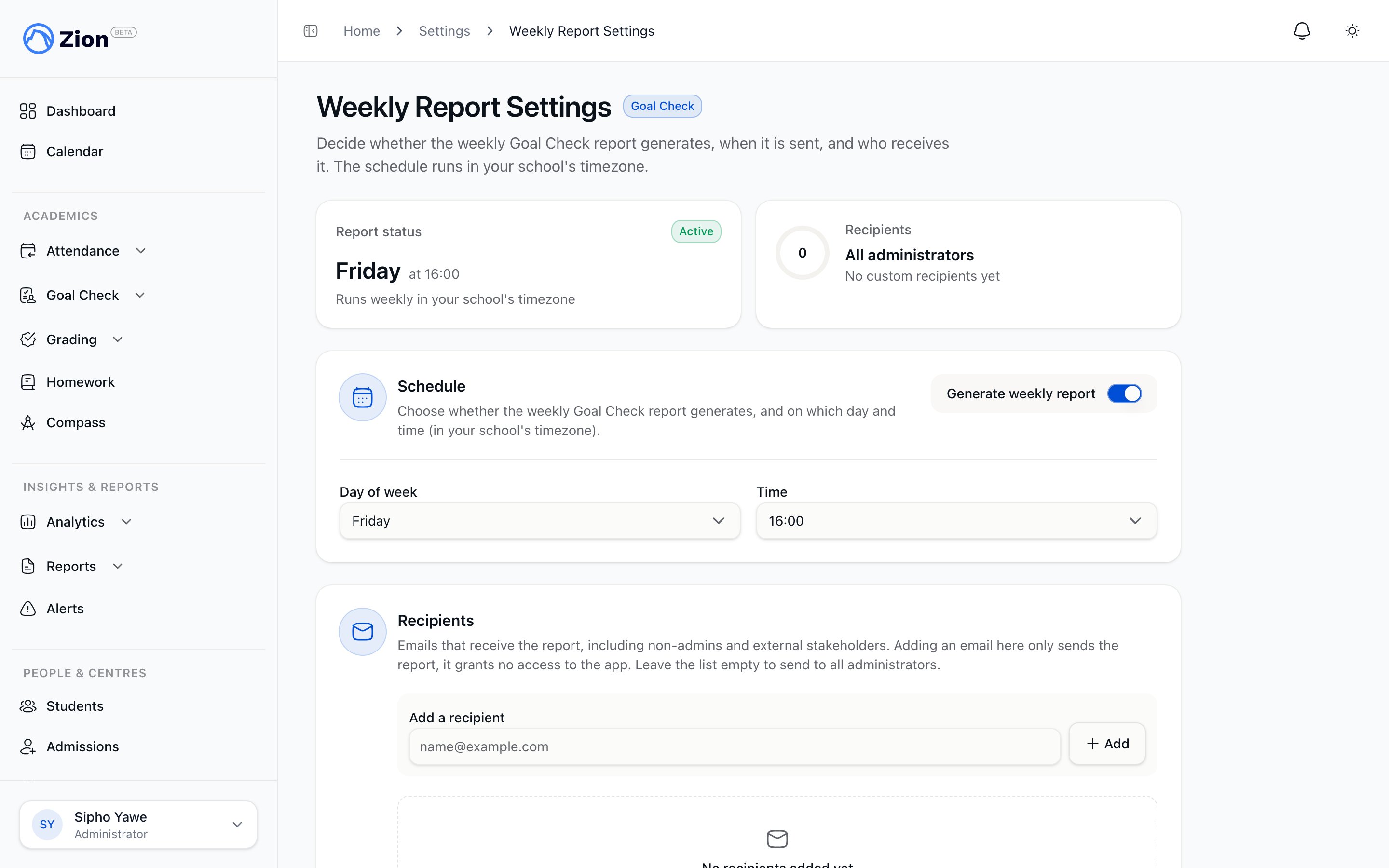
The weekly report settings page with schedule and recipient list controls.
1
Enable or disable the report
Turn the weekly report on or off. When off, no automated report is generated or sent.
2
Choose the day and time
Set the day of the week and time of day the report generates. This runs in your school’s configured timezone, the same timezone set on the school profile.
3
Manage recipients
Add or remove people on the recipient list. The list is not limited to administrators. You can include supervisors, monitors, or other stakeholders who should receive the weekly Goal Check summary by email.
The weekly report and the alert digest are separate mailings. The weekly report summarizes Goal Check progress on your chosen schedule. The alert digest is a daily 8 AM (or manually triggered) email of unacknowledged alerts.
Related pages
Alerts overview
How alerts are surfaced, acknowledged, resolved, and reopened.
Attendance alerts
Attendance-specific alert behavior for administrators and supervisors.
Goal Check reports
What the weekly Goal Check report contains.
School settings overview
School profile, timezone, and other school-wide settings.