

This page covers the corrections audit log and the notification audit log only. It does not cover the alerts inbox or other internal tools used by Zion’s own staff.
Corrections audit log
Some records in Zion get locked after submission, such as a goal entry, a goal check, a back-dated check, or a test score. When an administrator or supervisor needs to fix one of these after the fact, that fix is logged as a correction rather than a silent edit. Supervisors can make corrections to records in their own centre. Only administrators can view the school-wide corrections audit log that shows every correction made across all centres.Where to find it
Navigate to Administration > Corrections Audit in the sidebar. If you are not an administrator, this page redirects you to your dashboard.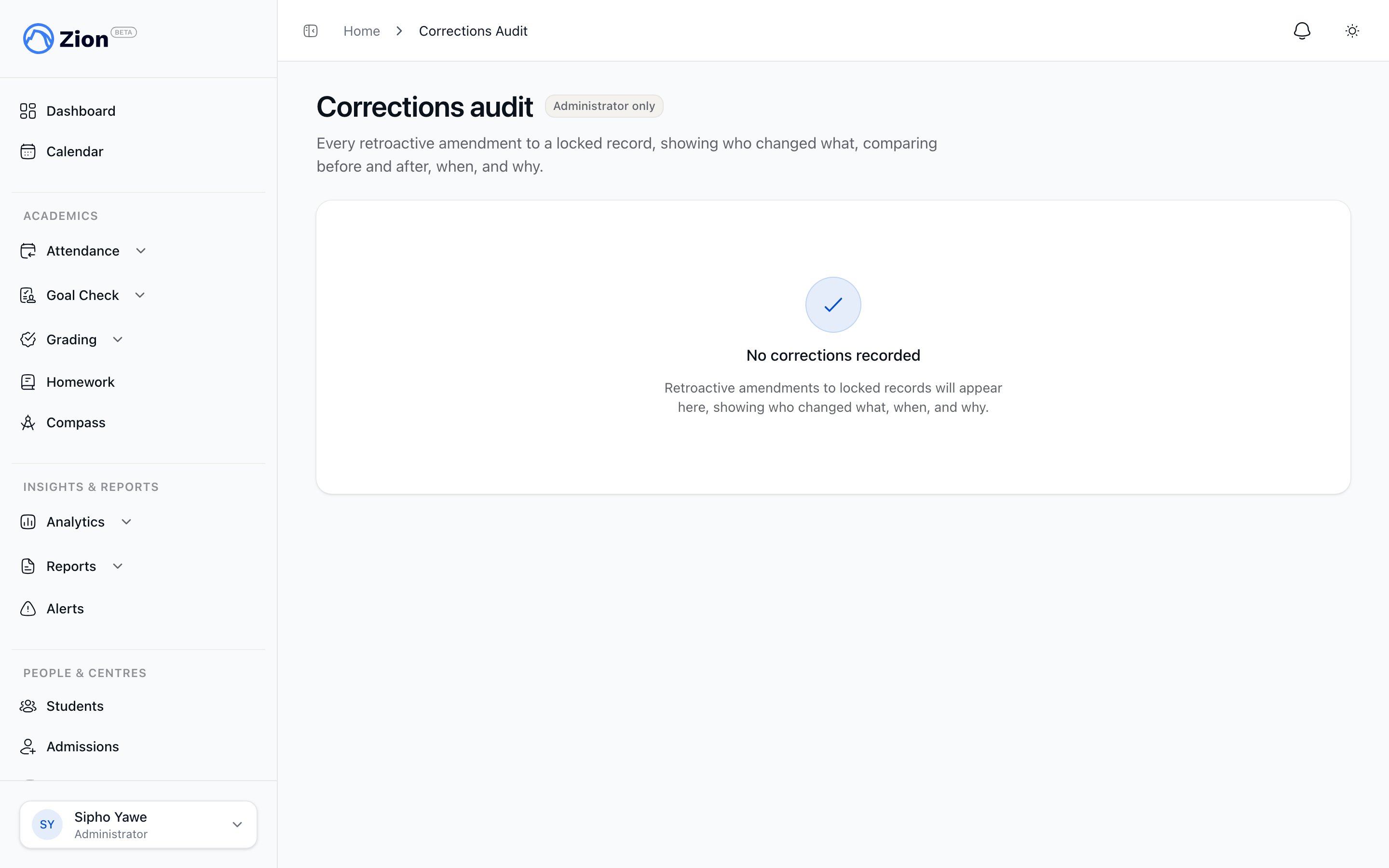
The corrections audit log showing actor, action type, and change summary for each entry.
What each row shows
The table loads more history with a Load more control as you scroll, rather than numbered pages.
Investigating a disputed record
1
Open the corrections audit
Go to Administration > Corrections Audit in the sidebar.
2
Locate the record
Scan the table for the relevant student or date, using Load more to pull in older entries.
3
Expand the row
Open the row to see the full before-and-after view and the actor’s stated reason for the change.
Notification audit log
The notification audit log records every notification the organization has sent, across every delivery channel, so an administrator can confirm whether a message actually went out and whether it was delivered. This log is administrator-only and school-wide. It is not scoped to a single centre.Where to find it
The notification audit log is reached from Settings, then the Notification Audit tab. Signed-out visitors are sent to sign in, and any signed-in user who is not an administrator is redirected to their dashboard.What each row shows
The table can be filtered by channel and by status, and loads additional history with Load more.
Checking whether a parent received a message
1
Open the notification audit log
Go to Settings, then the Notification Audit tab.
2
Filter by channel or status
Narrow the list to the channel in question (for example Email) or to a status such as failed or dead.
3
Read the delivery outcome
For email, check the delivery outcome badge to see whether the message was delivered, bounced, or flagged as a complaint.
See also
Alerts overview
Read the performance alerts inbox that surfaces at-risk students, centres, and subjects.
Notifications overview
Understand how notifications are generated and sent in the first place.
Notification deliverability and audit
Learn more about how notification deliverability is tracked.
Grading audit trail
See the audit trail for grading-specific score history.