

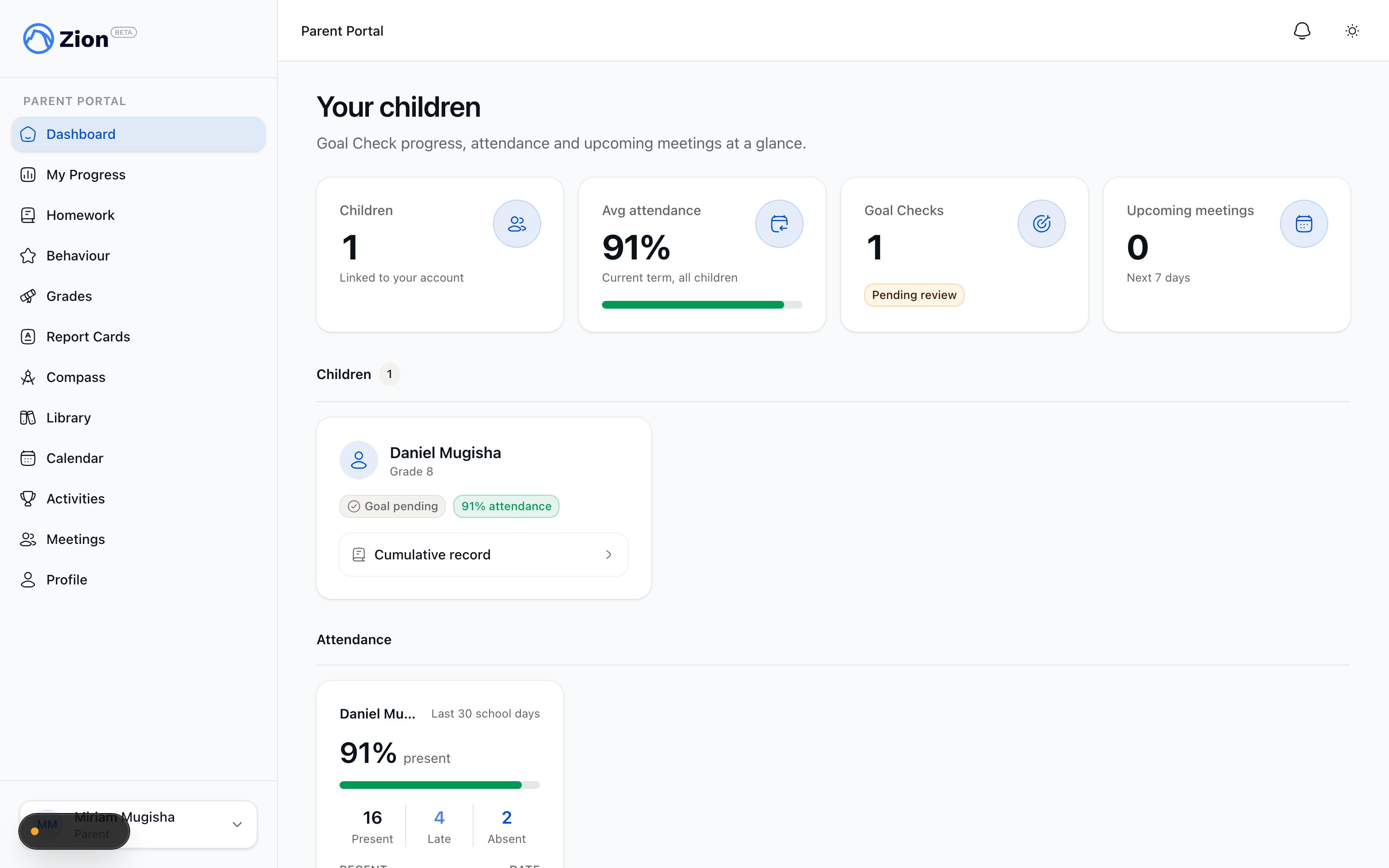
The parent dashboard with a card for each linked child
Accept the email invitation
Your child’s school links you to their record by inviting your email address. There is no sign-up form for parents: a school administrator or supervisor sends the invitation from their side once your child is on the roster with your email address on file. Until you accept that invitation, you will not see the child on your dashboard.1
Open the invitation email
Look for the invitation sent to the email address the school has on file for you.
2
Accept the invitation
Follow the link in the email to accept it, and set a password if this is your first time signing in to Zion. This links your account to your child’s record for that school.
3
Sign in
Sign in with the account you used to accept the invitation.
If a child is missing from your dashboard, the most common cause is a pending or not-yet-accepted invitation. The school can also cancel a pending invitation, or remove your access to a student’s record after you have accepted one. Contact the school to confirm the invitation email address or restore your access.
Navigate the portal
After signing in you land on your dashboard. A sidebar gives you access to the rest of the portal:
The notification bell in the header, not the sidebar, is where you open your full notification history: click it, then See all.
How multiple children appear
If you have more than one child linked to your account, each one gets its own card on the dashboard. Each card shows the child’s name, grade level, latest Goal Check status, and a current-term attendance badge (green at 90% or above, amber from 75 to 89%, red below 75%, or a note that there is no attendance yet). A card also shows a banner if that child has a meeting booked within the next 7 days. Pages such as My Progress, Homework, Behaviour, and Grades combine data across all your linked children, with a child switcher or per-child grouping so you can tell which record belongs to which child.Where to update notification preferences and profile
Your Profile page shows your name and email as they exist in your account. These identity fields are read-only in the portal. If either needs to change, contact the school directly. The same page includes a notification preferences matrix, filtered to the channels and notification types relevant to parents. Use it to opt out of specific notification channels. Your notification bell and full notification history remain available on the Notifications page regardless of your preference settings.Parent Portal Overview
See the full range of what the parent portal covers.
Your child's progress
Read Goal Check, attendance, homework, behaviour, and grades in one place.
Meetings and communication
Book meetings with staff and track requests.
Notifications
Learn how notifications are delivered and tracked.