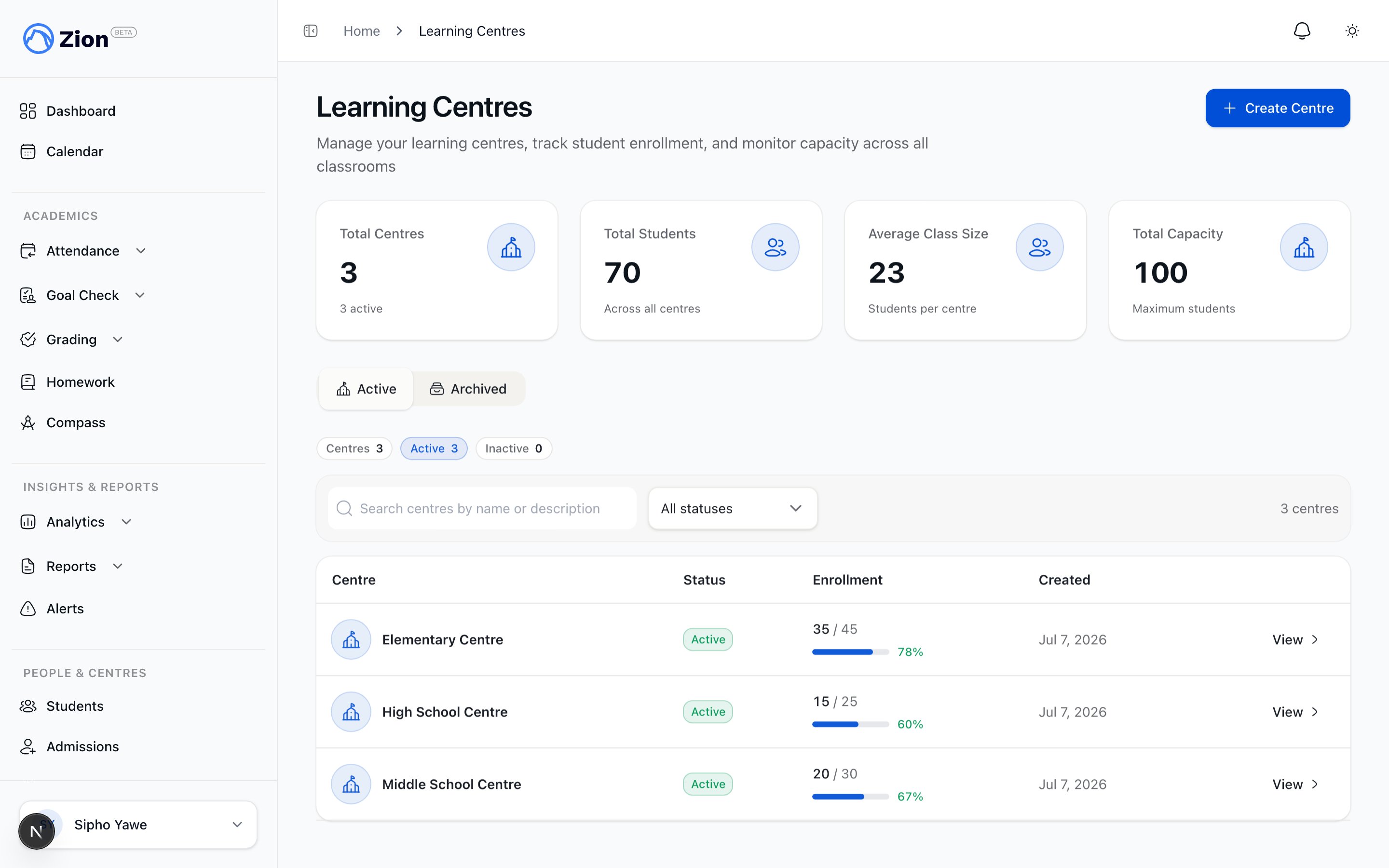
Learning Centre Management
Learning centres are your classrooms in Zion - the organizational units where students are grouped and supervisors work. This guide covers creating centres, assigning supervisors, managing capacity, and deactivating centres when needed.ACE Terminology: Learning centres are what ACE schools call classrooms. Each centre typically has 10-25 students and at least one supervisor.
Learning Centre Overview
What Is a Learning Centre:- Organizational unit representing a classroom
- Has a name (e.g., “Faith Centre”, “Grace Centre”)
- Contains students assigned to that classroom
- Has one or more assigned supervisors
- Optional capacity limit (max students)
- Organize students into manageable groups
- Scope supervisor access (supervisors only see their centres)
- Enable centre-level reporting and analysis
- Structure your school in Zion to match physical layout
Creating Learning Centres
Before You Create Centres
Planning Questions:- How many physical classrooms do you have?
- How will you group students (by age, grade, ability)?
- What naming convention will you use?
- What’s the max capacity per centre?
- Which staff will supervise each centre?
- Small school (50 students): 3-5 centres
- Medium school (100 students): 6-10 centres
- Large school (200+ students): 10-15 centres
Step-by-Step: Creating a Centre
1
Navigate to Learning Centres
Click “Management” → “Learning Centres” in sidebar
2
Click Create Centre
Click “Create Centre” button at top right
3
Enter Centre Details
Fill in centre name, description (optional), and capacity (optional)
4
Save
Click “Save” to create the centre
5
Repeat
Repeat for all centres in your school
Centre Details Explained
Centre Name
- Required: Yes
- Format: Free text, 50 characters max
- Examples: “Faith Centre”, “Grace Centre”, “Hope Learning Centre”, “Level 1 Classroom”
- Best Practice: Short, distinct, easy to remember
- Appears: All reports, dashboards, student assignments, supervisor views
- Virtues: Faith, Hope, Love, Joy, Peace, Grace, Mercy, Compassion
- Biblical Figures: Joshua, David, Esther, Ruth, Daniel, Samuel, Lydia, Deborah
- Biblical Concepts: Cornerstone, Foundation, Promise, Covenant, Harvest, Vine, Living Water
- “Foundation Centre” (younger students)
- “Intermediate Centre” (middle grades)
- “Advanced Centre” (older students)
- “Red Centre”, “Blue Centre”, “Green Centre”, “Yellow Centre”
- “Centre 1”, “Centre 2”, “Centre 3”
Description
- Required: No
- Format: Free text, 200 characters max
- Use Cases: Notes about centre purpose, student age range, special focus
- Examples:
- “Primary students ages 6-8”
- “Advanced Math students, grades 9-12”
- “Remedial support centre for struggling students”
- Appears: Centre detail page (not in reports)
Capacity
- Required: No
- Format: Positive number (e.g., 25)
- Meaning: Maximum number of students that can be assigned to this centre
- Enforcement: Zion warns (but doesn’t prevent) when assigning students beyond capacity
- Best Practice: Set based on physical space and supervisor capability
- Typical Values:
- Small centres: 10-15 students
- Standard centres: 20-25 students
- Large centres: 30-35 students (requires multiple supervisors)
Bulk Centre Creation
Scenario: Creating 8 centres at once during initial setup Efficient Approach:- List centre names in a document first (Faith, Hope, Love, Joy, Peace, Grace, Truth, Wisdom)
- Open Create Centre form
- Create first centre with full details (name, description, capacity)
- Keep form open in one tab
- Create remaining centres quickly (name + capacity only)
- Add descriptions later if needed
Assigning Supervisors to Centres
Why Supervisor Assignment Matters
Access Control:- Supervisors only see data for their assigned centres
- Prevents information overload
- Ensures privacy and data security
- Centre reports show supervisor name
- Tracks accountability
- Enables supervisor performance evaluation
- One supervisor can be assigned to multiple centres
- One centre can have multiple supervisors
- Easy to change assignments
Assigning Supervisors
1
Navigate to Centre Details
Click “Management” → “Learning Centres”, then click on a centre
2
Click Assign Supervisor
On centre detail page, click “Assign Supervisor” button
3
Select Supervisor(s)
Check boxes for supervisors to assign to this centre
4
Save
Click “Save” to apply assignments
Supervisor Assignment Scenarios
Scenario 1: One Supervisor, One Centre- Most common setup
- Faith Centre → Supervisor Sarah
- Clear ownership, simple accountability
- Faith Centre → Supervisor Sarah
- Hope Centre → Supervisor Sarah
- Used when: Small school, part-time supervisors, or supervisor manages multiple groups
- Sarah sees data for both Faith and Hope centres in her dashboard
- Faith Centre → Supervisor Sarah AND Supervisor John
- Used when: Large centre (30+ students), morning/afternoon shifts, or co-teaching
- Both Sarah and John see Faith Centre data
- Assign to all centres for oversight
- Used for: Lead supervisors, administrators who work hands-on, substitute coverage
Changing Supervisor Assignments
Mid-Year Reassignment:- Navigate to centre detail page
- Click “Manage Supervisors”
- Uncheck old supervisor, check new supervisor
- Save
- Old supervisor immediately loses access to centre data
- New supervisor immediately gains access
- Historical data preserved (shows who was responsible when)
Managing Centre Capacity
Setting Capacity Limits
Factors to Consider: Physical Space:- Desks available: 25 desks = 25 capacity
- Room size and safety regulations
- ACE Office requirements (typically 1 office per 10 students)
- One supervisor: 15-20 students ideal, 25 max
- Two supervisors: 30-40 students possible
- More than 40: Consider splitting into two centres
- Younger students (K-4): Lower capacity (15-20)
- Older students (5-12): Higher capacity possible (25-30)
- Special needs students: Significantly lower capacity
Capacity Warnings
When assigning students to a centre at/over capacity:- Zion displays warning: “Centre at capacity (25/25). Add student anyway?”
- You can proceed (capacity is advisory, not enforced)
- Warning helps prevent accidental overcrowding
Rebalancing Students Between Centres
Scenario: Faith Centre has 30 students, Hope Centre has 12 students Steps to Rebalance:- Identify students to move (perhaps 8-10 students)
- Navigate to each student’s profile
- Change “Assigned Centre” from Faith to Hope
- Save
- Repeat for remaining students
Deactivating Learning Centres
When to Deactivate a Centre
Common Scenarios:- Enrollment decreased (don’t need as many centres)
- School restructuring (combining centres)
- Physical classroom no longer available
- Centre was created by mistake
- Centre hidden from active centre lists
- Cannot assign new students to deactivated centre
- Historical data preserved and accessible
- Can reactivate later if needed
Deactivation Prerequisites
Before deactivating, you MUST:- Reassign all students - Deactivated centres cannot have active students
- Generate final reports - Ensure all centre reports are generated and saved
- Unassign supervisors (optional but recommended)
Step-by-Step: Deactivating a Centre
1
Reassign All Students
Move all students from this centre to other centres
2
Navigate to Centre Details
Click “Management” → “Learning Centres”, then click on the centre
3
Verify Empty
Confirm student count shows 0 students
4
Click Deactivate
Click “Deactivate Centre” button (usually at bottom of page)
5
Confirm
Read confirmation dialog, click “Deactivate” to confirm
Viewing Deactivated Centres
Where They Appear:- NOT in active centre lists or dropdowns
- YES in historical reports (for dates when centre was active)
- YES in dedicated “All Centres” view with status filter
- Navigate to “Management” → “Learning Centres”
- Toggle “Show Deactivated” filter
- Deactivated centres appear with “Inactive” badge
Reactivating a Centre
Scenario: Need to reopen a previously deactivated centre1
View All Centres
Toggle “Show Deactivated” filter on Learning Centres page
2
Find Centre
Locate the deactivated centre
3
Click Reactivate
Click “Reactivate Centre” button
4
Confirm
Confirm reactivation
5
Reassign Supervisors
Assign supervisors to the reactivated centre
6
Add Students
Begin assigning students to the centre
- Centre appears in active lists and dropdowns
- Can assign students and supervisors again
- All historical data still intact
Centre Performance Monitoring
Centre-Level Metrics
Where to View:- Administrator Dashboard → Centre Performance section
- Learning Centres page → Click on a centre → View metrics
- Student Count: Total active students in centre
- Completion Rate: % of students meeting daily goals
- At-Risk Count: Students in this centre needing intervention
- Average Variance: How far students are from goals (positive or negative)
- Trend: 7-day completion trend (improving/declining)
Comparing Centre Performance
Administrator Dashboard View:- All centres listed with side-by-side metrics
- Color-coded badges: Green (≥80%), Yellow (50-79%), Red (<50%)
- Quickly identify top performers and struggling centres
- Centre Comparison section ranks all centres
- Shows completion rates in descending order
- Use to evaluate supervisor effectiveness
Using Centre Data for Decisions
Top-Performing Centre (85%+ completion):- Action: Document supervisor’s best practices
- Action: Have struggling supervisors observe this centre
- Action: Celebrate and recognize in staff meetings
- Action: Meet with supervisor to diagnose issues
- Action: Review student composition (are goals appropriate?)
- Action: Consider supervisor training or reassignment
- Action: Investigate causes of inconsistency
- Action: May indicate supervisor attendance issues
- Action: Review goal-setting consistency
Best Practices
Initial Setup (New School)
1
Map Physical Layout
List all physical classrooms and their capacities
2
Choose Naming Convention
Decide on consistent naming (Christian names, levels, colors, etc.)
3
Create All Centres
Create all centres at once with names and capacities
4
Assign Supervisors
Assign at least one supervisor to each centre
5
Add Students
Distribute students evenly across centres based on capacity
6
Review Balance
Verify student distribution is reasonably balanced
Annual Maintenance
Start of Academic Year:- Review centre names (still appropriate?)
- Verify capacities (any changes to physical space?)
- Rebalance students if some centres too full/empty
- Update supervisor assignments for new staff
- Review centre performance metrics
- Rebalance if one centre significantly over/under capacity
- Address consistently struggling centres
- Generate final reports for all centres
- Deactivate centres no longer needed
- Plan centre structure for next year
Naming Best Practices
DO:- Use short, memorable names (1-2 words)
- Be consistent (all Christian names OR all colors, not mixed)
- Make names distinct and easy to differentiate
- Consider alphabetical ordering for easy reference
- Use very long names (“The Exceptional Learning Centre of Excellence”)
- Number centres if you might reorder later (“Centre 1” becomes confusing if you add “Centre 1A”)
- Use easily confused names (“Hope” and “Faith” vs “Hope” and “Joy”)
- Include year in name (centres persist year to year)
Capacity Management
Ideal Balance:- All centres within 5 students of each other
- Example: 5 centres with 18, 20, 22, 19, 21 students (good balance)
- Avoid: 35, 12, 28, 15, 10 (very unbalanced)
- When one centre ≥130% of average and another ≤70% of average
- During term breaks (not mid-term)
- When adding/removing centres
Troubleshooting Common Issues
”Can’t Deactivate Centre”
Cause: Centre still has active students assigned Solution: Reassign all students to other centres first, then deactivate”Supervisor Can’t See Centre Data”
Cause: Supervisor not assigned to that centre Solution: Navigate to centre, click “Assign Supervisor”, select the supervisor, save”Centre Showing 0 Students but I Assigned Some”
Cause: Students may be deactivated, or wrong term selected Solution: Verify students are active (not deactivated), check that you’re viewing correct term”Centre Over Capacity Warning”
Cause: Attempting to assign student to full centre Solution: Either increase capacity, remove capacity limit, or assign student to different centre”Centre Name Not Updating in Reports”
Cause: Old reports generated before name change Solution: Centre name changes only affect NEW reports. Historical reports retain old name (by design for audit trail).Related Resources
Staff Management
Invite and assign supervisors to centres
Student Management
Add students and assign them to centres
Goal Check Oversight
Monitor centre performance and identify struggling centres
Reports
Generate centre-specific and school-wide reports
Onboarding Guide
Complete administrator setup including centres
Roles & Permissions
Understand supervisor access to centres