Administrator Onboarding Guide

Welcome to Zion! This comprehensive guide walks school administrators through initial setup and ongoing management of your ACE school in Zion.
Already completed quickstart? This guide provides deeper details beyond the 15-minute quickstart. If you haven’t set up your school yet, start with the Quickstart Guide.

Your Role as Administrator

As a Zion Administrator, you have full access to all school data and settings. Your responsibilities include:
  • School Setup: Configure school profile, terms, learning centres
  • User Management: Invite and manage teaching staff (supervisors, monitors)
  • Student Roster: Add students and assign PACEs
  • Goal Check Oversight: Monitor school-wide Goal Check performance
  • Reporting: Generate and analyze daily and weekly reports
  • Data Management: Export data and maintain records

Initial Setup Checklist

Complete these steps to get your school operational:
  • Create administrator account and verify email
  • Complete school profile (name, location, logo, timezone)
  • Set up academic terms (at least one active term)
  • Create learning centres (classrooms)
  • Invite teaching staff (supervisors and monitors)
  • Add student roster (individual or CSV bulk import)
  • Assign PACEs to all students
  • Set first daily goals for students
  • Review administrator dashboard
Estimated Time: 30-60 minutes depending on school size

School Profile Configuration

Access School Settings

  1. Click “Administration” → “Settings” in the sidebar
  2. You’ll see the School Profile form

Required Information

School Details:
  • School Name: Auto-filled from your organization name (editable)
  • Location: City and country (e.g., “Kampala, Uganda”)
  • Contact Email: Main school email address
  • Phone Number: School phone number with country code
Technical Settings:
  • Timezone: Select your timezone (e.g., “Africa/Kampala”, “America/New_York”)
    • This ensures Goal Check dates and reports use your local time
  • Logo: Upload PNG/JPG, max 2MB
    • Appears in navigation and on all generated reports

Best Practices

Logo Guidelines: Use a square or horizontal logo with transparent background (PNG) for best results. Recommended size: 500x500px or 1000x500px.
Timezone Important: Choose your timezone carefully. Changing it later will not retroactively adjust existing Goal Check dates.

Academic Terms Setup

Why Academic Terms Matter

Academic terms define the time periods for Goal Check data tracking. All goals, reports, and analytics are scoped to terms.

Creating Terms

  1. Navigate to “Academic Terms” in sidebar
  2. Click “Add Term”
  3. Fill in:
    • Term Name: E.g., “Term 1 2025”, “Fall Semester 2025”
    • Start Date: First day of term
    • End Date: Last day of term
  4. Check “Set as active term” for your current term
  5. Click “Save”

Multiple Terms Per Year

Most ACE schools have 3 terms per year. You can create all terms upfront or add them as needed: Example Term Schedule:
  • Term 1: January 8 - April 12
  • Term 2: April 22 - August 2
  • Term 3: August 19 - December 6

Active Term

Only ONE term can be active at a time. The active term:
  • Receives new Goal Check data
  • Appears in dashboard metrics
  • Is used for report generation
Changing Active Term:
  1. Navigate to Academic Terms
  2. Find the term you want to activate
  3. Click “Set Active”
  4. Confirm the change
Important: Changing the active term does NOT delete old data. Historical term data remains accessible for reporting.

Learning Centre Management

Creating Learning Centres

Learning centres are your classrooms. Most ACE schools have 3-10 centres.
  1. Navigate to “Learning Centres”
  2. Click “Create Centre”
  3. Fill in:
    • Centre Name: E.g., “Faith Centre”, “Grace Centre”, “Hope Centre”
    • Description: Optional notes about the centre
    • Capacity: Optional maximum student count (e.g., 25)
  4. Click “Save”

Naming Conventions

Many ACE schools use Christian-inspired names:
  • Faith, Hope, Love, Grace, Joy, Peace
  • Joshua, David, Esther, Ruth, Daniel
  • Foundation, Cornerstone, Promise, Covenant
Tip: Keep names short and distinct for easy identification in reports.

Assigning Supervisors

Each learning centre should have at least one supervisor.
  1. Open a learning centre detail page
  2. Click “Assign Supervisor”
  3. Select supervisor(s) from the list
  4. Click “Save”
Notes:
  • Supervisors can be assigned to multiple centres
  • Supervisors only see data for their assigned centres
  • You can change assignments anytime

Deactivating Centres

When a centre is no longer in use (e.g., due to enrollment changes):
  1. Open the centre detail page
  2. Click “Deactivate Centre”
  3. Confirm
What Happens:
  • Centre is hidden from active lists
  • Historical data is preserved
  • Students must be reassigned before deactivation

Staff Management

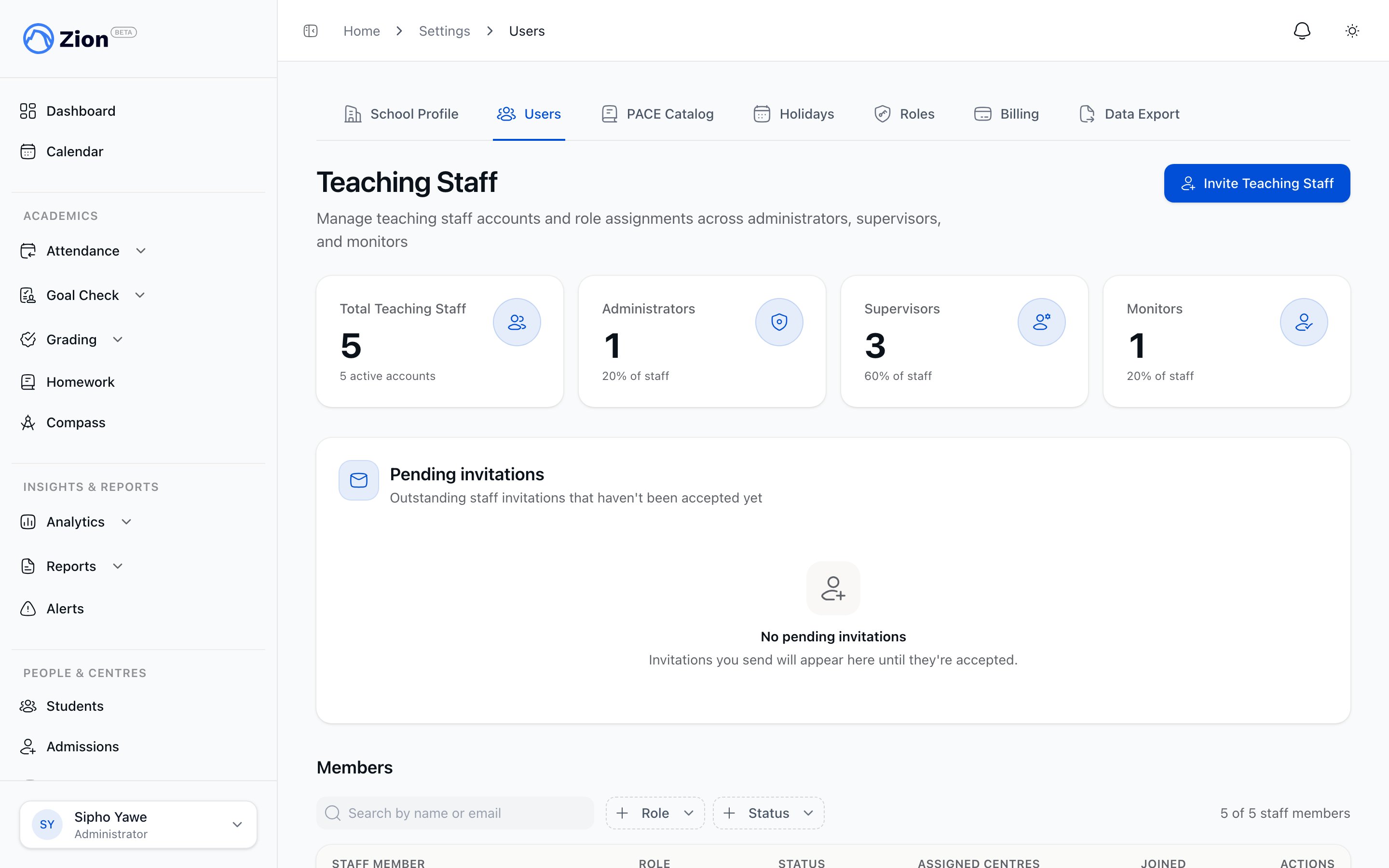
Inviting Teaching Staff

Roles Overview

Supervisor:
  • Views assigned learning centres only
  • Sets daily goals for students
  • Marks student progress
  • Generates daily centre reports
  • Accesses supervisor dashboard
Monitor:
  • Views assigned learning centres only
  • Sets daily goals for students
  • Marks student progress
  • Data entry role (no reporting access)
Administrator (You):
  • Full school access
  • All features available
  • Manages users and settings

Invitation Process

  1. Navigate to “Management” → “Teaching Staff”
  2. Click “Invite User”
  3. Fill invitation form:
    • Full Name: First and last name
    • Email Address: Must be unique
    • Role: Select Supervisor or Monitor
    • Assigned Centres: Select which centres they can access
  4. Click “Send Invitation”
What Happens Next:
  1. Staff member receives email from Clerk
  2. They click the invitation link
  3. They set their own password
  4. They can log in and access Zion
Bulk Invitations: Invite all staff at once during onboarding. They can set passwords at their convenience.

Managing Staff

Edit User:
  • Change name, role, or assigned centres
  • Click “Edit” next to user in staff list
Deactivate User:
  • Prevents login but preserves audit history
  • Click “Deactivate” next to user
  • Can reactivate later if needed
Reactivate User:
  • Restores access for previously deactivated user
  • Click “Reactivate”
Role Changes: When you change a user’s role or centres, they must log out and back in for changes to take effect.

Student Roster Management

Adding Students

See our comprehensive Student Management Guide for detailed instructions. Quick Summary:
  • Individual Entry: Add one student at a time via form
  • CSV Import: Bulk import 20+ students from spreadsheet

PACE Assignments

Every student needs PACE assignments before Goal Check can begin.
  1. Click student from roster
  2. Click “Assign PACE” or “Manage PACEs”
  3. Select 4-5 PACEs across subjects
  4. Save
Recommended PACEs Per Student: 4-6 (one per subject) See PACE Catalog Guide for details.

Administrator Dashboard

Your mission control for school-wide intelligence.

Dashboard Sections

Today’s Snapshot (KPI Cards):
  • Total Students (active count)
  • Today’s Completion % (goal achievement)
  • Learning Centres count
  • Needs Attention (at-risk students)
Weekly Trends Chart:
  • Last 7 days completion rates
  • Visual trend line (improving/declining)
Centre Performance:
  • All centres with completion rates
  • Color-coded badges (green ≥80%, yellow ≥50%, red <50%)
Quick Actions:
  • Shortcuts to Goal Check, Students, Reports, Centres
Teaching Staff Summary:
  • Total and active staff count

Using the Dashboard

Daily Check-In (2 minutes):
  1. Review Today’s Snapshot
  2. Check At-Risk count (click to see which students)
  3. Glance at Centre Performance (which centres need support)
  4. Review any alerts
Weekly Review (10 minutes):
  1. Analyze Weekly Trends chart
  2. Compare centre performance
  3. Generate weekly school report
  4. Plan interventions for struggling students/centres

Goal Check Oversight

As administrator, you oversee (but don’t typically enter) daily Goal Check data.

Your Goal Check Workflow

Morning:
  • Check dashboard to see if goals are being set
  • Ensure all centres have supervisors/monitors entering data
Throughout Day:
  • Monitor real-time dashboard for completion progress
End of Day:
  • Check which centres have completed marking
  • Review At-Risk Alerts for students needing intervention
Weekly:
  • Generate weekly school report
  • Analyze trends and patterns
  • Share insights with leadership
See Goal Check Administrator Guide for advanced features.

Reporting

Daily Centre Reports

When to Generate:
  • End of each day when all students in a centre are marked
  • Readiness indicator shows “Ready (X/X students marked)”
How to Generate:
  1. Navigate to “Reports”
  2. Select centre and date
  3. Check readiness status
  4. Click “Generate Daily Report” when ready
  5. Download PDF or CSV
Use Cases:
  • Share with supervisors for review
  • Document daily performance
  • Identify struggling students

Weekly School Reports

When to Generate:
  • End of each week (or mid-week for interim check)
  • After full week of Goal Check data exists
How to Generate:
  1. Navigate to “Reports” → “Weekly School Reports”
  2. Select week range
  3. Click “Generate Weekly Report”
  4. Review on screen or download PDF/CSV
Use Cases:
  • Share with school leadership
  • Board meeting reports
  • ACE compliance documentation
  • Trend analysis
See Reports Guide for detailed information.

Data Export

Exporting Goal Check Data

Use Cases:
  • Custom analysis in Excel
  • Integration with other systems
  • Long-term archiving
  • ACE accreditation reporting
How to Export:
  1. Navigate to “Goal Check” → “Export Data”
  2. Set filters:
    • Date range
    • Learning centres
    • Students
    • Completion status
    • Subjects
  3. Click “Export to CSV”
  4. Download file (or receive email for large exports)
Export Includes:
  • Student information
  • Goal data (start page, end page, total pages)
  • Actual data (what students completed)
  • Variance (actual vs goal)
  • Completion status
  • Notes
  • Complete audit trail (who created, who marked, timestamps)
See Data Export Guide for details.

Best Practices

Daily Routine (5-10 minutes)

  1. Open administrator dashboard
  2. Check Today’s Snapshot
  3. Review At-Risk Alerts
  4. Verify all centres have active goal entry/marking
  5. Address any issues or gaps

Weekly Routine (30 minutes)

  1. Generate weekly school report
  2. Analyze trends and patterns
  3. Compare centre performance
  4. Identify students needing intervention
  5. Share insights with supervisors and leadership
  6. Plan support for struggling centres/students

Monthly Routine (1-2 hours)

  1. Review cumulative trends (4-5 weeks)
  2. Analyze subject performance patterns
  3. Evaluate supervisor/centre effectiveness
  4. Export data for deep analysis
  5. Plan curriculum adjustments if needed
  6. Prepare monthly leadership report

Troubleshooting Common Issues

”Students not appearing in Goal Check”

Solution: Ensure students have PACE assignments. Students need assigned PACEs before goals can be set.

”Centre report won’t generate”

Solution: Check readiness indicator. All students in the centre must be marked before report can generate.

”Dashboard shows 0 students”

Solution: Verify students are active (not deactivated) and assigned to learning centres.

”Staff can’t see any data”

Solution: Check staff member’s assigned centres. Supervisors/monitors only see data for assigned centres.

”Wrong timezone on reports”

Solution: Update school profile timezone. Note: This won’t retroactively fix old data.

Getting Help


Next Steps