

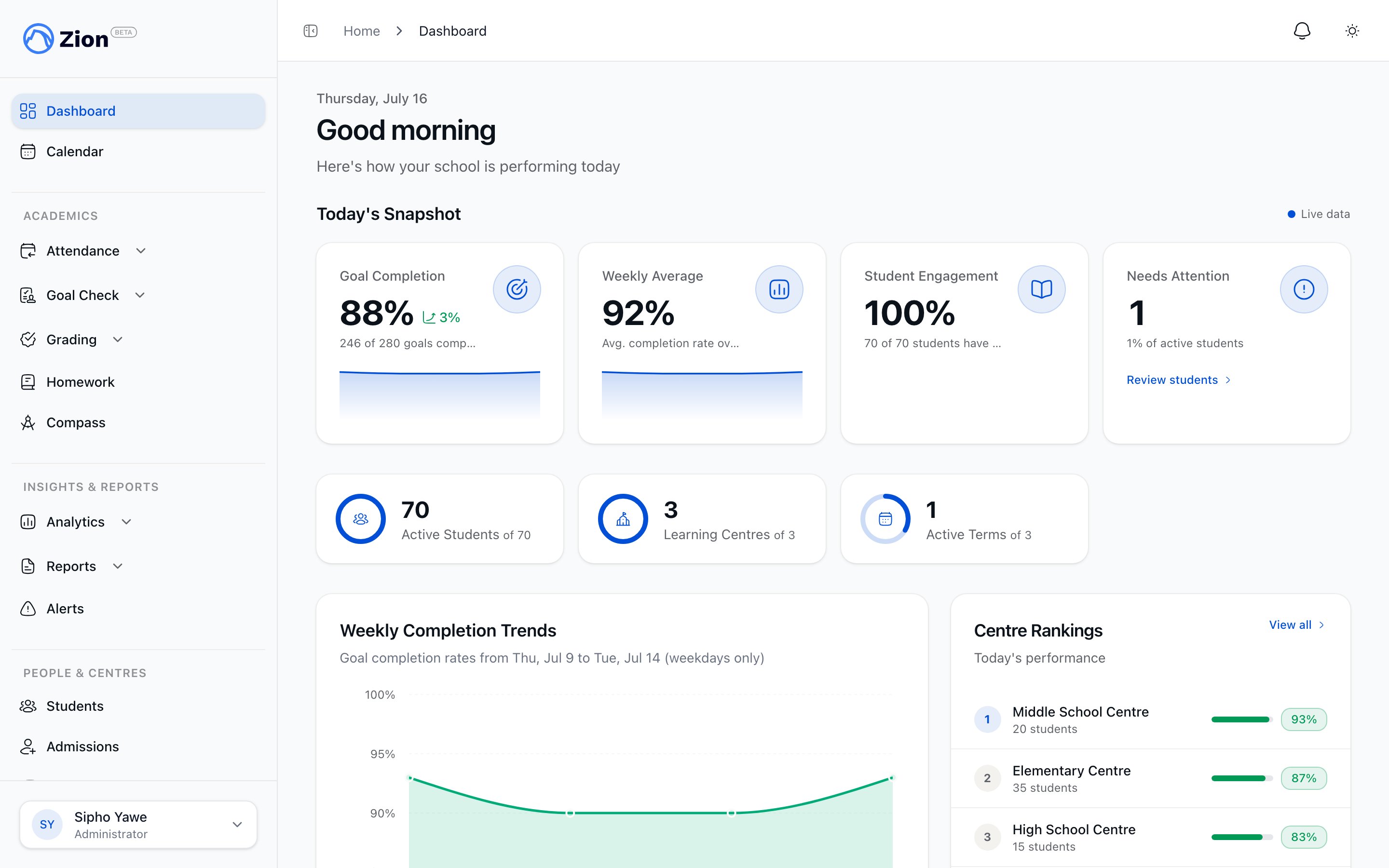
The administrator dashboard once setup is complete
This quickstart is for the administrator who creates the school in Zion. If you are a supervisor or monitor, an administrator invites you directly. See Supervisor: Goal Check or The daily routine for your day-to-day workflow.
Before you start
Have these to hand:- School name, city, country, contact email and phone, and timezone
- A list of the learning centres, or classrooms, you want to create
- Names and email addresses for the supervisors and monitors you plan to invite
- Your student roster, with name, date of birth, grade level, learning centre, and optionally a parent email and phone. You can type these in or upload a spreadsheet.
Step 1: Create your account
1
Sign up
Create your administrator account with your email address and a password.
2
Verify your email
Click the link in the verification email Zion sends you.
3
Choose a plan
Pick your plan and complete payment. Your subscription starts here, before setup, so your school is ready to use the moment the wizard finishes.
Step 2: Complete the setup wizard
Zion takes you straight into a four-step setup wizard. Each step needs the one before it, and it runs once. If you come back to it after finishing, Zion shows a completed screen with links to your dashboard and School Settings.School profile
1
Enter your school details
School name is required. City, country, contact email, contact phone, and timezone are all worth filling in now, because reports and daily cut-off times depend on the timezone. Language defaults to English.
2
Continue
Save to move on to academic terms.
Academic terms
1
Add a term
Enter a term name with a start and end date. You need at least one term before you can continue.
2
Add more terms
Add the rest of your year now, or come back to Academic Terms later. Terms cannot overlap.
Learning centres
1
Add a centre
Enter a centre name, with an optional description and capacity. You need at least one centre before you can continue.
2
Add the rest
Repeat for each classroom or learning centre. See Learning Centres for capacity, timezones, and transfers you can adjust later.
Invite teaching staff
1
Invite a supervisor or monitor
Enter a name and email, choose Supervisor or Monitor, and assign the learning centres they work in. This step offers those two roles only. Other administrators are added later from Settings.
2
Send or skip
Send the invitations, or choose Skip This Step and invite staff later from Teaching Staff and Users. If you have a lot of staff, you can invite them all at once from a spreadsheet.
3
Finish
Zion shows you a summary of what you set up, then takes you to your dashboard.
Step 3: Add students
With your terms and centres in place, add your roster.- One at a time
- From a spreadsheet
1
Open Students
Go to Students in the sidebar.
2
Add Student
Choose Add Student.
3
Fill in the record
Enter the full name, an optional student ID of your own, date of birth, grade level from 1 to 12, learning centre, and optionally a parent email and phone.
4
Save
Save the record. If the name and details look close to a student already on your roster, Zion warns you so you can check for a duplicate. The warning does not stop you saving.
Adding a parent email to a student record does not invite the parent. Invitations are always sent deliberately by a staff member, from the student’s record or in bulk from the Parents screen. See Parent portal.
Step 4: Assign PACEs
A student needs at least one active PACE before you can set a goal for them. Every school starts with the shared ICCE Africa catalog, covering the core subjects, Bible Reading, and the elective and Lifepac range. An administrator can also add your school’s own subjects in Settings, under PACEs.1
Open a student
Choose a student in the roster to open their record.
2
Assign PACEs
Open the PACE assignment dialog and pick one or more, up to 12 at a time. Zion keeps students in sequence within a subject, so a PACE is only offered once the earlier ones have been passed, unless an administrator has recorded an override. Elective and Lifepac courses carry a course code and sit outside that sequence.
3
Save
Save the assignment. It appears on the student’s record and is ready to be given a goal.
4
Repeat
Do the same for each student. Students in the same grade usually carry similar assignments across subjects.
Step 5: Run your first Morning Routine
The Morning Routine is a full-screen flow that takes you through one student at a time, setting the day’s PACE goals for a whole learning centre in a single pass.1
Open your dashboard
Find the card for today’s routine.
2
Choose a centre
If you cover more than one learning centre, pick the one you are running.
3
Start the Morning Routine
Zion opens the centre’s active students one at a time.
4
Set each student a goal
For each active PACE, enter the page you want the student to reach. The starting page fills in automatically from wherever they left off. Move on to the next student, or go back and skip as you need to.
5
Finish
After the last student you get a summary of goals set, students skipped, and how long the session took. If your school requires goals to be approved, an administrator or supervisor can approve them from this screen.
Next steps
Administrator onboarding guide
The full administrator handbook for ongoing setup and configuration
Goal Check
How daily goals, progress marking, and reports fit together
Learning Centres
Manage centre capacity, staff assignment, and transfers
Teaching Staff and Users
Invite more staff and manage roles after setup
Need help
FAQ
Answers to common setup and workflow questions
Contact support
Reach the Zion support team