

Roster management
Each student record holds a name, an optional student ID, date of birth, grade level (1 to 12), a learning centre, and optional parent email and phone. A duplicate student ID within your organization is rejected at creation.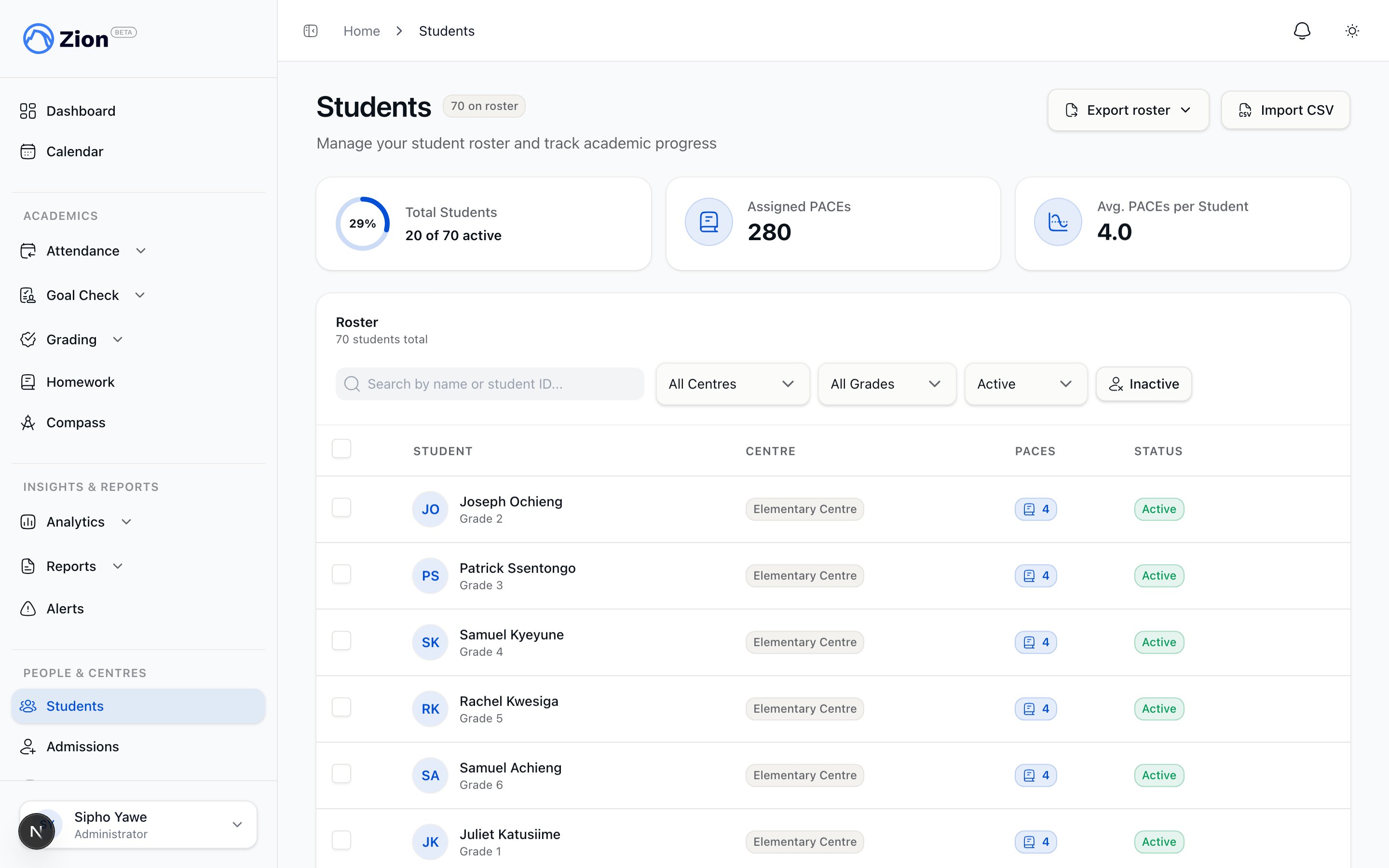
The student roster with centre and grade filters
1
Open the roster
Navigate to Students in the sidebar. Administrators see every student in the organization; supervisors and monitors see only students in their assigned centres.
2
Add a student
Click “Add Student” (or “Add Your First Student” on an empty roster) and fill in name, date of birth, grade level, and learning centre. Student ID and parent contact details are optional.
3
Save
Submit the form. If you entered a parent email, a parent invitation is sent automatically. This does not block student creation if it fails.
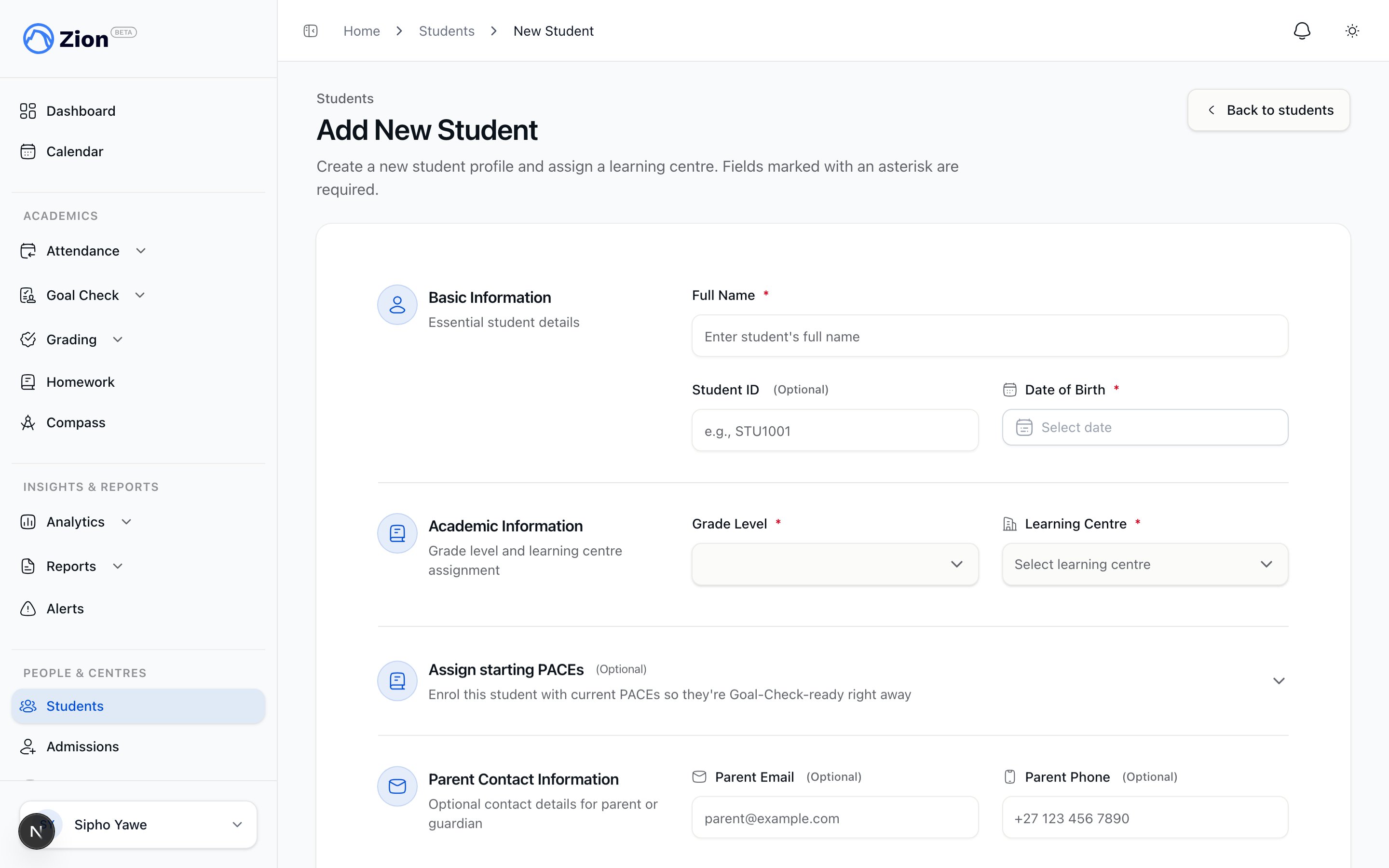
The add student form with name, date of birth, grade level, and centre fields
As you type a name and date of birth, Zion checks for a possible duplicate already on the roster with a close match on both. If it finds one, it shows a warning naming the existing student, but it never blocks you from saving. Use your judgment: proceed if this is genuinely a different student, or open the existing record instead if it is the same one.
Bulk roster actions
Select up to 200 students at once from the roster to:- Deactivate them in bulk
- Reassign centre and/or grade level in bulk
- Assign up to 12 PACEs to the group in bulk
Supervisors and monitors are restricted to their assigned centres no matter what filters they set on screen. If a supervisor or monitor applies an unassigned centre filter, they see zero results rather than the full organization roster.
CSV bulk import
CSV import is the fastest way to load a roster at the start of a school year or when transferring from another system.1
Open the import dialog
From Students, click “Import CSV.” Download the template if you need the column layout.
2
Upload your file
Upload a CSV file up to 5MB, with one row per student: name, student ID, date of birth, grade level, learning centre, and optional parent email and phone.
3
Validate
Click “Validate CSV.” Zion previews each row as valid or invalid, flags any learning centre that would go at or over its configured capacity, and flags any row that looks like a possible duplicate of a student already on the roster. Capacity and possible-duplicate flags are informational and do not block the import.
4
Import valid rows
Click “Import valid rows.” Zion checks every row again at import time, so only rows that pass both checks are written.
5
Fix and re-upload skipped rows
Download the error report for any skipped rows, correct the CSV, and re-upload if needed.
Promote students
At the end of the school year, use “Promote students” to advance a whole grade level, or a specific list of students, to the next grade in one pass. This button is administrator-only and appears on the Students page.1
Open Promote students
From Students, click “Promote students.”
2
Choose who to promote
Pick a scope: an entire grade level, optionally narrowed to one learning centre, or a pasted list of student ID codes.
3
Decide what happens to the final grade
“Graduate final grade students instead of leaving them in place” is on by default. With it on, students in the school’s final grade are deactivated with a Graduated deactivation record instead of being advanced. Turn it off if you want to promote everyone else but leave final grade students active for now.
4
Preview, then apply
Click “Preview changes” to see exactly who will be promoted, who will be graduated, and who will be skipped and why. Once you are satisfied, click “Apply promotion.”
PACE assignment and progression
The PACE catalog is the shared ACE curriculum reference, covering core subjects, Bible Reading, and a large range of elective and Lifepac courses across grade levels 1 through 12. An administrator can also add a school’s own custom subjects and PACEs to the catalog, and can edit a PACE’s page count and level. Browse and search the catalog at PACE Catalog. A student needs PACEs assigned before a supervisor can set Goal Check goals for them. Assignment enforces one rule: you cannot assign PACE N in a subject until every earlier PACE in that same subject has been passed. “Passed” means a finalized passing score, the PACE already marked completed, or an administrator-granted progression override with a plan for how the student will catch up on record. A practice or self-test score does not satisfy this rule. Assignment also fails if the student is inactive or already has that PACE assigned.1
Open the student
From Students, click the student’s name to open their detail page.
2
Assign PACEs
Open the PACE assignment dialog, search the catalog by number or subject, and select one or more PACEs (up to 12 per assignment call).
3
Confirm
Save the assignment. Inventory for each assigned PACE is decremented automatically. A low or negative stock count shows as a warning and does not block the assignment.
Academic terms
Academic terms anchor Goal Check, grading, and reporting to your school calendar. Term configuration is administrator-only.1
Open academic terms
Navigate to Academic Terms.
2
Create a term
Click “Create New Term” and enter a name (3 to 50 characters), a start date, and an end date. The end date must fall after the start date, and a date range that overlaps an existing term is rejected.
3
Set the current term
Click “Set as current” on the term that should be active now. Only one term can be current at a time. Setting a new current term clears the flag from every other term.
4
Edit or delete as needed
Deleting a term is blocked if it already has goals or scores linked to it.
Related resources
Student roster overview
Roster fields, active and inactive status, and centre-scoped visibility.
CSV bulk import
Full import workflow, validation rules, and error handling.
PACE assignments
Assignment, progression, completion, and reopening in detail.
PACE catalog
Browse and search the full ACE PACE catalog.
Academic terms overview
How terms drive Goal Check, grading, and reporting.
Learning centres
Set up centres before assigning students to them.
Goal Check overview
How PACE assignments enable daily goal setting.
CSV templates reference
Column layout for the student import template.