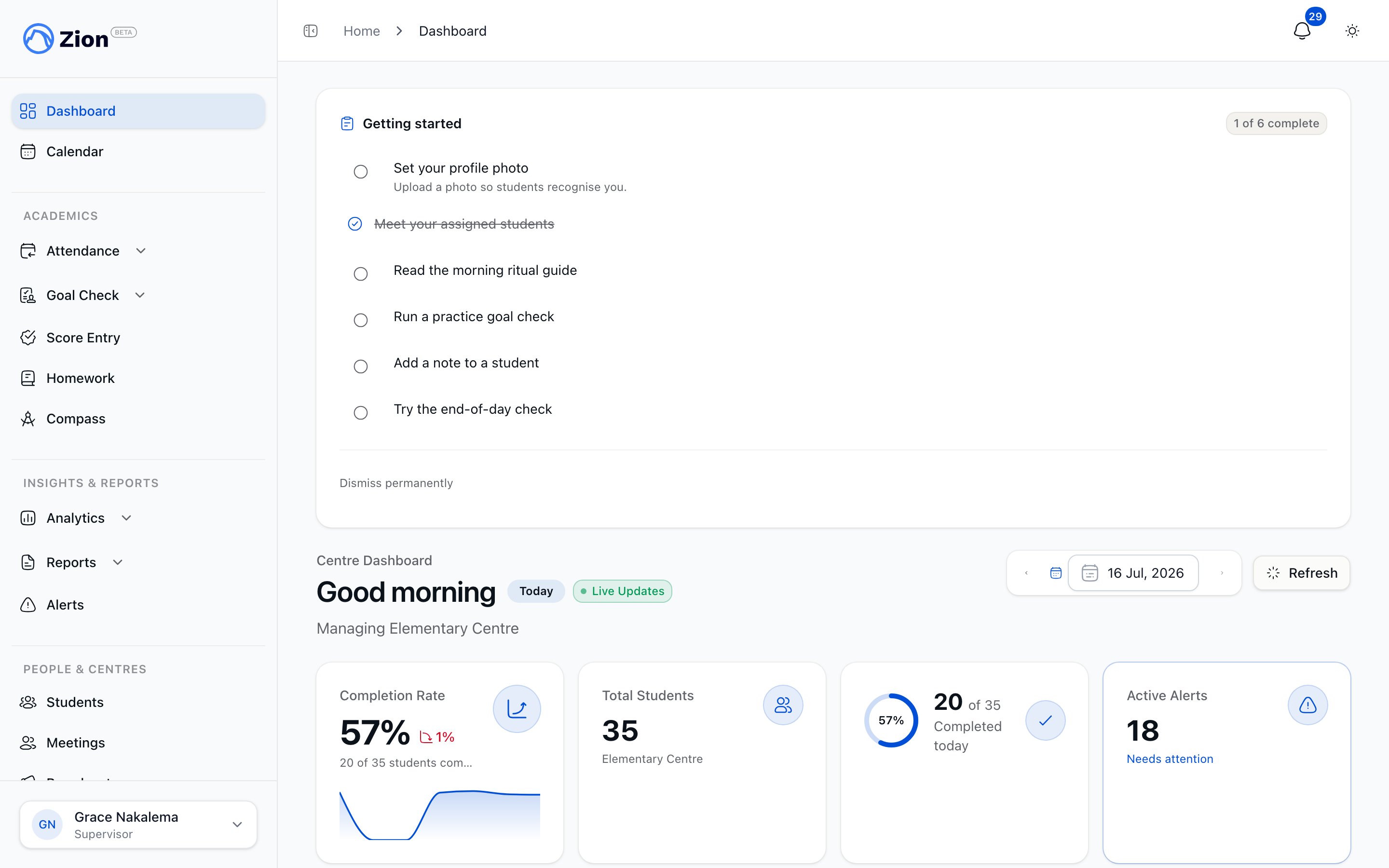
Supervisor Dashboard Guide

Your supervisor dashboard is your command centre for managing daily Goal Check in your assigned learning centres. This guide shows you how to use every feature to maximize student success and minimize your administrative time.

Dashboard Overview

Purpose:
  • Real-time visibility into your centres’ daily performance
  • Quick identification of students needing support
  • Trend analysis to spot patterns early
  • At-a-glance completion status
Access: Click “Dashboard” in the sidebar navigation. You’ll automatically see your supervisor dashboard showing only your assigned centres.
Mobile Friendly: The supervisor dashboard is optimized for tablets. Check progress throughout the day from anywhere in your learning centre.

Dashboard Sections

1. Today’s Snapshot (KPI Cards)

Location: Top of dashboard The KPI cards give you instant intelligence on your centres’ performance today. Total Students in My Centres
  • Count of all active students assigned to your learning centres
  • Example: “48 Students” means 48 students across all your centres
  • Only counts active students (deactivated students excluded)
Students with Goals Set
  • How many students have goals entered for today
  • Example: “42 of 48 students” means 6 students still need goals set
  • Click the card to jump to Set Goals page
Completion Rate
  • Percentage of students who met or exceeded their goals today
  • Formula: (Students Completed + Students Exceeded) / Total Students Marked
  • Example: “85%” means 85% of marked students met their goals
  • Color-coded: Green (80%+), Yellow (60-79%), Red (<60%)
Students Marked
  • How many students have had actual progress marked today
  • Example: “38 of 48 students” means 10 students still need progress marked
  • Click the card to jump to Mark Progress page
At-Risk Students
  • Count of students in your centres flagged as at-risk
  • Criteria: 3+ consecutive days missing goals, or declining trend
  • Click the card to view At-Risk Students list

2. Student Progress Table

Location: Main section of dashboard Real-time table showing every student in your centres with their today’s performance. Columns: Student Name
  • Full name of student
  • Click name to view student’s detail page
  • Sorted alphabetically by default
Learning Centre
  • Which centre student is assigned to
  • Helpful if you supervise multiple centres
  • Filter by centre using dropdown above table
Current PACEs
  • List of PACEs student is currently working on
  • Example: “Math 1015, English 1025, Science 1035”
  • Shows up to 6 PACEs (scroll to see all if student has more)
Today’s Goal
  • Total goal pages across all PACEs for today
  • Example: “24 pages” (might be 6 pages in Math, 6 in English, etc.)
  • Empty if goals not yet set
Actual Completed
  • Total actual pages student completed today
  • Example: “22 pages” (across all PACEs)
  • Empty if progress not yet marked
  • Updates in real-time as you mark progress
Variance
  • Difference between actual and goal pages
  • Positive variance: +2 means 2 pages over goal (exceeded!)
  • Zero variance: 0 means met goal exactly
  • Negative variance: -2 means 2 pages under goal (missed)
  • Empty until progress marked
Status
  • Color-coded badge showing completion status:
    • Green “Completed”: Actual pages ≥ goal pages
    • Blue “Exceeded”: Actual pages > goal pages
    • Red “Missed”: Actual pages < goal pages
    • Gray “Not Started”: Progress not yet marked
Actions
  • Quick action buttons:
    • “Set Goals” - Jump to goal entry for this student
    • “Mark Progress” - Jump to progress marking for this student
    • “View History” - See student’s past 30 days
Filters:
  • By centre (if you supervise multiple centres)
  • By status (show only Completed, Missed, etc.)
  • By date (view past days)
  • Search by student name
Sort Options:
  • By student name (A-Z or Z-A)
  • By variance (highest to lowest, or vice versa)
  • By status (Completed, Exceeded, Missed, Not Started)
  • By goal pages (highest to lowest)

Location: Below Student Progress Table Line chart showing your centres’ completion rates for the last 7 days. What It Shows:
  • X-axis: Last 7 calendar days (Mon, Tue, Wed, etc.)
  • Y-axis: Completion rate percentage (0-100%)
  • Line: Daily completion rate trend
Reading the Chart: Upward Trend
  • Line slopes upward from left to right
  • Completion rates improving over time
  • Example: Mon 70%, Tue 75%, Wed 80%, Thu 85%
  • Indicator: Students settling into routines, goals appropriately set
Flat Trend
  • Line relatively horizontal
  • Consistent performance day-to-day
  • Example: Mon 82%, Tue 83%, Wed 81%, Thu 84%
  • Indicator: Stable, predictable performance
Downward Trend
  • Line slopes downward from left to right
  • Completion rates declining
  • Example: Mon 85%, Tue 80%, Wed 75%, Thu 70%
  • Indicator: Goals may be too ambitious, or students struggling
Spiky Trend
  • Line jumps up and down significantly
  • Inconsistent day-to-day performance
  • Example: Mon 85%, Tue 60%, Wed 90%, Thu 55%
  • Indicator: Irregular goal setting, external disruptions, or data entry issues
Using Trends for Planning:
  • If Friday completion always drops, consider lower goals on Fridays
  • If Mondays are consistently low, students may need warm-up time
  • If trend declining over 3+ days, review goal difficulty or student support

4. My Alerts

Location: Right sidebar (desktop) or below chart (mobile) Automated alerts highlighting students in your centres needing attention. Alert Types: Critical Alerts (Red)
  • 3+ consecutive days missing goals
  • Severe declining trend (>30% drop in 2 weeks)
  • Student marked as at-risk
Warning Alerts (Yellow)
  • 2 consecutive days missing goals
  • Moderate declining trend (15-30% drop)
  • Subject-specific struggle (consistently missing in one subject)
Alert Information:
  • Student name and centre
  • Alert reason (e.g., “Missed goals 3 consecutive days”)
  • Recommended action (e.g., “Meet with student to assess difficulty”)
  • Quick link to student’s detail page
Acting on Alerts:
1

Review Alert Details

Click alert to see full context: which days missed, which subjects, variance amounts
2

Check Historical Pattern

View student’s 30-day history - is this a one-time issue or ongoing struggle?
3

Identify Root Cause

Is student struggling with: PACE difficulty? Personal issues? Goal setting too ambitious?
4

Take Action

Adjust goals, provide one-on-one support, involve administrator, or modify PACE assignments
5

Monitor Progress

Check back in 3-5 days to see if intervention helped

Dashboard Workflows

Morning Routine (2 minutes)

Goal: Quick check before setting goals
1

Open Dashboard

Log into Zion, click “Dashboard”
2

Check KPI Cards

Verify student count looks correct, note any alerts
3

Review Alerts

Note which students need special attention today
4

Navigate to Set Goals

Click “Set Goals” from dashboard or sidebar

Mid-Day Check (30 seconds)

Goal: Monitor progress throughout the day
1

Glance at Completion %

See how students are progressing so far (if you’ve started marking)
2

Identify Struggling Students

Use Student Progress Table to see who’s falling behind
3

Provide In-Person Support

Walk over to struggling students and offer help

End-of-Day Review (3 minutes)

Goal: Final check before marking progress
1

Verify All Students Worked

Ensure all students completed their work for the day
2

Check Trends Chart

See how today compares to rest of week
3

Review Alerts

Note students who may need intervention tomorrow
4

Navigate to Mark Progress

Click “Mark Progress” from dashboard or sidebar

Weekly Analysis (10 minutes on Fridays)

Goal: Deep dive into week’s performance
1

Review 7-Day Trends

Analyze completion rate pattern over the full week
2

Identify Patterns

Which days strongest? Which weakest? Why?
3

Review All Alerts

Make list of students needing intervention next week
4

Plan Next Week

Adjust goal-setting strategy based on this week’s data
5

Generate Reports

Create weekly centre reports for your records

Understanding Dashboard Metrics

Completion Rate Calculation

Formula:
Completion Rate = (Students Completed + Students Exceeded) / Total Students Marked × 100
Example:
  • 30 students in your centre
  • 25 students marked so far today
  • Of those 25: 18 completed, 3 exceeded, 4 missed
  • Completion Rate = (18 + 3) / 25 × 100 = 84%
Why “Students Marked” is the Denominator:
  • You can’t know completion until progress is marked
  • Early in day, completion rate shows partial data
  • Once all students marked, completion rate is final
Target Completion Rates:
  • Excellent: 85%+ (students consistently meeting goals)
  • Good: 75-84% (most students succeeding)
  • Fair: 60-74% (goals may be too ambitious)
  • Poor: <60% (significant issue - goals too high or students struggling)

Variance Interpretation

Positive Variance (+pages):
  • Student completed MORE pages than goal
  • Could mean: Goal too low, student extra motivated, easy PACE section
  • Action: Consider increasing goals slightly if consistently positive
Zero Variance (0 pages):
  • Student met goal exactly
  • Ideal scenario: Goal was appropriate and achievable
  • Action: Continue similar goal-setting
Negative Variance (-pages):
  • Student completed FEWER pages than goal
  • Could mean: Goal too high, student struggled, PACE section difficult, external factors
  • Action: Investigate cause, adjust future goals if needed
Variance Trends:
  • Consistently positive variance (5+ days): Goals likely too low
  • Consistently negative variance (3+ days): Goals likely too high or student needs support
  • Mixed variance (some +, some -): Goals appropriately challenging

Multi-Centre Supervision

If You Supervise Multiple Centres:

Centre Comparison View

Enable Centre Comparison:
  1. Toggle “Compare Centres” switch at top of dashboard
  2. View side-by-side KPI cards for each centre
  3. Compare completion rates, at-risk counts, trends
Example with 3 Centres:
  • Faith Centre: 85% completion, 2 at-risk students, upward trend
  • Grace Centre: 72% completion, 5 at-risk students, flat trend
  • Hope Centre: 90% completion, 1 at-risk student, upward trend
Insights:
  • Grace Centre needs attention (lower completion, more at-risk students)
  • Hope Centre performing excellently
  • Faith Centre improving

Filtering by Centre

Student Progress Table:
  • Use centre dropdown to filter table to one centre at a time
  • Example: Show only “Faith Centre” students
  • Helpful for focused analysis
Trends Chart:
  • Toggle individual centres on/off in chart legend
  • Compare centre trends side-by-side
  • Identify which centre needs support

Alerts by Centre

Alerts grouped by centre:
  • See which centre has most alerts
  • Prioritize support where needed most
  • Balance your time across centres

Dashboard Best Practices

Daily Habits

1

Morning Glance (30 sec)

Check KPIs and alerts before setting goals
2

Mid-Day Check (30 sec)

Quick table scan to identify struggling students
3

End-of-Day Review (2 min)

Verify readiness before marking progress

Weekly Habits

1

Monday Morning

Review last week’s trends, plan week ahead
2

Mid-Week Check (Wed)

Ensure week is on track, address issues early
3

Friday Afternoon

Analyze full week, generate reports, plan interventions

Data-Driven Decision Making

Use Dashboard Data to:
  1. Adjust Goals: If completion <70% for 3+ days, lower goals
  2. Identify Support Needs: Students with 3+ consecutive misses need intervention
  3. Celebrate Success: Students with 5+ consecutive completions deserve recognition
  4. Plan Curriculum: If all students struggle in one subject, review PACE difficulty
  5. Optimize Scheduling: If certain days always low, consider schedule changes

Avoid Common Pitfalls

Don’t:
  • Obsess over 100% completion (85%+ is excellent)
  • Compare students to each other (individualized pacing is core to ACE)
  • Ignore alerts (they exist for a reason)
  • Only check dashboard once a week (daily glances catch issues early)
  • Set goals too high to “challenge” students (achievable goals build confidence)

Mobile/Tablet Dashboard Tips

Optimized for Tablets

Portrait Mode:
  • KPI cards stack vertically (easy scrolling)
  • Table shows 3-4 columns (name, goal, actual, status)
  • Chart displays full-width below cards
Landscape Mode:
  • KPI cards display in row (all visible at once)
  • Table shows 6-7 columns (full detail)
  • Chart displays side-by-side with cards

Touch Interactions

Tap Actions:
  • Tap KPI card to navigate to related page (e.g., tap “Students Marked” → Mark Progress)
  • Tap student name in table to view detail
  • Tap status badge to filter table to that status
  • Tap chart line to see specific day’s data
Swipe Gestures:
  • Swipe table left/right to see more columns
  • Swipe chart left/right to see previous 7-day periods

Offline Behavior

No Internet Connection:
  • Dashboard shows cached data from last load
  • Offline banner appears at top
  • Data refreshes when connection restored
  • Safe to view dashboard offline, but can’t enter new data

Troubleshooting Dashboard Issues

”Dashboard Shows 0 Students”

Causes:
  1. You’re not assigned to any learning centres
  2. Your assigned centres have no students
  3. All students in your centres are deactivated
Solutions:
  1. Contact administrator to assign you to centres
  2. Add students to your centres
  3. Reactivate students if appropriate

”Completion Rate Seems Wrong”

Common Reasons:
  1. Only partial students marked (denominator is “students marked”, not “total students”)
  2. Viewing wrong date (check date filter at top)
  3. Goals set but progress not marked (completion is 0% until marking happens)
Verify:
  • Check “Students Marked” count - if low, completion % is only partial
  • Confirm you’re viewing today’s date
  • Ensure progress has been marked for students

”Trends Chart Shows Gaps”

Causes:
  1. No goals set or progress marked on those days
  2. Weekends or holidays (no school)
  3. Data not yet loaded
Normal Behavior:
  • Gaps on Sat/Sun are expected (most schools don’t operate weekends)
  • Past dates with no data show 0% or blank

”Student Not Appearing in Table”

Causes:
  1. Student not assigned to your centre
  2. Student deactivated
  3. Active filter hiding student
Solutions:
  1. Verify student’s learning centre assignment
  2. Check if student is active
  3. Clear all filters and search again

”Alerts Not Showing”

Causes:
  1. No students meet alert criteria (good news!)
  2. Not enough historical data (alerts require 3-5 days of data)
  3. All students performing well
Verify:
  • Check if you have students with 3+ consecutive misses
  • Ensure you have 5+ days of Goal Check data
  • Confirm alerts are enabled (administrator setting)

Advanced Dashboard Features

Custom Date Ranges (Coming Soon)

Planned Feature:
  • View dashboard for any historical date
  • Compare week-to-week performance
  • Analyze term-to-term trends

Export Dashboard Data (Coming Soon)

Planned Feature:
  • Download dashboard data as CSV
  • Create custom charts in Excel
  • Share data with school leadership

Scheduled Dashboard Reports (Coming Soon)

Planned Feature:
  • Email dashboard summary every Friday
  • Automatic weekly performance reports
  • Monthly trend analysis

Dashboard FAQs

Q: Why does completion rate change throughout the day? A: Completion rate is calculated based on students marked so far. As you mark more students, the rate updates to reflect the full picture. Q: Can I see other supervisors’ dashboards? A: No, you only see your assigned centres. This maintains data privacy and keeps you focused on your responsibilities. Administrators see school-wide data. Q: How often does dashboard update? A: Real-time. As you mark progress, KPIs and table update immediately. Refresh page if data seems stale. Q: Can I customize which KPIs show? A: Not currently. KPIs are standardized for consistency across all supervisors. Custom KPIs are planned for future release. Q: What’s the difference between “Completed” and “Exceeded”? A: Both mean student met their goal. “Completed” means actual = goal (or slightly over). “Exceeded” means actual significantly > goal (variance >+3 pages). Both count as success. Q: Should I aim for 100% completion? A: 85%+ is excellent. 100% consistently may mean goals are too low. 75-85% is good. <75% may mean goals too high or students need support.

Next Steps