

You only see and mark students in your assigned learning centre(s). If a student does not appear, confirm they are assigned to one of your centres, or ask your administrator to check.
Daily marking workflow
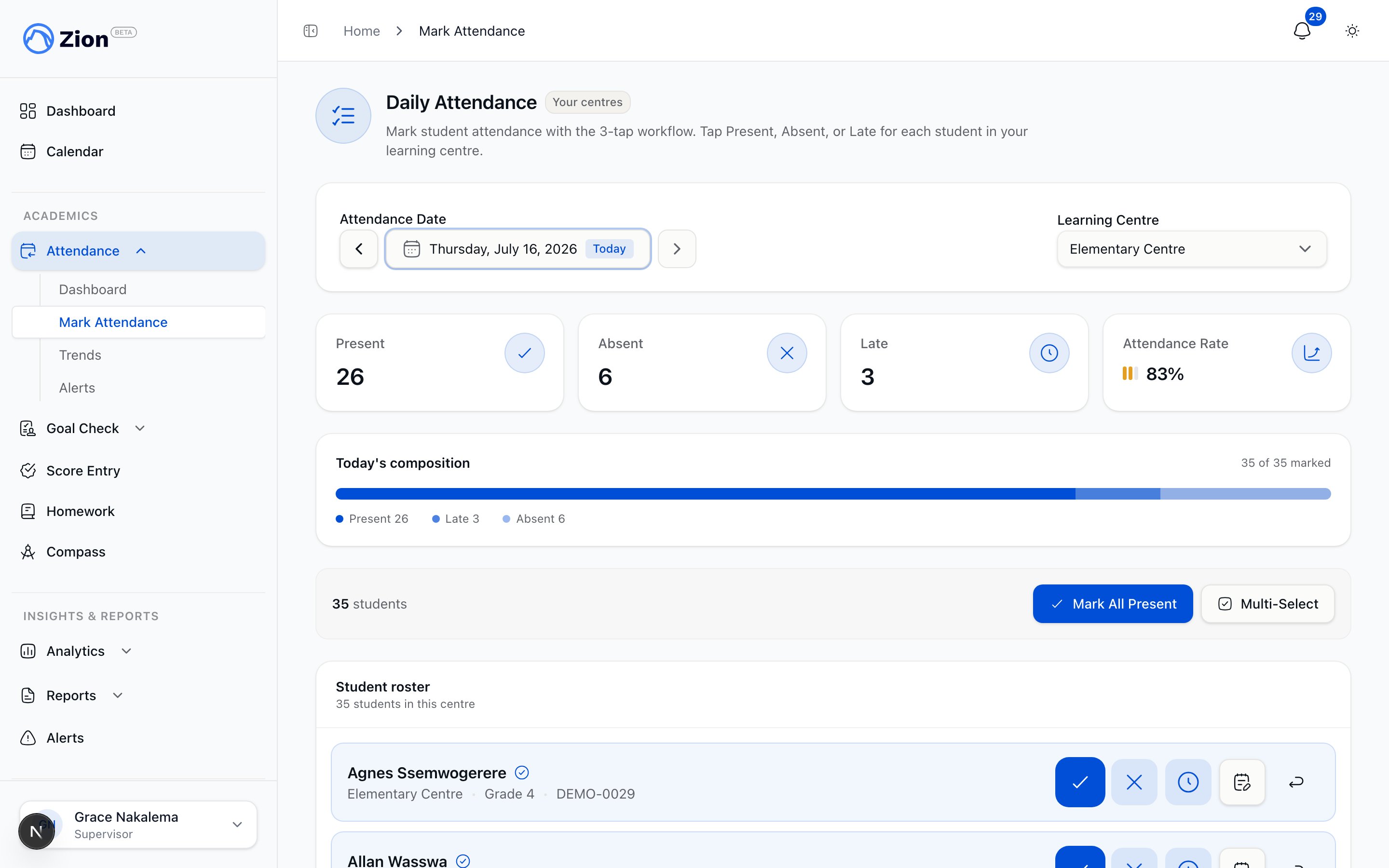
Marking a student Present, Absent, or Late in three taps
1
Open Attendance
Navigate to Attendance > Mark Attendance in the sidebar. The marking interface opens with today’s date and your centre selected.
2
Confirm date and centre
The date defaults to today. If you have more than one assigned centre, pick the one you are marking from the centre dropdown.
3
Mark each student
Unmarked students are sorted to the top of the list, then alphabetically. For each student, tap Present, Absent, or Late. A status saves as soon as you tap it.
4
Add detail for Late or Absent
For Late, you can set an arrival time and add a note. For Absent, add a note if you know the reason (for example, “doctor appointment”). Notes are visible to administrators.
5
Use bulk actions when most students are present
Tap Mark All Present, confirm in the dialog, then mark the exceptions individually as Absent or Late. You can also multi-select a group of students and bulk-mark them in one action.
6
Check the summary bar
The summary bar shows total, marked, and unmarked counts, plus the present/absent/late breakdown, updating in real time as you mark.
Attendance status reference
What you cannot mark
Attendance is editable only for today. Once that day passes, the record locks and you cannot change it, even for a student you marked incorrectly earlier that same week.Your attendance dashboard
Navigate to Attendance > Dashboard to see your centre’s numbers:- Present, absent, and late counts for the selected day
- Your centre’s attendance rate
- A centre breakdown if you supervise more than one centre
- An Export CSV option for the data shown
Attendance trends
Navigate to Attendance > Trends to review your centre over time. Pick a range (7 days, 30 days, current term, or a custom range) and optionally filter by grade level. The trend view shows daily present/absent/late/rate figures alongside a summary: average rate, best and worst day, and whether the trend is improving, stable, or declining.Full attendance report generation (PDF/CSV reports with chronic-absence and late-arrival lists, shareable by email) is an administrator-only page. As a supervisor, use the dashboard export and trends view for your centre’s data.
Handling chronic-absence alerts
Zion generates alerts automatically once a student crosses a consecutive-absence or 30-day absence-rate threshold. Defaults are a warning at 3 or more consecutive school-day absences and a critical alert at 5 or more consecutive absences, or a 30-day absence rate above 20 percent. Your organization may have adjusted these thresholds.1
Open Attendance > Alerts
You see open alerts only for students in your assigned centre(s), filterable by type (warning or critical).
2
Review the detail
Each alert shows the student, alert type, consecutive absence count, and 30-day absence rate.
3
Acknowledge or dismiss
Acknowledge the alert and enter intervention notes describing what you did (for example, a conversation with the student or a call to a parent). Dismiss it with a short reason if it does not need follow-up (for example, a documented medical leave).
4
Let it resolve automatically
An alert clears on its own once the student no longer meets the threshold on a later run. You do not need to close it manually once the pattern breaks.
Acknowledging or dismissing an alert requires a note or reason and is recorded in the audit trail. This scopes to your assigned centres only, the same restriction that applies to marking. Once you acknowledge or dismiss an alert, Zion will not raise that same alert again for about a week, even if the pattern continues.
Best practices
- Mark attendance close to the start of the day so present-versus-late is accurate.
- Update Late status with an arrival time as soon as you know it.
- Add a note whenever you know the reason for an absence. It helps administrators and saves you a follow-up conversation later.
- Check the summary bar before you leave for the day. Unmarked should read zero.
- Act on alerts promptly. Acknowledging with a real intervention note is more useful than leaving alerts open.
Related pages
Attendance overview
How Zion’s attendance module works across all roles
Marking attendance
Detailed reference for the marking interface
Attendance alerts
How chronic-absence alerts are calculated and resolved
Attendance trends
Reading trend direction and centre comparisons
Administrator attendance guide
Reports, org-wide alerts, and prior-day corrections
Supervisor dashboard
Your centre’s overview across all modules