

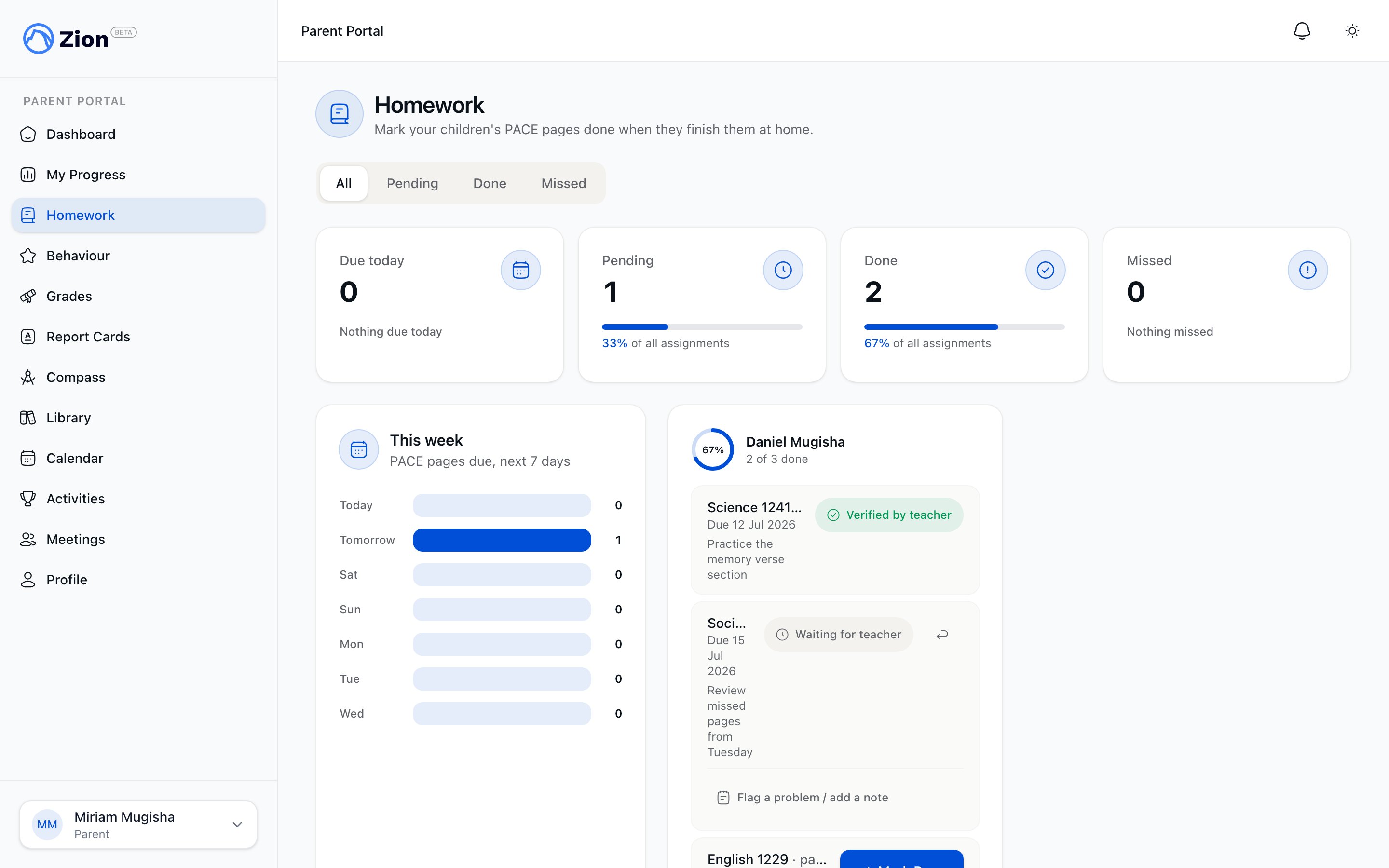
A child's homework list with status filters for All, Pending, Done, and Missed
Booking a meeting
Go to Meetings in the parent sidebar to see your meetings grouped into four lists: requests awaiting your response, expired requests, upcoming meetings, and past meetings. You can only book with a supervisor or monitor assigned to your child’s learning centre. Administrators are not bookable for meetings.1
Start the booking wizard
Click Book a meeting on the Meetings page, or use a meeting shortcut from your child’s dashboard card. Either one opens the booking wizard.
2
Choose your child
Pick which linked child the meeting is about.
3
Choose a staff member
Only supervisors and monitors assigned to that child’s learning centre appear as options.
4
Pick a date and time
If the staff member has open availability slots, pick a date and then a time slot. Confirming claims the slot immediately and the meeting is booked, no staff confirmation needed.
5
Request a time if no slots are open
If the staff member has no open slots, you can instead propose up to 5 candidate times. This creates a request that waits for the staff member to respond.
Only one parent can claim a given slot. If someone else claims the same slot moments before you do, your booking attempt is rejected and you’ll need to pick a different time.
Watching for new availability
If a staff member has no open slots and you don’t want to send a request, you can subscribe to be notified when they publish new availability for that child. Once they publish a slot, your watch is fulfilled and you get a notification.Responding to staff proposals
A meeting can also start from the staff side. A supervisor or monitor may propose one or more candidate times for a meeting with you. When that happens, the request appears under Awaiting your response on the Meetings page.- Accept a proposed time
- Decline
- Counter-propose
Choose one of the proposed times. This confirms the meeting immediately for both you and the staff member.
Expired requests
If neither side responds before every proposed time has passed, the request moves to the Expired list. From there, click Book again to re-propose the same child and staff member without re-entering everything from scratch.Meeting details
Opening a meeting shows the summary the staff member has shared with you. Private staff notes and internal action items are never shown here.Adding meetings to your calendar
Each confirmed meeting can be added to your personal calendar from the meeting detail or list view. This creates a matching event in your subscribed calendar feed (see below) so the meeting shows up alongside your phone or desktop calendar events.Using the school calendar
Go to Calendar in the parent sidebar for a read-only month view of events readable by parents: your children’s learning centre events plus school-wide events. Use Prev, Next, and Today to move around, and the per-child filter if you have children at more than one centre or grade. Clicking an event opens a read-only detail modal. There is no button to create, edit, or delete events from this view.Subscribing to the calendar by iCal
To sync the school calendar into Google Calendar, Apple Calendar, or Outlook, click Subscribe on the Calendar page.1
Generate your link
Click Generate calendar link. Your private calendar-sync link is shown once on screen.
2
Copy it before leaving the page
After you navigate away, the page only shows a masked placeholder, not the raw URL.
3
Add it to your calendar app
Paste the URL into Google, Apple, or Outlook as a calendar subscription.
4
Revoke and regenerate if needed
If the link is lost or you think it has been shared, click Revoke & regenerate. The old link stops working immediately and a new one is issued (also shown once).
Your feed shows the same events and visibility rules as the in-app calendar, scoped to your children’s centres plus school-wide events. Calendar apps typically refresh a subscribed feed every few minutes rather than instantly.
Library loans
Go to Library in the parent sidebar for a read-only, per-child list of books your child has borrowed, both current and past loans. Each entry shows the due date and a status badge such as out, overdue, lost, or returned. There is nothing to check out or return here; that happens at school.Extracurricular activities
Go to Activities in the parent sidebar to browse the school’s public activity catalog. Open an activity to see its detail page and express interest in it for your child. This is the same catalog staff see, without any management controls.Managing notifications
Click the notification bell in the header for a quick list, then See all to open your full in-app notification history. To control which channels you receive notifications on, open Profile in the parent sidebar and use the notification preferences matrix. It lists the notification types relevant to parents and lets you opt out per channel.Related pages
Meetings overview
How the meeting system works across parents and staff, including statuses and who can meet whom.
Booking and requests
The full booking and request-handshake flow, including staff-initiated meetings.
Calendar overview
Event types, visibility levels, and centre scoping across the whole calendar system.
iCal subscription
How the private ICS feed link works and what it includes.
Your child's progress
Goal Check, attendance, grades, and behaviour for each linked child.
Parent portal overview
The full parent portal navigation map and how child access is granted.