

Administrators and monitors can also run the routine for centres they have access to. Only administrators and supervisors can approve goals when sign-off is turned on for your organization.
Where to start it
Both modes start from the Today’s Routine card on your dashboard. If you supervise more than one learning centre, a centre selector appears above the Start buttons so you can switch between them. Each centre tracks its own Morning Routine and End of Day status independently, so completing one centre does not affect the others. The card shows one of three states for each mode:- Not started: shows a Start button
- In progress: shows a Resume button
- Completed today: shows a Done state
Running Morning Routine
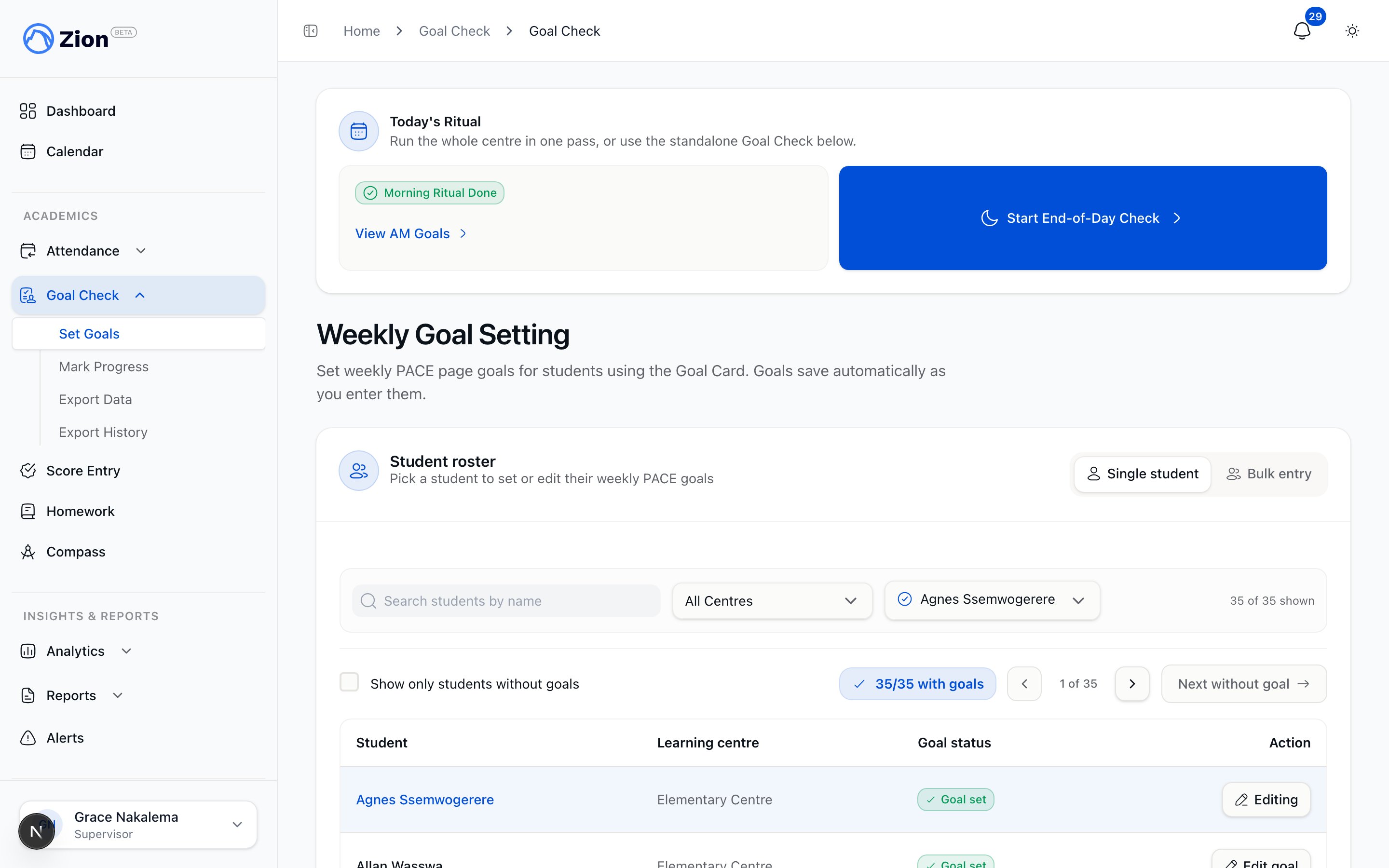
Setting a page goal for each student during Morning Routine
1
Start or resume
From the Today’s Routine card, select your centre if you have more than one, then tap Start Morning Routine, or Resume if a session is already in progress today.
2
Set a goal for each PACE
Each student appears one at a time, full-screen, with their active PACEs listed. For each PACE, the start page is filled in for you (it continues from the last page the student completed, or page 1 for a new PACE) and cannot be edited. Enter the goal end page using the number pad. It cannot exceed the PACE’s total page count.
3
Advance to the next student
Tap Advance once every active PACE has a goal. If you advance with a PACE left blank, Zion asks you to confirm before moving on. A student with no goalable PACEs can still be advanced.
4
Use Back, Skip, or Roster as needed
Back returns to the previous student so you can review or change what you entered. Skip marks the current student skipped and moves to the next one. Roster opens a list of every student in the session so you can jump to any of them directly.
5
Finish the session
Before the session closes, Zion offers one more pass through any skipped students. Skip Remaining marks everyone still pending as skipped and ends the session in one step. Finish Anyway lets you close the session with students still marked skipped.
6
Review the summary
The completion screen shows how many goals were set, how many students were skipped, and how long the session took.
Throughout the day
Between Morning Routine and End of Day, use your dashboard to check on progress and support students who are struggling. See Supervisor dashboard for what the dashboard shows for your centres.Running End of Day
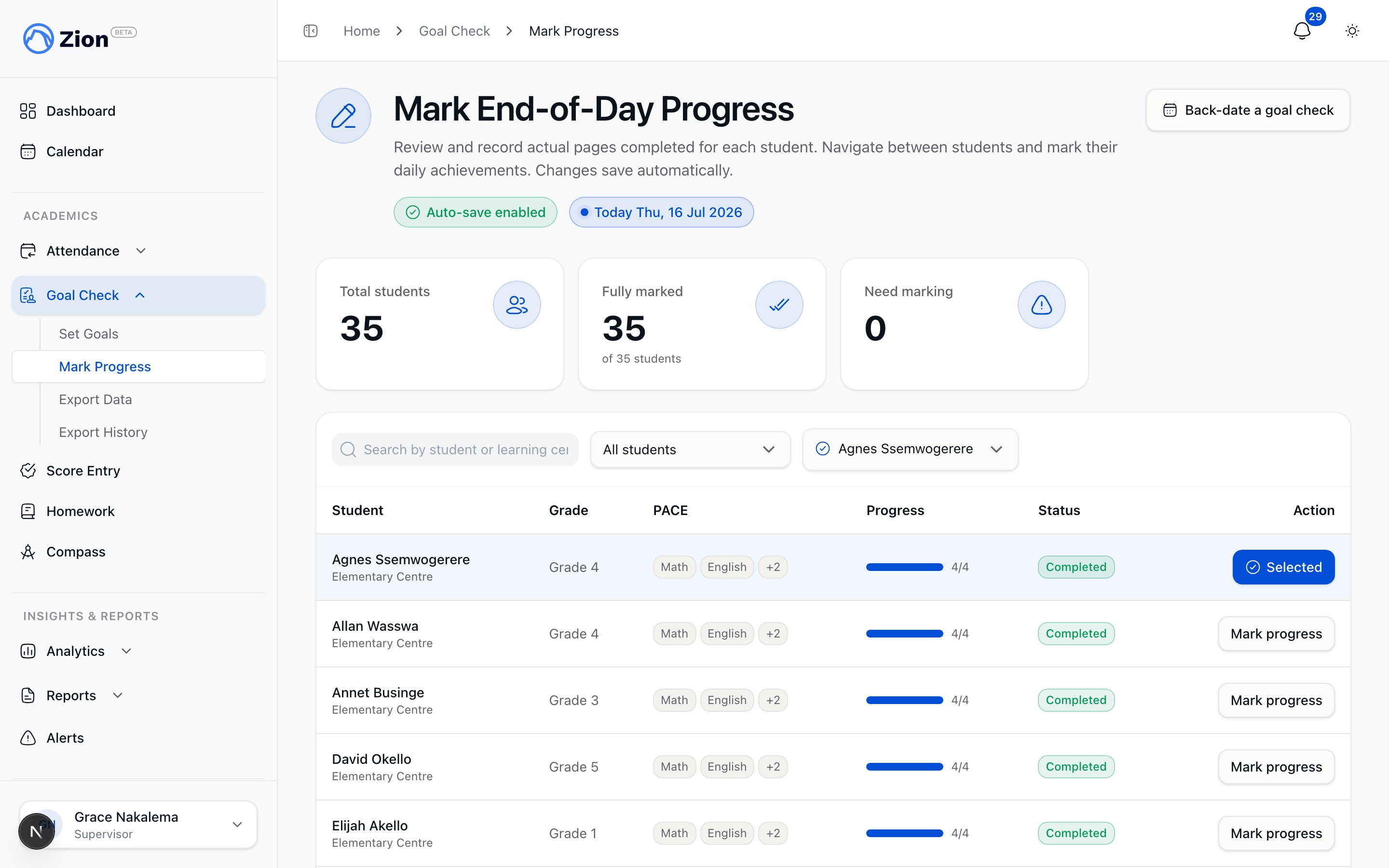
Marking progress as Hit, Missed, or Partial during End of Day
1
Start or resume
From the Today’s Routine card, tap Start End-of-Day Check, or Resume if a session is already in progress.
2
Review the morning goal
Each student appears with a recap of every PACE that had a morning goal.
3
Record the outcome
For each PACE, record Hit, Missed, or Partial, and enter the actual start and end pages completed. A student with no morning goal can still be advanced with a note; nothing is recorded for that PACE.
4
Advance, Back, Skip, or use Roster
These work the same way as in Morning Routine.
5
Finish and review
Skip Remaining, Finish Anyway, and the completion summary work the same way as Morning Routine, showing results recorded, students skipped, and elapsed time.
If a student was not doing normal PACE work that day, use the standalone progress-marking screen instead of the guided routine to record it. There you can mark them Absent or Excused, or note that they spent the day on non-PACE work, such as review, an essay, a science project, or a special activity, with an optional reason. These entries do not count as a completion attempt, so they are left out of insights and trend reports.
Approving goals (if enabled)
Some organizations require sign-off on morning goals before they count as final. Whether this applies to you depends on a setting your administrator controls at the organization level.- If approval is off
- If approval is on
Morning goals are final as soon as you enter them. There is no separate approval step.
Monitors can enter and record goals through the routine but cannot approve them. Approval is limited to administrators and supervisors.
Troubleshooting
I closed the tab in the middle of a session
I closed the tab in the middle of a session
Reopen Morning Routine or End of Day for that centre. Zion resumes the same in-progress session rather than starting over.
Yesterday's session is still showing as in progress
Yesterday's session is still showing as in progress
A session left in progress from a previous day is treated as stale. Starting the routine today opens a new session for that centre; it does not block you.
A student has no PACE to set a goal for
A student has no PACE to set a goal for
A PACE with no page count, or a student with no active PACE, cannot be goaled. Advance past that student; nothing is recorded for them.
I skipped a student by mistake
I skipped a student by mistake
Use Back to return to a student you just passed, or open Roster to jump directly to any student in the session and correct their entry before you finish.
Next steps
Morning Routine and End of Day
Full reference for how the daily routine works, including resumability and session states
Supervisor dashboard
What your dashboard shows for the centres you supervise
Goal Check reports
Turn a day’s or week’s Goal Check data into a report
Goal Check overview
How Goal Check tracks PACE progress across your organization