

A teaching staff view of availability and meetings
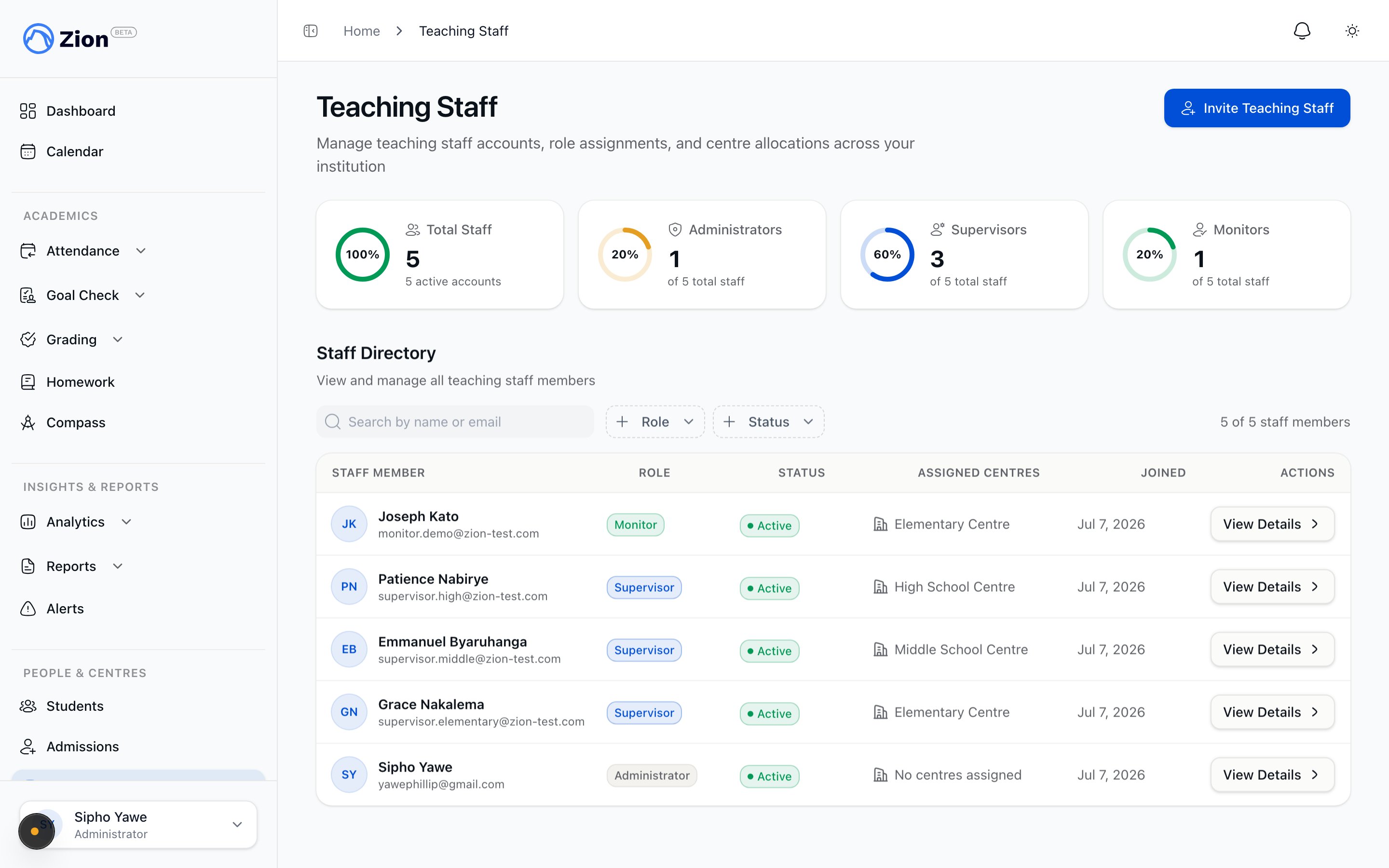
Everything you see is scoped to your assigned learning centres. A monitor only sees students, activities, and staff data tied to the centres an administrator has assigned them to. A supervisor’s access works the same way, scoped to their own assigned centres.
Your availability and meetings
Parents book in-person meetings against time slots you publish. You can also start a meeting yourself, either by proposing candidate times to a parent or by claiming an open slot outright.Publish your availability
Open My Availability to add bookable time slots. You can add a single slot or bulk-generate several at once using a recurring preset, an explicit set of dates or a date range, or by copying last week’s schedule forward by seven days.Slots cannot overlap and cannot be created in the past. Bulk generation is capped at 200 slots per call. If an administrator has published availability on your behalf, those slots appear here too.
Respond to and start meetings
Go to Meetings in the sidebar to see your upcoming, past, requested, and expired meetings with parents.1
Open a pending request
A parent-initiated request shows candidate times the parent proposed. A request you started shows the times you proposed to the parent.
2
Accept, decline, or counter
Accept one of the proposed times to confirm the meeting. Decline with a reason to cancel the request. Counter with a different time to hand the decision back to the other party.
3
Or start a new meeting
Click Request a meeting, pick a student in your scope, then either hard-book an open slot immediately or propose several candidate times for the parent to choose from.
4
Watch expired requests
If nobody responds before every proposed time passes, the request expires automatically. Use “Re-propose” to start again with new times.
Document and close out a meeting
Open a meeting’s detail page to add private notes, action items, and a draft parent summary. Saving these does not change the meeting’s status. When you are ready, share the summary with the parent explicitly, then mark the meeting Completed or No-Show once it has happened.Running an extracurricular activity as Person in Charge
If an administrator or supervisor assigns you as the Person in Charge of an activity, it appears in your personal list at Activities I Run, including archived activities.You can edit only your own activity, and only its schedule summary and calendar recurrence (repeat preset, weekdays, start time, duration). The activity’s name, category, Person in Charge, learning-centre scope, and active status stay under administrator or supervisor control.
1
Open Activities I Run
Find the activity where you are listed as Person in Charge.
2
Edit the schedule
Update the schedule summary text, or change the recurrence: pick a preset (daily, weekly on selected weekdays, or monthly), a start time, and a duration between 15 and 600 minutes.
3
Save
Only the schedule and recurrence fields change. If the activity has a calendar recurrence set, the update carries through to the school calendar.
Logging behaviour
Go to Behaviour in the sidebar, then Log Behaviour, to record a merit, demerit, or incident for a student in your centres. Pick the student, choose a category, and submit. The form stays ready for your next entry, so you can log several in a row.Checking homework completion
The Homework page includes a Completion Report tab. It shows per-student standings over a date range, how much homework was assigned, verified, and missed, plus a chart ranking the students who need the most attention.Viewing a student’s library history
On a student’s profile page, the Library section lists that student’s book checkouts in one table. Use the filter to show all loans, only what is currently out, or only past loans, and the search box to find a book by title. Each row shows the book title, checkout date, due date, and a status badge (Out, Overdue, Lost, or Returned).This view is read-only for teaching staff. Checking books in or out, and marking a book lost, is handled from the library module itself, not from the student profile.
Parent-teacher meetings overview
How meetings, availability, and requests work across roles.
Managing your availability
Publishing and bulk-generating bookable time slots.
Booking and requests
How parents book, request, and negotiate meeting times.
Managing and documenting meetings
Rescheduling, cancelling, notes, and parent summaries.
Extracurriculars overview
The activity catalog, running an activity, and interest signals.
Managing the activity catalog
How administrators and supervisors build and scope activities.
Library overview
Checkouts, returns, overdue, and lost books.
Learning centres
How centre scoping shapes what you can see and do.