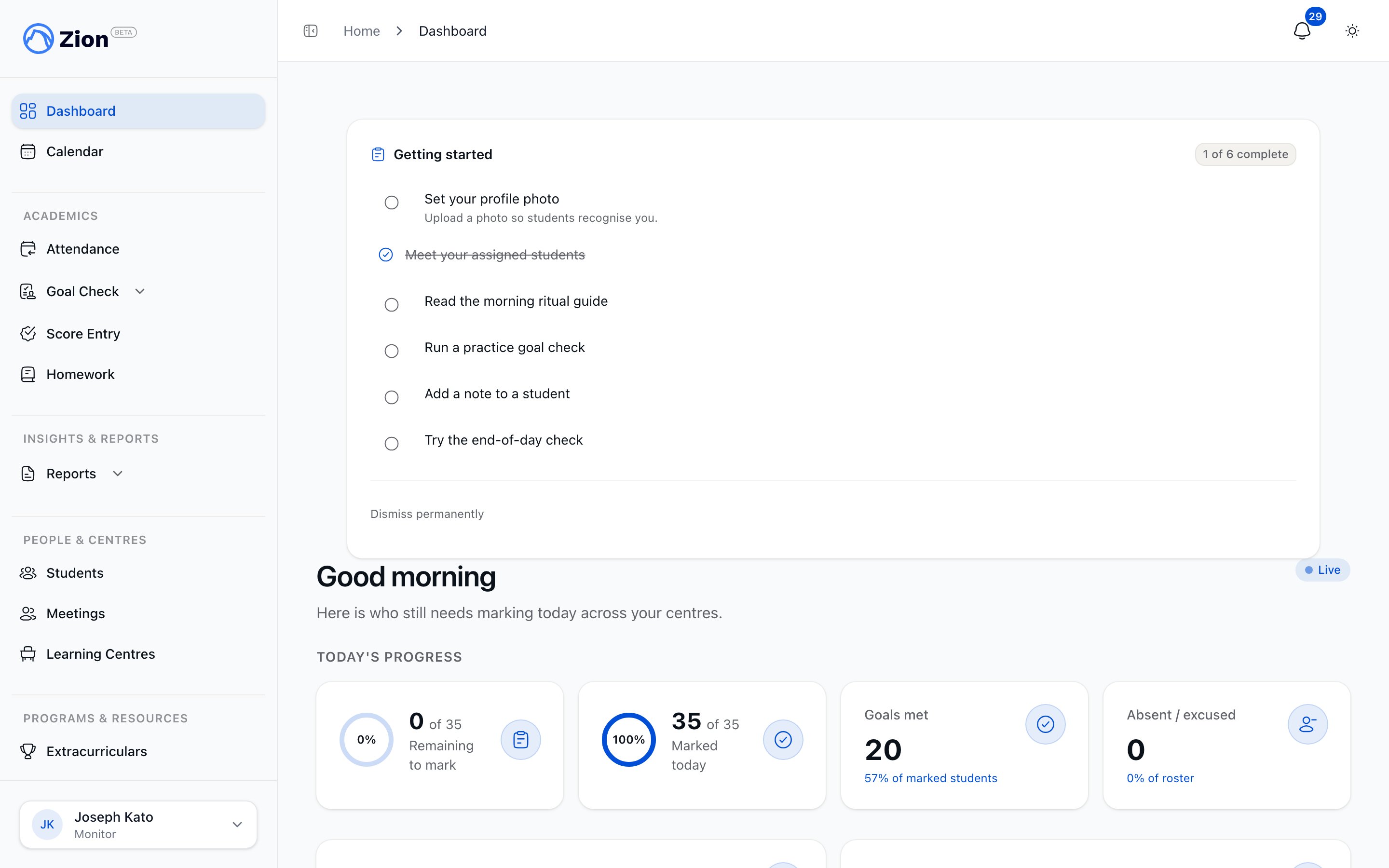
Monitor Goal Check Workflow

This guide shows monitors how to use Zion for Goal Check data entry. Your role is focused and streamlined: enter goals in the morning and mark actual progress at end of day.
Monitor vs Supervisor: Monitors focus solely on data entry (setting goals, marking progress). You won’t have access to dashboards, reports, or analytics - those are supervisor features. Your interface is simpler and faster for efficient data collection.

Your Role as Monitor

Primary Responsibilities:
  • Set daily PACE page goals for students in your assigned centres
  • Mark actual pages completed at end of day
  • Add notes for students who struggled
What You Will NOT Do:
  • Generate reports (supervisor function)
  • View dashboards or analytics (supervisor function)
  • Manage students or PACEs (administrator function)
  • Make strategic decisions (supervisor/administrator function)
Estimated Time:
  • Morning goal entry: 5 minutes for 20 students
  • End of day marking: 5 minutes for 20 students
  • Total: ~10 minutes per day

Getting Started

Prerequisites

Before you can use Goal Check, your administrator must:
  1. Invite you as a monitor (you’ll receive email invitation)
  2. Assign you to one or more learning centres
  3. Ensure students in your centres have PACE assignments

Accessing Zion

1

Check Your Email

Look for invitation email from Zion (via Clerk)
2

Click Invitation Link

Opens Zion sign-up page with your email pre-filled
3

Set Your Password

Create a secure password for your account
4

Log In

Use your email and password to access Zion
5

Verify Role

You’ll see “Monitor” badge in top right corner

Monitor Interface

Sidebar Navigation:
  • Goal Check - Your primary workflow
    • Set Goals (morning task)
    • Mark Progress (end of day task)
  • Profile - Update your personal info
  • Help - Access documentation and support
What You WON’T See:
  • Dashboard (supervisor only)
  • Reports (supervisor/administrator only)
  • Students management (administrator only)
  • Learning centres management (administrator only)
Simplified Interface: Your interface is intentionally simple to keep you focused on data entry. This makes your work faster and reduces cognitive load.

Morning: Setting Daily Goals

Step 1: Access Goal Entry

1

Log Into Zion

Use your email and password
2

Click Goal Check

In sidebar navigation
3

Click Set Goals

Opens goal entry interface
4

Confirm Date

Ensure date is today (or select different date if needed)

Step 2: Understand the Goal Entry Table

Table Structure:
  • Rows: Each row is a student in your assigned centre(s)
  • Column Groups: Each student has columns for their assigned PACEs
  • Fields per PACE:
    • Goal Start Page (where they’ll start today)
    • Goal End Page (where they should end today)
    • Goal Total Pages (auto-calculated: end - start + 1)
Example:
Student: John Smith
PACE: Math 1015

Goal Start Page: 15
Goal End Page: 20
Goal Total Pages: 6 pages (auto-calculated)

Step 3: Enter Goals for Each Student

For Each Student and PACE:
1

Enter Goal Start Page

Type the page number where student will begin today (e.g., 15)
2

Enter Goal End Page

Type the page number where student should finish today (e.g., 20)
3

Verify Total Pages

System auto-calculates total pages (should be reasonable: 5-10 pages typically)
4

Move to Next PACE

Press Tab or click next field to continue
5

Repeat for All PACEs

Each student typically has 4-6 PACEs
Auto-Save:
  • Goals save automatically as you type (500ms after you stop typing)
  • Checkmarks appear when data is saved
  • No “Submit All” button needed - just enter data and navigate away when done

Step 4: Use Quick Templates (Optional)

Copy Previous Day:
  1. Click “Copy Previous Day” button at top of page
  2. Yesterday’s goals pre-fill for all students
  3. Adjust as needed for students who did/didn’t complete goals
Why Use Copy Previous Day:
  • Saves time (pre-fills all fields)
  • Maintains continuity (students pick up where they left off)
  • Requires minimal adjustments (only change for students who struggled or excelled)
Standard Goal Guidelines by Grade:
  • Grades 1-4: 5-6 pages per subject
  • Grades 5-8: 7-8 pages per subject
  • Grades 9-12: 9-10 pages per subject
These are guidelines - your supervisor may adjust based on student ability and PACE difficulty.

Step 5: Validation and Error Handling

Zion Validates Your Entries: Valid Entry:
  • Goal start page ≤ goal end page
  • Goal end page ≤ PACE total pages (typically 36)
  • All fields numeric (no letters or special characters)
Invalid Entry Examples:
  • Goal start page 25, goal end page 20 (start > end) - ERROR
  • Goal end page 40 (PACE only has 36 pages) - ERROR
  • Goal start page “abc” (not a number) - ERROR
Error Display:
  • Red border around invalid field
  • Error message below field
  • Cannot save until fixed
Fix Errors:
  1. Review error message
  2. Correct the value
  3. Error clears automatically when fixed
  4. Data saves when valid

End of Day: Marking Actual Progress

Step 1: Access Progress Marking

1

Log Into Zion

If not already logged in
2

Click Goal Check

In sidebar navigation
3

Click Mark Progress

Opens progress marking interface
4

Confirm Date

Ensure date is today (or select different date if needed)

Step 2: Understand the Progress Marking Table

Table Structure:
  • Same layout as goal entry
  • Shows goals you set this morning (read-only)
  • Has fields for actual pages completed
Fields per PACE:
  • Goal Pages (read-only, set this morning)
  • Actual Start Page (where student actually started)
  • Actual End Page (where student actually finished)
  • Actual Total Pages (auto-calculated)
  • Variance (actual - goal, auto-calculated)
Example:
Student: John Smith
PACE: Math 1015

Goal Pages: 6 pages (15-20, set this morning)
Actual Start Page: 15 (enter now)
Actual End Page: 19 (enter now)
Actual Total Pages: 5 pages (auto-calculated)
Variance: -1 page (missed by 1 page)

Step 3: Mark Progress for Each Student

For Each Student and PACE:
1

Check Physical PACE

Look at student’s PACE to see which pages they completed
2

Enter Actual Start Page

Type the page number where student actually began work today
3

Enter Actual End Page

Type the page number where student actually finished work today
4

Verify Actual Total Pages

System auto-calculates total pages completed
5

Review Variance

System shows difference between actual and goal (+ or - pages)
6

Move to Next PACE

Press Tab or click next field to continue
Auto-Save:
  • Progress saves automatically as you type
  • Checkmarks appear when saved
  • Status badge updates (Completed, Missed, Exceeded)

Step 4: Understanding Variance

Variance = Actual Total Pages - Goal Total Pages Positive Variance (+pages):
  • Student did MORE than goal
  • Example: Goal 6 pages, Actual 8 pages = +2 variance
  • Status: “Exceeded” (blue badge)
Zero Variance (0 pages):
  • Student met goal exactly
  • Example: Goal 6 pages, Actual 6 pages = 0 variance
  • Status: “Completed” (green badge)
Negative Variance (-pages):
  • Student did FEWER than goal
  • Example: Goal 6 pages, Actual 4 pages = -2 variance
  • Status: “Missed” (red badge)
Color-Coded Badges:
  • Green “Completed”: Met or slightly exceeded goal
  • Blue “Exceeded”: Significantly exceeded goal
  • Red “Missed”: Did not meet goal

Step 5: Adding Notes (Optional)

When to Add Notes:
  • Student missed goal (explain why)
  • Student struggled with specific concept
  • Student excelled (note what went well)
  • External factors affected performance (illness, disruption, etc.)
How to Add Notes:
1

Click Notes Field

Below student’s PACE entries
2

Type Brief Note

Example: “Struggled with multiplication tables in pages 15-17”
3

Save Automatically

Notes auto-save as you type
Note Guidelines:
  • Keep notes brief (1-2 sentences)
  • Be specific about what struggled/excelled
  • Include page numbers if relevant
  • Avoid vague notes like “did ok” (not helpful for analysis)
Good Note Examples:
  • “Missed goal due to spelling difficulty in pages 22-24”
  • “Exceeded goal - very focused today, completed early”
  • “Absent for second half of day, partial completion”

Best Practices for Monitors

Goal Setting Best Practices

1

Copy Previous Day First

Start with yesterday’s goals as baseline
2

Adjust for Completion

If student completed yesterday’s goal, continue from where they left off. If not, repeat same pages.
3

Check with Supervisor

If unsure about goal difficulty for a student, ask your supervisor
4

Be Consistent

Set goals at same time each morning (e.g., 8:00 AM before students arrive)
5

Double-Check Entries

Glance through entries before navigating away to catch typos

Progress Marking Best Practices

1

Mark Daily

Don’t let marking pile up - daily marking is crucial for accurate tracking
2

Check Physical PACEs

Look at actual PACEs to see what students completed (don’t guess)
3

Be Honest

Enter actual pages completed, not what you wish they completed
4

Add Notes for Struggles

Always note why student missed goal (helps supervisor plan support)
5

Mark Consistently

Same time each afternoon (e.g., 3:00 PM after students finish)

Time Management Tips

Morning Goal Entry (5 min for 20 students):
  • Use “Copy Previous Day” to save time
  • Only adjust for students who struggled/excelled yesterday
  • Work in batches: All Math goals, then all English goals, etc.
Afternoon Progress Marking (5 min for 20 students):
  • Have all PACEs collected before starting
  • Work student-by-student (mark all PACEs for one student, then move to next)
  • Add notes as you go (don’t save notes for end)

Mobile/Tablet Data Entry

Optimized for Tablets:
  • Zion is designed for tablet-based data entry
  • Use landscape mode for better table visibility
  • Number pad inputs for page numbers (touch-friendly)
Tablet Tips: Landscape Orientation:
  • Table fits more columns on screen
  • Less horizontal scrolling needed
  • Easier to see full student roster
Touch Targets:
  • All input fields are ≥44x44px (finger-friendly)
  • Tap field to activate number pad
  • Swipe table to scroll horizontally
Internet Connection:
  • Zion requires internet for auto-save
  • Offline banner appears if connection lost
  • Data saves when connection restored
  • Don’t close browser until data saved (checkmarks visible)
Recommended Devices:
  • iPad (Safari browser)
  • Android tablet (Chrome browser)
  • Minimum screen size: 9 inches for comfortable data entry

Common Questions

Q: What if I make a mistake entering goals? A: Goals are editable until you mark progress. Just go back to Set Goals and correct the entry. Q: Can I set goals for past dates? A: Yes, if you forgot to set goals yesterday, you can select past date and enter goals. Same for marking progress. Q: What if a student was absent? A: Set goals anyway (for record-keeping), then at end of day, mark 0 pages completed (leave actual start/end blank or enter 0). Q: Student completed different pages than goal - is that okay? A: Yes! Enter the actual pages they completed. Variance will reflect the difference. This is normal and expected. Q: How do I know if my data saved? A: Look for green checkmarks next to fields. If no checkmark, data may not have saved - check internet connection. Q: Can I see reports of the data I entered? A: No, monitors don’t have access to reports. Your supervisor generates reports using the data you enter. Q: What if I don’t know what goal pages to set? A: Use “Copy Previous Day” or ask your supervisor for guidance. They can provide standard templates for your students. Q: Student completed a different PACE than assigned - what do I do? A: Contact your supervisor. They can adjust PACE assignments. Don’t enter data for PACEs not showing in the table.

Troubleshooting

”I Can’t See Any Students”

Causes:
  1. You’re not assigned to any learning centres
  2. Your assigned centres have no students
  3. Students in your centres have no PACE assignments
Solutions:
  1. Contact your administrator to verify centre assignment
  2. Ensure students exist in your centres
  3. Verify students have PACEs assigned

”Goal Entry is Slow”

Causes:
  1. Slow internet connection
  2. Too many browser tabs open
  3. Device memory low
Solutions:
  1. Check internet speed (need 1+ Mbps)
  2. Close other tabs and apps
  3. Restart device if sluggish

”Data Not Saving”

Causes:
  1. No internet connection
  2. Invalid data (errors in fields)
  3. Session expired (logged out)
Solutions:
  1. Check internet connection (look for offline banner)
  2. Review fields for red error messages
  3. Refresh page and log in again

”I Forgot My Password”

Solution:
  1. Go to Zion login page
  2. Click “Forgot Password”
  3. Enter your email
  4. Check email for password reset link
  5. Set new password

”Students Showing in Wrong Order”

Not an Error:
  • Students sort alphabetically by default
  • This is normal behavior
  • Use search if you need to find specific student quickly

Working with Supervisors

Your Supervisor’s Role

What Your Supervisor Does:
  • Uses the data you enter to generate reports
  • Analyzes student performance trends
  • Plans interventions for struggling students
  • Sets strategic goals for the centre
How Your Work Helps:
  • Your accurate data entry enables all supervisor functions
  • Timely entry (daily) keeps data fresh and actionable
  • Notes you add help supervisor understand student struggles

Communication Tips

Report to Your Supervisor:
  • Students consistently missing goals (3+ days)
  • Data entry issues or technical problems
  • Questions about appropriate goal difficulty
  • Students with special circumstances (illness, etc.)
Ask Your Supervisor:
  • “What goal pages should I set for new student?”
  • “Student struggling - should I lower goals?”
  • “I’m unsure how to handle [situation] - advice?”
Don’t:
  • Make strategic decisions (that’s supervisor role)
  • Skip data entry without notifying supervisor
  • Guess at goal pages if unsure (ask first)

Daily Workflow Summary

Morning Routine (5 minutes)

1

Log Into Zion (30 sec)

Use email and password
2

Navigate to Set Goals (10 sec)

Sidebar → Goal Check → Set Goals
3

Copy Previous Day (10 sec)

Click button to pre-fill all goals
4

Adjust Goals (3-4 min)

Modify for students who struggled or excelled yesterday
5

Verify Save (10 sec)

Look for checkmarks, then navigate away

Afternoon Routine (5 minutes)

1

Collect PACEs (before Zion)

Gather all students’ PACEs to see actual pages completed
2

Navigate to Mark Progress (10 sec)

Sidebar → Goal Check → Mark Progress
3

Mark Each Student (4-5 min)

Enter actual start/end pages for all PACEs, add notes for struggles
4

Verify Save (10 sec)

Look for checkmarks and status badges
5

Log Out (5 sec)

Click profile → Sign Out
Total Daily Time: ~10 minutes (vs hours of manual compilation!)

Next Steps

Need Help?