

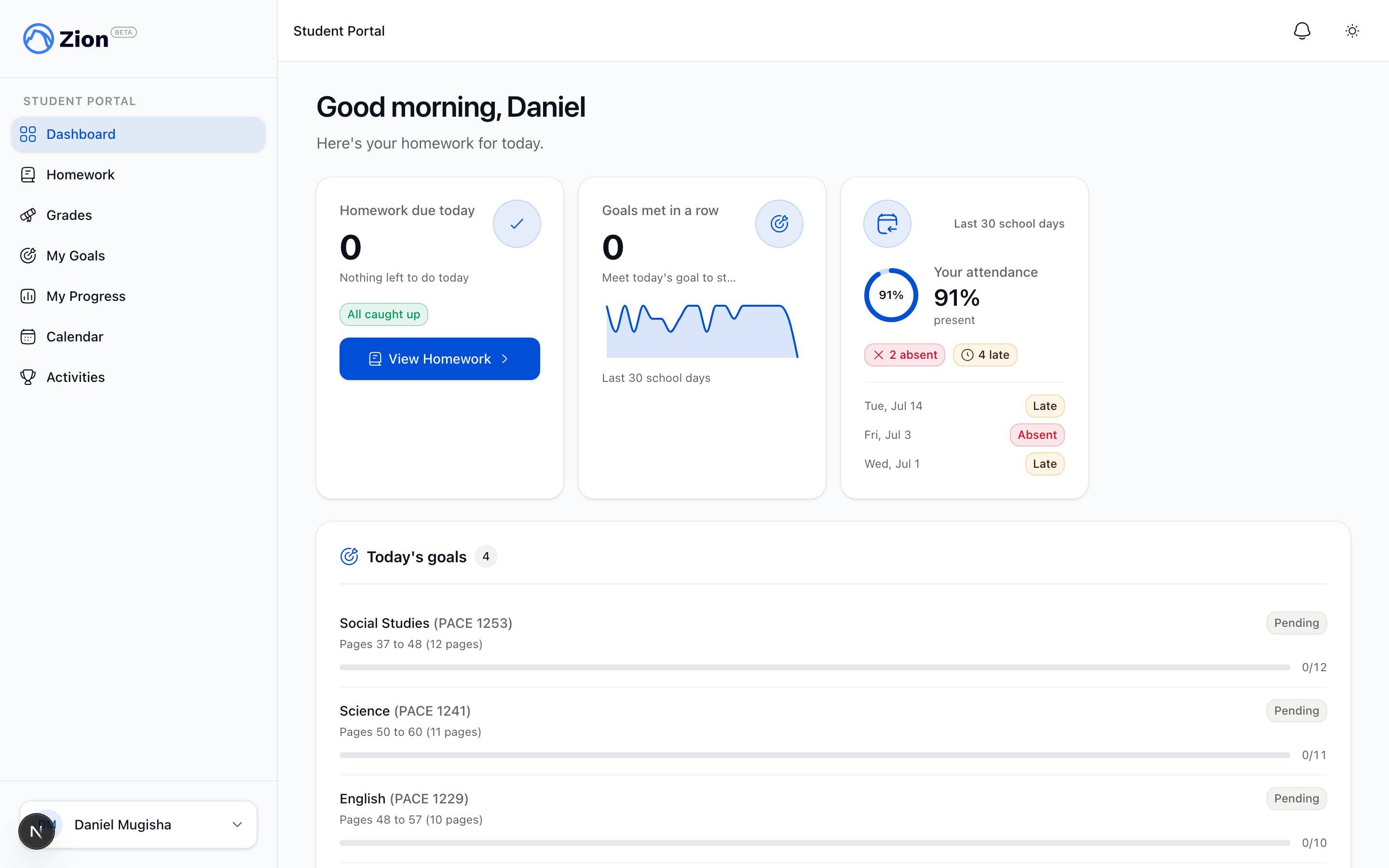
The student dashboard with today's homework count and goals
The student portal is only reachable if your account is set up with the student role. If you sign in and land somewhere other than your dashboard, ask your administrator to check your account role.
Sign in
1
Sign in
Sign in with the credentials your school gave you. Zion takes you straight to your dashboard.
2
Read your dashboard
Your dashboard greets you by name and shows two things up front: a card with the count of homework items due today (or “All caught up! No homework due today.” if there are none) and a Today’s Goals card listing each PACE goal due today with a status pill: Met, Keep trying, Absent, Excused, No attempt, or Pending.
3
Check your attendance
Below the goals card, your dashboard also shows your own attendance for the last 30 school days.
Check today’s homework and mark it done
1
Open Homework
Click “View Homework” from the dashboard, or navigate to your Homework page. The Today tab is selected by default.
2
Find your item
Each homework item shows the subject, PACE, and page range. If an item is past due and still not marked, it carries an Overdue badge.
3
Mark it done
Click “Mark Done” on the item. It updates immediately and moves into the Done tab, which keeps your most recent 30 completed items.
4
Switch tabs as needed
Use the Upcoming tab to see what’s coming next, or the Done tab to review what you’ve already completed. Items your teacher has verified, or that were marked as missed, show as a read-only status chip instead of a button.
Check your goals and streak
Your goal history lives on the Goals page.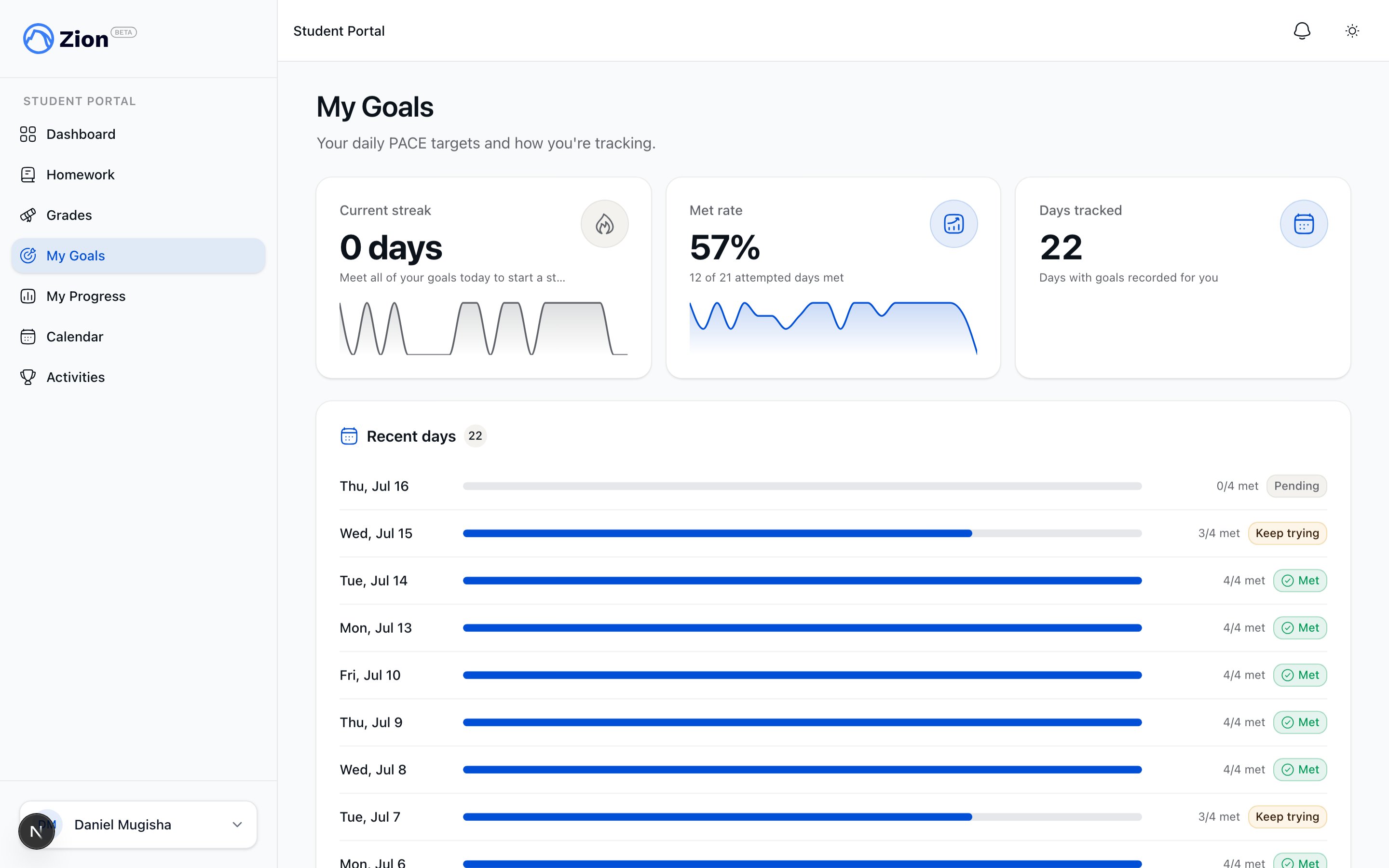
A student's goal history with met streak and 30 day status list
1
Open goal history
From the dashboard, click “View goal history” under Today’s Goals, or navigate to your Goals page.
2
Review your streak
You’ll see your current met streak (consecutive days you hit your goal) at the top.
3
Scan the last 30 days
Below the streak, a 30-day list shows one status per day: met, missed, non_attempt, or pending. This is read-only. You can’t edit your own goal record.
Check your grades
Your Grades page shows your finalized PACE scores, grouped by subject.Self-test readiness checks aren’t included in this list. Only graded PACE results appear.
Check your progress
Your Progress page is read-only and shows two things:- A 30-day chart of your goal-achievement rate, from 0 to 100 percent.
- A projection card for each subject, showing PACEs completed against your termly target, an on-track, at-risk, or off-track status badge, and your current weekly pace against the pace you need to hit your target.
Subscribe to the calendar
1
Open Calendar
Navigate to your Calendar page to see upcoming events for your own learning centre plus any organization-wide events. Events you don’t have visibility for (staff-only or admin-only events) are excluded.
2
Read an event
Each event lists its title, date and time (or an all-day marker), and a type badge. You can’t create, edit, or delete events from here.
3
Subscribe
Click “Subscribe” to open the calendar subscription page. Copy the private ICS feed URL shown there and add it to Google Calendar, Apple Calendar, or Outlook to keep your school calendar synced automatically.
Browse activities
1
Open Activities
Navigate to your Extracurriculars page to browse the activity catalog for your centre plus any organization-wide activities.
2
Open a detail page
Click an activity card to see its full detail page.
3
Show interest
Use the show-interest control on the catalog or detail view to register your interest in an activity.
Read notifications
Click the notification bell in the header, then click “See all” to open your full notification history. This shows every in-app notification you’ve received, not just the recent ones in the bell dropdown.Check your profile
Navigate to your Profile page for your contact details and your notification preferences.1
Review your contact details
Your name and email are shown as they exist in your account. These are read-only and managed by your school. If either needs to change, ask your school administrator.
2
Set your notification preferences
The same page includes a notification preferences matrix. Use it to choose which channels you want Zion to reach you on. Your notification bell and full history stay available regardless of your preference settings.
Student Portal Overview
What the student portal covers and how access is scoped
Homework
How homework assignment and verification works across the school
Goal Check Overview
How daily PACE goals and status pills work
Calendar Overview
How the school calendar and ICS subscription work