

Entering test scores
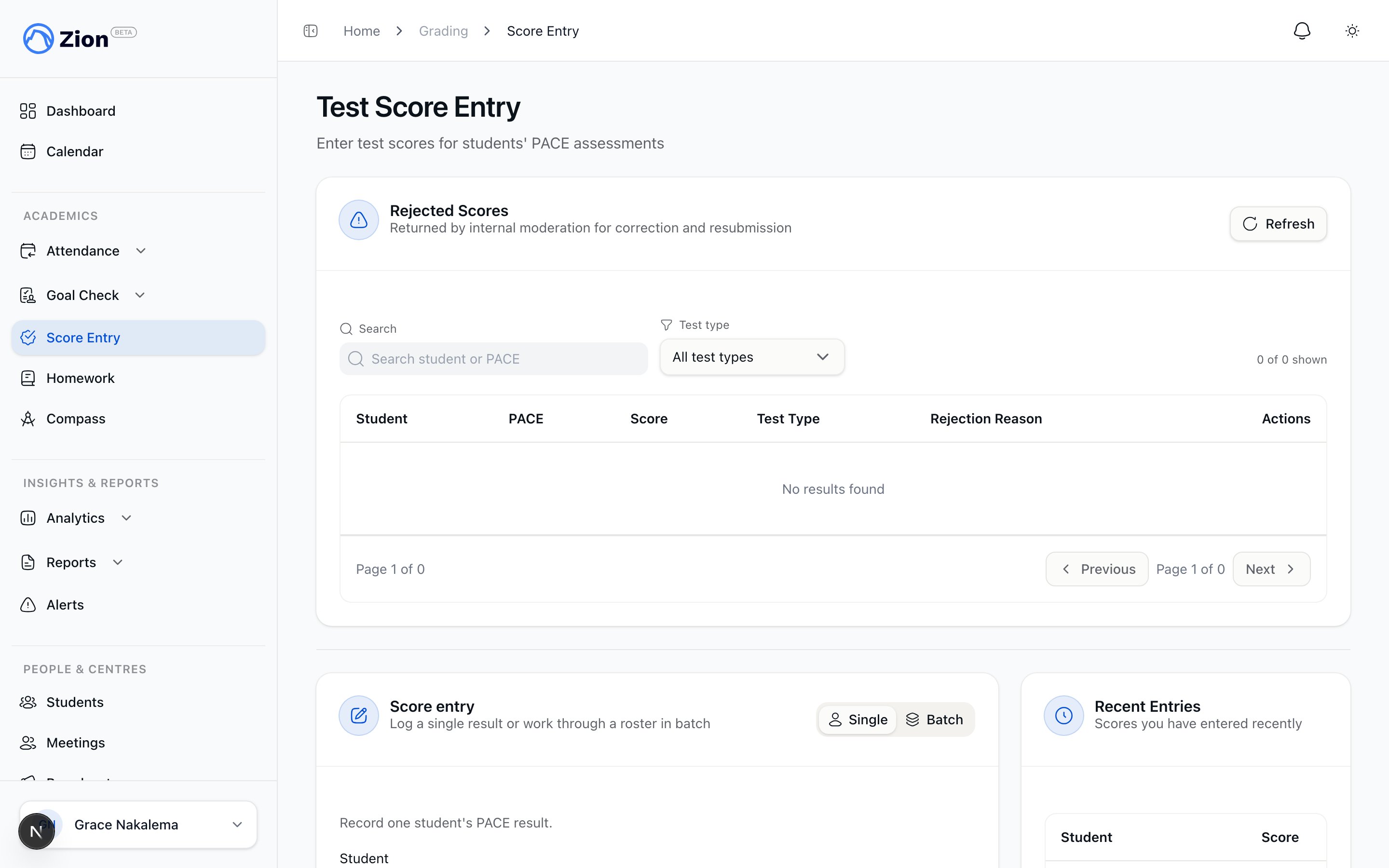
Entering a PACE test score for a student
1
Open Score Entry
Navigate to Score Entry in the sidebar, under Academics. Use the Single tab for one student at a time, or the Batch tab to enter several scores in one pass.
2
Select the student and PACE
Search by student name or number. Only PACEs assigned to that student appear in the PACE dropdown. If a PACE is missing, check the student’s assignments in Student Management.
3
Choose the test type
Pick PACE test, self test, or final test. This determines how the score is routed.
4
Enter the score and date
Scores can include a decimal, so 87.5 is recorded as 87.5, not rounded. The test date defaults to today; it can be backdated but cannot be set in the future, and it cannot fall inside a term an administrator has locked.
5
Submit
Zion checks the score against the student’s pass threshold and shows pass or fail immediately. A duplicate entry for the same student, PACE, test type, and attempt is rejected.
Pass thresholds and moderation routing
Zion checks a submitted score against the school’s configured pass thresholds and routes it based on the student’s grade level. Both the threshold band and the moderation floor are set per school by an administrator; the figures below are the defaults.
A self test is a readiness check. It always finalizes immediately and is never sent to moderation, regardless of grade level.
A PACE test or final test is checked against the moderation floor, which defaults to Grade 8:
- Below the moderation floor: the score finalizes immediately and is available for grade calculations.
- At or above the moderation floor: your mark becomes the first-line mark, and the score waits for an internal moderator’s mark before it is final.
Already-moderated marks from paper
If you are entering a score for a Grade 8-12 student and the test was already marked on paper with a first-line, internal, and (optionally) external mark, you do not have to send it through the moderation queue one step at a time. On the Single tab, toggle “Enter already-moderated marks” and key in the marks directly. The score finalizes immediately. This option is not available on the Batch tab.Recording a PACE from before the student joined
If a student joins your centre mid-year, you can record a PACE they finished before they were on Zion. Open Score Entry and use the Prior PACE tab:- One PACE records a single prior completion for one student.
- Multiple PACEs records a whole backlog for one student in one pass, useful when onboarding a student with several PACEs already behind them.
- Activity PACEs records readiness-stage PACEs (shown as RR or ABC) as done. These are never test-scored, so there is no score field, only the PACE and a completion date, and you can record several at once.
Taking part in moderation
By default only administrators moderate scores. Your school can delegate the internal moderation step, the external moderation step, or both to the supervisor role. If your school has delegated internal moderation to you, an Internal Moderation link appears in your sidebar under Academics, with a live count of scores waiting on your mark.You can only moderate scores at learning centres you are assigned to, and you cannot moderate a score you entered yourself. This separation-of-duties rule is enforced automatically.
How moderation works
At or above the moderation floor, a score needs a distinct mark from each of up to three people: the first-line mark (whoever entered the score), the internal moderator’s mark, and, optionally, an external moderator’s mark. The internal mark is what finalizes the score; external moderation afterward is optional and never changes the final grade. If you hold the internal moderator role for your centre, you review scores waiting on their internal mark. For each one you enter your own mark, which defaults to the first-line mark but can be changed, and submitting finalizes the score right away. You can also reject a score back to the original grader with a reason of at least 10 characters instead. If your school has also delegated the external moderator role to you, you can add an external mark to an already-finalized, internally-moderated score for the compliance record. It does not change the final grade.Handling a rejected score
When your entry is rejected, it appears back in your score entry queue with the moderator’s reason attached.1
Read the rejection reason
Check what the moderator flagged before resubmitting.
2
Verify against the test paper
Confirm the student, PACE, and score against the original paper.
3
Resubmit the corrected score
The corrected entry replaces the rejected one and waits for internal moderation again. The moderation clock restarts.
Correcting an already-finalized score
If a score has already finalized, administrators and supervisors can still correct it as a documented exception. Open Score Entry, find the score in the Recent Entries list, and choose Correct score. A reason is required and every correction writes to the audit log. For a Grade 8+ student, a correction sends the score back for a fresh internal moderator mark before it counts again. For grades 1 to 7, the corrected value stays finalized right away. Either way, if the corrected score no longer passes, Zion automatically reverses the PACE completion that score had triggered; if it now passes, Zion completes the PACE for you.Retests
If a graded test fails, Zion notifies you along with the student’s monitors and administrators that a retest is needed. Scheduling the retest and entering its score is done by an administrator from Grading > Retests. Once the retest is entered, it chains to the original attempt and you will see the new result wherever you see the student’s other scores. Retest attempts are capped, 3 by default, and the cap is configurable at your school. Once a student reaches the cap, an administrator override is required before another retest can be scheduled.Related pages
Grading overview
How PACE testing, thresholds, and moderation fit together
Score entry
Full detail on single, batch, and prior PACE entry
Moderation
The internal and external moderation flow
Retests
Scheduling, entering, and capping retest attempts
Audit trail
What gets logged for every grading action
Administrator grading guide
How thresholds, moderation floors, and delegated moderators are configured