

By default only administrators moderate. A school can delegate internal moderation, external moderation, or both to a supervisor or monitor role from the Moderation Queue page. A delegated moderator’s authority is limited to the learning centres they are assigned to.
What gets moderated
A self test never enters moderation. It is an ungraded readiness check that finalizes immediately and is excluded from grade averages and progression. A PACE test or final test finalizes immediately if the student is below the moderation floor. At or above the floor, it needs an internal moderator’s mark first:- The grader’s own mark (the first-line mark) is entered at Score Entry.
- An internal moderator enters their own mark for the same test. Whether it matches the first-line mark or not, entering it finalizes the score right away, and it counts toward grades, PACE completion, and the permanent record immediately.
- After that, external moderation is optional. An external moderator can add their own mark to the record for compliance purposes. It does not change the final grade.
Other ways a PACE gets recorded
Score Entry also covers a few situations beyond a routine test:- Prior PACE entry. When a student joins mid-year, staff can record a PACE they completed before joining Zion, one at a time or in bulk, from the Prior PACE tab. The completion date you enter is what sticks, and a locked term still blocks a date that falls inside it.
- Activity PACEs. The readiness-stage PACEs, shown as RR or ABC, are not test-scored. Staff mark them done, individually or in bulk, from the Activity PACEs tab.
- Already-moderated marks from paper. For a Grade 8-12 student, whoever is entering a score can toggle “Enter already-moderated marks” and key in the first-line, internal, and (optionally) external marks together, straight from a paper record, instead of sending the score through the moderation queue one step at a time. The score finalizes immediately.
Your grading responsibilities
Daily
- Process the internal moderation queue.
- Check the external moderation queue for scores that could use an external mark.
- Address SLA alerts before they escalate.
- Review scores that came back rejected for resubmission.
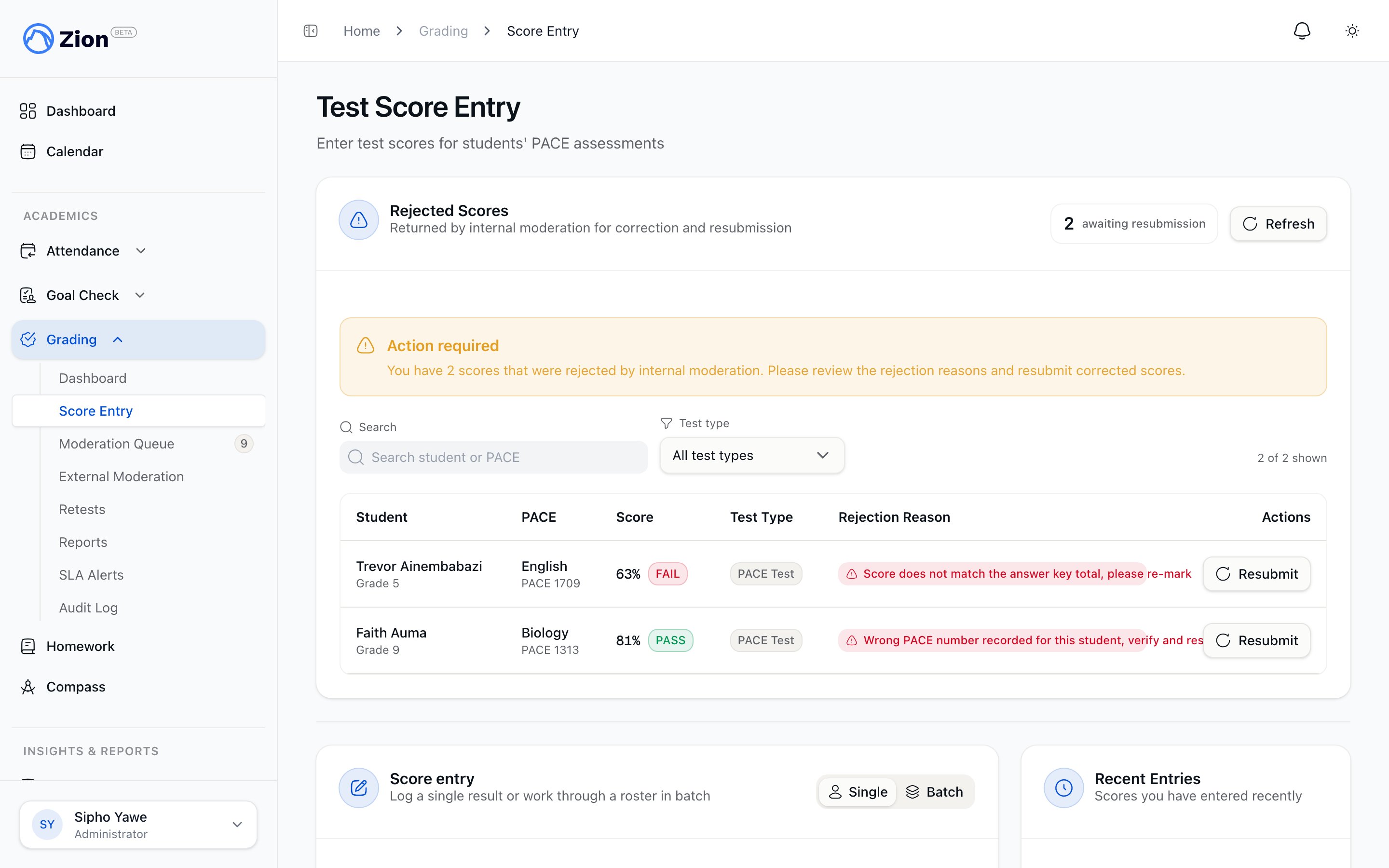
The score entry page where results are logged and rejected scores return for correction
Weekly
- Check SLA compliance across both moderation queues.
- Review rejection and correction patterns by supervisor.
- Check the audit-integrity badge on the Audit Log page.
Monthly
- Generate term grade reports.
- Compare centre performance.
- Export a compliance report or accreditation bundle if requested by leadership.
Internal moderation queue
Navigate to Grading > Moderation Queue. The queue lists every score awaiting an internal moderator’s mark, sortable by time pending, with per-moderator metrics and history. Each row shows the student, PACE and subject, the first-line mark, pass or fail, who entered it, entry time, hours pending, and SLA status.Recording the internal moderator mark
1
Open the score row
Review the first-line mark against the context you have (test paper, supervisor notes).
2
Enter your mark
The field starts pre-filled with the first-line mark. Leave it as is to agree with it, or change it. Add an optional note if useful for the record.
3
Record and finalize
Submitting finalizes the score right away. There is no separate approval step, and no queueing for external moderation, since that step is optional and comes later if it happens at all.
Rejecting a score
Rejection requires a reason of at least 10 characters. The score returns to the original grader for correction. They correct and resubmit it from the Score Entry page, which restarts the internal SLA clock. Example reasons: wrong student selected, score does not match the test paper, PACE not yet completed by the student.External moderation queue
Navigate to Grading > External Moderation. This queue holds Grade 8+ scores that already have an internal moderator’s mark and are finalized, but do not yet have an external moderator’s mark. An external moderator enters their own mark for the compliance record. It is recorded alongside the first-line and internal marks; the internal moderator’s mark stays the final grade. A moderator who entered the first-line mark or the internal mark on a score cannot also be its external moderator.Reassigning a stuck external moderation
If a score has been sitting in the external queue because the assigned reviewer is unavailable, open it and reassign it to another eligible reviewer. Zion notifies the newly assigned moderator and records the reassignment.SLA tracking
Zion tracks two separate SLA clocks. Internal moderation is checked in hours; external moderation, which typically involves outside reviewers, uses longer windows measured in days. Internal moderation, clock starts when the score is entered:
External moderation, clock starts once the score is finalized (the internal mark is entered):
These windows are fixed and are not configurable per school.
Moderation alerts
Navigate to Grading > SLA Alerts to see active alerts grouped by escalated, overdue, and warning, plus a history of acknowledged alerts. Acknowledging an alert does not clear the underlying moderation item. It records that you have seen it and still commit to processing it.Filtering either queue
Both the internal and external moderation queues can be filtered by learning centre, subject, grade level, and SLA status, so you can prioritize the students closest to their SLA deadline or focus a review session on one subject or centre.Delegating moderation authority
By default, only administrators moderate. From the Moderation Role Settings card on the Moderation Queue page, you can delegate:- Internal moderator role to supervisor or monitor
- External moderator role to supervisor or monitor
Correcting an already-finalized score
Administrators and supervisors can amend a score after it has finalized. Open Score Entry, find the score in the Recent Entries list, and choose Correct score. A reason is required, and the change is fully audited. What happens next depends on the student’s grade: for a Grade 8+ student, the corrected score is sent back into the internal moderation queue and needs a fresh internal moderator mark before it counts again. For grades 1 to 7, the corrected value stays finalized immediately. A passing, finalized score automatically marks its PACE complete. If a correction drops that score below the passing mark, Zion automatically reverses that PACE completion. You never need to update the PACE status by hand after a correction.Retest oversight
Navigate to Grading > Retests. A failing graded score notifies the student’s centre supervisors, monitors, and administrators that a retest is needed. Scheduling and entering retests happens here, in Grading > Retests: schedule a retest for today or a future date, then enter the retest score once it is taken. Each retest chains to the original attempt and inherits its pass threshold and moderation routing.Retest cap and overrides
The retest cap defaults to 3 attempts (configurable 1-5 from grading settings). Once a chain hits the cap and the student is still failing, entry is blocked until an administrator grants an override:
An override requires a reason of at least 10 characters and is logged for the audit trail.
Term locking and dated entries
Once an administrator locks a term from Academic Terms, new dated score and retest entries into that term’s window are refused, with a message asking the person to have an administrator unlock it. This applies to score entry, retest entry, and prior PACE entry alike. Locking a term does not block report card generation itself, only new dated writes into it. Any administrator can unlock a term again to admit a correction.Audit trail and compliance
Navigate to Grading > Audit Log. Every grading action writes a row to the audit log: score entry, internal and external moderation marks, rejection, correction, retest scheduled or completed, override, and reassignment. Filter by date range, action type, learning centre, performed-by user, or student, and view a full history timeline for any score.Exports and reports
The audit-integrity badge on this page shows whether the most recent scheduled tamper check passed, is pending, or found altered rows.
Configuring thresholds and moderation floor
From grading settings you can set:
Changes apply to future tests, not scores already entered.
Monitoring quality
Watch for patterns across supervisors: a high rejection rate can point to a training gap, and frequent internal-moderator adjustments (where your mark ends up different from the first-line mark) can point to a data entry issue at a specific centre. The grading dashboard breaks down average scores, pass rates, and moderation status by subject, centre, and grade level, and includes an at-risk-student widget and a needs-attention list.Reports
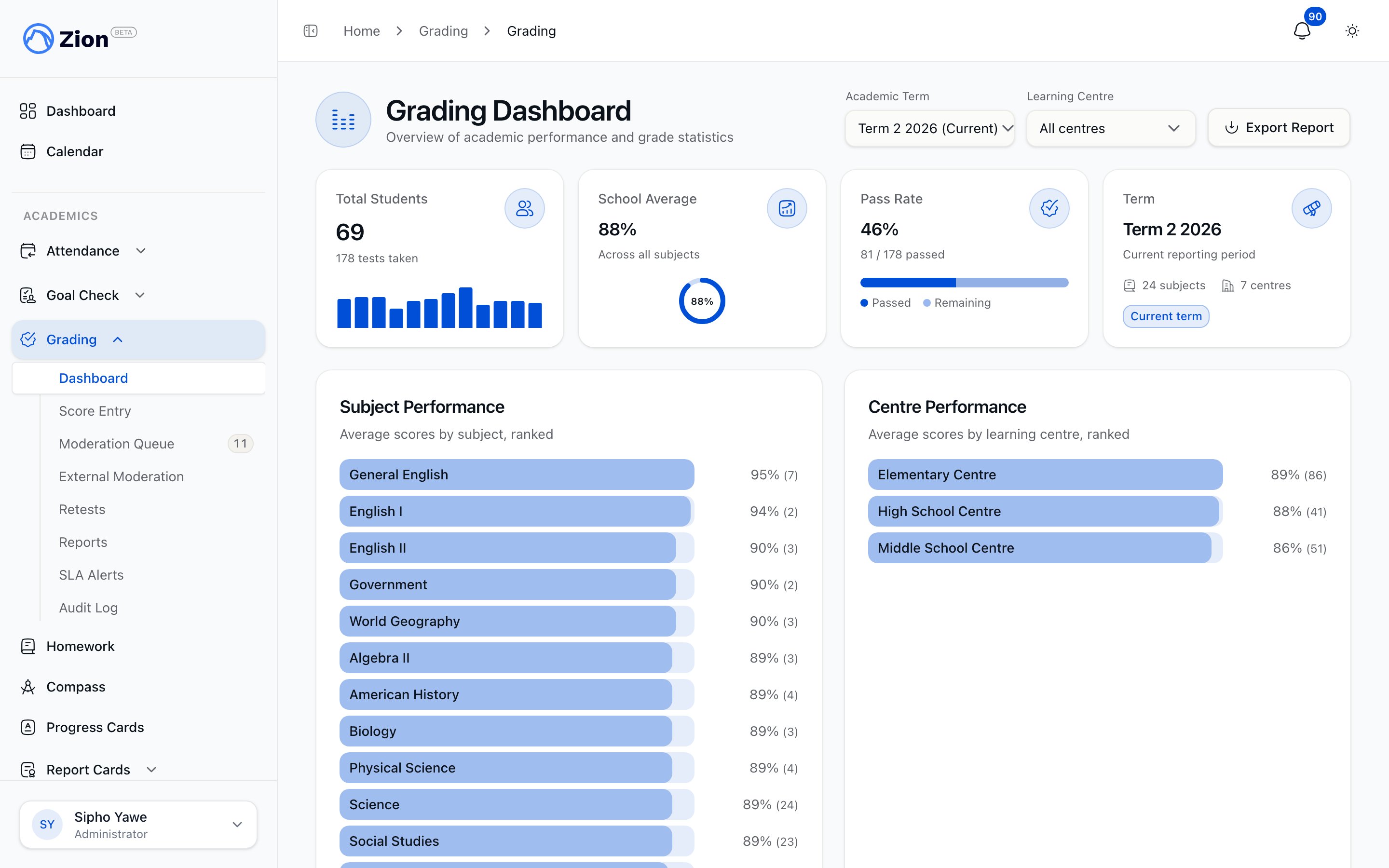
A term grade report scoped to one centre, ready for parents and accreditation reviewers
Troubleshooting
Queue not loading
Queue not loading
Refresh the page, check your connection, and clear the browser cache if the queue still fails to load.
Correction or rejection not saving
Correction or rejection not saving
Confirm the reason is at least 10 characters, the score is between 0 and 100, and your account has administrator access or a delegated moderator role for that centre.
A supervisor disputes a rejection
A supervisor disputes a rejection
Review the rejection reason and the audit trail together, discuss it with the supervisor, and have them resubmit the score if they agree. Escalate to leadership if it stays unresolved.
Related pages
Grading overview
How PACE test scores, thresholds, and moderation fit together
Moderation
The internal and external moderation flow in detail
Retests
Scheduling retests and requesting an override
Audit trail
What is logged and how to export compliance reports