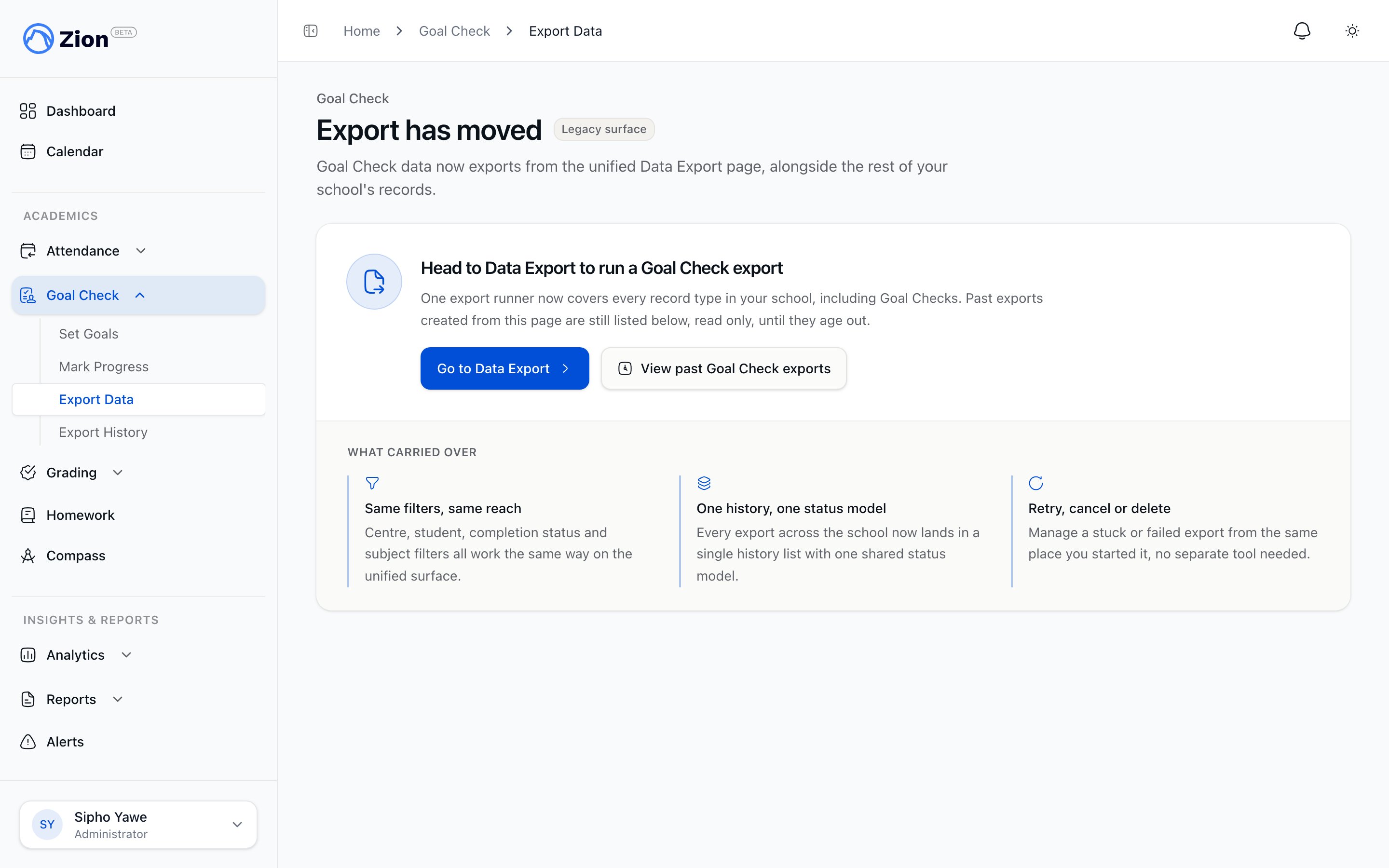
Goal Check Data Export
Export all Goal Check data for custom analysis, long-term archival, integration with other systems, or ACE accreditation reporting. This guide covers CSV export, filtering, background jobs, and advanced use cases.Administrator Feature: Data export is available to administrators only. Supervisors can export their daily centre reports, but not raw data exports.
Export Overview
Purpose: Extract raw Goal Check data from Zion for:- Custom analysis in Excel or other tools
- Long-term archival beyond Zion retention
- Integration with other school systems
- ACE accreditation reporting
- Board presentations with custom charts
- Research and data science projects
- CSV (Comma-Separated Values)
- Opens in Excel, Google Sheets, Numbers, database tools
- One row per student per PACE per date
- All goal entries (start/end pages, total pages)
- All progress entries (actual start/end pages, total pages, variance)
- Student information (name, grade, centre)
- PACE information (number, subject, title)
- Timestamps (when goal set, when progress marked)
- Notes added during progress marking
- Audit trail (who entered data)
Accessing Data Export
Navigation
1
Log In as Administrator
Data export requires administrator role
2
Navigate to Goal Check
Click “Goal Check” in sidebar
3
Click Data Export
Opens export configuration page
Export Interface
Page Layout:- Filters Section: Configure which data to export
- Preview Section: Sample of data to be exported (first 10 rows)
- Export Button: Initiates export
- Download History: Previously generated exports
Configuring Your Export
Date Range Filter
Purpose: Specify which dates to include in export. Options: Last 7 Days:- Quick option for recent data
- Example: Export Nov 15-22, 2024
- Monthly snapshot
- Example: Export Oct 22 - Nov 22, 2024
- All data for active academic term
- Example: Export Oct 1 - Dec 20, 2024 (Term 1)
- Select any start and end date
- Maximum: 1 year of data per export
- Example: Export Jan 1 - Dec 31, 2024 (full calendar year)
- Complete Goal Check history since Zion implementation
- May trigger background job if >10,000 rows
- Use for comprehensive archival
Centre Filter
Purpose: Include specific centres or all centres. Options: All Centres:- School-wide export
- Includes all learning centres
- Default selection
- Select one or more centres from checklist
- Example: Export only “Faith Centre” and “Grace Centre”
- Useful for centre-specific analysis
- Export one centre for supervisor review
- Export select centres for comparison study
- Export all centres for school-wide reporting
Student Filter
Purpose: Include specific students or all students. Options: All Students:- Include every student in selected centres
- Default selection
- Search and select individual students
- Example: Export data for 5 at-risk students only
- Useful for case studies or parent meetings
- Exclude deactivated students
- Default: enabled
- Uncheck to include historical data for withdrawn students
- Export single student for parent conference
- Export at-risk students for intervention planning
- Export graduates for historical records
Status Filter
Purpose: Include only certain completion statuses. Options: All Statuses:- Completed, Exceeded, Missed, Not Started
- Default selection
- Students who met or exceeded goals
- Useful for success analysis
- Students who didn’t meet goals
- Useful for intervention planning
- Students who significantly exceeded goals
- Useful for identifying advanced students
- Check multiple statuses
- Example: Export “Completed” and “Exceeded” (success cases only)
Subject/PACE Filter
Purpose: Include specific subjects or all subjects. Options: All Subjects:- Math, English, Science, Social Studies, Word Building, etc.
- Default selection
- Select one or more subjects
- Example: Export only Math data for curriculum analysis
- Select individual PACEs by number
- Example: Export only PACE 1015 for difficulty assessment
- Export Math data for curriculum planning
- Export specific PACE to assess difficulty
- Compare performance across subjects
Additional Options
Include Notes:- Checked (default): Export includes notes added during progress marking
- Unchecked: Export excludes notes (smaller file)
- Checked (default): Export includes who entered data and when
- Unchecked: Export excludes audit data
- Checked: Export includes calculated fields (daily totals, averages, etc.)
- Unchecked: Raw data only (you calculate in Excel)
Understanding Export Data Structure
CSV Columns
Student Information:student_id- Internal Zion student IDstudent_name- Full namestudent_grade- Grade level (1-12)learning_centre- Centre name
date- Date of Goal Check entry (YYYY-MM-DD format)day_of_week- Mon, Tue, Wed, Thu, Friacademic_term- Term name (e.g., “Term 1 2024”)
pace_number- PACE number (1001-1144)pace_subject- Subject (Math, English, etc.)pace_title- Full PACE titlepace_total_pages- Total pages in PACE (typically 36)
goal_start_page- Goal start page set in morninggoal_end_page- Goal end page set in morninggoal_total_pages- Goal total pages (calculated)goal_set_at- Timestamp when goal was setgoal_set_by- User who set goal
actual_start_page- Actual start page marked at end of dayactual_end_page- Actual end page marked at end of dayactual_total_pages- Actual total pages (calculated)actual_marked_at- Timestamp when progress was markedactual_marked_by- User who marked progress
variance- Actual total - goal totalvariance_percentage- (Variance / goal total) × 100status- Completed, Exceeded, Missed, Not Started
notes- Any notes added during progress markingcreated_at- When record was createdupdated_at- When record was last updatedcreated_by- User who created recordupdated_by- User who last updated record
Example CSV Row
Generating and Downloading Export
Small Exports (Immediate Download)
Criteria:- Less than 10,000 rows
- Simple filters (single centre, short date range)
- Completes in <10 seconds
1
Configure Filters
Set date range, centre, status, etc.
2
Preview Data
Review first 10 rows to verify correct data
3
Click Export
Button shows “Export X,XXX rows”
4
Wait for Generation
Progress bar shows 5-10 seconds
5
Download Automatically
CSV file downloads to browser default location
6
Open in Excel
Double-click downloaded file
Large Exports (Background Job)
Criteria:- More than 10,000 rows
- Complex filters (all centres, full year)
- Completes in 30-120 seconds
1
Configure Filters
Set date range, centres, etc. for large dataset
2
Click Export
Button shows “Export X,XXX rows (background job)”
3
Job Queued
Message: “Export job queued. You’ll receive email when ready.”
4
Continue Working
No need to wait - navigate away, log out, close browser
5
Check Email
Receive email when export complete (5-30 minutes for 50,000+ rows)
6
Download from Link
Email contains download link valid for 7 days
7
Or Check Download History
Navigate back to Data Export page → Download History tab
- No waiting with browser open
- No timeout errors
- Can export huge datasets (100,000+ rows)
- Multiple exports can queue simultaneously
Working with Exported Data
Opening in Excel
1
Locate Downloaded CSV
Check browser downloads folder
2
Right-Click File
Select “Open With” → “Microsoft Excel”
3
Verify Data Import
Excel may ask about delimiter - choose “Comma”
4
Format Date Columns
Select date columns, format as “Date” (may import as text)
5
Create Pivot Tables
Use Excel pivot tables for analysis
- Freeze top row (View → Freeze Panes → Freeze Top Row)
- Filter columns (Data → Filter)
- Sort by variance to find struggling students
- Create charts from data
Common Excel Analyses
Completion Rate by Centre:- Create pivot table
- Rows: learning_centre
- Values: Count of status (filter to “Completed” and “Exceeded”)
- Show as % of grand total
- Create pivot table
- Rows: student_name
- Values: Average of variance
- Sort descending to find students most behind
- Create pivot table
- Rows: pace_subject
- Values: Average of variance
- Negative averages indicate difficult subjects
- Create pivot table
- Rows: date
- Values: Count of status (filter to “Completed”)
- Insert line chart
Opening in Google Sheets
1
Open Google Sheets
Go to sheets.google.com
2
File → Import
Select “Upload” tab
3
Drag CSV File
Or click “Select file from device”
4
Import Options
Choose “Comma” as separator, “Replace spreadsheet”
5
Click Import Data
Sheet populates with export data
- Cloud storage (no local file)
- Easy sharing with colleagues
- Collaborative analysis
- Built-in charts and pivot tables
Export Use Cases and Examples
Use Case 1: Quarterly ACE Accreditation Report
Scenario: Your school needs to document Goal Check compliance for ACE review. Export Configuration:- Date Range: Last 3 months (one quarter)
- Centres: All centres
- Students: All students
- Status: All statuses
- Include Notes: Yes
- Include Audit Trail: Yes
- Calculate school-wide completion rate
- Show Goal Check used daily (date coverage)
- Demonstrate individualized pacing (variance data)
- Include supervisor notes as evidence of monitoring
Use Case 2: At-Risk Student Intervention Plan
Scenario: Administrator needs data on students consistently missing goals for intervention planning. Export Configuration:- Date Range: Last 30 days
- Centres: All centres
- Students: All students
- Status: Missed only
- Include Notes: Yes
- Filter to students with 10+ missed entries
- Review notes to identify common struggles
- Group by subject (are they struggling in one subject or all?)
- Group by centre (is this centre-specific or school-wide?)
Use Case 3: Centre Performance Comparison
Scenario: Administrator wants to understand why some centres outperform others. Export Configuration:- Date Range: Last term
- Centres: All centres
- Students: All students
- Status: All statuses
- Calculate completion rate per centre
- Calculate average variance per centre
- Identify top 3 and bottom 3 centres
- Compare goal-setting patterns (are top centres setting more achievable goals?)
Use Case 4: Subject Curriculum Review
Scenario: School leadership wants to assess Math curriculum difficulty. Export Configuration:- Date Range: Full academic year
- Centres: All centres
- Students: All students
- Subject: Math only
- Status: All statuses
- Calculate completion rate for Math vs other subjects
- Identify specific Math PACEs with low completion
- Review notes for common struggles
- Compare grade levels (is Math harder for certain grades?)
Use Case 5: Individual Student Portfolio
Scenario: Parent meeting to discuss student’s performance. Export Configuration:- Date Range: Last term
- Students: Specific student only
- Status: All statuses
- Include Notes: Yes
- Create line chart of daily variance (trending up or down?)
- Identify subjects where student excels vs struggles
- Review notes for patterns
- Calculate overall term completion rate
Data Security and Privacy
Access Controls
Who Can Export:- Administrators only (full school data)
- Supervisors cannot export (can only view reports for their centres)
- Monitors cannot export (data entry only)
- Protects student privacy
- Prevents unauthorized data sharing
- Maintains FERPA compliance
- Enables audit trail of who accessed data
Secure Handling
Best Practices:- Download exports to secure, password-protected computers only
- Do not email exports (use secure file sharing if needed)
- Delete local copies after analysis complete
- Store long-term archives in encrypted cloud storage
- Share CSV files via public links
- Store on USB drives (easily lost)
- Email exports to personal email addresses
- Leave exports in Downloads folder indefinitely
Data Retention
In Zion:- Goal Check data retained indefinitely
- Can export historical data anytime
- Background job download links expire after 7 days
- Download History shows last 90 days
- You own the exported CSV (store as long as needed)
Troubleshooting Export Issues
”Export Button Disabled”
Causes:- No data matches selected filters
- Date range invalid (start after end)
- Not logged in as administrator
- Adjust filters to broader selection
- Verify date range
- Log in with administrator account
”Export Taking Too Long”
Causes:- Exporting large dataset (50,000+ rows)
- Server under load
- Wait for background job to complete (check email)
- Reduce date range or filters
- Retry during off-peak hours (early morning)
“CSV File Won’t Open”
Causes:- File corrupted during download
- No CSV-compatible app installed
- Browser download failed
- Re-download from Download History
- Install Excel, Google Sheets, or LibreOffice
- Try different browser
”Data Looks Incorrect”
Causes:- Misunderstanding data structure
- Filters not configured as intended
- Data entry errors in Zion
- Review column headers and data types
- Check preview before export
- Spot-check few rows against Zion interface data