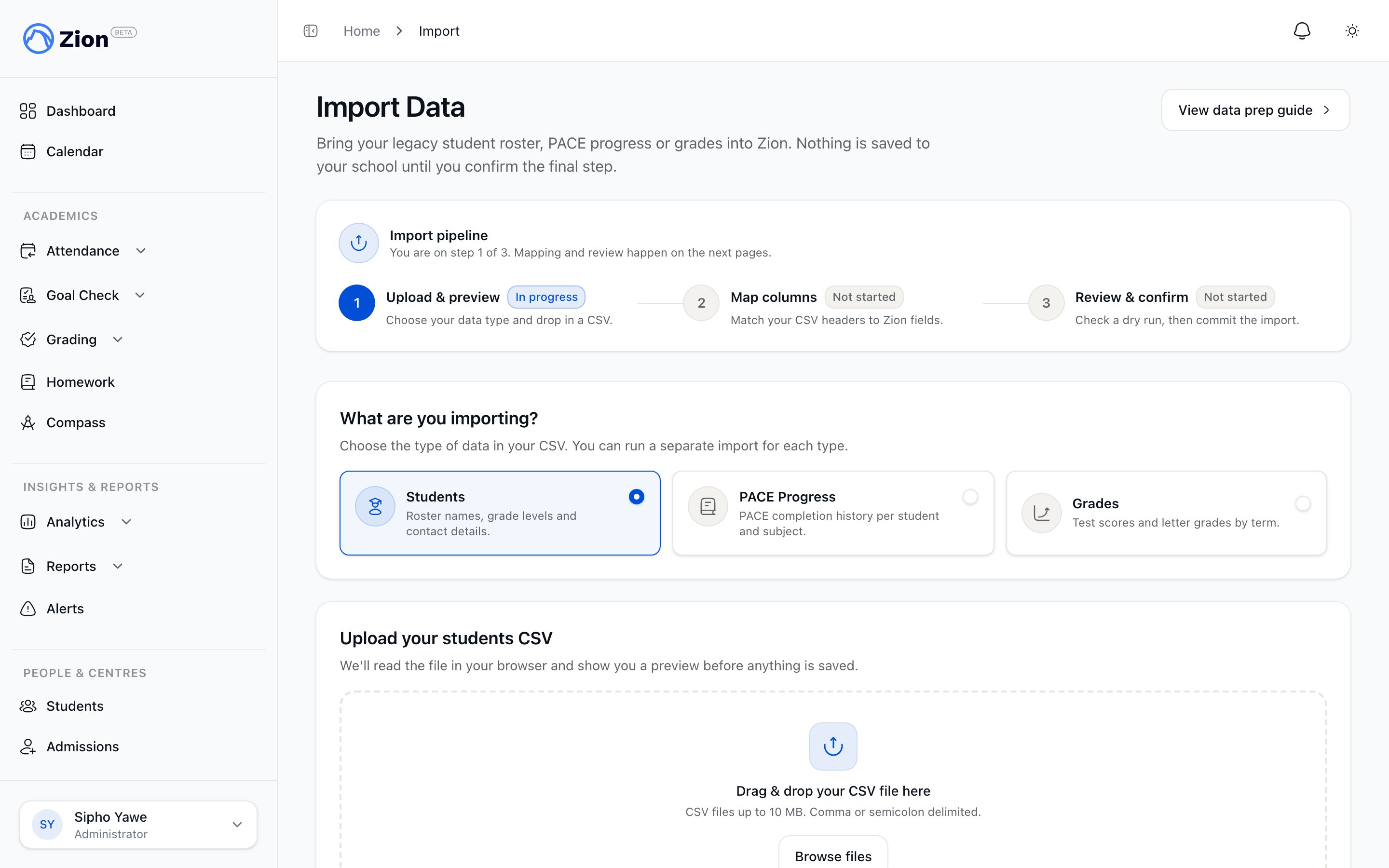
CSV Bulk Student Import
Import large student rosters efficiently using CSV file upload. This guide covers template download, data preparation, validation, error handling, and successful import completion.When to Use CSV Bulk Import
Recommended For:- Initial school setup (50-200 students)
- Start of academic year (new cohort)
- Transferring from another system
- 20+ students at once
- Manual entry: 2-3 minutes × 50 students = 100-150 minutes
- CSV import: 10-15 minutes total (including prep)
- Saves 1.5-2 hours for 50 students
- Adding 1-10 students (faster to add individually)
- Students with unique circumstances requiring manual attention
- When you don’t have digital student data
CSV Import Overview
Process Summary
Download Template
Fill Template
Upload CSV
Validate
Review Validation Results
Confirm Import
Verify Success
Assign PACEs
Step 1: Download CSV Template
Accessing the Template
Navigate to Students
Click Import Students
Click Download Template
Template Structure
Required Columns:first_name- Student’s first namelast_name- Student’s last namedate_of_birth- Format: YYYY-MM-DDgrade_level- Number 1-12learning_centre_name- Exact name of existing centre
student_id- Your school’s internal IDparent_name- Parent or guardian full nameparent_email- Email for future parent portalparent_phone- Phone number with country codenotes- Any special notes about student
Step 2: Prepare Your CSV Data
Opening the Template
In Excel:- Right-click downloaded template
- Select “Open with” → “Microsoft Excel”
- Data should appear in columns
- Go to sheets.google.com
- File → Import
- Upload → Select template file
- Import as new spreadsheet
Filling Out Student Data
For Each Student (One Row): first_name (Required):- Legal first name only (no nicknames)
- Example: “John” not “Johnny”
- No special characters unless part of legal name
- Legal last name
- Example: “Smith”
- Hyphenated names okay: “Smith-Jones”
- CRITICAL: Use YYYY-MM-DD format
- Example: 2013-03-15 (March 15, 2013)
- NOT 03/15/2013 or 15/03/2013
- Excel may auto-format dates - check before saving!
- Number only: 1, 2, 3, … 12
- NOT “Grade 5” or “Fifth Grade”
- Example: 5
- CRITICAL: Must match existing centre name exactly
- Case-sensitive: “Faith Centre” ≠ “faith centre”
- No extra spaces: “Faith Centre” ≠ “Faith Centre ”
- Get exact names from Zion (Management → Learning Centres)
- Your internal school ID
- Any format works: “2024-001”, “STU-12345”
- Must be unique (no two students with same ID)
- Full name of parent/guardian
- Example: “Jane Smith”
- Valid email format
- Example: jane@example.com
- Used for future parent portal
- Include country code for international
- Example: +256701234567 (Uganda), +1-555-123-4567 (USA)
- Can include or omit dashes/spaces
- Any relevant information
- Medical info, accommodations, etc.
- Keep brief (1-2 sentences)
Data Quality Tips
Before Saving:Check Date Format
Verify Centre Names
Remove Empty Rows
Check for Duplicates
Verify Grade Levels
- Date format wrong (most common error!)
- Learning centre name doesn’t match exactly
- Grade level as text (“Grade 5”) instead of number (5)
- Extra commas in notes field (breaks CSV format)
- Blank required fields
Step 3: Save and Upload CSV
Saving Your CSV File
In Excel:- File → Save As
- Choose location (Desktop for easy finding)
- CRITICAL: Select “CSV (Comma delimited) (*.csv)” as format
- Name file: “students-import-2024.csv”
- Click Save
- Excel may warn “Some features not compatible” - click Yes/OK
- File → Download
- Select “Comma Separated Values (.csv)”
- File downloads to Downloads folder
- Rename if desired: “students-import-2024.csv”
Uploading to Zion
Return to Zion Import Page
Click Choose File or Drag/Drop
Wait for Upload
Validation Begins Automatically
Step 4: Validation and Error Handling
Validation Process
Zion Checks:- File Format: Is it valid CSV?
- Required Columns: Are all 5 required columns present?
- Data Types: Are dates valid? Grades 1-12? Emails formatted correctly?
- Learning Centres: Do all centre names match existing centres?
- Duplicates: Any duplicate student IDs or exact name+DOB matches?
- Logical Errors: Age appropriate for grade? Future dates of birth?
Common Validation Errors
Error: “Invalid date format”- Cause: Date not in YYYY-MM-DD format
- Example: “03/15/2013” should be “2013-03-15”
- Fix: Open CSV, correct date format, re-save, re-upload
- Cause: Centre name doesn’t match exactly
- Example: CSV says “faith centre” but Zion has “Faith Centre” (case mismatch)
- Fix: Copy exact centre name from Zion, paste into CSV, re-save, re-upload
- Cause: Grade is text or out of range
- Example: “Grade 5” should be “5”, or “13” is invalid
- Fix: Change to number 1-12
- Cause: Email missing @ or domain
- Example: “janeemail.com” should be “jane@email.com”
- Fix: Correct email format
- Cause: Same first name + last name + date of birth as existing student
- Example: Already have “John Smith” born 2013-03-15
- Fix: If truly different student, add middle initial or nickname to differentiate. If duplicate, remove from CSV.
- Cause: One of the 5 required columns is blank
- Example: Student 15 has no first_name
- Fix: Fill in missing data, re-save, re-upload
Viewing Error Details
Error Display:- Click “Download Error Report” button
- CSV file downloads with errors highlighted
- Fix errors in this file
- Re-upload
Step 5: Confirm Import
Review Import Preview
When Validation Passes:- Zion shows preview of first 10 students to be imported
- Review to ensure data looks correct
- Check names, grades, centres are as expected
Executing Import
Review Summary
Click Import X Students Button
Wait for Import
Success Message
Navigate to Students List
Verifying Import Success
Check Total Count
Filter by Centre
Spot-Check Random Students
Check for Missing Students
Step 6: Post-Import Tasks
Assign PACEs to All Students
Immediately After Import: Students have NO PACE assignments after CSV import (too individualized to import via CSV).Filter Students
Assign PACEs Student-by-Student
Or Batch Assign
Verify All Have PACEs
Notify Supervisors
Email Template:Advanced CSV Import Features
Updating Existing Students via CSV
Use Case: Update multiple students’ information at once (e.g., change grades at start of year). How It Works:- Export existing students as CSV (Data Export feature)
- Modify CSV (change grades, centres, etc.)
- Upload modified CSV
- Zion matches by student_id or name+DOB
- Updates existing records instead of creating duplicates
Partial Imports
Use Case: Import fails validation for 5 of 50 students. Options: Option 1: Fix and Re-Import All- Fix 5 errors in CSV
- Re-upload entire CSV
- Zion skips duplicates, imports only new students
- Delete 5 error rows from CSV
- Import 45 valid students
- Later, manually add 5 problematic students individually
Troubleshooting CSV Import
”CSV Upload Failed”
Causes:- File too large (>5MB)
- File not actually CSV format (saved as Excel .xlsx)
- Internet connection lost during upload
- Split CSV into smaller files (import in batches)
- Re-save as .csv (not .xlsx)
- Check internet, re-upload
”All Students Failing Validation with Same Error”
Common Cause: Column headers wrong or missing. Check:- First row should be:
first_name,last_name,date_of_birth,grade_level,learning_centre_name,... - No extra header rows above this
- Column names match exactly (case-sensitive)
”Validation Says 50 Success But Only 45 Imported”
Cause: 5 students already exist (duplicates detected during import, not validation). Verify: Check Students list for those 5 names - likely they were already in system.”Dates Importing as Numbers”
Cause: Excel saved dates as serial numbers instead of YYYY-MM-DD. Example: CSV shows “44981” instead of “2023-01-15” Fix:- Open CSV in Notepad/TextEdit (not Excel)
- Check date format visually
- If numbers, go back to Excel
- Format date columns as “Text” BEFORE entering dates
- Re-enter dates as YYYY-MM-DD
- Re-save as CSV
CSV Import Best Practices
Before Import
Create Backup
Test with Small Batch
Verify Centre Names
Standardize Data
During Import
Don't Close Browser
Review Validation Carefully
Save Error Report
After Import
Verify Count
Assign PACEs Immediately
Notify Supervisors
Spot-Check Data
CSV Import FAQs
Q: Can I import students without learning centre assignments? A: No,learning_centre_name is required. All students must be assigned to a centre.
Q: What happens if I upload the same CSV twice?
A: Zion detects duplicates (same name+DOB) and skips them. Won’t create duplicate entries.
Q: Can I import PACE assignments via CSV?
A: Not yet. PACE assignments too individualized for bulk import. Assign manually after import.
Q: Maximum students per CSV import?
A: 500 students per import. For larger schools, split into multiple CSVs.
Q: Can I update existing students via CSV?
A: Yes, advanced feature. Match by student_id, update fields. Use with caution.
Q: What if my CSV has extra columns?
A: Extra columns are ignored. Only recognized columns are processed.
Q: Can I import to multiple centres in one CSV?
A: Yes! Each row can specify different learning centre.