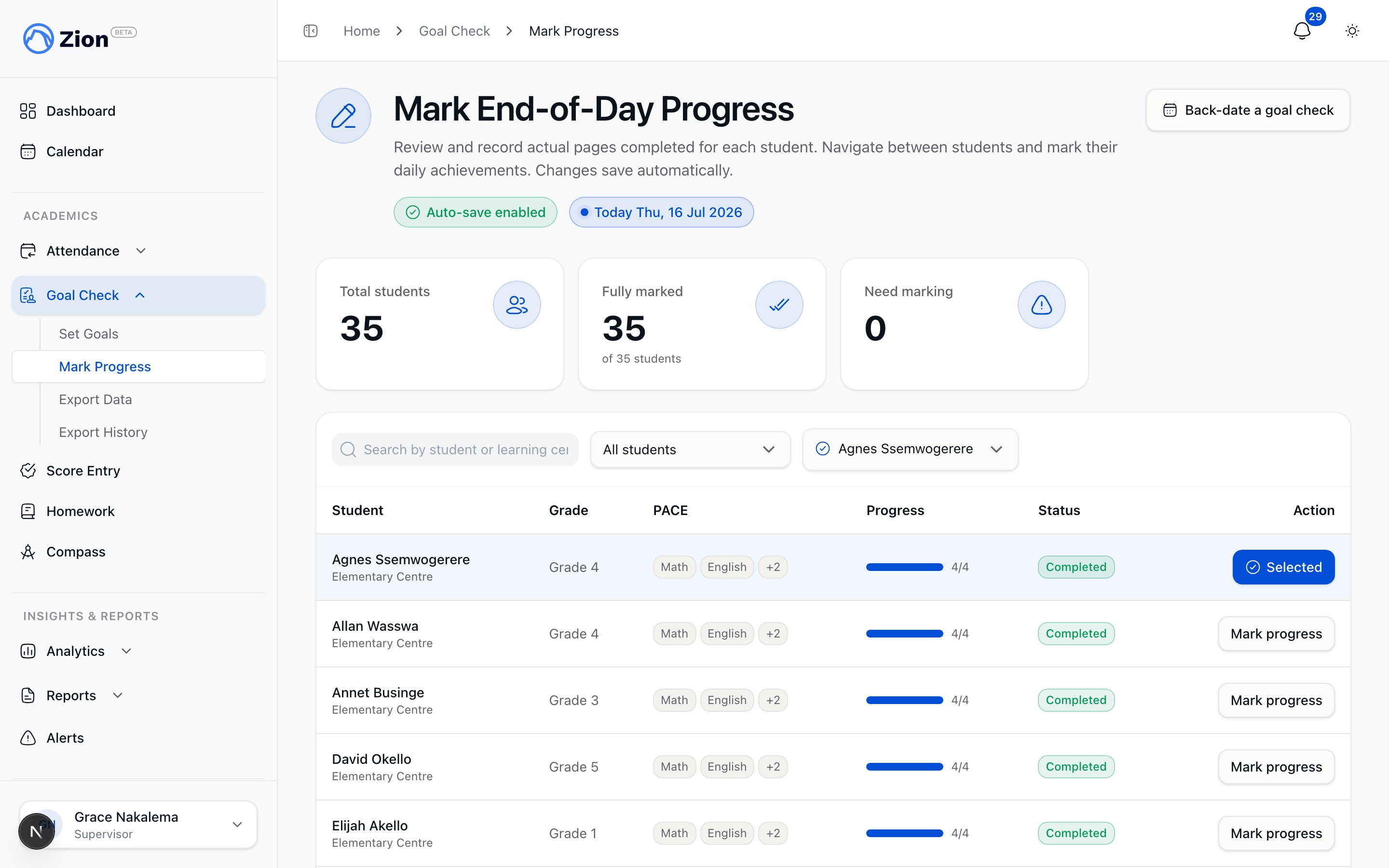
Marking Daily Progress
Comprehensive guide to marking actual pages completed at end of day. Learn how to enter progress efficiently, understand variance calculations, add meaningful notes, and use auto-save features.Progress Marking Overview
Purpose: Record actual pages completed by each student to:- Calculate whether students met their goals (variance)
- Track completion rates and trends
- Identify struggling students early
- Generate accurate reports
- Provide accountability
- Supervisors (for their assigned centres)
- Monitors (for their assigned centres)
- Administrators (for any centre)
- End of each school day
- After students complete their PACE work
- Takes 5 minutes for 20 students
Accessing Progress Marking
Navigation
1
Log Into Zion
Use your email and password
2
Click Goal Check
In sidebar navigation
3
Click Mark Progress
Opens progress marking interface
4
Select Date
Defaults to today - confirm or select different date
Date Selection
Today (Default):- Interface defaults to current date
- Most common use case
- Shows goals set this morning
- Click date picker at top of page
- Select any past date
- Use if you forgot to mark progress yesterday
- Can mark progress for any day with set goals
- Can only mark progress for dates with goals already set
- If no goals exist for selected date, you’ll see message: “No goals set for this date”
Progress Marking Interface
Table Structure
Layout:- Rows: One row per student in your centre(s)
- Column Groups: Each student has columns for their assigned PACEs
- Goal Section (Read-Only): Shows goals set this morning
- Actual Section (Editable): Where you enter actual pages completed
Fields Explained
Goal Pages (Read-Only):- Shows goal set this morning
- Format: Total pages (start-end)
- Example: “6 pages (15-20)”
- Cannot edit (goals locked once progress marking begins)
- Page number where student actually started work today
- Example: 15 (student started on page 15 as planned)
- Usually matches goal start page (but not always)
- Editable field - type the actual page
- Page number where student actually finished work today
- Example: 19 (student finished on page 19)
- May differ from goal end page (that’s normal)
- Editable field - type the actual page
- Auto-calculated: Actual End - Actual Start + 1
- Example: Pages 15-19 = 5 total pages
- Read-only field (cannot edit directly)
- This is compared to goal pages for variance
- Auto-calculated: Actual Total - Goal Total
- Example: 5 actual - 6 goal = -1 variance (missed by 1 page)
- Read-only field
- Color-coded: Green (0 or +), Red (-)
- Auto-calculated based on variance
- Updates in real-time as you enter progress
- Possible values:
- Green “Completed”: Actual ≥ goal
- Blue “Exceeded”: Actual > goal
- Red “Missed”: Actual < goal
- Gray “Not Started”: Progress not yet marked
Entering Progress
Basic Entry Process
1
Check Physical PACE
Look at student’s PACE to see which pages they completed
2
Click Actual Start Page Field
For first student and first PACE
3
Type Actual Start Page
Example: 15 (page where student started)
4
Press Tab or Click Next Field
Moves to Actual End Page
5
Type Actual End Page
Example: 19 (page where student finished)
6
Verify Actual Total and Variance
System calculates automatically (5 pages actual, -1 variance in this example)
7
Review Status Badge
Badge updates to “Missed” (red) since variance is negative
8
Move to Next PACE
Press Tab to continue to next PACE for same student
9
Repeat for All PACEs
Each student typically has 4-6 PACEs
10
Add Notes if Needed
Click notes field if student struggled or excelled
11
Move to Next Student
After completing all PACEs for one student, Tab moves to next student
Keyboard Shortcuts
Tab: Move to next field (right) Shift+Tab: Move to previous field (left) Enter: Move down to same field for next student Arrow Keys: Navigate any direction Efficient Entry Pattern: Use Enter key to mark same PACE across all students (vertical entry), then Tab to next PACE.Auto-Save Behavior
Automatic Saving:- Data saves 500ms after you stop typing
- No “Submit All” button required
- Each field saves independently
- Green checkmark appears when field saved
- Spinner shows while saving
- Red X indicates save failed (check internet)
- Variance updates as you type
- Status badge changes immediately
- Dashboard updates in real-time (if refreshed)
Understanding Variance
Variance Calculation
Formula:- Goal: 6 pages (15-20)
- Actual: 8 pages (15-22)
- Variance: +2 pages
- Meaning: Student did 2 more pages than goal
- Status: “Exceeded” (blue badge)
- Goal: 6 pages (15-20)
- Actual: 6 pages (15-20)
- Variance: 0 pages
- Meaning: Student met goal exactly
- Status: “Completed” (green badge)
- Goal: 6 pages (15-20)
- Actual: 4 pages (15-18)
- Variance: -2 pages
- Meaning: Student did 2 fewer pages than goal
- Status: “Missed” (red badge)
Interpreting Variance
Positive Variance (+pages): Occasional (+1 to +3):- Normal variation
- Student had good day
- PACE section easier than expected
- Action: Celebrate success, no changes needed
- Goals may be too low
- Student is excelling
- Action: Consider increasing goals slightly
- Goals significantly too low
- Data entry error (verify)
- Student skipped pages (check quality)
- Action: Review and adjust goals upward, or verify data accuracy
- Normal variation
- Student had off day
- PACE section harder than expected
- Action: Note reason, monitor pattern
- Goals too high
- Student struggling
- Action: Lower goals or provide intervention
- Significant struggle
- Student absent or disrupted
- Goals unrealistic
- Action: Investigate cause, adjust goals significantly, provide support
Zero Variance Myth
It’s Okay to NOT Have Zero Variance:- Zero variance is ideal, but not required
- Students are humans, not robots
- Variance is expected and normal
- Target: Most students within -2 to +2 range
- ALL students exactly zero variance daily (may indicate inaccurate marking or unrealistic expectation)
Adding Notes
When to Add Notes
Always Add Notes For:- Students who missed goals (explain why)
- Students who exceeded significantly (note what went well)
- Students absent or partially absent
- Unusual circumstances (illness, behavior issues, disruptions)
- Students struggling with specific concept
- Students who completed work early
- PACEs that seem particularly difficult or easy
- Any context that helps explain variance
How to Add Notes
1
Complete Progress Entry
Enter actual start/end pages for student first
2
Click Notes Field
Below student’s PACE entries or in notes column
3
Type Brief Note
1-2 sentences maximum
4
Auto-Save
Notes save automatically as you type
Note Writing Best Practices
Good Notes (Specific and Actionable):- “Struggled with long division on pages 18-19, needs review”
- “Completed early, very focused today - consider increasing goals”
- “Absent afternoon for doctor appointment, partial completion”
- “Pages 15-17 very difficult, multiplication concepts need reinforcement”
- “Did ok”
- “Struggled”
- “Good job”
- “Not great”
- Be specific about what/why
- Include page numbers if relevant
- Note concepts or skills (not just “struggled”)
- Keep brief (1-2 sentences)
- Focus on actionable information
Notes for Common Scenarios
Student Missed Goal:Handling Special Cases
Student Absent
Full Day Absence:- Leave actual start/end pages blank, OR
- Enter 0 for both start and end
- Add note: “Absent - [reason if known]”
- Variance will show as negative (expected)
- Status: “Missed”
- Enter actual pages completed during time present
- Add note: “Left at 11am for appointment, partial completion”
- Variance reflects partial work (expected)
Student Worked on Different Pages
Scenario: Goal was 15-20, but student worked on 25-30 instead. How to Handle:- Enter actual pages student worked on (25-30)
- Add note: “Worked on pages 25-30 instead of goal 15-20 - [reason]”
- Variance will be off, but data is accurate
- Follow up: Why did student work on different pages? Communicate with supervisor
Student Skipped Pages
Scenario: Goal was 15-25, student marked 15-25 but skipped 18-20. How to Handle:- Enter 15-25 (what student marked as “done”)
- Add note: “Skipped pages 18-20, needs to complete before advancing”
- Variance shows as met/exceeded, but note flags quality issue
- Follow up: Ensure student completes skipped pages
Multiple PACEs in Same Subject
Scenario: Student finished Math 1015 and started Math 1016 in same day. How to Handle:- Mark progress on Math 1015 (completed pages)
- If Math 1016 not yet assigned, contact administrator to assign
- Once assigned, set goals and mark progress for Math 1016
- Add note: “Completed PACE 1015, started 1016”
Student Repeated Same Pages
Scenario: Goal was 15-20, student redid 10-15 instead (review). How to Handle:- Enter actual pages worked on (10-15)
- Add note: “Redid pages 10-15 for review/mastery instead of advancing”
- Variance will be negative (expected)
- Follow up: Discuss with supervisor if review was necessary or student is struggling
Progress Marking Best Practices
Pre-Marking Preparation
1
Collect All PACEs
Gather all students’ PACEs before starting Zion entry
2
Verify Work Quality
Quick scan to ensure students actually completed pages (not just marked)
3
Note Struggles
Mental note of students who struggled or excelled (for notes)
4
Organize by Student
Stack PACEs in student order to match Zion table
Entry Strategies
Strategy 1: Student-by-Student- Mark all PACEs for Student 1
- Move to Student 2, mark all PACEs
- Continue through all students
- Advantage: Complete picture of each student before moving on
- Best for: Smaller classes (10-15 students)
- Mark Math for all students
- Mark English for all students
- Continue through all subjects
- Advantage: Easier to spot patterns across students in same subject
- Best for: Larger classes (20+ students)
- Mark all struggling students first (need immediate notes)
- Then mark remaining students in batches
- Advantage: Prioritizes students needing attention
- Best for: Mixed-ability classes with known at-risk students
Accuracy Tips
Be Honest:- Enter actual pages completed, not what you wish they completed
- Accurate data enables better decision-making
- Inflating numbers helps no one
- Don’t assume student marked pages correctly
- Check PACE physically to confirm pages completed
- Students may mark pages as “done” when incomplete
- Ensure actual start ≤ actual end
- Verify calculated totals make sense
- System will validate, but catch obvious errors early
- Glance through table for any missing entries
- Check that all students marked (or noted as absent)
- Verify all checkmarks appeared (data saved)
Completion Status and Badges
Status Badge Colors
Green “Completed”- Actual pages ≥ goal pages
- Variance: 0 or positive
- Example: Goal 6, Actual 6 or 7
- Meaning: Student met or slightly exceeded goal
- Actual pages significantly > goal pages
- Variance: +3 or more
- Example: Goal 6, Actual 10
- Meaning: Student well exceeded goal
- Actual pages < goal pages
- Variance: Negative
- Example: Goal 6, Actual 4
- Meaning: Student did not meet goal
- Progress not yet marked
- No actual pages entered
- Meaning: Data entry pending
Using Status for Quick Filtering
Filter Table by Status:- Click status dropdown at top of table
- Select “Missed” to see only students who missed goals
- Quickly add notes for all students who struggled
- Top of page shows: “18 Completed, 2 Exceeded, 3 Missed, 2 Not Started”
- Quick glance at overall performance
Mobile/Tablet Progress Marking
Optimized for Tablets
Portrait Mode:- Table shows student name, one PACE at a time
- Swipe left/right to see other PACEs
- Large input fields for touch
- Table shows 2-3 PACEs side-by-side
- Less swiping required
- Better for efficiency
Touch Interactions
Number Pad:- Tap input field to open numeric keypad
- No need for keyboard
- Faster entry on tablets
- Swipe table horizontally to see more PACEs
- Swipe vertically to scroll students
- Zoom in on table if text too small
- Zoom out to see more students at once
Troubleshooting Progress Marking
”Cannot Mark Progress - No Goals Set”
Cause:- Goals not yet set for selected date
- Must set goals before marking progress
- Navigate to Set Goals
- Set goals for the date
- Return to Mark Progress
”Progress Not Saving”
Causes:- Internet connection lost
- Invalid data (errors in fields)
- Session expired
- Check internet (offline banner will appear)
- Review fields for red error messages
- Refresh page and log in again
”Variance Seems Wrong”
Common Cause:- Mistyped actual start or end page
- Check actual start page matches student’s PACE
- Check actual end page matches student’s PACE
- Recalculate manually: End - Start + 1
- Compare to goal pages
- Goal: 15-20 (6 pages)
- Accidentally entered actual: 15-120 (typo, should be 15-20)
- Variance shows +114 (obviously wrong)
- Fix: Correct actual end to 20
”Student Showing as Not Started But I Marked Them”
Causes:- Data didn’t save (no checkmark)
- Viewing wrong date
- Viewing different student
- Re-enter data and verify checkmark
- Confirm date at top of page
- Search for student name to verify
Progress Marking FAQs
Q: How long does progress marking take? A: 5 minutes for 20 students if organized. 10 minutes if unorganized or many notes needed. Q: Can I mark progress before end of day? A: Yes, but students may complete more work afterward. Best to wait until work time ends. Q: What if I mark progress incorrectly? A: Progress is editable same-day. Go back and correct the entry. After day ends, contact administrator to unlock. Q: Student worked on pages but didn’t finish any - how do I mark? A: If student didn’t complete any full pages, mark 0 pages with note explaining. Or mark partial pages if policy allows. Q: Can I see yesterday’s progress while marking today? A: Yes, open two browser tabs - one for today (Mark Progress), one for yesterday (view only). Or check student’s history. Q: Should variance always be calculated by system or can I override? A: System calculates automatically based on actual vs goal pages. No override needed or allowed. Q: Multiple students missed same goal - should I add same note for each? A: Yes, or add one note at top of page: “All students struggled with [concept] today.”After Marking Progress
Immediate Next Steps
1
Review Completion Summary
Check percentage of students who met goals
2
Identify At-Risk Students
Note students with 3+ consecutive misses
3
Plan Interventions
Decide which students need support tomorrow
4
Adjust Tomorrow's Goals
If many students missed, lower tomorrow’s goals
When Ready to Report
Supervisors:- Can generate daily centre report once all students marked
- Report shows variance, notes, at-risk students
- See Reports Guide for details
- Data you entered enables supervisor to generate reports
- Your notes appear in supervisor’s reports
- Accurate marking is crucial for meaningful reports