

For AI-generated pattern detection (day-of-week trends, subject correlations, seasonal shifts) and termly-goal projections, see Insights Overview and Predictions. This page covers the trend, subject, and centre reporting surfaces.
Accessing the analytics hub
1
Open Analytics
Navigate to Analytics from the sidebar. Administrators land on the analytics index with quick-link cards to Trends, Subjects, Centres, Predictions, and Insights, plus a student picker.
2
Choose a surface
Click Trends, Subjects, or Centres to open that view. Supervisors reach Trends directly from their own sidebar and see only data for their assigned centre(s).
3
Drill into a student
From the analytics index, use the student picker to open an individual student’s trend detail page.
- Administrator
- Supervisor
Sees org-wide data across all centres for Trends, Subjects, and Centres.
Trends
Time-series achievement chart
The trend chart plots goal-achievement rate over time, per student, subject, or centre depending on the filters applied. The x-axis shows dates in the selected range and the y-axis shows the achievement percentage.Date range options
Student trend detail
Open a student from the analytics index or their profile to see:- An achievement time-series chart with the same 7/30/60/90-day range options
- A highlight for consecutive misses
- A subject-by-subject breakdown for that student
- A comparison of the student’s achievement against their centre average
- An intervention notes panel
- A printable Student Progress Report
Subject performance analysis
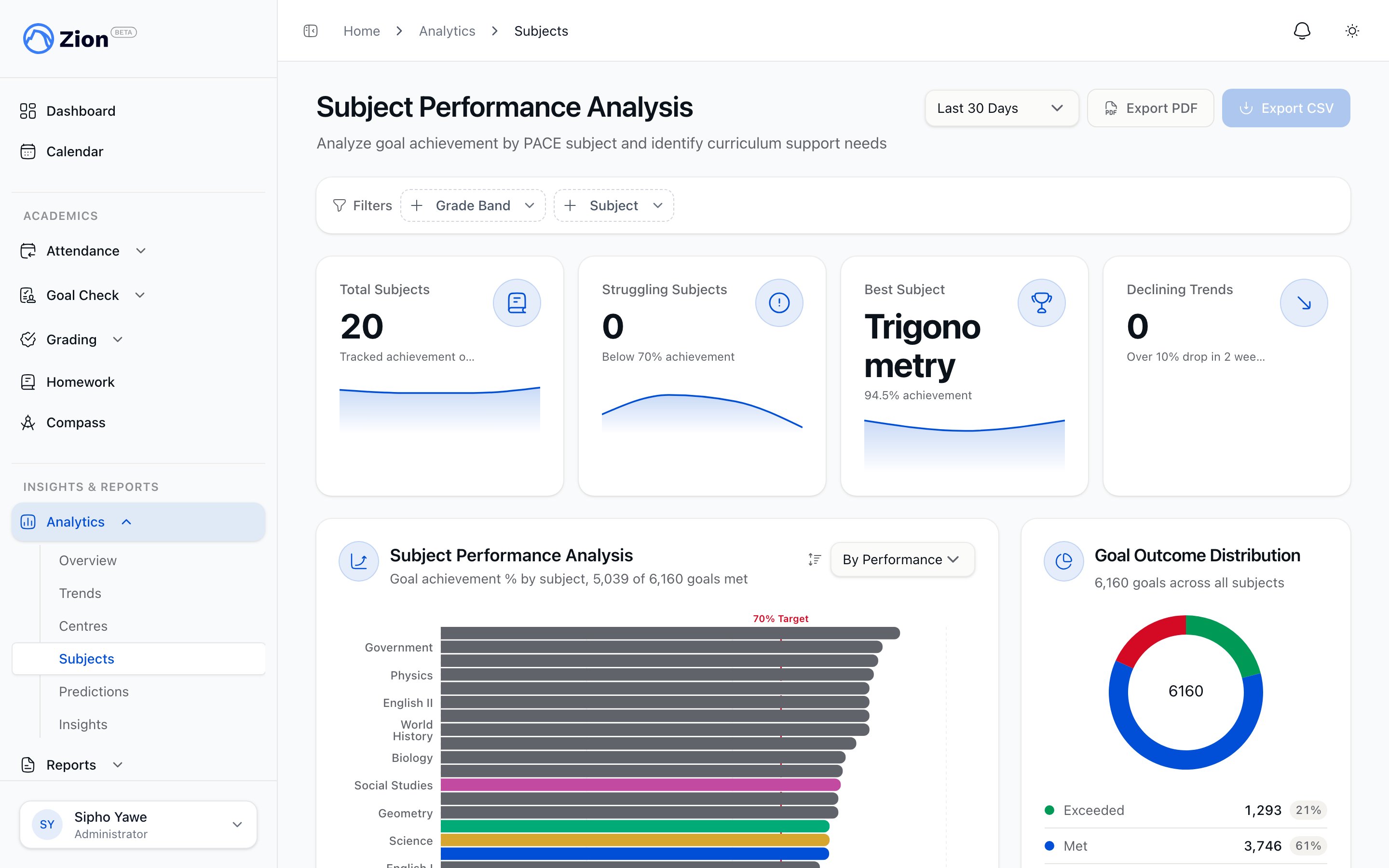
Subject performance analysis showing completion rate, pass rate, and trend direction per subject.
Filters
Subject analysis supports a date range (7 days, 30 days, or current term), a grade band (1-4, 5-8, 9-12, or all), and a specific subject filter.What you see
- A subject performance chart showing average completion rate, total goals in the period, pass rate, and trend direction per subject
- A grade-band by subject matrix
- A PACE-level completion-rate table
- A radar overview comparing relative performance across all subjects at once, useful for spotting outliers
Exporting
Export the subject report as a CSV, or generate a PDF report from the export control on the subjects page.Centre comparison
What you see
- Summary statistics: mean achievement, standard deviation, and total student count across centres
- A comparison chart across all learning centres
- A top-5 and bottom-5 trend chart
- A sortable metrics table
Centre metrics table
Outlier highlighting
Centres more than one standard deviation above the mean are flagged as high performers. Centres more than one standard deviation below the mean are flagged as needing attention. Ongoing low performance is tracked through a first-class centre_low_performance alert rather than a temporary banner. See Alerts.Exporting
Export the centre comparison table as a CSV from the centres page.Reading the data
Related pages
Insights overview
How AI-generated pattern insights are detected and reviewed
Predictions
Termly goal projections and on-track, at-risk, off-track status
Attendance trends
Attendance-specific trend analysis
Supervisor dashboard
How centre-scoped analytics appear for supervisors