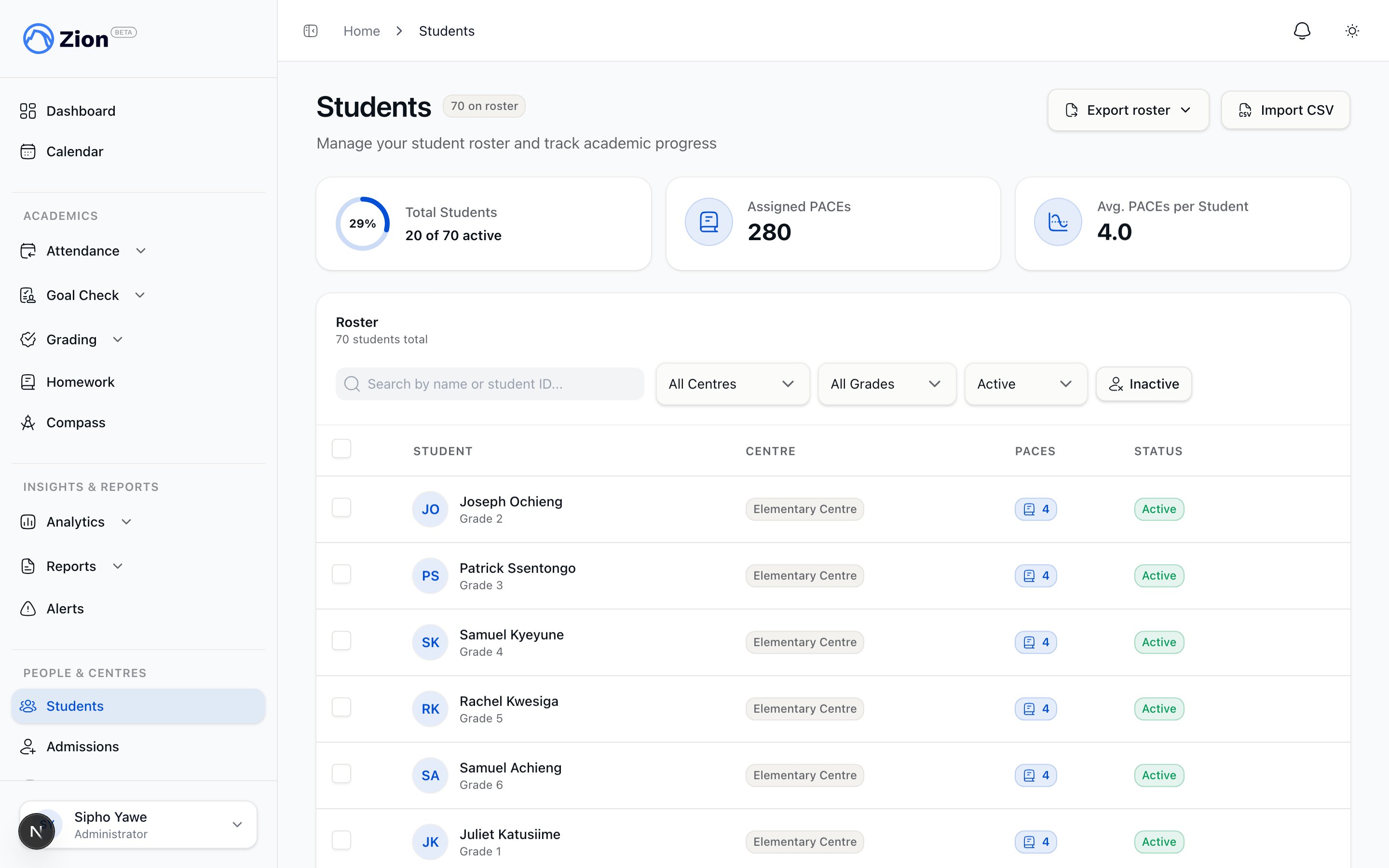
Student Management Overview
Comprehensive overview of student management in Zion - from initial roster setup to ongoing maintenance, centre assignments, and PACE allocations. This guide helps administrators build and maintain an accurate student database.Why Student Management Matters
Student Data is the Foundation:- Goal Check requires students with PACE assignments
- Accurate rosters enable proper centre assignments
- Clean data prevents errors in reporting
- Historical records support continuity year-to-year
- Individual student profiles with all relevant information
- Learning centre assignments for proper Goal Check access
- PACE assignments for individualized pacing
- Status management (active vs deactivated)
- Historical tracking and reporting
Student Management Workflow
Initial Setup (Start of Year)
Gather Student Data
Prepare CSV or Add Individually
Import/Add Students
Assign to Learning Centres
Assign PACEs
Verify Completeness
Ongoing Maintenance (Throughout Year)
Weekly Tasks (5 minutes):- Add new enrollments
- Process withdrawals (deactivate students)
- Update contact information as needed
- Audit for data quality (duplicates, missing info)
- Verify centre assignments still appropriate
- Check PACE progression (students advancing appropriately?)
- Promote students to next grade level
- Reassign PACEs for new term
- Rebalance centre assignments
- Generate term-end reports
- Archive graduating students
Student Profile Components
Core Information (Required)
Full Name:- First name and last name
- Used in all reports, Goal Check, and communications
- Format: “First Last” (e.g., “John Smith”)
- Format: MM/DD/YYYY or DD/MM/YYYY (locale-dependent)
- Used for: Age calculations, grade appropriateness validation
- Example: 03/15/2013 (currently 11 years old)
- Select from dropdown: Grades 1-12
- Corresponds to ACE PACE levels
- Used for: Goal Check templates, PACE validation, reporting
- Example: Grade 5
- Select from active centres in your school
- Required for Goal Check access (supervisors see students in their centres only)
- Can be changed if student moves centres
- Example: “Faith Centre”
Optional Information
Student ID:- Your school’s internal ID number
- Example: “2024-085”, “STU-12345”
- Useful for: Cross-referencing with other systems, avoiding name confusion
- Parent names
- Email addresses (for future parent portal)
- Phone numbers
- Emergency contacts
- When student joined your school
- Useful for: Historical tracking, tenure calculations
- Medical information (allergies, conditions)
- Learning accommodations
- Behavioral notes
- Only visible to administrators and assigned supervisors
Adding Students
Method 1: Individual Entry
When to Use:- Adding 1-10 students
- Mid-year enrollments
- Quick additions
- Students with unique circumstances
Navigate to Students
Click Add Student
Fill Required Fields
Add Optional Fields
Save Student
Assign PACEs
Method 2: CSV Bulk Import
When to Use:- Adding 20+ students at once
- Start of academic year
- Transferring from another system
- Faster and less error-prone for large groups
Download CSV Template
Fill Template in Excel
Upload CSV
Validate Data
Confirm Import
Assign PACEs
Learning Centre Assignments
Why Centre Assignments Matter
Centre Assignment Enables:- Supervisor Access: Supervisors only see students in their assigned centres
- Goal Check Workflow: Students appear in correct supervisor’s Goal Check entry
- Reporting: Centre-level reports show accurate student lists
- Dashboard Filtering: Real-time dashboards filter by centre
- Student won’t appear in any supervisor’s Goal Check
- Cannot set goals or mark progress
- Missing from centre reports
Initial Centre Assignment
Factors to Consider: Grade Level:- Group similar grades together (e.g., Grades 1-3 in one centre, 4-6 in another)
- Enables age-appropriate curriculum and pacing
- Don’t exceed capacity limits (typically 20-30 students per centre)
- Balanced class sizes enable better supervision
- Balance student count across supervisors
- Consider supervisor experience and strengths
- Place students with special needs with appropriate supervisor
- Group students with similar ability levels if using ability-based centres
- Primary Centre (Grades 1-3): 25 students
- Elementary Centre (Grades 4-6): 27 students
- Junior High Centre (Grades 7-9): 23 students
Reassigning Students Between Centres
Common Scenarios:- Grade progression (student moves from Primary to Elementary centre)
- Centre rebalancing (one centre too full, another has space)
- Student needs change (requires different supervisor approach)
- Supervisor changes (supervisor leaves, students reassigned)
Navigate to Student Profile
Click Edit
Change Learning Centre
Save
Notify Supervisors
- Student appears in new centre’s Goal Check immediately
- Student removed from old centre’s Goal Check
- Historical data preserved (shows which centre student was in at that time)
PACE Assignments
Why PACE Assignments Matter
PACE Assignments Enable Goal Check:- Cannot set daily goals without assigned PACEs
- Goal entry interface shows assigned PACEs as columns
- Without PACEs, student effectively cannot use Goal Check
- Each student has own PACE assignments
- Different students can work on different PACEs in same subject
- Enables true individualized pacing (core of ACE methodology)
- Track which PACEs student has completed
- See when student started/finished each PACE
- Historical record of academic progression
Assigning PACEs to Students
Typical PACE Load:- Light Load: 3-4 PACEs (primary grades, struggling students)
- Standard Load: 5-6 PACEs (most students)
- Heavy Load: 7-8 PACEs (advanced students, high school)
- Usually 1 PACE per subject concurrently
- Example: Math 1015 + English 1025 + Science 1035 + Social Studies 1045 + Word Building 1055 = 5 PACEs
Open Student Profile
Click Assign PACE
Search PACE Catalog
Select PACE
Repeat for All Subjects
Save Assignments
PACE Progression
When Student Completes a PACE:- Administrator marks PACE as completed (future feature: auto-complete)
- Assign next PACE in sequence (e.g., 1015 → 1016)
- Student continues uninterrupted
- 1001-1012: Grade 1 PACEs across subjects
- 1013-1024: Grade 2 PACEs
- 1025-1036: Grade 3 PACEs
- And so on through Grade 12 (1133-1144)
Student Status Management
Active vs Deactivated
Active Students:- Appear in all lists, dashboards, Goal Check
- Can have goals set and progress marked
- Counted in reports and metrics
- This is default status for all students
- Hidden from active lists (filter required to see)
- Cannot have new goals set
- NOT counted in active reports/metrics
- Historical data preserved (past Goal Check entries remain)
- Can be reactivated later if needed
When to Deactivate Students
Permanent Departures:- Student withdrew from school
- Student transferred to another school
- Graduated (optional - some schools keep graduates for historical records)
- Extended illness (months)
- Family leave (semester abroad, etc.)
- Maternity leave (some older students)
- Duplicate student entries (deactivate duplicate, keep one)
- Data entry errors (create new correct entry, deactivate incorrect one)
- Short-term absences (days or weeks) - keep active, just mark 0 pages on absent days
- Summer break - keep active for continuity into next term
- Temporary suspensions - keep active
How to Deactivate
Navigate to Students List
Find Student
Click Deactivate Button
Confirm Action
Add Notes
- Student immediately removed from active lists
- Supervisors no longer see student in Goal Check
- Historical Goal Check data remains intact
- Student profile still accessible with filter
How to Reactivate
Navigate to Students List
Toggle Show Deactivated
Find Student
Click Reactivate Button
Update Information
Verify PACE Assignments
Student Data Quality
Common Data Issues
Duplicate Students:- Same student entered twice (different spellings, typos)
- Causes: Bulk import errors, multiple administrators adding students
- Detection: Sort students by name, look for similar names with same DOB
- Solution: Keep one entry, deactivate duplicate
- Students without centre assignments
- Students without PACE assignments
- Missing contact information
- Solution: Regular audits to find and fix
- Student in wrong grade level
- Student in wrong centre
- Student with inappropriate PACEs (too easy/hard)
- Solution: Spot-check randomly, correct as found
- Old contact information
- Students who withdrew but still active
- Graduated students still in system
- Solution: Annual cleanup (end of term)
Monthly Data Audit Checklist
Run These Checks Monthly (15 minutes):Students Without PACEs
Students Without Centres
Duplicate Names
Grade Appropriateness
Inactive Status Review
Best Practices
Initial Setup (Start of Year)
2-3 Weeks Before Term Starts:- Finalize student enrollment list
- Create CSV with all student data
- Import CSV into Zion
- Verify import success (student count matches)
- Assign all students to learning centres
- Balance centres by grade/capacity
- Notify supervisors of their student lists
- Assign PACEs to all students
- Have supervisors verify their rosters
- Correct any errors or missing data
- Test Goal Check with few students
Mid-Year Enrollment
New Student Joins:Add Student Immediately
Assign to Centre
Assign PACEs
Notify Supervisor
Start Goal Check Next Day
Student Withdrawal
Student Leaves:Generate Final Reports
Deactivate Student
Notify Supervisor
Archive Records
Annual Cleanup (End of Year)
Last Week of Term:- Generate final reports for all students
- Deactivate graduating seniors (optional)
- Export student data for archival
- Prepare for next year’s grade promotions
- Promote all continuing students to next grade
- Rebalance centre assignments (new grade groupings)
- Update PACE assignments for new academic year
- Reactivate any students returning from leave
Troubleshooting Common Issues
”Student Not Appearing in Goal Check”
Causes:- Student not assigned to learning centre
- Student has no PACE assignments
- Student is deactivated
- Supervisor not assigned to student’s centre
- Assign student to a centre
- Assign 4-6 PACEs to student
- Reactivate student if appropriate
- Verify supervisor assigned to correct centre
”Cannot Deactivate Student”
Cause: Student may have active Goal Check entries for today Solution: Wait until next day, or have supervisor remove today’s entries, then deactivate”Duplicate Student Entries”
Cause: Student added twice (CSV import + manual entry, or two administrators) Solution:- Identify which entry has more/better data
- Keep that one as active
- Deactivate the duplicate
- Note in deactivated entry: “Duplicate of [correct entry ID]"
"Student in Wrong Grade for Age”
Causes:- Data entry error (typo in DOB or grade)
- Student legitimately held back or advanced
- Student transferred mid-year from different system