

When a retest is required
A failing graded score notifies the student’s centre supervisors, monitors, and administrators that a retest is needed. The pass threshold that determines pass or fail is set per grade band:
The grade cutoff between these two bands can be moved by an administrator from the Moderation Queue page. Self Tests are excluded from this workflow entirely: they are never moderated and never retested.
Scheduling a retest
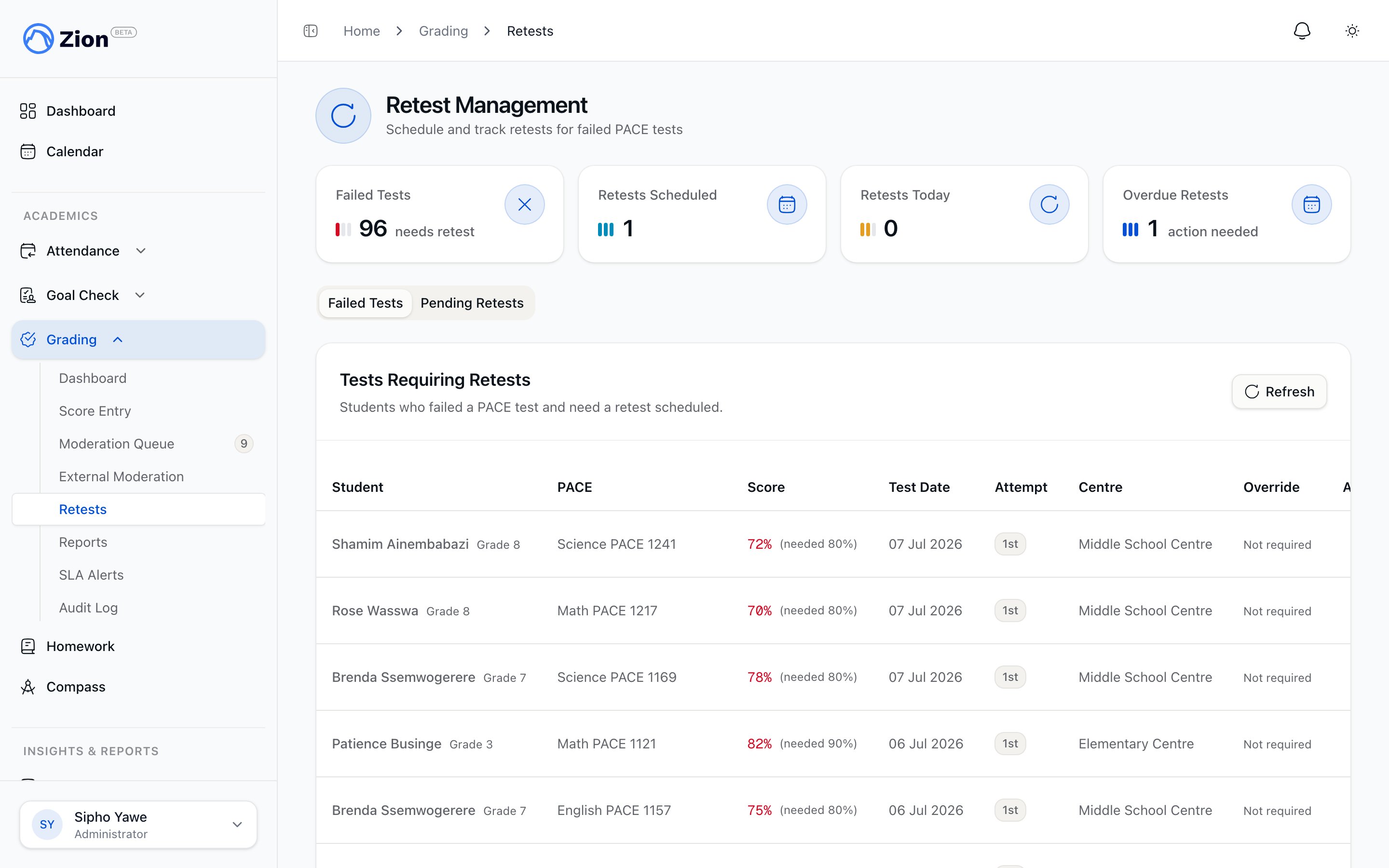
The Retests screen with failed tests and scheduled retest dates.
1
Open Retests
Navigate to Grading, then Retests, and open the Failed Tests tab.
2
Find the failed test
Locate the student’s failed test. Supervisors and monitors see only tests at their assigned learning centres.
3
Schedule the retest
Set a retest date. The date must be today or later; past dates are rejected.
4
Confirm
The test moves to the Pending Retests tab with its scheduled date.
Entering a retest score
1
Open Pending Retests
Navigate to Grading, then Retests, then the Pending Retests tab.
2
Find the scheduled retest
Locate the student’s scheduled retest.
3
Enter the score
Enter the new score, which can include one decimal place. Zion links the new score to the original attempt, increments the attempt number, and clears the scheduled date.
4
Submit
The retest inherits the original test’s pass threshold and test type, and is routed through moderation the same way the original attempt was (Grade 8 and above by default, unless your school changed the moderation grade).
The retest cap
Each retest chain is capped at 3 attempts, including the original test. Once a chain reaches the cap and the latest attempt still failed, entry of a further retest is blocked until an administrator grants an override.Administrator override for an exhausted cap
When a retest chain hits its cap and the student is still failing, an administrator can grant an override from the Failed Tests table.1
Open the capped test
From Grading, then Retests, then Failed Tests, find the test flagged as having reached its retest cap and open Grant Override.
2
Choose the override decision
Choose one of two decisions:
- Authorize another attempt: allows one more retest to be scheduled for this chain.
- Approve progression: records an intervention plan and lets the PACE count as satisfied without a further passing score.
3
Provide a reason
Enter a reason of at least 10 characters. This is required to grant the override.
4
Confirm
Zion records the override in the audit log.
Cancelling a scheduled retest
1
Find the scheduled retest
Locate it in the Pending Retests tab.
2
Cancel
Cancel the scheduled retest. This clears the scheduled date so the test returns to Failed Tests, where it can be rescheduled or handled with an override if the cap has been reached.
Correcting a finalized score
Once a score has been finalized (by internal or external moderation, or because it was below the moderation grade to begin with), it can only be changed through a documented correction, not by re-entering it. An administrator or supervisor can correct a finalized score, with a mandatory reason of at least 10 characters. The correction is written to the audit trail with the original value, the new value, and the reason. For a student at the moderation grade or above, a correction sends the score back into the moderation queue to be re-finalized by an internal moderator. For a younger student, the correction finalizes immediately. If the correction drops a passing PACE below the pass mark, Zion reverses that PACE’s completion; if it raises a score to passing, Zion completes the PACE.
Every correction and cancellation writes a row to the grade audit log, so the history of a score, including who changed it and why, is always available. See Audit trail for how to review that history.
Related pages
Grading overview
How score entry, moderation, and retests fit together.
Score entry
Entering PACE test scores and correcting rejected entries.
Moderation
How internal moderation finalizes a score and optional external moderation works.
Audit trail
Reviewing and exporting every grading action for accreditation.