Goal Check Reports

Comprehensive guide to generating, interpreting, and using Zion’s automated Goal Check reports. Transform daily data into actionable intelligence in under 30 seconds.

Reports Overview

Two Report Types:
  1. Daily Centre Reports - Single centre, single day performance
  2. Weekly School Reports - Whole school, full week performance
What Traditional Goal Check Reports Took:
  • 2-3 hours of manual compilation per day
  • Error-prone calculations
  • Limited insights
  • Difficult to identify patterns
What Zion Reports Take:
  • Less than 30 seconds to generate
  • 100% accurate automated calculations
  • Rich insights with variance analysis
  • Automatic at-risk student identification

Daily Centre Reports

Purpose and Use Cases

Purpose: Document single centre’s performance for a specific day with student-by-student detail. Use Cases:
  • End-of-day supervisor review
  • Share performance with administrator
  • Document centre achievement
  • Identify students needing intervention
  • Evidence for parent meetings
  • Compliance documentation
Who Can Generate:
  • Supervisors (for their assigned centres)
  • Administrators (for any centre)
Timing:
  • Can only generate when ALL students in centre are marked
  • Typically generated at end of day after progress marking complete

Prerequisites for Generation

Before You Can Generate:
1

Goals Must Be Set

All students in centre must have goals set for the date
2

Progress Must Be Marked

ALL students must have actual progress marked (no “Not Started” students)
3

Verify Readiness

Zion shows readiness indicator: “Ready (25/25 students marked)”
Readiness Indicator:
  • “Ready (25/25 students marked)” - Generate now!
  • “Pending (22/25 students marked)” - 3 more students need marking
  • “Incomplete (0/25 students marked)” - Haven’t started marking yet

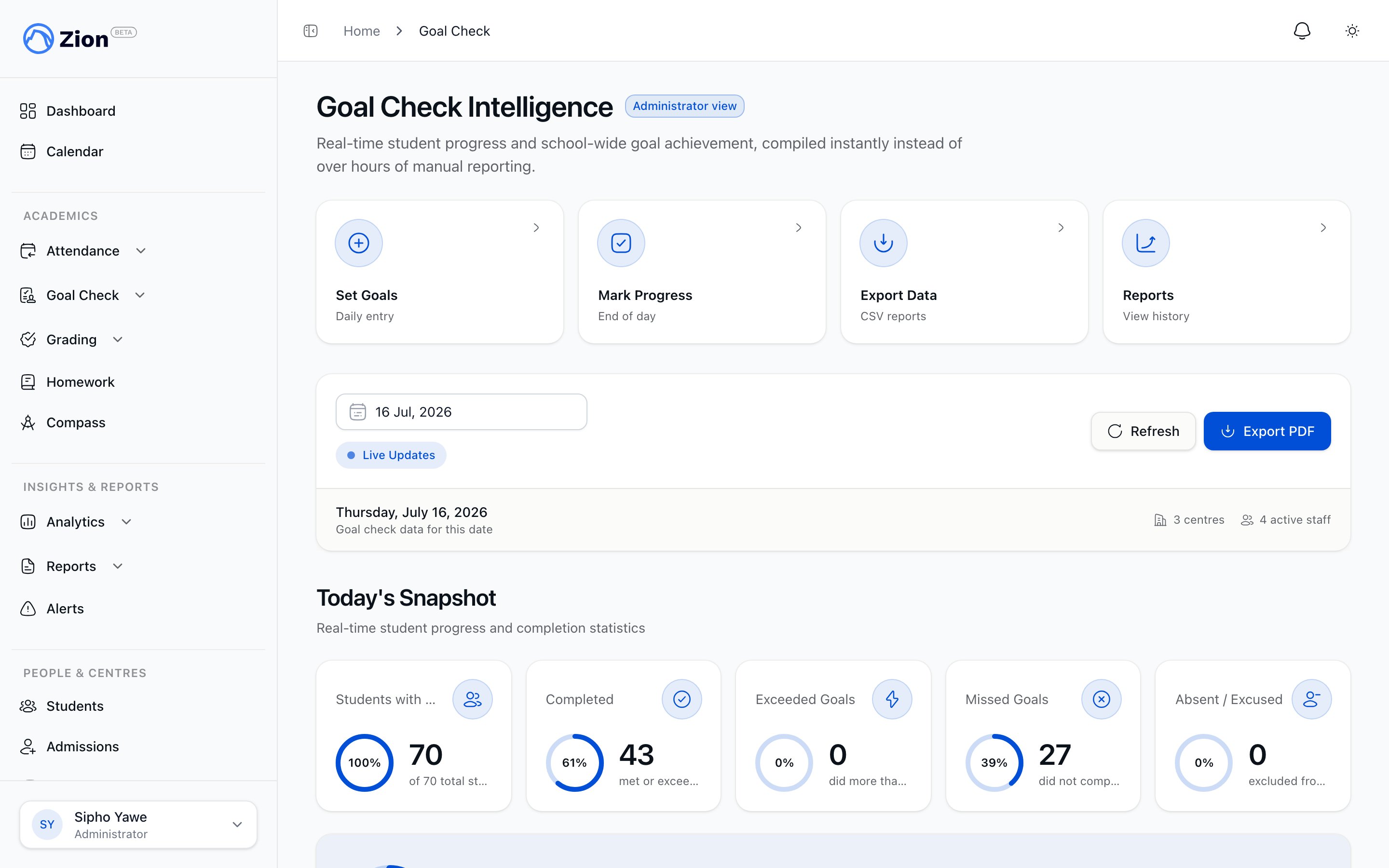
Generating Daily Centre Reports

1

Navigate to Reports

Click “Goal Check” → “Reports” in sidebar
2

Select Report Type

Choose “Daily Centre Report”
3

Select Centre

Dropdown shows your assigned centres (supervisors) or all centres (administrators)
4

Select Date

Choose date for report (defaults to today)
5

Check Readiness

Verify “Ready” status appears
6

Click Generate Report

Button activates when ready
7

Wait for Generation

Takes 5-30 seconds depending on student count
8

Download or View

Report appears in browser, download as PDF or CSV

Daily Report Contents

Report Header:
  • School name and logo
  • Centre name
  • Date of report
  • Generation timestamp
  • Generated by (your name)
Centre Summary Section: Overall Performance:
  • Total students in centre
  • Students with goals set
  • Students marked
  • Overall completion rate (%)
Achievement Breakdown:
  • Students completed (met goal exactly or slightly over)
  • Students exceeded (significantly over goal)
  • Students missed (under goal)
  • Students absent (0 pages)
Visual Completion Chart:
  • Pie chart or bar chart showing breakdown
  • Color-coded: Green (completed), Blue (exceeded), Red (missed), Gray (absent)
Student-by-Student Detail Section: For Each Student:
  • Student name
  • Assigned PACEs
  • Goal pages per PACE
  • Actual pages per PACE
  • Variance per PACE
  • Overall daily variance
  • Status badge (Completed/Exceeded/Missed)
  • Notes (if added during progress marking)
At-Risk Students Section:
  • Students who missed goals 3+ consecutive days
  • Students with declining trends
  • Flagged with alert icon
  • Recommended actions
Example Student Entry:
John Smith - Grade 5
Math 1015: Goal 6 pages (15-20) | Actual 4 pages (15-18) | Variance -2 | Status: Missed
  Note: Struggled with long division pages 18-19
English 1025: Goal 6 pages (10-15) | Actual 6 pages (10-15) | Variance 0 | Status: Completed
Science 1035: Goal 5 pages (5-9) | Actual 7 pages (5-11) | Variance +2 | Status: Exceeded

Overall Daily Variance: -1 page
Alert: Missed goals 3 consecutive days - intervention recommended

Interpreting Daily Centre Reports

Completion Rate Targets:
  • 85%+ = Excellent - Goals well-calibrated, students succeeding
  • 75-84% = Good - Most students meeting goals
  • 60-74% = Fair - Goals may be too ambitious
  • <60% = Poor - Significant issue, review goal difficulty
Variance Patterns: Centre-Wide Positive Variance:
  • Most students exceeded goals
  • May indicate goals too low
  • Consider increasing goals tomorrow
Centre-Wide Negative Variance:
  • Most students missed goals
  • May indicate goals too high or difficult day
  • Consider lowering goals tomorrow
Mixed Variance:
  • Some students over, some under
  • Normal and expected pattern
  • Goals appropriately challenging
Subject-Specific Struggles:
  • All students struggling in one subject (e.g., Math)
  • Indicates PACE difficulty or topic complexity
  • Plan group review or lower goals for that subject

Using Daily Reports

End-of-Day Review (5 minutes):
  1. Generate report
  2. Review completion rate
  3. Identify at-risk students
  4. Plan tomorrow’s interventions
Share with Administrator:
  1. Export as PDF
  2. Email or print
  3. Include any concerns or observations
  4. Request support if multiple students struggling
Document Centre Performance:
  1. Save PDF to centre folder
  2. Build historical archive
  3. Use for weekly/monthly reviews
  4. Evidence for school board or ACE accreditation

Weekly School Reports

Purpose and Use Cases

Purpose: Comprehensive whole-school performance across full week with trends, centre comparison, and subject analysis. Use Cases:
  • Weekly administrator review
  • School board presentations
  • Identify centre-level patterns
  • Subject curriculum planning
  • Strategic goal adjustment
  • Term-end summaries
Who Can Generate:
  • Administrators only (school-wide data)
Timing:
  • Typically generated Friday afternoon or Monday morning
  • Requires all centres to have full week of data
  • Monday-Friday (5 school days)

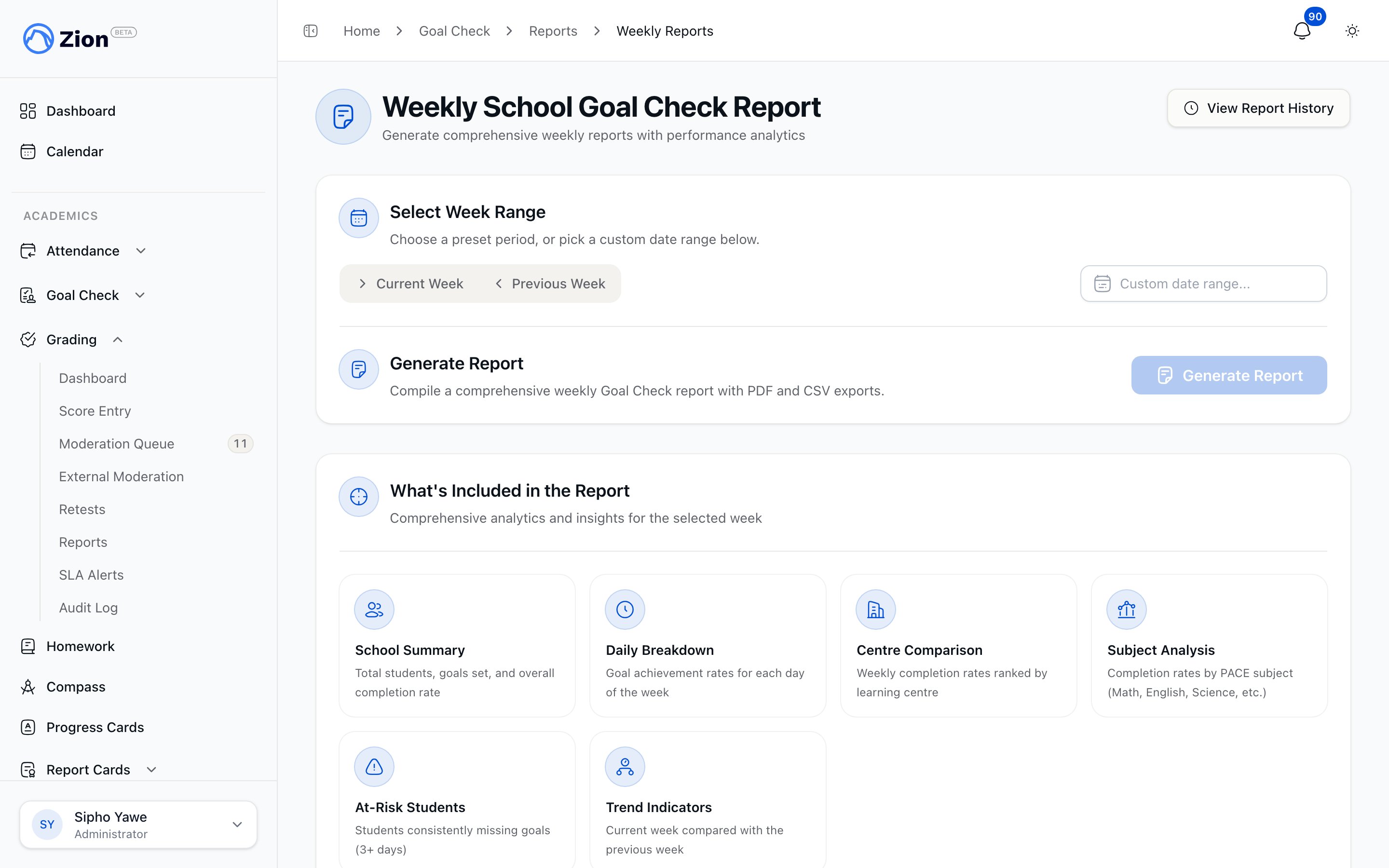
Generating Weekly School Reports

1

Navigate to Reports

Click “Goal Check” → “Reports” in sidebar
2

Select Report Type

Choose “Weekly School Report”
3

Select Week

Choose week start date (Monday), report covers Mon-Fri
4

Verify Data Completeness

Zion shows data availability for all centres/days
5

Click Generate Report

Button activates when data sufficient
6

Wait for Generation

Takes 30-90 seconds for 100-300 student school
7

Download or View

Report appears in browser, download as PDF or CSV

Weekly Report Contents

Report Header:
  • School name and logo
  • Week date range (e.g., “Nov 18-22, 2024”)
  • Generation timestamp
  • Generated by (administrator name)
School-Wide Summary Section: Overall Week Performance:
  • Total students across all centres
  • Total learning centres
  • School-wide completion rate (%)
  • Total goals set this week
  • Total pages completed this week
Daily Breakdown (Mon-Fri):
  • Completion rate per day
  • Students completed per day
  • Variance per day
  • Trend indicator (up/down/flat)
Comparison to Previous Week:
  • Current week completion rate vs last week
  • Percentage point change
  • Trend direction (improving/declining/stable)
Centre Performance Comparison Section: For Each Centre:
  • Centre name and supervisor
  • Number of students
  • Week completion rate (%)
  • Total variance for week
  • Rank among all centres (1st, 2nd, 3rd, etc.)
Example:
1. Faith Centre (Supervisor: Mary Johnson)
   25 students | 87% completion | +15 pages total variance | Rank: 1/5

2. Grace Centre (Supervisor: John Smith)
   22 students | 82% completion | +8 pages total variance | Rank: 2/5

3. Hope Centre (Supervisor: Sarah Williams)
   28 students | 76% completion | -12 pages total variance | Rank: 3/5
Subject Analysis Section: Completion Rate by Subject:
  • Math: 78%
  • English: 85%
  • Science: 81%
  • Social Studies: 88%
  • And more…
Identifies:
  • Which subjects strongest school-wide
  • Which subjects struggling school-wide
  • Subject-specific variance
At-Risk Students Section (School-Wide): Critical Alerts:
  • Students who missed goals 5+ days this week
  • Students with severe declining trends
  • Students flagged in multiple subjects
Warning Alerts:
  • Students who missed goals 3-4 days this week
  • Students with moderate declining trends
For Each At-Risk Student:
  • Student name, grade, centre
  • Alert reason
  • Recommended intervention
  • Supervisor responsible
Weekly Trends Section: 7-Day Completion Chart:
  • Line graph showing daily completion rates
  • Mon-Fri trend line
  • Comparison to previous week (overlay)
Variance Distribution:
  • How many students exceeded goals
  • How many met goals
  • How many missed goals
  • Histogram or bar chart
Centre Trends:
  • Which centres improving week-over-week
  • Which centres declining
  • Consistency indicators

Interpreting Weekly School Reports

School-Wide Completion Rate:
  • 80%+ = Excellent - School performing well
  • 70-79% = Good - Most students succeeding
  • 60-69% = Fair - Review goal-setting strategies
  • <60% = Needs Attention - Significant interventions required
Daily Pattern Analysis: Monday Dip:
  • Lower completion Monday, improves Tue-Thu
  • Normal pattern (post-weekend adjustment)
  • No action needed
Friday Drop:
  • Lower completion Friday
  • Normal pattern (end-week fatigue)
  • Consider lower Friday goals
Mid-Week Drop:
  • Drop on Wednesday
  • Investigate: Was there disruption? Event? Holiday preparation?
Consistent Performance:
  • Similar completion Mon-Fri
  • Ideal pattern
  • Goals well-calibrated
Centre Comparison Insights: Top Performers:
  • Completion rate 85%+
  • Positive variance
  • Learn from their strategies:
    • How do they set goals?
    • How do they support students?
    • What’s their approach?
Bottom Performers:
  • Completion rate <70%
  • Negative variance
  • Provide support:
    • Review goal-setting with supervisor
    • Offer additional training
    • Assess centre-specific challenges
Subject-Specific Patterns: Subject Struggling School-Wide:
  • Example: Math 65% vs English 85%
  • Not a centre-specific issue, school-wide
  • Action: Review Math PACE difficulty, plan professional development, lower Math goals
Subject Excelling:
  • Example: English 90% consistently
  • Goals may be too low for English
  • Action: Consider increasing English goals slightly

Report Formats and Export

PDF Export

Use Cases:
  • Professional presentation
  • Print for board meetings
  • Email to stakeholders
  • Archive in school files
Features:
  • Professional formatting with school logo
  • Color-coded charts and tables
  • Page breaks in logical places
  • Ready to print or email
How to Export:
  1. Generate report
  2. Click “Export as PDF”
  3. Browser downloads PDF file
  4. File name: “Zion-Report-[Type]-[Centre/School]-[Date].pdf”

CSV Export

Use Cases:
  • Import into Excel for custom analysis
  • Integrate with other systems
  • Long-term archival
  • Create custom charts
Features:
  • All data in spreadsheet format
  • One row per student or aggregation
  • Easy to filter, sort, pivot
How to Export:
  1. Generate report
  2. Click “Export as CSV”
  3. Browser downloads CSV file
  4. Open in Excel, Google Sheets, or Numbers
CSV Contents (Daily Centre Report):
Student Name, Grade, Centre, Date, PACE, Goal Start, Goal End, Goal Pages, Actual Start, Actual End, Actual Pages, Variance, Status, Notes
John Smith, 5, Faith Centre, 2024-11-22, Math 1015, 15, 20, 6, 15, 18, 4, -2, Missed, Struggled with long division

Report Best Practices

Daily Reporting Routine

For Supervisors:
1

Mark All Progress (3:30 PM)

Complete progress marking for all students
2

Generate Daily Report (3:35 PM)

Create report once all students marked
3

Quick Review (3:40 PM)

Scan for at-risk students and unusual patterns
4

Save/Share (3:45 PM)

Download PDF, save to folder, email to administrator if requested
5

Plan Tomorrow (3:50 PM)

Note which students need support tomorrow
Total Time: 15 minutes (vs 2-3 hours manual compilation!)

Weekly Reporting Routine

For Administrators:
1

Friday Afternoon Generation

Generate weekly report after all centres complete Friday marking
2

Review Centre Comparison

Identify top and bottom performing centres
3

Analyze Subject Patterns

Note subjects struggling school-wide
4

Review At-Risk Students

Flag students needing immediate intervention
5

Share with Leadership

Email PDF to board, supervisors, stakeholders
6

Plan Next Week

Meet with supervisors of struggling centres
Total Time: 20 minutes (vs 5-8 hours manual compilation!)

Long-Term Archival

Recommended Archive Structure:
/School Reports
  /2024-2025 Academic Year
    /Term 1
      /Weekly Reports
        Week-01-Oct-14-18-2024.pdf
        Week-02-Oct-21-25-2024.pdf
      /Daily Reports
        /Faith Centre
          Daily-Faith-Centre-Oct-14-2024.pdf
          Daily-Faith-Centre-Oct-15-2024.pdf
Why Archive:
  • Historical reference for trends
  • Evidence for ACE accreditation
  • Documentation for school board
  • Parent meeting evidence
  • Year-end reviews
Archive Frequency:
  • Daily reports: Save weekly (Friday)
  • Weekly reports: Save all (every week)
  • Term reports: Generate at term-end (comprehensive)

Using Reports for Strategic Decisions

Goal Adjustment

When Reports Indicate:
  • Centre completion <70% for 2+ weeks consistently
  • Negative variance school-wide
  • Multiple students at-risk
Action:
  • Lower goal page counts
  • Review goal-setting with supervisors
  • Provide goal templates based on grade

Curriculum Planning

When Reports Indicate:
  • Specific subject struggling school-wide (e.g., Math 65%)
  • All centres struggle with same PACE
Action:
  • Plan professional development on subject
  • Review PACE curriculum for difficulty
  • Consider group review sessions for difficult topics

Staffing and Support

When Reports Indicate:
  • One centre consistently underperforming
  • One supervisor’s centres all struggling
Action:
  • Provide additional training to supervisor
  • Assign mentor supervisor
  • Assess centre-specific challenges (resources, student mix, etc.)

Student Interventions

When Reports Indicate:
  • Specific students at-risk (3+ consecutive misses)
  • Students with severe declining trends
Action:
  • One-on-one tutoring
  • Parent meetings
  • Learning assessment
  • Adjust PACE assignments or goals

Troubleshooting Reports

”Cannot Generate Report - Data Incomplete”

Cause:
  • Not all students in centre have progress marked
  • Or week has missing days (holidays, weekends)
Solution:
  1. Check readiness indicator
  2. Mark progress for remaining students
  3. If day was holiday/no school, that’s normal - generate for available days

”Report Generation Failed”

Causes:
  1. Server error (rare)
  2. Too much data (300+ students)
  3. Internet connection lost
Solutions:
  1. Wait 30 seconds and try again
  2. Contact support if repeated failures
  3. Check internet connection

”Report Shows Incorrect Data”

Common Causes:
  1. Viewing wrong date/week
  2. Data entry errors (typos in progress marking)
  3. Centre assignment changed mid-week
Verify:
  1. Confirm date range at top of report
  2. Spot-check few students’ data against actual PACEs
  3. Review audit log if available

”Report Download Not Working”

Causes:
  1. Browser pop-up blocker
  2. Browser download settings
  3. No PDF viewer installed
Solutions:
  1. Allow pop-ups for Zion domain
  2. Check browser downloads folder
  3. Install PDF viewer (Adobe Reader, Preview, etc.)

Report FAQs

Q: How long do reports take to generate? A: Daily centre reports: 5-30 seconds. Weekly school reports: 30-90 seconds (depending on student count). Q: Can I schedule automatic report generation? A: Not yet - planned feature. Currently manual generation only. Q: Can I customize report templates? A: Not yet - reports use standard template. Custom templates planned for future. Q: Can I generate reports for past terms? A: Yes, as long as historical data exists. Select any past date/week. Q: What’s the maximum data for one report? A: Daily reports: No limit. Weekly reports: Up to 500 students (most schools <300). Q: Can I share reports with parents? A: Yes, export PDF and email. Parent portal (coming 2025) will enable automatic parent access. Q: Do reports include student photos? A: Not currently. Reports are data-focused for privacy and file size.

Advanced Reporting Features (Coming Soon)

Scheduled Reports

  • Auto-generate daily/weekly reports
  • Email to distribution list automatically
  • Runs in background overnight

Custom Report Templates

  • Choose which sections to include
  • Customize charts and visualizations
  • Add school-specific notes or branding

Term and Annual Reports

  • Comprehensive term-end summaries
  • Year-over-year comparisons
  • Student growth trajectories

Interactive Reports

  • Click charts to drill down
  • Filter data dynamically
  • Export custom views