

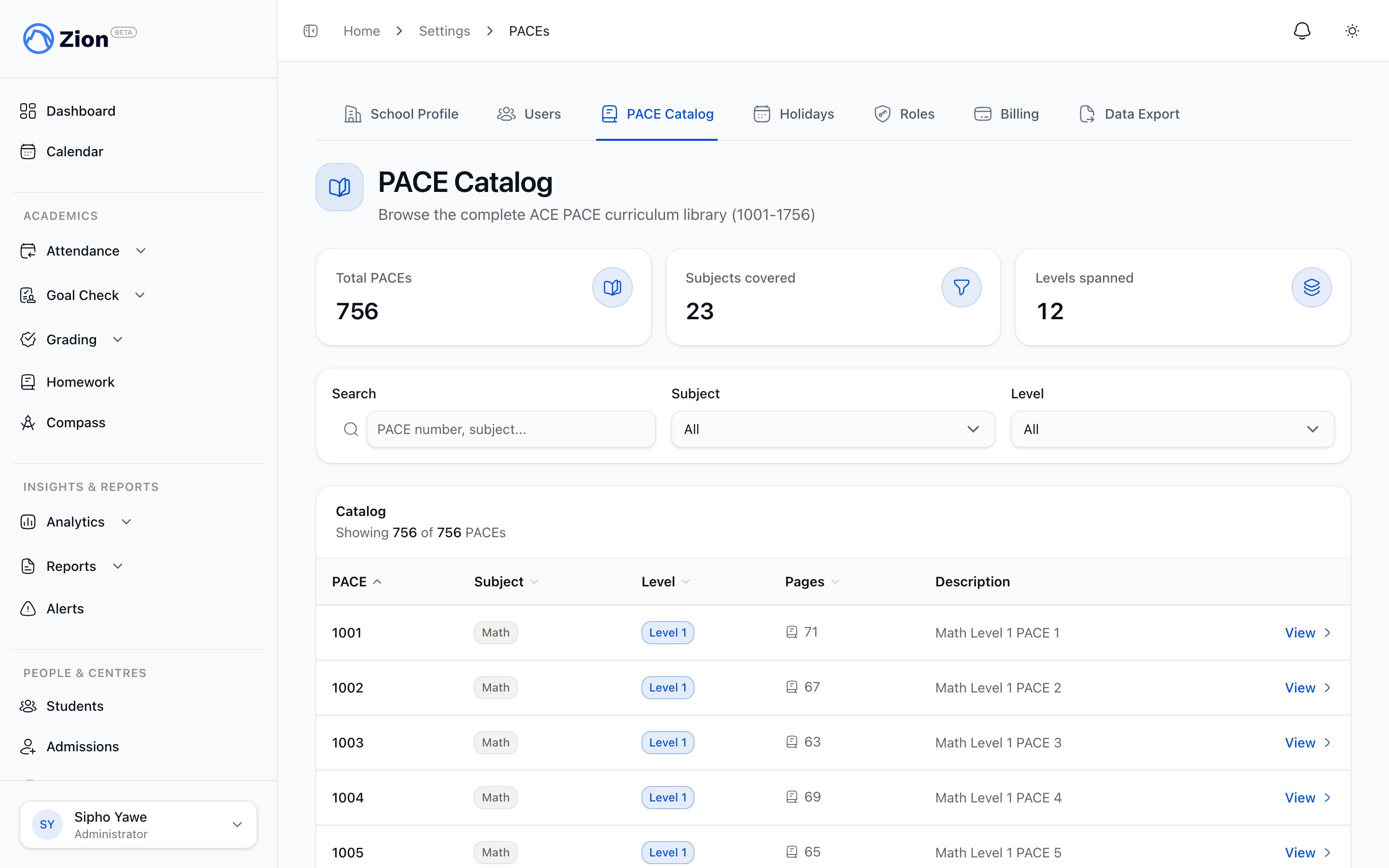
The PACE catalog listing PACE number, subject, and level.
Catalog scope
Zion ships with the shared ICCE Africa PACE catalog, available to every school. It covers:- Core subjects, numbered from 1001 upward: Math, English, Science, Social Studies, Word Building, and more, across levels 1 through 12.
- Bible Reading, also numbered from 1001 upward.
- A large range of electives and Lifepac courses. Many of these carry a course code instead of a PACE number (for example, a Lifepac science course numbered 1 through 5) and sit outside the numbered progression, since they are not part of a school’s core numbered sequence.
Reading Readiness and ABC
The earliest, pre-Level-1 PACEs sit in two separate readiness levels, shown and filtered separately:- Reading Readiness (RR): English, Math, Science, and Social Studies.
- ABC: Animal Science, Bible Reading, and Word Building.
Where to find it
Navigate to Settings, then PACEs, to open the catalog. Each row shows the PACE number (or course code), subject, level, page count, and description. Selecting a PACE opens its detail page, which also lists every student in the school currently in progress on that PACE.Searching and filtering
1
Search by number or keyword
Type a PACE number or a keyword into the search field to narrow the list to matching PACEs.
2
Filter by subject
Use the subject dropdown to show only PACEs for one subject, for example Math or Science.
3
Filter by level
Use the level dropdown to show only PACEs for one level: Reading Readiness, ABC, or Level 1 through 12.
4
Combine filters
Search, subject, and level filters apply together, so you can narrow to, for example, Math PACEs at level 3.
Adding your school’s own subjects and PACEs
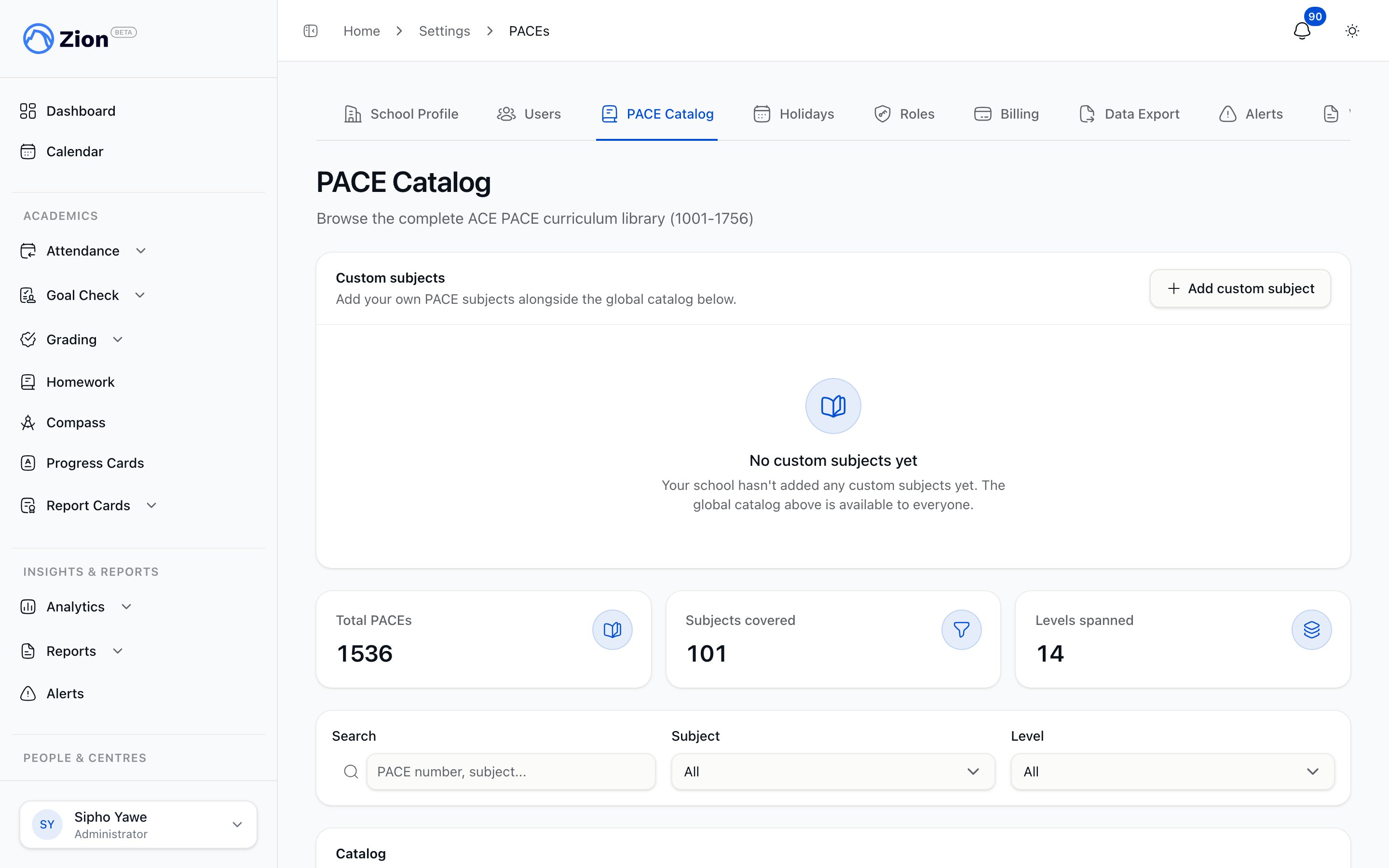
The catalog editor, where an administrator adds custom subjects and corrects a PACE.
1
Open Custom subjects
On the PACE catalog page, find the Custom subjects card above the main table.
2
Add custom subject
Give the subject a name and a starting and ending PACE number. Zion creates one PACE for every number in that range.
3
Resize later if needed
Edit the subject at any time to grow or shrink its PACE range. A PACE already assigned to a student cannot be removed.
Editing a PACE’s page count and level
Any PACE in your school’s catalog view, including the shared ICCE Africa catalog, shows a page count and a level. An administrator can correct either one:1
Open the edit control
From the catalog table, click a PACE’s page count, or open the PACE’s detail page and use Edit details.
2
Update the total pages, the level, or both
Total pages is the number of pages in the PACE booklet, and bounds the page a student can set as a Goal Check target. Level is the grade level the PACE belongs to; this is mainly used to fill in a level missing from an elective.
3
Save
The change applies to your school’s view of that PACE immediately.
Your school’s own custom subjects are fully yours to edit. The shared ICCE Africa catalog is maintained centrally; a school’s edits to a shared PACE’s page count or level may be limited, since those rows are shared by every school on Zion.
PACE detail page
Opening a PACE from the catalog shows:- PACE number or course code
- Subject
- Level
- Page count
- Students in the school currently in progress on that PACE
What the catalog does not do
- You cannot assign a PACE to a student from the catalog. Open the student’s detail page instead.
- Subject progression rules (a student must pass earlier PACEs in a subject before a later one is assignable) are enforced at assignment time, not shown as a rule engine in the catalog.
- A PACE outside your school’s catalog, whether the shared catalog or another school’s custom subject, cannot be assigned to your students.
PACE Assignments
Assign PACEs to a student and see progression rules in effect
Setting Goals
Set daily page goals for a student’s assigned PACEs
Student Management
Manage the students who PACEs get assigned to
Goal Check Overview
See how assigned PACEs feed the daily Goal Check