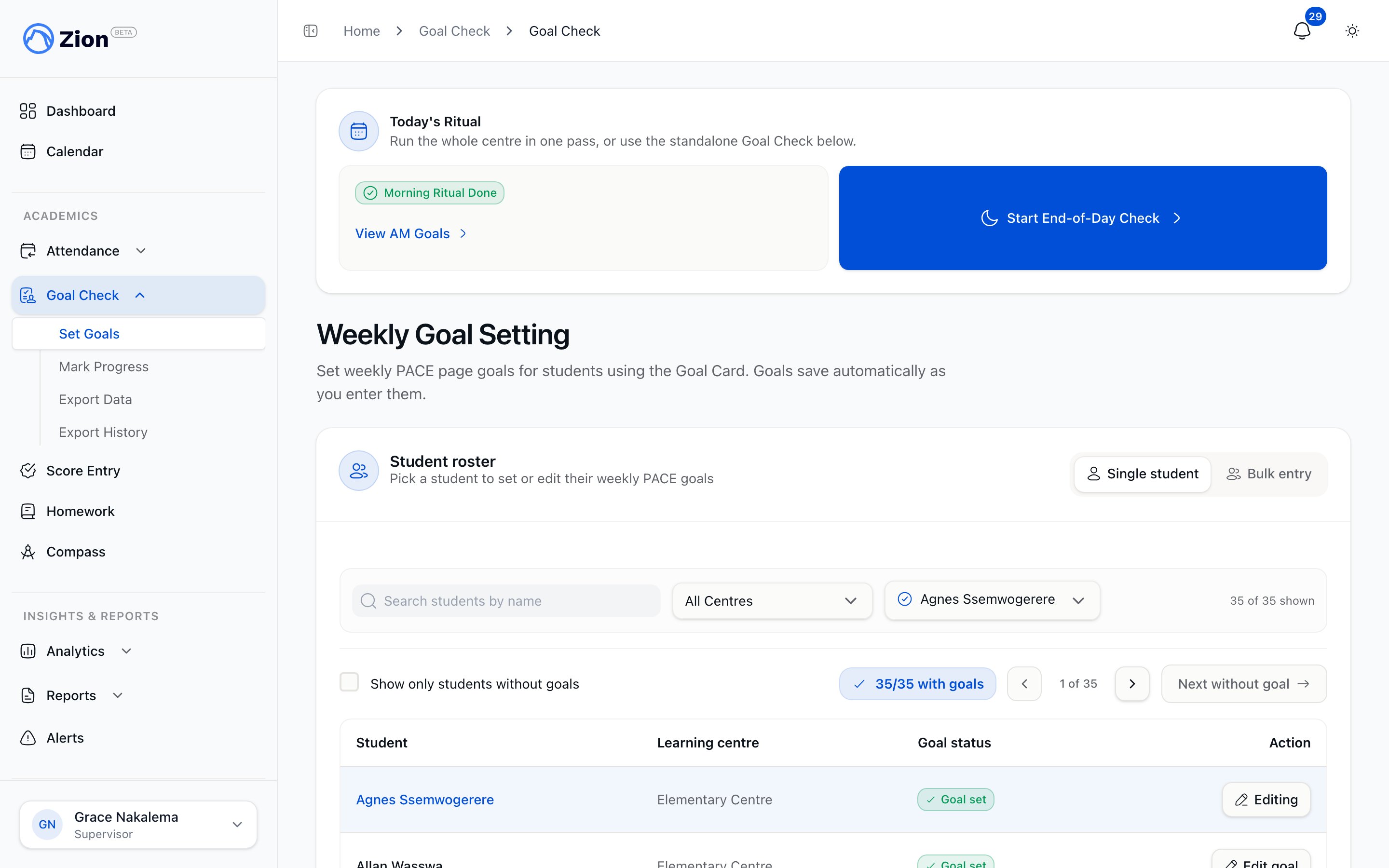
Setting Daily Goals
Comprehensive guide to setting daily PACE page goals in Zion. Learn templates, shortcuts, validation rules, and best practices to complete goal entry in under 5 minutes.Goal Setting Overview
Purpose: Set daily page completion goals for each student and PACE combination to:- Provide clear expectations for students
- Enable end-of-day progress tracking
- Create accountability structure
- Generate variance data for analysis
- Supervisors (for their assigned centres)
- Monitors (for their assigned centres)
- Administrators (for any centre)
- Every morning before students begin work
- Typically 15-30 minutes before school starts
- Takes 5 minutes for 20 students (with templates)
Accessing Goal Entry
Navigation
1
Log Into Zion
Use your email and password
2
Click Goal Check
In sidebar navigation
3
Click Set Goals
Opens goal entry interface
4
Select Date
Defaults to today - confirm or select different date
Date Selection
Today (Default):- Interface defaults to current date
- Most common use case
- Click “Set Goals” and you’re ready to enter
- Click date picker at top of page
- Select any past date
- Use if you forgot to set goals yesterday
- Historical goals are editable (until progress marked)
- Cannot set goals for future dates
- System prevents selection
- Goal setting should happen same-day for accuracy
Goal Entry Interface
Table Structure
Layout:- Rows: One row per student in your centre(s)
- Column Groups: Each student has columns for their assigned PACEs
- Cells: Goal start page, goal end page, goal total pages
Fields Explained
Goal Start Page:- Page number where student will begin work today
- Example: 15 (student starts on page 15)
- Must be ≤ goal end page
- Must be ≤ total PACE pages (typically 36)
- Page number where student should finish work today
- Example: 20 (student should reach page 20)
- Must be ≥ goal start page
- Must be ≤ total PACE pages
- Auto-calculated: End - Start + 1
- Example: Pages 15-20 = 6 total pages
- Read-only field (cannot edit directly)
- This is the target page count for the day
Entering Goals Manually
Basic Entry Process
1
Click Goal Start Page Field
For first student and first PACE
2
Type Start Page Number
Example: 15
3
Press Tab or Click Next Field
Moves to Goal End Page
4
Type End Page Number
Example: 20
5
Verify Total Pages
System calculates automatically (6 pages in this example)
6
Move to Next PACE
Press Tab to continue to next PACE for same student
7
Repeat for All PACEs
Each student typically has 4-6 PACEs
8
Move to Next Student
After completing all PACEs for one student, Tab moves to next student
Keyboard Shortcuts
Tab: Move to next field (right) Shift+Tab: Move to previous field (left) Enter: Move down to same field for next student Arrow Keys: Navigate any direction Power User Tip: Use Enter key to move down column by column (faster than Tab for vertical data entry).Auto-Save Behavior
Automatic Saving:- Data saves 500ms after you stop typing
- No “Submit All” button required
- Each field saves independently
- Green checkmark appears when field saved
- Spinner shows while saving
- Red X indicates save failed (check internet)
- Just enter data and navigate away when done
- All entered data is already saved
- Safe to close browser after seeing checkmarks
Using Quick Templates
Copy Previous Day
Purpose: Pre-fill all goals with yesterday’s values to save time. How It Works:1
Click Copy Previous Day Button
Located at top of goal entry page
2
System Loads Yesterday's Data
All goal start/end pages populate from yesterday
3
Adjust as Needed
Modify goals for students who completed or missed yesterday
4
Save Automatically
Changes auto-save as you modify
- Manual entry: 5+ minutes for 20 students
- Copy previous day + adjust: 2-3 minutes
- 50%+ time reduction
- Most days (this should be your default)
- Provides continuity day-to-day
- Students progress through PACEs sequentially
- First day of term (no previous day exists)
- After long break (students may need reassessment)
- After major PACE changes
Adjusting After Copy Previous Day
Students Who Completed Yesterday’s Goal:- Update start page to yesterday’s end page + 1
- Set new end page based on standard goal pages
- Example: Yesterday was 15-20, today should be 21-26
- Option 1: Repeat same pages (if struggling)
- Option 2: Adjust to partial completion (if made some progress)
- Example: Yesterday was 15-20 but only completed to 17, today could be 17-22
- Update start page to yesterday’s actual end page + 1
- May increase goal pages if student is excelling
- Example: Yesterday goal 15-20 but completed to 23, today could be 24-30
Standard Goal Templates by Grade
Primary Grades (1-4):- 5-6 pages per subject per day
- Shorter attention spans, slower reading
- Example: Math 1-6, English 1-6, Science 1-5
- 7-8 pages per subject per day
- Building speed and comprehension
- Example: Math 10-17, English 5-12, Science 8-15
- 9-10 pages per subject per day
- Faster readers, stronger work habits
- Example: Math 15-24, English 20-29, Science 10-19
- Adjust based on individual student ability
- Some PACEs harder than others (adjust accordingly)
- Student motivation and focus matter
Validation and Error Handling
Validation Rules
Zion Validates Your Entries:-
Goal Start Page ≤ Goal End Page
- Valid: Start 15, End 20
- Invalid: Start 20, End 15 (end must be ≥ start)
-
Goal End Page ≤ PACE Total Pages
- Valid: End 30 (if PACE has 36 pages)
- Invalid: End 40 (if PACE only has 36 pages)
-
Goal Start Page ≥ 1
- Valid: Start 1
- Invalid: Start 0 or negative number
-
Numeric Values Only
- Valid: 15
- Invalid: “fifteen”, “15a”, blank
Error Messages
Common Errors: “Goal start page must be less than or equal to goal end page”- Cause: Start page > end page
- Example: Start 25, End 20
- Fix: Swap values or adjust one of them
- Cause: End page > PACE length
- Example: End 40 (PACE only has 36 pages)
- Fix: Set end page to 36 or less
- Cause: Non-numeric input
- Example: “twenty” instead of 20
- Fix: Enter digits only
- Cause: Total pages > 15 (warning, not error)
- Example: Start 1, End 20 (20 pages)
- Warning: Consider if student can realistically complete this
- Can proceed, but review goal difficulty
Fixing Errors
Error Display:- Red border around invalid field
- Error message in red text below field
- Cannot save until corrected
1
Read Error Message
Understand what’s wrong
2
Correct the Value
Type new valid value
3
Verify Auto-Fix
Red border should disappear
4
Check for Checkmark
Green checkmark means saved successfully
Best Practices for Goal Setting
Philosophy: Achievable Over Ambitious
Key Principle: Better to set lower goals that students can consistently meet than high goals they’ll consistently miss. Why:- Meeting goals builds confidence and momentum
- Missing goals daily is demotivating
- Consistent achievement creates positive habits
- You can always increase goals for students who excel
- 80-85% of students should meet goals daily
- If <70% meeting goals, goals are too high
- If >95% meeting goals, goals may be too low
Individualization
Every Student is Different: Advanced Students:- 10-12 pages per subject possible
- Can handle more challenging PACEs
- May complete multiple PACEs per term
- 6-8 pages per subject typical
- Standard PACE progression
- Meet most goals with effort
- 3-5 pages per subject may be appropriate
- Need more time to understand concepts
- Better to progress slowly than not at all
- Set same goals for all students (not individualized)
- Compare students to each other (different abilities)
- Push struggling students too hard (causes frustration)
PACE Difficulty Consideration
Not All Pages Are Equal: Easy PACE Sections:- Review pages (student already knows content)
- Reading-heavy pages (less problem-solving)
- Early PACE pages (introductory content)
- Can set higher page counts (8-10 pages)
- New concept introduction
- Math problem-heavy pages
- Science experiments or analysis
- Can set lower page counts (4-6 pages)
- Preview PACE content if possible
- Ask students about difficulty
- Review past variance (if always missing in certain sections, they’re hard)
Daily Patterns and Adjustments
Monday:- Students may need warm-up after weekend
- Consider slightly lower goals
- Or repeat Friday’s goals
- Students in routine, most productive days
- Standard or slightly higher goals appropriate
- Students may be fatigued
- Completion often drops on Fridays
- Consider slightly lower goals or review content
- Students need re-entry time
- Lower goals for first 2-3 days back
- Gradually return to normal goals
Advanced Goal-Setting Techniques
Batch Setting by Subject
Technique: Set all Math goals across all students, then all English goals, etc. Advantage:- Easier to maintain consistency
- Faster than jumping between subjects
- Can apply subject-specific adjustments uniformly
- Set Math goals for Student 1-20
- Set English goals for Student 1-20
- Set Science goals for Student 1-20
- Continue for all subjects
Progressive Goal Adjustment
Technique: Gradually increase or decrease goals over time based on student performance. Increasing Goals (Student Excelling):- Week 1: 6 pages per day
- Week 2: 7 pages per day (if consistently exceeding)
- Week 3: 8 pages per day (if still exceeding)
- Monitor variance to ensure not pushing too hard
- Week 1: 8 pages per day
- Week 2: 7 pages per day (if consistently missing)
- Week 3: 6 pages per day (if still missing)
- Stabilize when student reaches 80% completion rate
Term-Long Planning
Week-by-Week Strategy: Weeks 1-2 (Term Start):- Conservative goals to establish routine
- Focus on habit-building over volume
- Example: 5-6 pages per subject
- Standard goals based on student ability
- Peak productivity period
- Example: 7-8 pages per subject
- May need to increase goals to complete PACEs on schedule
- Or reduce goals if term exhaustion setting in
- Balance completion vs. burnout
Multi-Centre Goal Setting
If You Supervise Multiple Centres:Centre Filtering
Filter Table by Centre:- Use centre dropdown at top of page
- Select one centre at a time
- Set goals for all students in that centre
- Switch to next centre
- Repeat
- Less overwhelming than seeing all centres at once
- Easier to focus on one group of students
- Reduces scrolling and confusion
Applying Consistent Standards
Same Goals Across Centres:- If centres have similar students (grade/ability), use same goal templates
- Example: Both Faith and Grace centres: 7 pages Math, 6 pages English
- If centres differ significantly, adjust accordingly
- Example: Primary centre (5 pages), High School centre (10 pages)
Troubleshooting Goal Setting
”I Can’t See Any Students”
Causes:- You’re not assigned to any centres
- Your centres have no students
- Students have no PACE assignments
- Contact administrator about centre assignment
- Add students to your centres
- Assign PACEs to students
”Copy Previous Day Not Working”
Causes:- No goals set yesterday (nothing to copy)
- Different students today than yesterday
- PACE assignments changed since yesterday
- Enter goals manually for first day
- Copy will only pre-fill students who had goals yesterday
- Manually set goals for new PACEs
”Goals Not Saving”
Causes:- Internet connection lost
- Invalid data (errors in fields)
- Session expired
- Check internet (offline banner will appear)
- Review fields for red error messages
- Refresh page and log in again
”Can’t Edit Goals After Progress Marked”
Cause:- Once progress marked for a day, goals become read-only for that student/date
- Prevents accidental changes to historical data
- If you need to correct goals, contact administrator
- They can unlock for editing (with audit trail)