

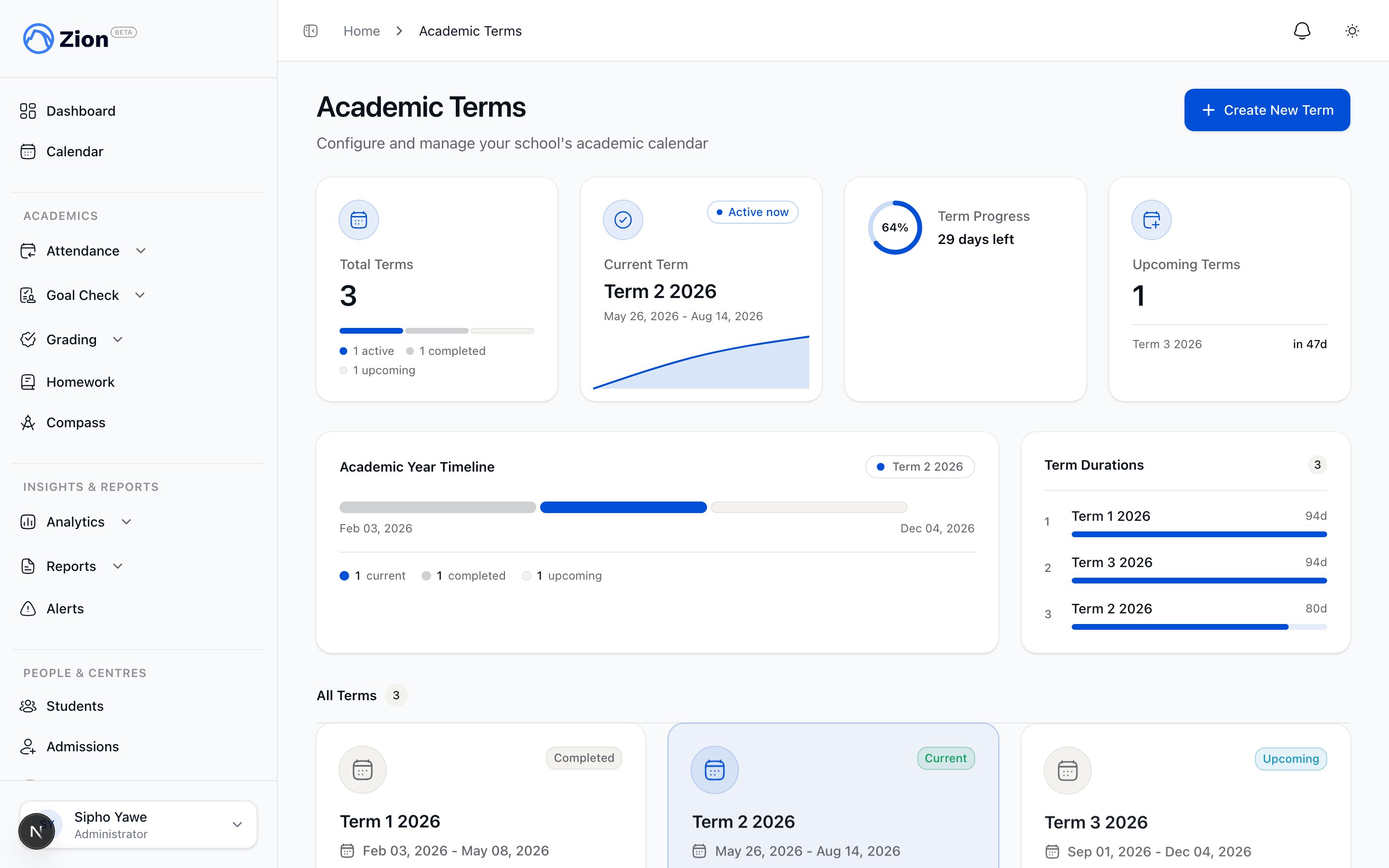
The academic terms list with the current term marked.
Why terms matter
A term is not just a label. Reports, Goal Check history, and grade summaries are all read against your school’s current term. If no term is configured, features that depend on a term window have nothing to anchor to, so setting up at least one term is a prerequisite for reporting to make sense.Only the administrator role can create, edit, delete, lock, or set the current term. Supervisors, monitors, teaching staff, parents, and students do not have access to Academic Terms.
Term fields
Creating a term
1
Open Academic Terms
Go to Academic Terms in the sidebar, under Administration.
2
Click Create New Term
Enter a name and a start and end date.
3
Submit
Zion rejects a term whose date range overlaps an existing term.
Setting the current term
Only one term can be current at a time. Clicking Set as current on a term clears the current flag from every other term first, so there is never a moment with two current terms.Locking a term
An administrator can lock a term once it is finished, for example ahead of generating report cards, to stop any further changes landing inside it.1
Open Academic Terms
Go to Academic Terms in the sidebar, under Administration.
2
Lock the term
Click Lock on the term you want to close out. A Locked badge appears next to it.
3
Unlock if you need to make a correction
Click Unlock on a locked term to allow entries into it again, for example to fix a mistake.
Editing and deleting terms
Administrators can edit a term’s name or dates from Academic Terms, subject to the same overlap check used at creation. Deleting a term is blocked if the term has goals or scores linked to it. This keeps historical goal and grade data from being lost. To remove a term that has data attached, address the linked goals or scores first.What a term drives
Goal Check
Daily goals and progress are recorded against the current term.
Grading
Score entry and grade summaries are scoped to the current term.
Report cards
Report generation reads the current term to determine the reporting period.
Students
PACE assignments and student records reference the academic calendar terms define.