

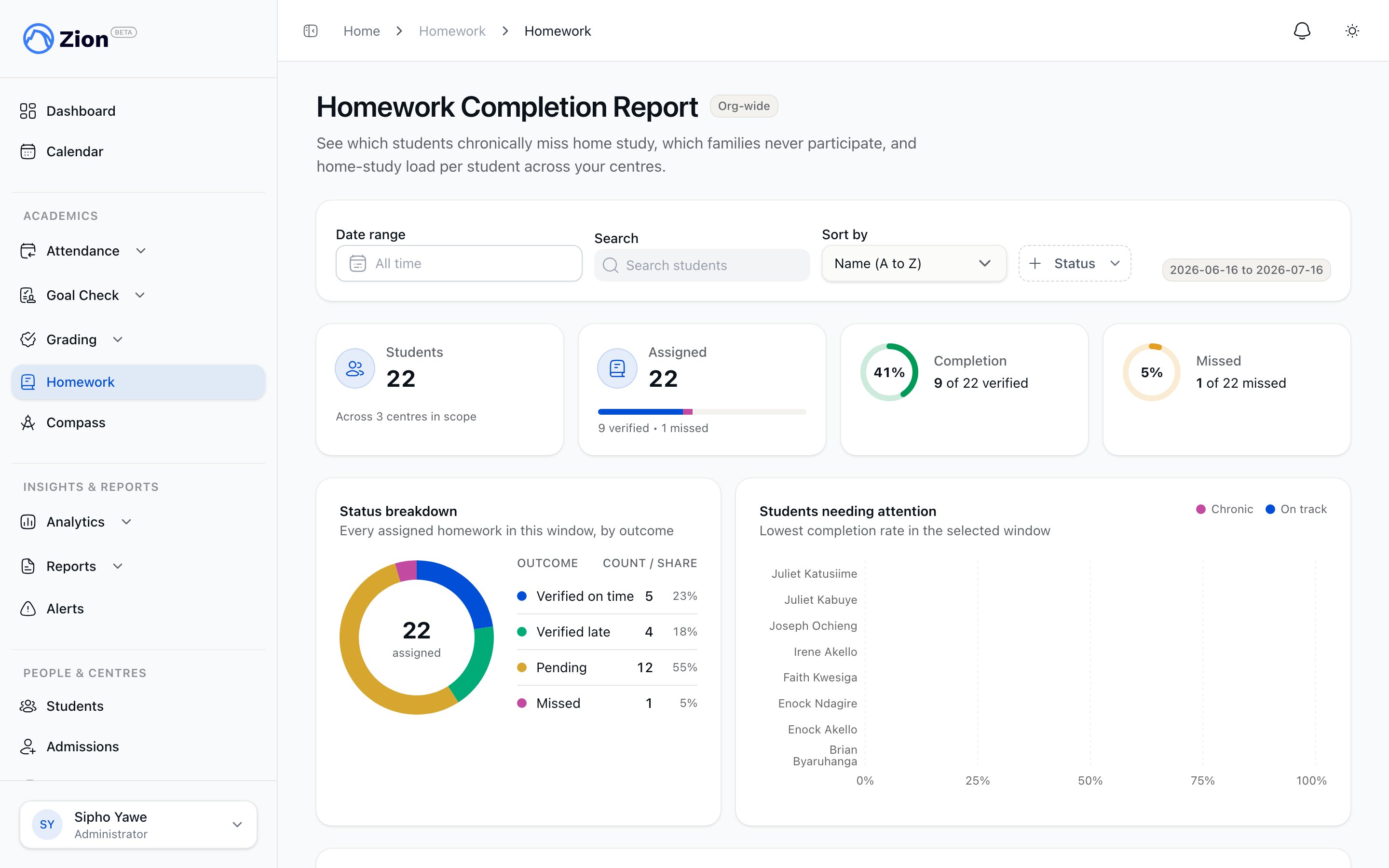
The full homework completion report, with KPI cards, charts, and a per-student table.
Who sees what
- Administrator
- Supervisor or monitor
Opening Homework from the sidebar goes straight to the full report, covering every learning centre in the organization. This is the only homework screen an administrator sees; administrators do not assign or verify homework directly.
The full report
1
Set the date range
The report opens showing the last 30 days. Change the date range to look at a different window, such as a single term. Presets are available for the last 7, 30, or 90 days.
2
Search and sort
Search narrows the table to students by name. Sort options are Name (A to Z), Highest missed rate, Lowest completion, and Most assigned. A Chronic only filter shows just the students flagged below.
3
Check the KPI cards
Four cards summarize the window: total students with homework activity, total assignments made (with a verified versus missed split), overall completion percentage, and overall missed percentage.
4
Read the status breakdown
A chart splits every assigned homework in the window into verified on time, verified late, still pending, and missed, so you can see the overall mix at a glance.
5
Scan students needing attention
A chart ranks the students with the lowest completion rate in the window, up to eight at a time, so you know who to check in with first.
6
Scan the per-student table
Each row is one student, with counts for Assigned, Verified, Late, and Missed, plus Completion % and Participation %. Select a row to open a detail panel with the same figures plus how many items were cancelled or excused.
7
Follow up on Chronic students
A student whose missed rate reaches 30% or higher over the selected window is flagged with a Chronic badge, so staff know who needs a conversation or a change in approach.
Table columns
Cancelled and excused assignments are tracked separately and are not counted toward the missed rate. Withdrawing an assignment that no longer applies, for example because the student was sick, does not count against the student.
The Completion Report tab, for supervisors and monitors
From the Completion Report tab on your own Homework page, you get a condensed version of the same standings for the students in your assigned centres, always covering the last 30 days.- Four summary tiles: Students with homework in range, total Assigned (with a verified and missed breakdown), overall Completion percentage, and overall Missed percentage.
- A ranked “Students needing attention” list, lowest completion rate first, showing up to eight students with their verified-of-assigned count, completion percentage, a progress bar, and a Chronic badge where it applies.
Chronic status is based on the missed rate for the selected date range only (30 days for the supervisor and monitor summary, or whichever range an administrator has chosen in the full report). Widening or narrowing the range can change which students are flagged.
Related pages
Homework overview
What homework assignments are and how the pending, parent-done, verified, and missed statuses work.
Assigning and verifying homework
How supervisors and monitors assign PACE page ranges and verify completed work.