

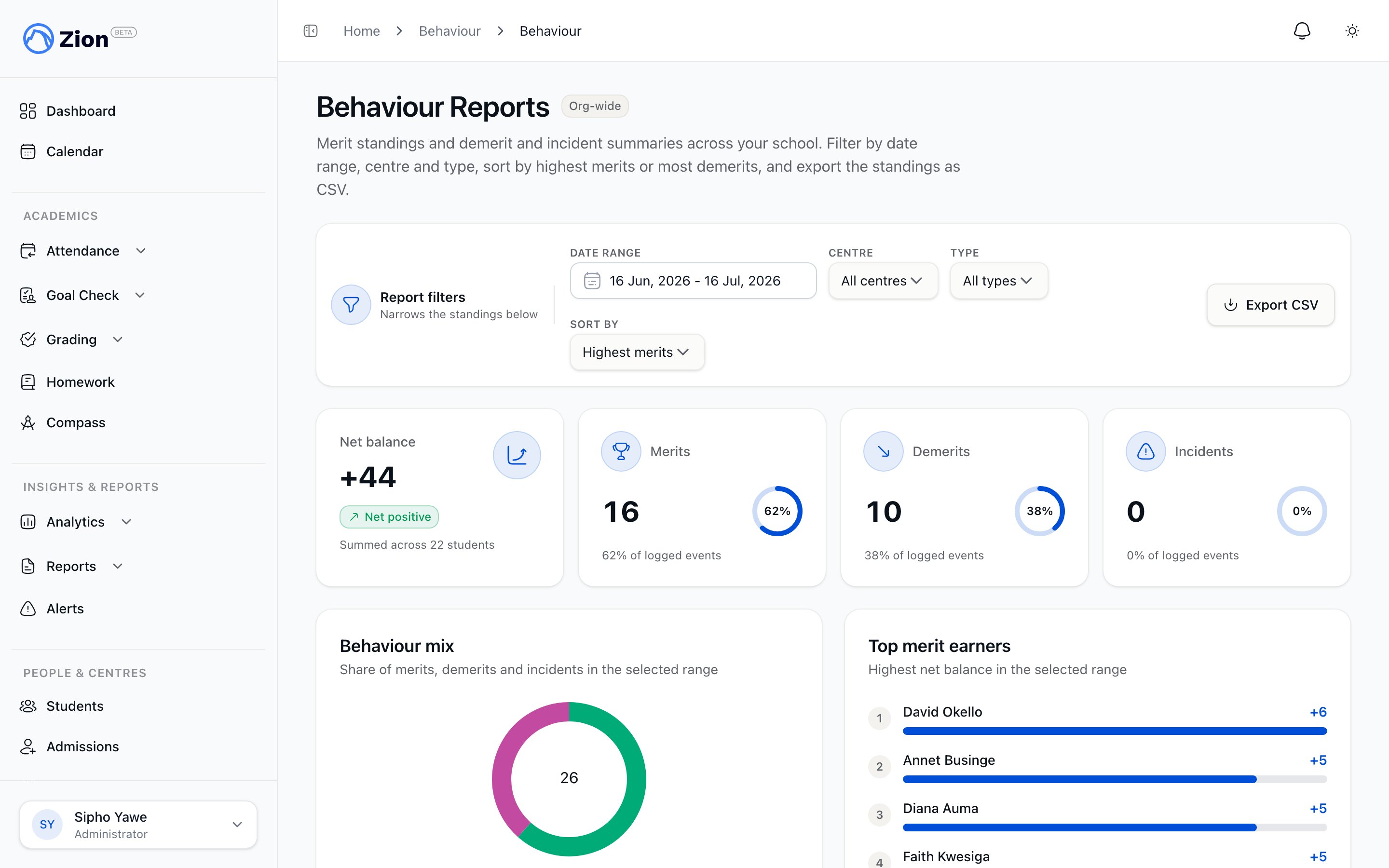
Ranked behaviour standings across a learning centre
The three event types
Every behaviour category has a type, and the type constrains the sign of its points. Zion enforces this rule both when an administrator sets a category’s default points and again when staff submit a record, so a record can never carry points with the wrong sign for its type.
Points on both categories and individual records can be any whole number from -100 to 100.
Net balance and timeline
For each student, Zion computes a net balance as a single signed sum across every behaviour record that student has, not just the records currently loaded on screen. Alongside the balance, staff and parents see a breakdown of merit, demerit, and incident counts and points, and a reverse-chronological timeline that pages backward through history.Archiving a category never changes past records. Each behaviour record stores its own points at the time it was logged, so retiring a category from the quick-log picker does not alter any student’s existing balance or timeline.
Recording an event
Staff open a student from the centre roster or a student profile and log an event through the Log behaviour drawer. Zion also has a dedicated Log Behaviour screen under Behaviour in the sidebar, where you pick a student first, useful when you are not already on that student’s page. Administrators, supervisors, and monitors can all reach both. Picking a category pre-fills its default points, which staff can still adjust before submitting. See Logging behaviour events for the full procedure, including how public and private notes work. Administrators can log or view behaviour for any student in the school. Supervisors and monitors are limited to students in the learning centres they are assigned to, no matter what they select on screen.Editing or deleting a record
A logged behaviour record is not permanent the moment it is saved. From a student’s behaviour timeline, staff can open a record’s menu and choose Edit to change its category, points, date, or notes, or choose Delete to remove it entirely. Only staff (administrators, supervisors, and monitors) can edit or delete a record. Parents cannot. Supervisors and monitors can only edit or delete records logged in one of their assigned learning centres. Administrators can edit or delete any record in the school. Deleting a record cannot be undone, so Zion asks you to confirm before removing it.Privacy: public notes and private staff notes
A behaviour record can carry two separate notes, each up to 500 characters:- Public note: visible to the parent as part of the timeline entry.
- Private staff note: visible only to staff. It is never included in what a parent’s view loads, so it cannot leak into the parent portal even by accident.
Reports and standings
Administrators, supervisors, and monitors can all view a ranked standings table of students by net balance, with summary totals for merits, demerits, and incidents, filterable by date range, type, and (for administrators) centre. Administrators see standings across the whole school; supervisors and monitors see only their assigned centres. See Behaviour reports for filters, sorting, and CSV export.Managing the category catalog
Administrators maintain the category catalog from Categories, under Behaviour in the sidebar.1
Add a category
Enter a label (up to 80 characters), choose a type (merit, demerit, or incident), and set the default points, a whole number from -100 to 100. The sign of the default points must match the type: merit at or above zero, demerit at or below zero, incident either sign.
2
Set the active toggle
New categories are active by default. Only active categories appear in the quick-log picker.
3
Submit
A duplicate label is rejected with an error, since labels must be unique across your school.
4
Archive instead of delete
There is no hard delete. Archiving a category removes it from the quick-log picker but leaves every record that already used it untouched. An archived category can be restored later to reactivate it.
Who can do what
Parent notifications
After a behaviour record is logged, if the student has a parent with an accepted invitation, Zion notifies that parent. If the notification cannot be sent, the behaviour record itself stays logged, it is never undone or blocked because of a failed notification. There is no school-wide setting to turn these notifications off, though a parent can turn off this type of notification from their own notification settings.Logging behaviour events
Step-by-step guide to the Log behaviour drawer, the Log Behaviour screen, centre scoping, and note visibility.
Behaviour reports and standings
Filters, sorting, summary totals, and CSV export for behaviour standings.
Notifications overview
How Zion delivers notifications like the behaviour-logged alert.
Roles and permissions
How centre assignment and role scoping work across Zion’s features.