

Composing a broadcast with an audience and a recipient preview
Composing, sending, and resending broadcasts is limited to the administrator and supervisor roles. Monitors, parents, and students do not have access to compose a broadcast, though they can receive one and read it from their own notification history. See Notifications.
Composing a broadcast
1
Open the compose screen
Go to Broadcasts for the history list, or straight to the compose screen to start writing.
2
Apply a template (optional)
Pick a saved template to fill in the Subject and Message body. Applying a template never changes the audience you have already chosen.
3
Write the subject and message
Subject is limited to 200 characters. The message body is limited to 5000 characters.
4
Choose the audience
Pick a scope: school-wide, one or more centres, one or more grade levels, or hand-picked individuals. Then pick recipient types: parents, students, staff, or a combination.
5
Check the recipient preview
A live “Will reach N recipients” count updates as you adjust scope and recipient types. Submission is blocked until at least one recipient resolves.
6
Send now or schedule
Leave “Schedule for later” off and click Send now, or turn it on to schedule the broadcast for a future date and time.
Audience and recipient types
Recipient types (parents, students, staff) narrow any of the scopes above. You can combine more than one recipient type in a single broadcast.
Channel
Email is the only active send channel, and it bundles an in-app notification for anyone with a Zion account. SMS appears in the interface as disabled and marked coming soon, and is never sent.Templates
Save the current subject and body as a named template (up to 120 characters for the name). Templates are scoped to your organization, so any administrator or supervisor in the org can reuse one. Re-applying a template only refills the subject and message. It does not touch whatever audience you already selected.Sending now vs. scheduling
- Send now
- Schedule for later
Zion re-checks your role and your org’s active subscription, re-resolves the audience against the current roster, and delivers immediately. You land back on the Broadcasts history, where the new row shows its status and delivery tally right away.
Because a scheduled broadcast re-resolves its audience at send time, someone who joined a targeted centre or grade after you scheduled the message can still receive it, and someone who left will not.
Delivery ledger and resend
Open any broadcast from the Broadcasts history to reach its detail page. The page lists a per-recipient delivery ledger with recipient type, contact, channel, status (sent, failed, queued, or skipped), and an error message where applicable.1
Check the failed tally
If the broadcast has failed deliveries, the detail page shows a “Resend to failed (N)” action.
2
Confirm and resend
Click it and confirm in the dialog. Only the failed rows are reset to queued and retried.
3
Delivered recipients are left alone
Resend never re-contacts recipients who already received the message. It only retries the legs that failed.
Broadcast history
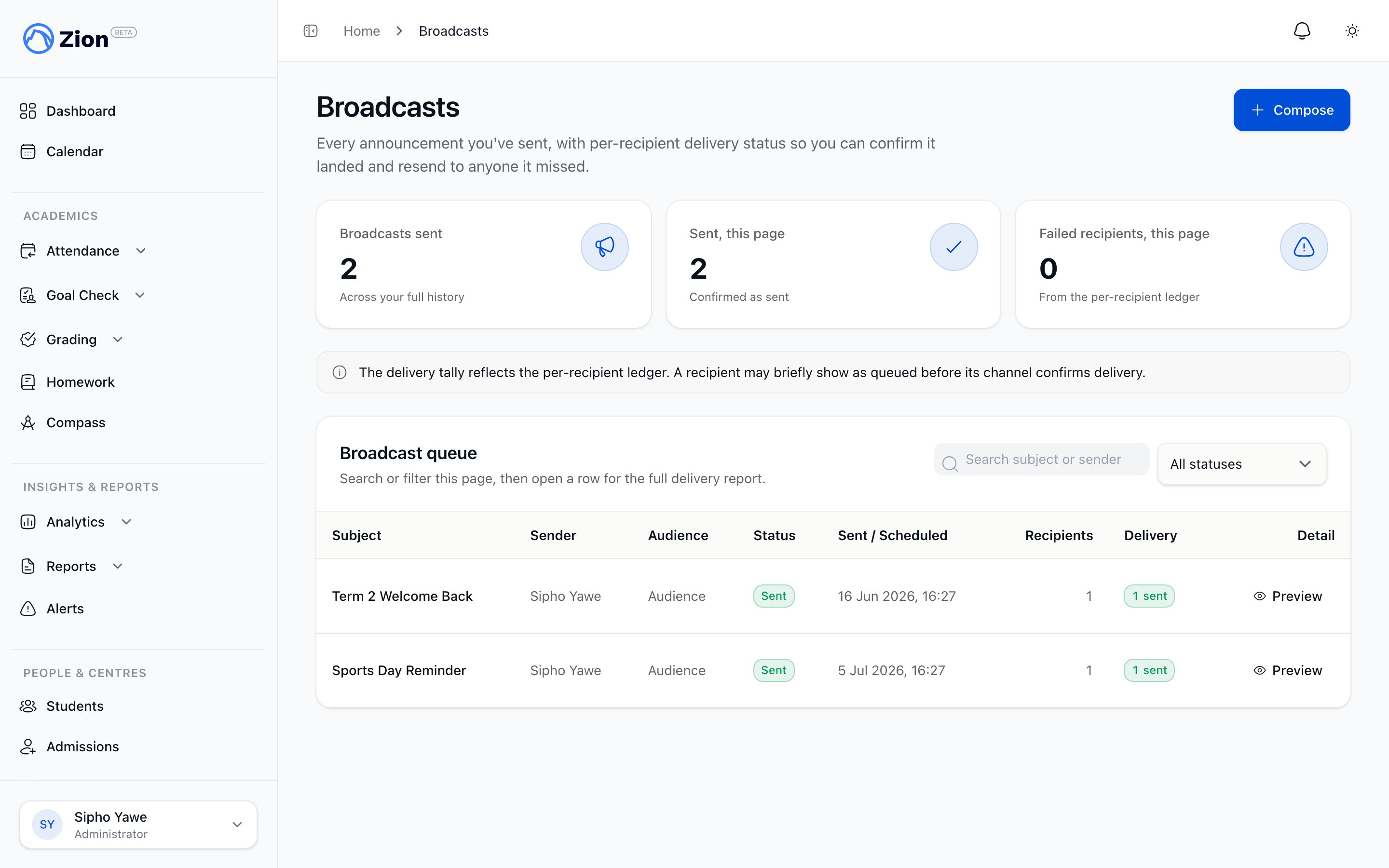
The Broadcasts history lists past and scheduled broadcasts, 20 rows per page. Each row shows the subject, status, and delivery tally; clicking a row opens its detail page and ledger.Related
Notifications
The in-app notification centre, bell, and history every role uses to read what they’ve been sent.
Deliverability and audit
Email suppression handling and the org-wide notification audit log, administrator only.
Roles and permissions
Who holds which of the five roles and what each can do.
Reference: roles and permissions
Full permission matrix across all features.