

Who can do this
Both actions are available to administrators. A supervisor can also receive and adjust stock, but only once an administrator has granted them permission to manage inventory. By default a supervisor only has view and library-checkout access, so their sidebar shows Inventory Reports, Inventory Movements, and Inventory Items, without a Receive PACE Stock link.The Recent Shipments list on the Receive PACE Stock page is visible to administrators only, even if a supervisor has been granted permission to manage inventory. That supervisor can still record a shipment; they just will not see the Recent Shipments list on the same page.
Receive a PACE shipment
There are two ways to record stock coming in: line by line on the Receive PACE Stock page, or all at once for a whole subject from the Inventory Items page.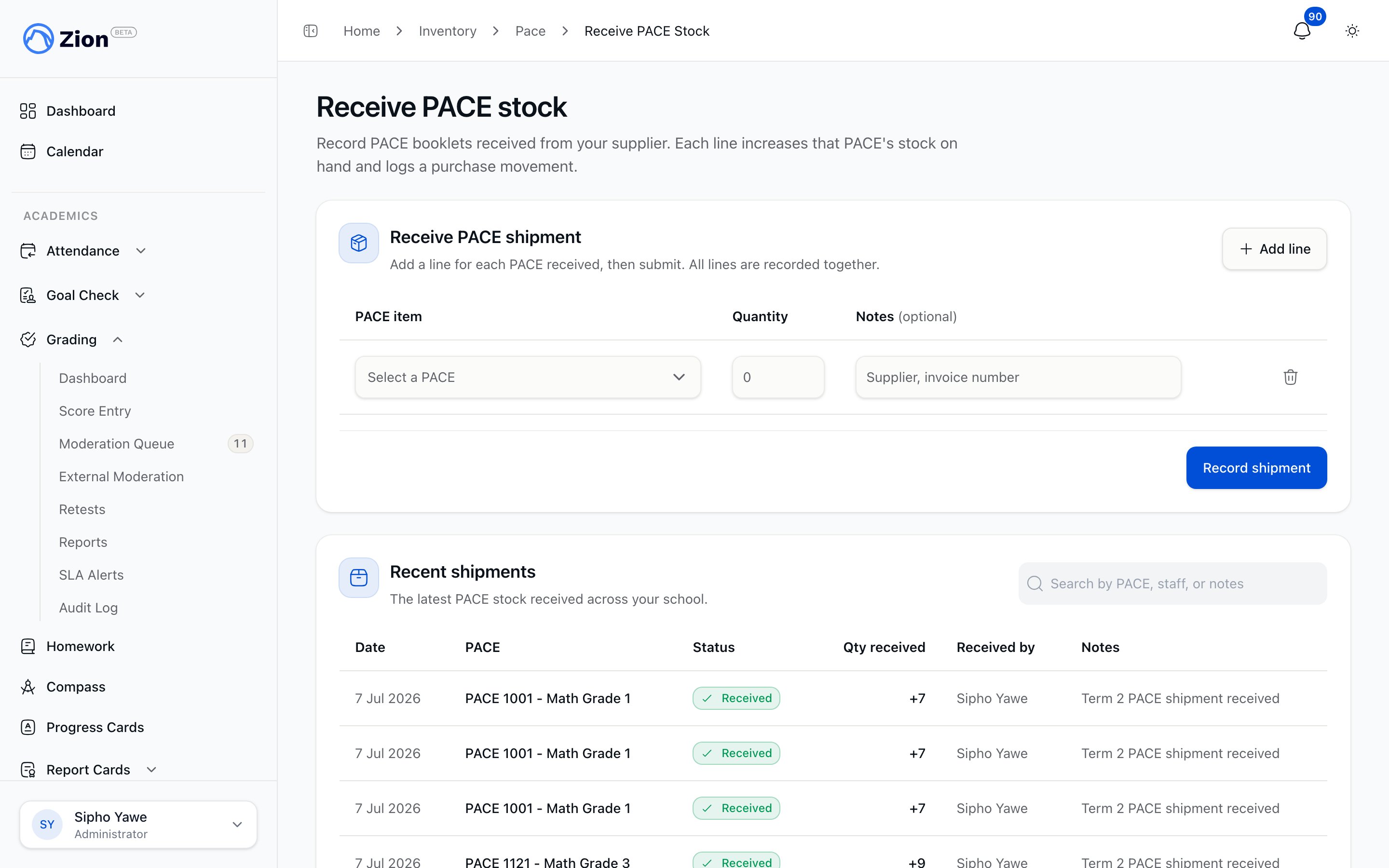
The Receive PACE Stock page, where a shipment is entered against the booklets it contains.
Line by line
Use this when a shipment covers PACEs across different subjects, or when you want to note something per line, such as a supplier or invoice reference. Go to Programs & Resources > Inventory > Receive PACE Stock.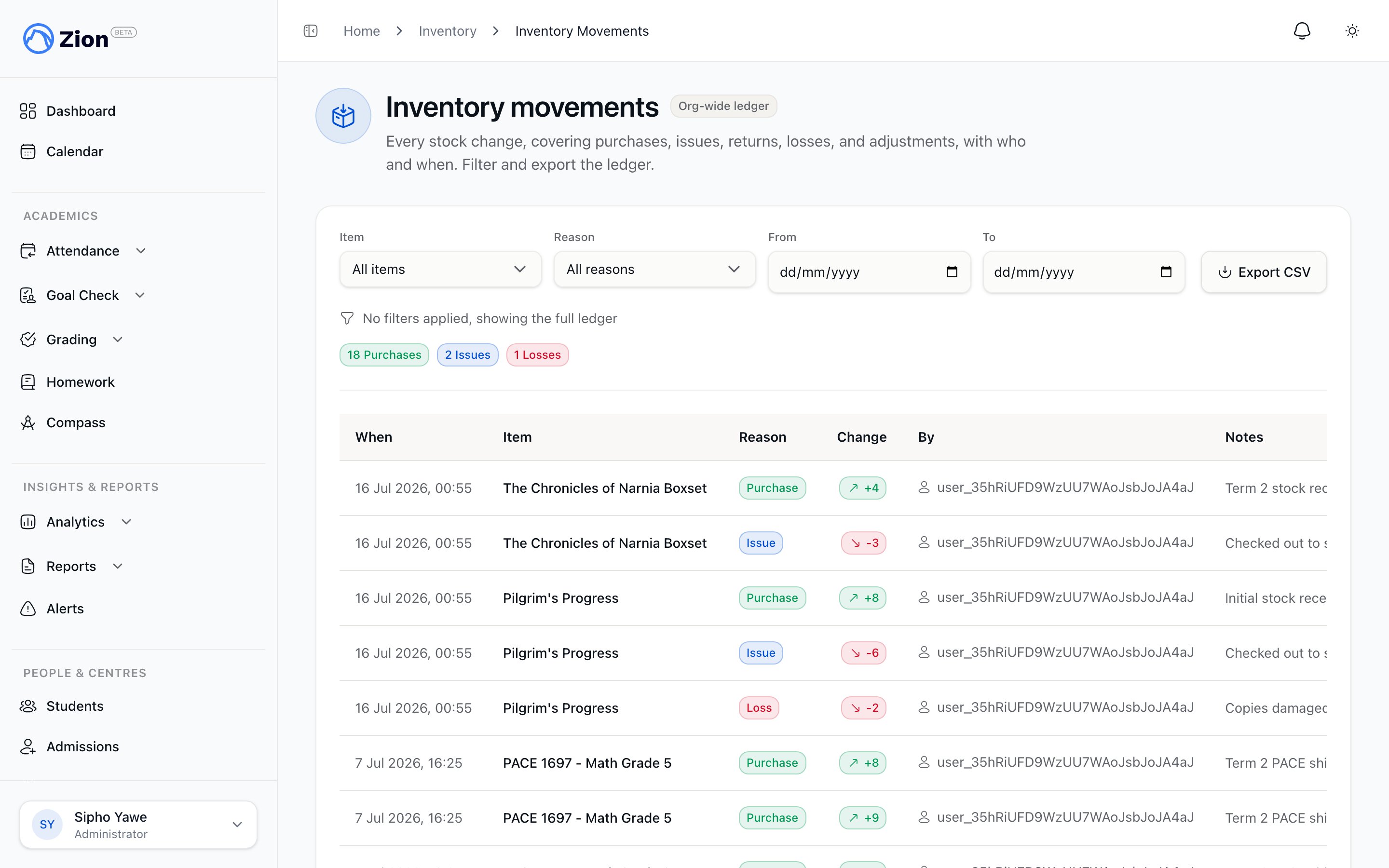
The movement ledger recording each stock change with its reason
1
Add a line for each PACE received
Select the PACE, enter the quantity received, and optionally add a note (for example, a supplier or invoice reference).
2
Add more rows as needed
Add or remove rows to cover every PACE in the shipment before submitting.
3
Record the shipment
Submit the form. Every line is recorded together: either the whole shipment posts, or none of it does, so a shipment can never be left half recorded.
4
Review Recent Shipments
The Recent Shipments panel below the form lists the most recent PACE shipments, ten at a time with a Load More button, showing the PACE name and number, quantity, notes, who received it, and the date. Administrators can also search it by PACE, staff member, or notes.
By subject
Use this when you want to key in received quantities for every PACE in one subject at once, for example after importing the full catalog and then working through it subject by subject.1
Open Bulk receive
Go to Programs & Resources > Inventory > Add Items, and choose Bulk receive.
2
Pick a subject
Every PACE tracked under that subject lists in a table with its current stock on hand and a quantity field.
3
Enter quantities
Type a received quantity for each PACE, or use ‘Set all to’ to fill every visible row with the same number in one action.
4
Receive
The quantities you enter add to each item’s current stock rather than replacing it. A PACE already sitting at 5 with 10 entered ends up at 15.
Adjust stock
Use Adjust Stock for corrections that are not a supplier shipment, such as a damaged booklet, a donation, or a recount that disagrees with the system.1
Open the item's actions menu
Go to Programs & Resources > Inventory > Add Items, find the item, and choose Adjust stock from its row actions.
2
Choose how to enter the change
Pick ‘Change by (+/-)’ to enter a signed delta, or ‘Set new count’ to enter the absolute quantity. If you choose Set new count, Zion works out the change for you.
3
Enter a reason
A reason note is mandatory on every adjustment (for example, damaged, donation, or recount).
4
Confirm a negative balance if prompted
The dialog shows the resulting on-hand count live. If the adjustment would take stock below zero, a confirmation explains that the balance becomes a recorded stock debt before you can submit.
5
Submit
The adjustment posts as an Adjustment movement, and quantity on hand is recalculated automatically, never written directly.
How each posts to the ledger
Every posted movement, regardless of source, appears in the item’s History dialog and in the org-wide movement ledger at Programs & Resources > Inventory > Inventory Movements, where it can be filtered by item, reason, and date range and exported to a spreadsheet. Every movement now shows the name of the staff member who recorded it, not just a raw account reference, whether it was a shipment, an adjustment, or an automatic issue.
What fires automatically
- Low-stock alert: fires when an issue movement or a negative adjustment crosses an item’s reorder threshold from above to at or below it. It is sent in-app and by email to every administrator, and to any supervisor granted permission to manage inventory, deduplicated to one alert per item per rolling 24-hour window.
- Restock-recovery notice: fires after a bulk receive or a positive adjustment brings a previously low item back above its reorder threshold.
- No alert on a zero threshold: setting an item’s reorder threshold to 0 disables low-stock alerting for that item entirely.
Inventory Overview
How the movement ledger model works and where inventory lives in the sidebar.
Inventory Reports
Stock on hand, low-stock widget, burn-rate forecast, and untracked PACEs.