

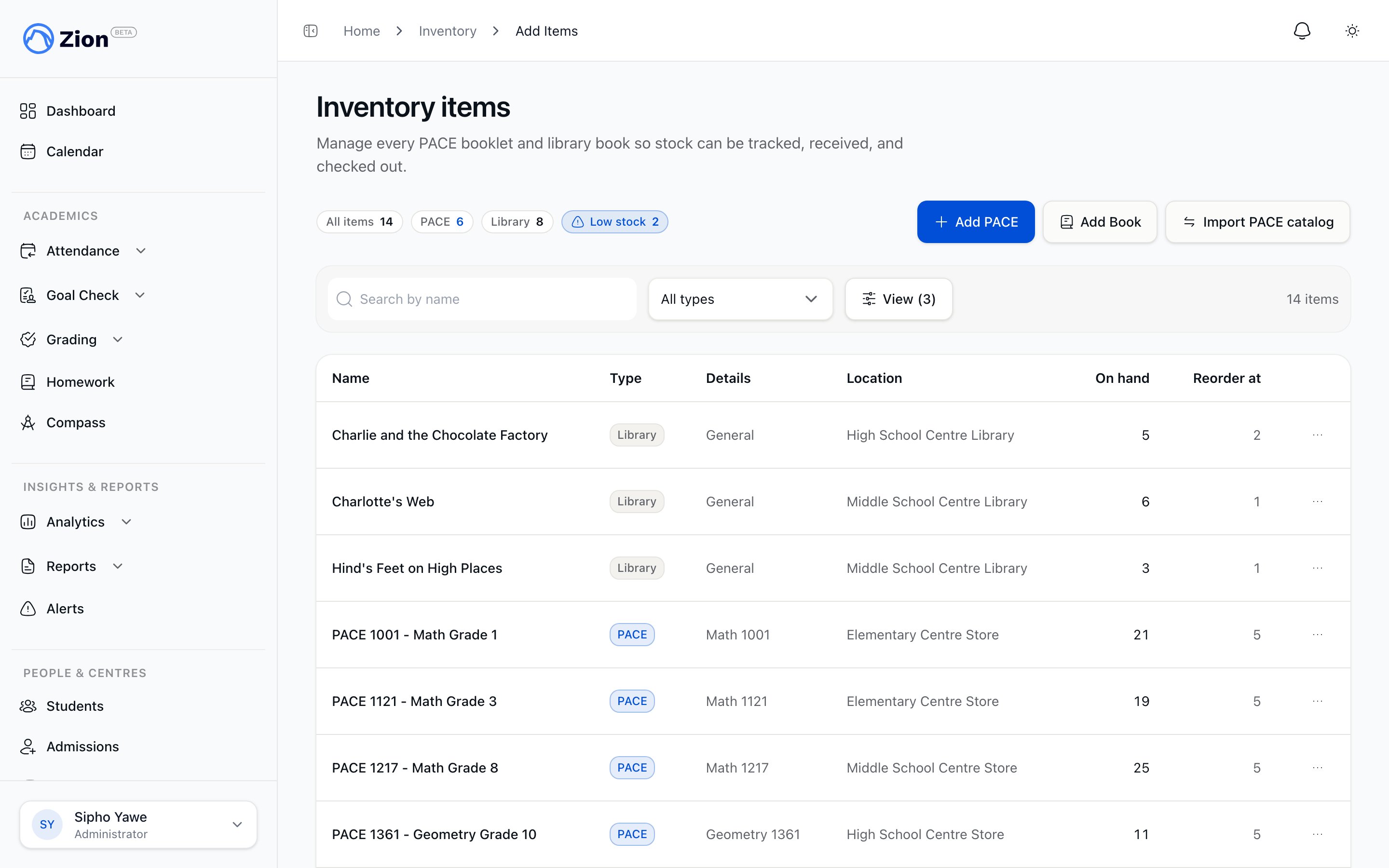
The inventory items list with quantity on hand for each item
Who can use it
- Administrator
- Supervisor
Full access: view items and reports, add and edit items, import the PACE catalog, receive shipments, adjust stock, and archive or restore items.
Why stock changes only through movements
Quantity on hand is never a field you fill in directly. Every increase or decrease is written as an entry in the movement list, with a reason:
Zion recalculates the on-hand total from these entries automatically. This keeps every stock change traceable to who did it, when, and why, and it works the same way whether the change came from a shipment, a student assignment, or a manual correction.
Quantity on hand can go negative. A negative balance represents a recorded stock debt rather than a hard floor, and adjustments that would push a count negative show a confirmation dialog before they are saved.
Assigning a PACE reduces stock automatically
When a PACE is assigned to a student, Zion matches it to an inventory item by PACE number and subject and records an issue movement for one unit. The item’s stock decreases automatically. No separate step is needed to record that a booklet went out. If a PACE is assigned but no inventory item exists with a matching number and subject, there is nothing to decrease, so stock does not change. Zion surfaces this as an untracked PACE nudge on the reports page so you can add the missing item. SeeInventory reports
Inventory reports
Adding and editing items
1
Open Inventory Items
Go to Programs & Resources > Inventory > Add Items.
2
Choose the item type
Click ‘Add PACE’ for a curriculum booklet, or ‘Add Book’ for a library item.
3
Fill in the details
For a PACE, enter the name, PACE number, and optional subject. For a library book, choose whether it is General or PACE-required.
4
Set opening quantity and reorder threshold
Opening quantity only applies when creating the item. The reorder threshold controls low-stock alerts; setting it to 0 turns those alerts off for that item.
5
Save
A duplicate PACE number and subject combination is rejected with an inline error.
Receiving and adjusting stock
Receiving and adjusting stock
Archiving and restoring an item
Zion never permanently deletes an inventory item. To retire one, choose Archive from its row menu instead. The item drops out of the active items list, reports, and low-stock alerts, while every movement and shipment ever recorded against it is kept. A library book with copies still checked out cannot be archived until every copy has been returned. To bring an archived item back, switch the list to Archived items and choose Restore from its row menu. It reappears in every list, report, and alert it was hidden from, with its full history intact.Importing the PACE catalog
Rather than adding every PACE by hand, the ‘Import PACE catalog’ button on the items page seeds an inventory item, with zero opening stock, for every curriculum PACE your school does not already track. Items are matched by PACE number and subject, so re-running the import is safe: it skips PACEs you already have and only adds what is missing.Removing PACEs you have never stocked
Importing the catalog can add hundreds of zero-stock PACEs your school never actually carries, which buries the ones you do stock in a long list. When this happens, a ‘Remove unstocked PACEs’ button appears next to Import PACE catalog. It archives every PACE booklet you have never received or adjusted, that is, still at zero stock with no history, leaving only the PACEs you actually hold. Nothing is lost: an archived PACE can be restored from the Archived items list, or is brought back automatically the next time you import the catalog.Where to go next
Receiving and adjusting stock
Record a PACE shipment line by line or by subject, or correct a count with a reasoned adjustment.
Inventory reports
Stock on hand, low-stock alerts, PACE burn-rate forecasts, and the library overview.
Library overview
Checkout, return, overdue, and lost-book workflows for library items tracked in the same catalog.
PACE assignments
Assign PACEs to students, the action that drives the automatic stock decrease.