

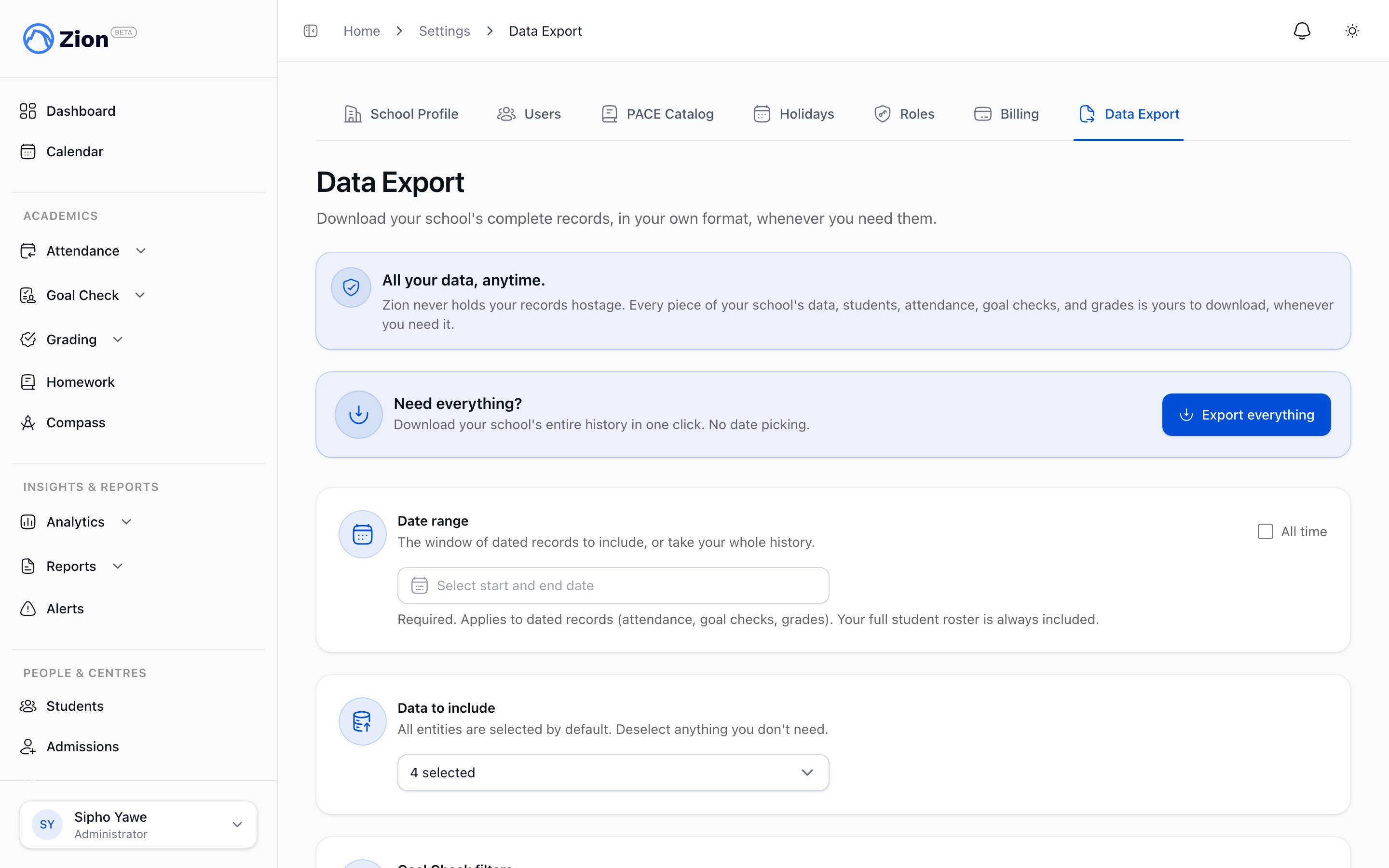
The export center with record type selection and scope filters.
What gets exported
A single request can include any combination of these record types:
Every export also includes a PDF school snapshot alongside the CSV files.
Report cards only appear as an export option if your school has report cards enabled. If you do not see it, ask an administrator to confirm the feature is turned on.
Who can export what
- Administrator
- Supervisor
Administrators export across the whole school. On the request form you can optionally narrow the export to one or more learning centres, or to a single student. Choosing a centre clears any student you had selected, and choosing a student clears any centres you had selected, since you can only narrow the export one way at a time.Administrators also see a one-click Export everything button that requests every record type across your school’s full history without picking a date range.
Requesting an export
1
Open Data Export
Go to Settings, then the Data Export tab.
2
Choose a date range
Pick a start and end date, or check All time to export full history. Custom date ranges are capped at 18 months; check All time if you need older records.
3
Select record types
Check what you want: students, attendance, goal checks, grades, and report cards where available. If you select goal checks, optional filters for completion status and PACE subject appear.
4
Scope the export (administrators only)
Optionally narrow the export to specific centres or a single student. Supervisors skip this step since their scope is applied automatically.
5
Submit the request
The export appears in the export history table as queued, then running.
6
Download when ready
Download from the history table, or from the link in the export-ready email. The link is valid for 7 days from when the export finishes.
Export history and states
Every request you make appears in the export history table on the same page. An export moves through these states:
From the history table you can re-run a past export, which prefills the request form with the same settings, and you can cancel, retry, or delete an export.
Download links always confirm your role and school before handing you a fresh link, no matter what link you follow. If the export is missing, expired, or belongs to a different school, you land on a plain expired page rather than an error message.
The old Goal Check export
The earlier Goal Check-only export screen no longer produces exports. It now shows a notice pointing you to the export center under Settings, Data Export. Its export history remains viewable for administrators for now, and any links generated there still follow their original 24-hour expiry rather than the export center’s 7-day window.Importing your school data
Bring students, PACE progress, and grades into Zion from a CSV.
Migration concierge
Have Zion staff run your legacy data import for you.
Goal Check reports
View Goal Check completion data inside Zion before exporting it.
Roles and permissions
See what each role can see and do across Zion.